ThinkPad Pen Tablets

ThinkPad 730T / 730TE

Machine Type 2524 · 1994–95 · 19 sections

IBM's pen tablets with a 9.5-inch 640×480 greyscale pen screen and PCMCIA storage: the 730T runs a 33 MHz 486SX with 4–24 MB of memory, the 730TE a 75 MHz IntelDX4 with 8–24 MB.

This transcribed historical service reference may contain incomplete captures. The linked original manuals remain authoritative.

Service Reference

Product Overview #

Two variants side by side, compiled from a hardware survey and IBM's product records. A value spanning several columns applies to each of those variants; a dash means no source records it.

Specifications by variant
Specification ThinkPad 730T ThinkPad 730TE
Released May 1994 October 1995
Processor Intel 486SX, 33 MHz (soldered QFP package on a daughtercard) Intel 486DX4, 75 MHz (soldered QFP package)
Chipset OPTi 82C463 —
Bus
  • Local memory bus
  • ISA bus
Memory Standard 4 or 8 MB; maximum 20 or 24 MB; IC DRAM card Standard 8 MB; maximum 24 MB; IC DRAM card
Storage PCMCIA hard disk: none or 105 MB; no drive adapter required PCMCIA hard disk: none or 260 MB; no drive adapter required
Display 9.5" backlit transflective passive matrix greyscale (16 shades), 640 × 480, with pen input
Graphics Western Digital WD90C24, 1 MB video memory Western Digital WD90C24A, 1 MB video memory
Audio PC speaker
Main battery NiMH, 1 or 2 packs
CMOS battery
  • Soldered lithium CMOS battery
  • NiCad reserve battery
—
Power connector Barrel jack —
Media drives None; external floppy drive supported
PC Card slots
  • 2 × PCMCIA
  • Slot 1: 2 × Type II or 1 × Type III (1 × Type II with a memory card fitted)
  • Slot 2: the PCMCIA hard disk if fitted, otherwise 2 × Type II or 1 × Type III
Networking None
Ports Docking connector
BIOS IBM BIOS with Easy-Setup
Pointing device Pen (digitiser)
IBM model codes — 4 models of machine type 2524
VariantModel codes
ThinkPad 730T2524-801, 2524-80F, 2524-901, 2524-90F

General Checkout #

Start here when the 730T or 730TE does not start or work correctly. Work through the numbered steps in order and, where a step asks a question, follow its Yes or No branch.

Use the following procedure as a guide for computer problems.

Note: The diagnostic tests are intended to test only IBM products. Non-IBM products, prototype cards or modified options can give false errors and invalid responses.

Attention If more than one error code appears, diagnose the first error code first. The cause of this first error code can cause additional false error codes to appear. Multiple error codes may appear on the LCD during POST process.
001
  • Power off the system and all external devices.
  • Check that all the cables and the power cord are properly connected
  • Power on the system while pressing the Suspend button with the Pen. Check for the following responses:
    • The power on indicator lights.
    • One long beep sounds.
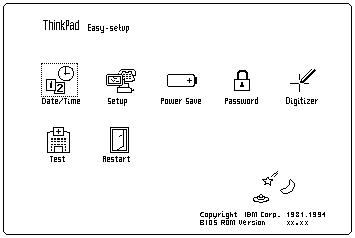
    • Memory test begins (memory size appears on the top-left corner of the screen) and the EASY-Setup screen or Password-Menu screen appears.

    Note: If the Pen is not held on the Suspend button when power is switched on, the user defined screen appears.

Did either the Easy-Setup or Password Menu screen appear?

Easy-Setup screen with icons for Date/Time, Setup, Power Save, Password, Digitizer, Test and Restart, and the BIOS ROM version

Yes — go to Step 003. No — go to Step 002.

002

Go to Step 004.

003

Enter the password on Password Menu screen, if it appeared. Select Test on the Easy-Setup screen and go to Step 007.

004

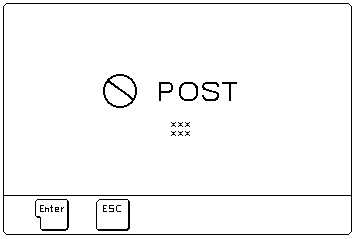
Did the following screen appear?

POST error screen: a prohibition symbol, the word POST and the error codes (xxx), with Enter and Esc buttons below

Yes — go to Step 006. No — go to Step 005.

005

Note the symptom. If the power does not come on completely, go to Power Systems Checkout and follow the procedure. If the power is on, but the expected screen does not appear, go to Symptom-to-FRU Index and find the symptom, such as No-Beep Symptoms, that matches your symptom and follow the instructions.

006

Note all error codes on the screen. Go to Symptom-to-FRU Index and find the error code and follow the instructions. If the problem remains, go to Undetermined Problems.

007

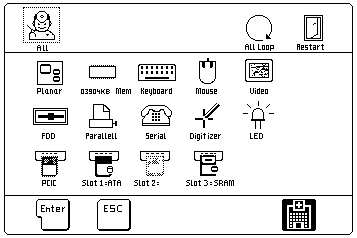
Did the Test Menu appear?

Test menu with All, All Loop and Restart icons above icons for each device to test: planar, memory, keyboard, mouse, video, FDD, parallel, serial, digitizer, LED, PCIC and slots 1 to 3

Yes — go to Step 009. No — go to Step 008.

008

Go to Symptom-to-FRU Index and find the error code or the symptom and follow the instructions. If the problem remains, go to Undetermined Problems.

009

Is the displayed configuration correct with the installed devices?

Note: The installed devices are displayed in dark shade and the uninstalled devices are displayed in gray shade. FDD, Parallel and Serial icons are always displayed in dark shade. That is, these icons represent adapters on the system board and do not represent external devices.

Yes — go to Step 011. No — go to Step 010.

011

Select All on the Test Menu and go to Step 012 (Diagnostic tests will run on all devices displayed in dark shade.)

012

Did the test find a device error?

A device error is displayed with an X over the device. The device ID (XXX), an error description code (YY), and FRU code (ZZZZ) are displayed: For example:

Example of a device error on the test menu: the device icon is crossed out with an X, with the codes XXX YY ZZZZ shown above it

XXX
Device ID
YY
Error Description Code
ZZZZ
FRU Code

Note: If the test stops or hangs when the test is running, replace the last device that was tested.

Yes — go to Step 014. No — go to Step 013.

013

The error was not detected by the test:

  • Check that the cables and connectors are not damaged.
  • Reconnect all adapters, drives, and modules then test the system several times. An All Loop option is available for looping all the test. To exit from the looping, select the test icon on the right, bottom corner of the screen at the time of between each test.
  • If no error is detected, go to Symptom-to-FRU Index and use the user reported symptoms.
  • If any errors are detected, go to FRU Codes.
014

Note the error code shown on the screen and go to FRU Codes and replace the appropriate FRU.

External Diskette Drive Checkout #

Use the following procedure to isolate the diskette problem to a controller, drive or diskette. A scratch, write enabled 2HD diskette is required.

  1. Select the icon FDD on the TEST MENU. By doing this, the controller test and the drive read/write test run. If the controller test detects an error, FRU code 10 appears. In this case, replace the system board.
  2. If the controller test run without errors, follow the instructions on the screen and insert a scratch diskette.
  3. If the drive test detects an error, FRU code 50 appears. If the diskette media are known to be good, replace the drive or the drive cable.

Printer Checkout #

Source: Hardware Maintenance Manual Volume 2: ThinkPad Computers, p.484

  1. Make sure the printer is properly connected and power is switched on.
  2. Run the printer self-test, if available. If the printer self-test does not run correctly, the problem is in the printer. Refer to the printer service manual.
  3. Disconnect the printer cable.
  4. Select Parallel on the Test Menu and perform the parallel test, if the printer is attached to the parallel port. If the test detects an error, replace the system board. If the test runs error free, replace the printer cable, and check by the program which may recreate the error. If the problem remains, replace the system board.

Installed Devices Check #

If a device is installed but the icon appears in gray shade rather than dark shade on the Test Menu, it means that the device is defective. Make sure that the device is connected properly. If the symptom continues, replace the device or the system board.

Short Circuit Test #

Use the following procedure to analyze a short or an open circuit in the computer.

  1. Visually check the cables, wires, and connectors for any short circuits, open wires, and damage. If a short circuit or burned part are found, replace the parts.
  2. Disconnect, then reconnect all the external devices from the computer one by one and see if the same symptoms appears. If you find that an external device has a problem, follow the maintenance procedure for that device.
  3. If the same symptom remains with no external device connected, the problem is in the computer. Isolate the failing component in the system unit by changing the FRU one by one until you find the problem. Replace the system board first.

    If the symptom is that the battery becomes low on power quickly, and all the tests run without detecting any errors, replace the battery pack first.

Memory Checkout #

Note: Before removing a IC DRAM card, switch off computer power.

To isolate the FRUs, remove the IC DRAM card and run the memory test again. Otherwise, replace the IC DRAM card. If an error occurs without the IC DRAM card, replace the memory card first. (The memory card contains the first 4 MB or 8 MB of the memory.) If the problem remains, replace the system board.

Power Systems Checkout #

Use the following procedure if you suspect a computer power problem, for example:

  • The computer does not power-on.
  • The computer attempts to power-on, then shuts down immediately.

Obtain from the user all information about the symptoms of the power failure.

001

Remove the battery. Does the computer fail only when using the AC adapter?

Yes — go to Step 003. No — go to Step 002.

002

Go to Step 004.

003

Go to AC Adapter Test and perform the test.

004

Install a charged battery. Disconnect the AC adapter. Does the computer fail only when using the battery?

Yes — go to Step 006. No — go to Step 005.

005

If the computer fails only when using the car battery adapter, go to Car Battery Adapter Test and perform the steps. If the symptom is both a AC and a DC power failure, go to AC Adapter Test and perform the test from step 5.

006

Does the battery go from full power to low power too quickly?

Yes — go to Step 008. No — go to Step 007.

007

Go to Battery Pack Test.

008

Using the AC adapter, perform Test from the Easy-Setup screen and select All to test all the devices. Go to step 009.

009

Did the test run successfully?

Yes — go to Step 011. No — go to Step 010.

010

If a FRU code is displayed, go to FRU Codes. If nothing is displayed, go to Symptom-to-FRU Index and replace the appropriate FRU.

011

Go to Short Circuit Test and follow the procedure.

AC Adapter Test #

Use the following procedure to analyze an AC adapter problem.

  1. Unplug the AC adapter from the power outlet and the computer.
  2. Inspect the AC adapter for any signs of overheating or damage.
  3. Inspect the AC adapter power cord for cuts or damage. Replace the power cord, if necessary.
  4. Plug the power cord into a power outlet. Listen for any sound that might indicate defective operation.
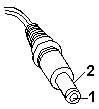
  5. Measure the output voltage at the AC adapter plug.

    DC plug of the adapter cable with pins 1 and 2 labelled for measuring the output voltage

    Pin Voltage (Vdc)
    1 +14 to +16
    2 Ground (sleeve)
    • If the voltage is incorrect, but not 0, replace the AC adapter.
    • If the voltage is 0, check the power cord and the power outlet.
    • If the power cord and power outlet are OK, replace the AC adapter.
    • If the voltage is correct, suspect a short circuit or a failure in the computer. Go to Short Circuit Test.

Car Battery Adapter Test #

Use the following procedure if you suspect a car battery adapter problem.

  1. Unplug the car adapter from the computer and the cigarette socket.
  2. Measure the cigarette socket voltage. It should be between 10.5 Vdc and 16.0 Vdc.
  3. Plug the adapter into the car socket. Measure the output voltage of the adapter.

    DC plug of the adapter cable with pins 1 and 2 labelled for measuring the output voltage

    Pin Voltage (Vdc)
    1 +14 to +16
    2 Ground (sleeve)
    • If the voltage is incorrect, but not 0, replace the car battery adapter.
    • If the voltage is 0, check the adapter connector has good contact with cigarette socket. If there is nothing wrong with the connection, replace the adapter.
    • If the voltage is correct, and the computer works with no problems with the AC adapter, replace the car battery adapter.
    • If the voltage is correct, and the computer fails with AC adapter also, do the AC Adapter Test procedure.

Battery Pack Test #

  1. Remove the battery pack.
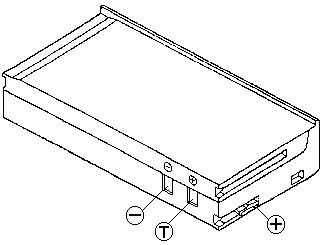
  2. Measure the voltage at the battery contacts

    Battery pack with the negative (-), T and positive (+) contacts marked for measuring the voltage

    Contacts Voltage (Vdc)
    + +6.0 to +8.4
    - Ground
  • If the voltage is not correct, charge the battery.
  • If the voltage is not correct after being charged, replace the battery.
  • If the voltage is correct, suspect a short circuit or failure in the computer. Go to Short Circuit Test.

Use the following procedure to check if the thermal protection has tripped.

  1. Measure the resistance with an ohmmeter between the (T) and (-) contacts.
  2. The resistance should not be open.

    The thermal protection is detected when the temperature exceeds 70°C to 80°C (158°F to 176°F). Wait until the temperature of the battery becomes low, then verify the conduction of the terminals. If it is open, replace the battery.

Symptom-to-FRU Index #

On this page the 730T/730TE index is split into Numeric Error Codes, FRU Codes, Beep Symptoms, No-Beep Symptoms and Miscellaneous Symptoms.

The Symptom-to-FRU Index lists the symptoms and errors and the possible causes. The most likely cause is listed first. Use this index to help you decide which FRUs to have available when servicing a computer.

For errors indicated by the diagnostic tests, see FRU Codes. If the symptom is not listed, go to Undetermined Problems.

In the following error codes, X can be any number.

Note: For IBM devices not supported by ThinkPad 730TE diagnostic code, refer to the manual for that device.

Undetermined Problems #

  1. Power off the system.
  2. Remove or disconnect one of the following devices:
    • Any external device or cables (including the keyboard)
  3. Switch on computer power and run diagnostic tests.
  4. If the symptom remains, repeat steps 1, 2 and 3 until you find the failing adapter or device.
  5. If all devices are disconnected and the symptom remains, go to Power Systems Checkout. If this does not solve the problem, replace the system board.
  6. If an intermittent problem remains after replacement of the FRUs, consider external electrical noise that can have effect on the computer. Check that the EMC contacts on the system board are not broken. The contacts are fragile and can be easily damaged.

Miscellaneous Symptoms #

Symptom/Error FRU/Action
Computer does not respond to Pen input.
  1. Pen
  2. LCD Assembly
  3. System Board
LCD backlight not functioning
  1. Inverter Card
  2. LCD Assembly
  3. System Board
LCD backlight intensity not adjustable
  1. Inverter Card
  2. LCD Assembly
  3. System Board
LCD contrast not adjustable
  1. LCD Assembly
  2. System Board
System hang or intermittent hang (See Undetermined Problems before replacing any FRUs.)
  1. Press Reset Button
  2. System Board
  3. Operating System
The system does not suspend or resume
  1. System Board
  2. LCD Assembly
The system does not power off
  1. Press Reset Button
  2. System Board
Real-time clock inaccurate
  1. System Board
Printer problems (See Printer Checkout)
  1. System Board
  2. Parallel Port Device Cable
Serial or parallel port device problems
  1. Device
  2. Device Cable
  3. System Board
LED incorrectly remains off, but system runs OK
  1. System Board
Modem Card does not communicate with a modem or FAX.
  1. Verify that the setup data defined by the communication software is suitable for the communication
  2. Modem Card

If the problem remains, see Undetermined Problems.

Numeric Error Codes #

Symptom/Error FRU/Action
10X
  1. System board
100 (Check Memory Checkout before changing any device.)
  1. IC DRAM Card
  2. Memory Card
  3. System Board
111
  1. Option Bus
  2. System Board
161
  1. System Board (Backup Battery)
162 (Check Installed Devices Check before changing any device.)
  1. Check Device Configuration
  2. System Board
  3. Diskette Drive Assembly
  4. Diskette Drive Cable
  5. Hard Disk Card
  6. Modem Card
163
  1. Set Time and Date
  2. System Board
164 (Check Memory Checkout before changing any device.)
  1. Check Device Configuration
  2. IC DRAM Card
  3. Memory Card
  4. System Board
1XX
  1. System Board
20X
  1. IC DRAM Card
  2. Memory Card
  3. System Board
21X
  1. IC DRAM Card
  2. Memory Card
  3. System Board
2XX (Check Memory Checkout before changing any device.)
  1. IC DRAM Card
  2. Memory Card
  3. System Board
301, 31X
  1. System Board
  2. Keyboard
  3. Port Replicator
304, 305
  1. System Board
  2. Mouse
  3. Keyboard
  4. Port Replicator
308
  1. System Board
3XX
  1. Keyboard
  2. Mouse
  3. System Board
  4. Port Replicator
601, 6XX (Go to the External Diskette Drive Checkout before changing any device.)
  1. System Board
  2. Diskette Drive Assembly
  3. Diskette Drive Cable
  4. Port Replicator
602
  1. Diskette Drive Assembly
9XX
  1. System Board
  2. Parallel Device
  3. Port Replicator
11XX
  1. System Board
  2. Serial Device
  3. Port Replicator
12XX
  1. System Board
  2. Serial Device
  3. Communication Cable
  4. Port Replicator
17XX
  1. Disk Drive Assembly
  2. System Board
24XX
  1. System Board
  2. LCD Assembly
5001 – 5016
  1. System Board
  2. LCD Assembly
5017 – 5020
  1. System Board
  2. LCD Assembly
8601, 8603
  1. System Board
  2. Mouse
  3. Port Replicator
86XX
  1. Mouse
  2. System Board
  3. Port Replicator
101XX
  1. Modem Card
  2. System Board
102XX
  1. System Board
I9990305
  1. Operating System
  2. OS Device

Beep Symptoms #

Symptom/Error FRU/Action
Continuous beep
  1. System Board
One beep and blank, unreadable, or flashing LCD
  1. LCD Assembly
  2. System Board
  3. Memory Card
  4. IC DRAM Card
One beep and the message Boot source cannot be found
  1. TPF
  2. System Board
One beep and the message Unable to access boot source
  1. TPF
  2. System Board
One long, two short beeps and a blank or unreadable LCD
  1. System Board
  2. LCD Assembly
Five very short beeps
  1. Connect an AC adapter or install a fully charged battery.
Ten very short beeps
  1. Connect an AC adapter or install a fully charged battery (allow system to complete shutdown before changing the battery). System is shutting down due to low battery voltage.
Two short beeps
  1. POST error. Refer to Numeric Error Codes list

No-Beep Symptoms #

Symptom/Error FRU/Action
No beep, Power-on LED not lit, and a blank LCD during POST (See Power Systems Checkout before replacing any FRUs.)
  1. System Board
  2. Power source when failing
No beep, Power-on LED lit, and a blank LCD during POST (See Power Systems Checkout before replacing any FRUs.)
  1. System Board
  2. CPU Card
  3. Memory Card
  4. IC DRAM Card
  5. Modem Card
No beep during POST, but system runs OK
  1. System Board (Speaker)
LCD screen unreadable or characters missing pels.
  1. LCD Assembly
  2. System board
One or more keys do not work
  1. Keyboard
  2. System board
Printer problems. (See Printer Checkout.)
  1. System Board
  2. Port Replicator
  3. Parallel Port Adapter Cable

FRU Codes #

If an error is detected by the diagnostic tests, a four-digit FRU code is displayed. The FRU code indicates two suspected FRUs.

Replace the FRU that is indicated by the two leftmost digits first, then replace the FRU indicated by the two rightmost digits. No FRU is assigned to code 00. If only one FRU is suspected, the other FRU code is filled with 00.

Use the External Diskette Drive Test to isolate diskette problems to a FRU.

If the problem still remains and the system board has not been replaced, replace the system board.

FRU Code FRU
10 System Board
11 CPU Card
20 Memory (See Memory Checkout)
30 Keyboard
31 Numeric Keypad
32 Keyboard, External
33 Mouse
36 LCD / Digitizer
40 LCD Assembly
41 External CRT
50 External Diskette Drive
60 System Board
65 IC Card Memory
68 TPF Card
68 Hard Disk Card
70 System Board (Printer)
71 System Board (Printer control)
85 System Board (Speaker)

Reset Button #

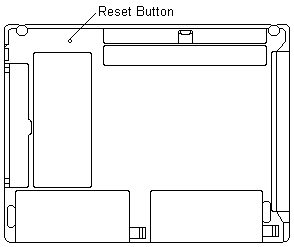
The reset button is used to power off the system when the system will not power off normally or when the system is hung.

Underside of the computer with the location of the reset button marked