ThinkPad Laptops

ThinkPad 365

Machine Type 2625 · 1995-97 · 139 sections

ThinkPad 365C/CD/CS/CSD/E/ED/X/XD value series.

Product Overview (365CD 365CS 365CSD) #

The ThinkPad 365 is a versatile, value-oriented notebook series well-equipped with multimedia capabilities.

Product Overview (365ED) #

The following provides an overview of the ThinkPad 365E and 365ED system features.

Feature Description
Processor 5x86C 100MHz
Bus Architecture AT/ISA Bus
Memory (Standard) ° 8MB Memory Board
° 16MB Memory Board
Memory (Option) 4MB, 8MB, or 16MB SO-DIMM
Memory (Maximum) 24MB
CMOS RAM 128 Bytes
Video ° 1MB Video RAM
° TFT or DSTN LCD color, supports
from 256 up to 65,536 colors.
° VGA (640 x 480 resolution)
° Brightness control
° Contrast control (DSTN Only)
Diskette Drive 1.44MB, 3.5-inch (removable)
1.44MB, 3.5-inch 3-Mode (Japan)
Hard Disk Drive 2.5-inch (removable)
Optional CD-ROM 5.25-Inch CD-ROM (4X) Drive
(365ED Model Only)
PCMCIA One Type-III
or Two Type-II
Keyboard 85-key, 86-key, or 90-key
TrackPoint
12 Function Keys
Audio 16-Bit (356ED Only)
Infrared (IR) IR Transceiver supports wireless
file and data transfer.

Test Group Specifications #

Note: In the Hard Disk Test Group specification area, if a software program was to compress your drive, the indicated size is the compressed size of the logical drive.

In the upper-right-hand portion of the testing screen (or just the upper portion if you switched to an individual test group screen) are the specifications for the related test group.

NOTE: In the Hard Disk Test Group specification area, if a software program was to compress your drive, the indicated size is the compressed size of the logical drive.

General Checkout #

Note: The diagnostic tests are intended to test only IBM products. Non-IBM products, prototype cards, or modified options can give false errors and invalid system responses.

Use the following procedure as a guide for computer problems.

NOTE: The diagnostic tests are intended to test only IBM products. Non-IBM products, prototype cards, or modified options can give false errors and invalid system responses.

  1. Obtain the failing symptoms in as much detail as possible.  Pay close attention to the error messages on the screen.
  2. Verify the symptoms by attempting to recreate the failure by  running the diagnostic test or by repeating the same operation. To run the diagnostics, refer to How to Run Diagnostics

Use the following table to locate the description that best matches the symptom, then go to the page indicated.

Symptom Go to
AC Adapter Checking the AC Adapter
Audio Card Audio Card Checkout
Battery Pack Checking the Battery Pack
Configuration is not the same as the installed devices. How to Run Diagnostics
Diskette Drive Diskette Drive Checkout
Keyboard/Auxiliary Device (Mouse/Pointing Device) Keyboard/Aux. Input Device Checkout
Memory related problems Memory Checkout
Operational Charging Checking Operational Charging
Other symptoms. (Such as LCD problems.) Symptom-to-FRU Index, and then use Other Symptoms tables.
Port Replicator Port Replicator Power Overload
POST does not complete. No beeps/error code are indicated. Symptom-to-FRU Index, and then use the No Beep Symptoms table.
POST beeps, but no error codes are displayed. Symptom-to-FRU Index, and then use the Beep Symptoms table.
POST detected an error and displayed numeric error codes. Symptom-to-FRU Index, and then use the Error Message table.
Power failure. (The power indicator does not go on or stay on.) (The power indicator does not go on or stay on.) Power Systems Checkout
Symptoms cannot be recreated. (Intermittent problems.) Use the customer reported symptoms and go to Symptom-to-FRU Index
TrackPoint III will not work TrackPoint III Checkout

Checkout Guide #

Note: The diagnostic tests are intended to test only IBM products. Non-IBM products, prototype cards, or modified options can give false errors and invalid system responses.

Note: To run the diagnostics, refer to 'How to Run the Diagnostics'

Use the following procedure as a guide for computer problems.

NOTE: The diagnostic tests are intended to test only IBM products. Non-IBM products, prototype cards, or modified options can give false errors and invalid system responses.

  1. Obtain the failing symptoms in as much detail as possible.- Verify the symptom. Attempt to recreate the failure by running the  diagnostic tests or retrying the same operation.

    NOTE: To run the diagnostics, refer to 'How to Run the Diagnostics'

    • Use the following table with the verified symptom to determine  which page to go to. Search the symptoms column  and find the description  that best matches your symptom; then go to the page shown in the Go to column.
    Symptom Go to
    Power failure. (The power indicator does not go on or stay on.) 'Power Systems Checkout'
    POST does not complete. No beeps/error code are indicated. 'Symptom-to-FRU Index' and then use the 'No Beep Symptoms' table.
    POST beeps, but no error codes are displayed. 'Symptom-to-FRU Index' and then use the 'Beep Symptoms' table.
    POST detected an error and displayed numeric error codes. 'Symptom-to-FRU Index' and then use the 'Numeric Error Codes' table.
    The diagnostic test detected an error and displayed an FRU code. 'How to Run the Diagnostics'
    The configuration is not the same as the installed devices. 'Checking the Installed Devices List'
    Other symptoms (such as LCD display problems). 'Symptom-to-FRU Index', and then use the 'Other Symptoms' table.
    Symptoms cannot be recreated. (Intermittent problems.) Use the customer reported symptoms and go to 'Symptom-to-FRU Index'

How to Run Diagnostics #

The QAPlus/PRO diagnostic program, developed by DiagSoft for IBM, is the primary method of testing the computer. It is unique to the ThinkPad 365 and will not run on other models.

You can use it to test the IBM components of the system and some external devices. The amount of time required to test all components depends on the number of components. The more optional adapters and devices you have attached to your system, the longer the testing takes.

warn  Before loading the diagnostics program:

  1. Go to a DOS full screen.
  2. Press Ctrl + Alt + F11 to go to the setup  screen.
  3. Verify all peripherals devices are enabled.
  4. Page Down to the second page and verify all peripherals are enabled.

The diagnostics program is intended to test only IBM products. Non-IBM products, prototype cards, or modified options can give false errors and invalid system responses.

Using the Diagnostics Test Programs #

To load the IBM ThinkPad 365 Advanced Diagnostics Diskette, see 'Loading the IBM ThinkPad 365 Advanced Diagnostics Diskette'

The test programs provide tests and utilities for users and service or support professionals to troubleshoot even the most difficult problems.

You can maneuver within the test programs by typing the first letter of a menu choice, or using the TrackPoint III pointer.

Throughout the test programs, pressing the first letter of an option on a menu is the same as moving to that item with the cursor and pressing Enter.

Loading the IBM ThinkPad 365 Advanced Diagnostics Diskette #

warn  To use the IBM ThinkPad 365 Advanced Diagnostics Diskette, you must have at least 500KB of free memory. Be sure to read the README.PO file on the IBM ThinkPad 365 Advanced Diagnostics Diskette before using the following instructions.

  1. Power-off the computer.
  2. Insert the IBM ThinkPad 365 Advanced Diagnostics Diskette into drive A.
  3. Power-on the computer.
  4. Follow the instructions on the screen and proceed to the  Main Menu. Allow two to four minutes for the diagnostic  programs to load.
  5. At the Main Menu, select the test to run.
  6. Press Enter to run the test selected.
  7. After starting a test, do not press any key until prompted,  then follow the instructions on the screen.
  8. When the test is completed, press Esc twice to return  to the main menu.
  9. Select Exit .

How to Run the Diagnostics #

Note: The following tools are required:

testpi   How to Run the Diagnostics

Use either the TrackPoint III or the cursor move keys to interact with the tests. The Enter key works the same as selecting the OK icon to reply OK.

NOTE: The following tools are required:

FDD        Erasable 2HD diskette
       Parallel   Wrap plug     (P/N 72X8546)
       Serial     Wrap plug     (P/N 72X8546)
       PCMCIA     PC Test Card  (P/N 35G4703)

  1. Press and hold the F1 key, then power-on the computer.  Hold the F1 key down until the Easy-setup screen appears.- Select Test and press Enter.- Select a device and press Enter to run the test.- The test progress screen appears.- OK appears when the test ends without any errors.- Start the Advanced Diagnostic test by pressing Ctrl+A on the basic diagnostic menu screen.- Select Tool to install the tools.- Select a device, press the Spacebar and  install the tool. Multiple devices can be selected by repeating  this step.
               A **OK Check Mark** appears for the selected device.
             - Select **OK** and press Enter
                if the selection is OK.- Select a device and press Enter to start the tests.- Select **Test All** to test all devices.- Select **Loop Test** to loop tests.
    
                      A loop option menu appears in which a device loop or all loop can be
                      selected. Select a device and press the **spacebar** to select
                      a device. Repeat this step to select multiple devices.
                      Press Enter to start the diagnostic loop. If no device is selected,
                      all device tests are looped.
    
                     - To exit the loop,
                        keep pressing **Ctrl+Pause** until the test exits.
                        A beep sounds to notify that the exit interrupt is sensed by the taest program.
    

Running the Diagnostics (60x 70x) #

Note: The following are the special tools used with the diagnostics.

testpi   Running the Diagnostics

Use either the TrackPoint III or the cursor move keys to interact with the tests.

The Enter key works the same as selecting the OK icon to reply OK.

NOTE: The following are the special tools used with the diagnostics.

Tool Name Part Number
PC test card 35G4703
Tri-connector wrap plug 72X8546
USB parallel test cable 05K2580
  1. Press and hold the F1 key, then power-on the computer.

Hold the F1 key down until the Easy-setup window appears.- Click on Test. The basic diagnostic menu window appears.- Click on a device to run the test.  The test progress screen appears, then OK appears under the tested device icon when the test ends without any errors.- Start the Advanced Diagnostic test by pressing Ctrl+A on the basic diagnostic menu screen.  The ThinkPad FRU connections window appears.- Click on Exit or press Esc key. The keyboard test window appears.- When you press a key, a mark appears or disappears on the corresponding key position  on the screen. Repeat this step for any keys that need to be tested. You can run the keyboard  test if you press Ctrl+K key at the advanced diagnostic test mode.- To exit the keyboard test, click on Exit or press Ctrl+Break. The  Advanced Diagnostics window appears:

           ![560_5](/static/parts/img/4a3178398908.gif)


           - Click on a device, to test it, or click on **Test All** to test
              all devices.

              Click on **Looptest** to run tests in a repeated loop. The loop option menu window appears.
              Click on a device, the **OK** mark appears beside the selected device. Repeat this step to select multiple devices.
              Click on **OK** to start the diagnostic loop. If no device is selected, all devices tests are looped.

             - To exit the loop,
                keep pressing **Ctrl+Pause** until the test exits.

                A beep sounds to notify that the exit interrupt is sensed by the test program.

                Press **Esc** to exit from the loop test.

Symptom-to-FRU Index #

Note:

  • If you have both an error message and an  incorrect audio response, diagnose the error message first.- Check all power supply voltages before you replace the system board.  (See 'Power Systems Checkout').

The Symptom-to-FRU Index lists error symptoms and possible causes. The most likely cause is listed first. Always begin with 'General Checkout' This index can also be used to help you decide which FRUs to have available when servicing a computer.

If you are unable to correct the problem using this index, go to 'Undetermined Problems'

NOTE:

  • If you have both an error message and an  incorrect audio response, diagnose the error message first.
  • Check all power supply voltages before you replace the system board.  (See 'Power Systems Checkout' ).

Symptom-to-FRU Index - ThinkPad 560 #

Note: Perform the FRU replacement or actions in the sequence shown in the FRU/Action column. If a FRU does not solve the problem, put the original part back in the computer and perform the next action.

Note: For IBM devices not supported by diagnostic codes in the ThinkPad notebook computers, see the manual for that device.

The Symptom-to-FRU Index lists the symptoms, errors, and possible causes. (It can be used to help you decide which FRUs to have available when servicing the computer.) The most likely cause is listed first.

NOTE: Perform the FRU replacement or actions in the sequence shown in the FRU/Action column. If a FRU does not solve the problem, put the original part back in the computer and perform the next action.

Numeric error codes show the errors detected in POST or system operation. In the following error codes, X can be any number.

If no codes are available, use narrative symptoms.

If the symptom is not listed, go to 'Undetermined Problems'

NOTE: For IBM devices not supported by diagnostic codes in the ThinkPad notebook computers, see the manual for that device.

For 2640-560 see -> 'Numeric Error Codes'

For 2640-560x 60x, 70x see -> 'Numeric Error Codes'

Numeric Error Codes #

Symptom/Error FRU/Action
10X 1. System Board
101 Interrupt failure
102 Timer failure
103 Timer interrupt failure
104 Protected mode failure
105 Last 8042 command- -not accepted
107 NMI test failure
108 Timer bus test failure
109 Low meg-chip select test
110 1. Go to 'Memory Checkout'
2. DIMM Card
3. The computer is attached to the expansion unit
4. System Board
111 1. Go to 'Memory Checkout'
2. System Board
161 (Dead battery) 1. Go to 'Checking the Backup Battery'
2. Backup Battery
3. System Board
163 (Time and Date was not set.) 1. Reseat the keyboard connector on the system board
2. Set Time and Date
3. System Board
173 (Configuration data were lost.) 1. Reseat the keyboard connector on the system board
2. Select OK in the error screen, then set time and date.
3. Backup Battery
4. System Board
174 Configuration error (Perform 'Checking the Installed Devices List' before changing any FRUs.) 1. Check Device Configuration.
2. System Board
3. Diskette Drive Assembly
4. Hard Disk Drive Assembly
184 (POP check sum error.) 1. Reset the POP in Easy-Setup.
190 (A depleted battery pack was installed when the power was on.) 1. Go to 'Checking the Battery Pack'
191XX (PM initialzation error) 1. System Board
195 (The configuration read from the hibernation area does not match the actual configuration.) 1. Check if the configuration was changed For example, check if the DIMM card is added.
196 (Read error occured in the hibernation area of the HDD.) 1. Run the hard disk drive test
2. Hard Disk Drive
1XX 1. System Board
2XX 1. Go to 'Memory Checkout'
201 Memory data error 2. DIMM Card
202 Memory line error 00-15 3. System Board
203 Memory line error 16-23
205 Memory test failure on on-board memory
221 ROM to RAM remap error
301, 303, 304, 305, 3XX (Keyboard error) 1. Go to 'Keyboard / Auxiliary Input Device Checkout'
2. Keyboard
3. External Numeric Keypad
4. External Keyboard
5. Keyboard/Mouse Cable
6. System Board
601, 6XX (Diskette drive or controller error.) 1. Go to 'Diskette Drive Test'
2. Diskette Drive Assembly
3. Diskette
4. System Board
602 (Diskette read error.) 1. Go to 'Diskette Drive Test'
2. Diskette
3. Diskette Drive Assembly
604 (Non-acceptable ID was read from the diskette drive.) 1. Go to 'Diskette Drive Test'
2. Diskette Drive Assembly
3. System Board
11XX 1101 Serial A test failure 1. Serial Device (First)
2. Communication Cable
3. System Board
12XX 1101 Serial B test failure 1. System Board (Infrared)
17XX 1701 Hard sisk controller failure 1780, 1790 Hard disk 0 error 1781, 1791 Hard disk 1 error 1. Hard Disk Drive
2. System Board
24XX 2401 System board video error 1. System Board
808X 8081 PCMCIA presence test failure (PCMCIA revision also checked) 8082 PCMCIA register test failure 1. PCMCIA Slot Assembly
2. PCMCIA Device
3. System Board
860X (Pointing device error when TrackPoint III is disabled.) 1. External Mouse
2. External Keyboard
3. System Board
8601 Systembus error- 8042 mouse interface
8602 External mouse error
8603 System bus error or mouse error
861X (Pointing device error when TrackPoint III is enabled.) 1. Reseat the keyboard cable on the systemboard.
2. Keyboard
8611 System bus error-I/F between 8042 and IPDC 3. External Mouse
4. System Board
8612 TrackPoint error
8613 System board or TrackPoint error.
I9990301 1. Check that the operating system.
I9990302 is installed in the HDD.
I9990305 I9990301 Hard disk error I9990302 Invalid hard disk boot record. I9990305 No bootable device If not, install the operating system.
2. Reseat the boot device
3. Check the startup sequence for the correct boot device.
4. Check that the operating system has no failure and is installed correctly
I9990303 Bank-2 flash ROM checksum error 1. System Board
Other codes not listed above 1. Go to 'Undetermined Problems'

Numeric Error Codes (60x 70x) #

Numeric Error Codes

Symptom/Error FRU/Action
10X 1. System Board
101 Interrupt failure
102 Timer failure
103 Timer interrupt failure
104 Protected mode failure
105 Last 8042 command- -not accepted
107 NMI test failure
108 Timer bus test failure
109 Low meg-chip select test
110 1. Go to 'Memory Checkout'
2. DIMM Card
3. The computer is attached to the expansion unit
4. System Board
111 1. Go to 'Memory Checkout'
2. System Board
158 (Hard disk password was not set even thought the supervisor password is set.) 1. Set the password for hard disk drive
159 (Hard disk password is not set the same as the supervisor password.) 1. Set the correct password for hard disk drive
161 (Dead battery) 1. Go to 'Checking the Backup Battery'
2. Backup Battery
3. System Board
163 (Time and Date was not set.) 1. Reseat the keyboard connector on the system board
2. Set Time and Date
3. System Board
173 (Configuration data were lost.) 1. Reseat the keyboard connector on the system board
2. Select OK in the error screen, then set time and date.
3. Backup Battery
4. System Board
174 Configuration error (Perform 'Checking the Installed Devices List' before changing any FRUs.) 1. Check Device Configuration.
2. System Board
3. Diskette Drive Assembly
4. Hard Disk Drive Assembly
175, 177, 178 1. System Board
175: EEPROM CRC #1 error
177: Supervisor password checksum error.
178: EEPROM is not functional
183 (Incorrect password entered at the supervisor password prompt.) 1. Have the user examine the password
184 (POP check sum error.) 1. Reset the POP in Easy-Setup.
185 (The startup sequence is not valid. Suspect that power was off when the startup sequence was beeing updated.) 1. Reset the startup sequence in Easy-Setup.
186 1. System Board.
190 (A depleted battery pack was installed when the power was on.) 1. Go to 'Checking the Battery Pack'
191XX (PM initialzation error) 1. System Board
195 (The configuration read from the hibernation area does not match the actual configuration.) 1. Check if the configuration was changed For example, check if the DIMM card is added.
196 (Read error occured in the hibernation area of the HDD.) 1. Run the hard disk drive test
2. Hard Disk Drive
1XX 1. System Board
2XX 1. Go to 'Memory Checkout'
201 Memory data error 2. DIMM Card
202 Memory line error 00-15 3. System Board
203 Memory line error 16-23
205 Memory test failure on on-board memory
221 ROM to RAM remap error
301, 303, 304, 305, 3XX (Keyboard error) 1. Go to 'Keyboard / Auxiliary Input Device Checkout'
2. Keyboard
3. External Numeric Keypad
4. External Keyboard
5. Keyboard/Mouse Cable
6. System Board
601, 6XX (Diskette drive or controller error.) 1. Go to 'Diskette Drive Checkout'
2. Diskette Drive Assembly
3. Diskette
4. System Board
602 (Diskette read error.) 1. Go to 'Diskette Drive Checkout'
2. Diskette
3. Diskette Drive Assembly
604 (Non-acceptable ID was read from the diskette drive.) 1. Go to 'Diskette Drive Checkout'
2. Diskette Drive Assembly
3. System Board
11XX 1101 Serial A test failure 1. Serial Device (First)
2. Communication Cable
3. System Board
12XX 1101 Serial B test failure 1. System Board (Infrared)
17XX 1701 Hard sisk controller failure 1780, 1790 Hard disk 0 error 1781, 1791 Hard disk 1 error 1. Hard Disk Drive
2. System Board
24XX 2401 System board video error 1. System Board
808X 8081 PCMCIA presence test failure (PCMCIA revision also checked) 8082 PCMCIA register test failure 1. PCMCIA Slot Assembly
2. PCMCIA Device
3. System Board
860X (Pointing device error when TrackPoint III is disabled.) 1. External Mouse
2. External Keyboard
3. System Board
8601 Systembus error- 8042 mouse interface
8602 External mouse error
8603 System bus error or mouse error
861X (Pointing device error when TrackPoint III is enabled.) 1. Reseat the keyboard cable on the systemboard.
2. Keyboard
8611 System bus error-I/F between 8042 and IPDC 3. External Mouse
4. System Board
8612 TrackPoint error
8613 System board or TrackPoint error.
I9990301 1. Check that the operating system.
I9990302 is installed in the HDD.
I9990305 I9990301 Hard disk error I9990302 Invalid hard disk boot record. I9990305 No bootable device If not, install the operating system.
2. Reseat the boot device
3. Check the startup sequence for the correct boot device.
4. Check that the operating system has no failure and is installed correctly
I9990303 Bank-2 flash ROM checksum error 1. System Board
Other codes not listed above 1. Go to 'Undetermined Problems'

Beep Symptoms — 1 #

Beeps symptoms are short tones or a series of short tones separated by pauses (intervals without sound). See the following examples.

Beep Symptom FRU/Action
1-1-3 CMOS write/read test in progress or failure. 1. Run Setup
2. System Board
1-1-4 ROM BIOS check error. 1. System Board
1-2-1 Programmable interval timer 0 test in progress or failure. 1. System Board
1-2-2 DMA channel 0 address and count register test in progress or failure. 1. System Board
1-2-3 DMA page register write/read in progress or failure. 1. System Board
1-3-1 RAM refresh verification test in progress or failure. 1. System Board
1-3-3 First 64K RAM chip or data line failure, multi-bit. 1. RAM Memory Board
2. System Board
1-4-2 Parity failure first 64K RAM. 1. System Board
1-4-3 Fail-safe timer failure (only used by EISA BIOS). 1. System Board
1-4-4 Software NMI port failure (only used by EISA BIOS). 1. System Board
2-1-1, 2-1-2, 2-1-3 1. RAM Memory Board
2-1-4, 2-2-1, 2-2-2 2. System Board
2-2-3, 2-2-4, 2-3-1
2-3-2, 2-3-4, 2-4-1
2-4-2, 2-4-3, 2-4-4 First 64K RAM chip or data line failure on bit x.
3-1-2 Master DMA register test in progress or failure. 1. System Board
3-1-3 Master interrupt mask register test in progress or failure. 1. System Board
3-1-4 Slave interrupt mask register test in progress or failure. 1. System Board
3-2-4 Keyboard controller test in progress or failure. 1. System Board
2. Keyboard
3. Keyboard Card
3-3-1 Slave DMA register test in progress or failure. 1. System Board
3-3-4 Screen memory test in progress or failure. 1. System Board
3-4-1 Screen initialization in progress. 1. System Board
3-4-2 Screen retrace test in progress. 1. System Board
4-2-1 Timer-tick interrupt test in progress or failure. 1. System Board
4-2-2 Shutdown test in progress or failure. 1. System Board
2. Processor Card
4-2-3 Gate A20 failure. 1. System Board
4-2-4 Unexpected interrupt in protected mode. 1. System Board
2. Processor Card
4-3-1 RAM test of memory above 64K in progress or failure. 1. RAM Memory Board
2. SO DIMM
3. System Board
4-3-2 Programmable interval timer channel 2 test in progress or failure. 1. System Board
4-3-4 Real-time clock test in progress or failure. 1. System Board
4-4-1 Serial port test in progress or failure. 1. System Board
4-4-2 Parallel port test in progress or failure. 1. System Board
4-4-3 Math coprocessor test in progress or failure. 1. Processor Card
2. System Board

No Beep Symptoms — 1 #

Symptom/Error FRU/Action
No beep during POST but computer works correctly. 1. System Board
2. Audio card
No beep during POST and no display. 1. See 'Undetermined Problems'
2. System Board
3. Audio card
4. Memory
5. See 'Power Systems Checkout'

No Beep Symptoms — 2 #

Symptom/Error FRU/Action
No beep, power-on indicator not on, 1. Go to Power Systems Checkout
and a blank LCD during POST. 1. ° For TP 2640-560
° For TP 2640-560x (60x, 70x)
2. System Board
3. Power Sources
No beep, power-on indicator on, and a blank LCD during POST. 1. System Board
No beep, power-on indicator on, and a blinking cursor only during POST. 1. System Board
No beep during POST, but system runs correctly. 1. Turn the volume up and check. to the speaker
2. Speaker
3. System Board

Beep Symptoms — 2 #

Symptom/Error FRU/Action
Continuous beeps. 1. System Board
One beep and a blank, unreadable, or flashing LCD. 1. Reseat the LCD connector
2. LCD Assembly
3. System Board
One beep, and the message, Unable to access boot source 1. Boot device.
2. System Board
One long, two short beeps and a blank or unreadable LCD. 1. System Board
2. LCD Assembly
One long beep followed by four short beeps each time the power switch is operated (System cannot power-on due to low battery voltage.) 1. Connect the AC Adapter or install a fully-charged battery
One beep every second. (System is shutting down due to low battery voltage.) 1. Connect the AC Adapter or install a fully-charged battery (allow the system to completely shutdown before changing the battery.)
Two short beeps with error codes. 1. POST error. See Numeric Error Codes
° TP 2640-560
° TP 2640-560x (60x, 70x)
Two short beeps with blank screen. 1. System Board

Intermittent Problems #

Intermittent system hang problems can be caused by a variety of reasons that have nothing to do with a hardware defect such as:

cosmic radiation, electrostatic discharge, or software errors.

FRU replacement should only be considered when a recurring problems exits.

When analyzing the intermittent problem, do the following:

  1. Run the diagnostic test for the system board in loop mode  at least 10 times.
  2. If any error is detected, replace the FRU indicated.  Rerun the test to verify that no more errors exist.

FRU Removals and Replacements #

reminpi   FRU Removals and Replacements

This section contains information about removals and replacements.

  • The system board is sensitive to, and can

be damaged by, esdpi   electrostatic discharge. Establish personal grounding
 by touching a ground point with one hand before touching these units.

An electrostatic esdpi   discharge (ESD) strap must be used to establish
 personal grounding.- Do not damage any part. Only certified trained personnel  should service the computer.- The arrows in the 'Removals and Replacements' section show  the direction of movement to remove a FRU, or to turn a screw to release  the FRU. The arrows are marked in numeric order, in square callouts, to  show the correct sequence of removal.- When other FRUs must be removed before removing the failing FRU,  they are listed at the top of the page.- To replace a FRU, reverse the removal procedure and follow any  notes that pertain to replacement. See Locations for internal  cable connections and arrangement information.- When replacing a FRU, use the correct screw size as shown in the  procedures.

warn  Before the computer is powered-on after FRU replacement, make sure all screws, springs, or other small parts, are in place and are not left loose inside the computer. Verify this by shaking the computer and listening for rattling sounds. Metallic parts or metal flakes can cause electrical short circuits.

warn1   pleaseREAD**** - see

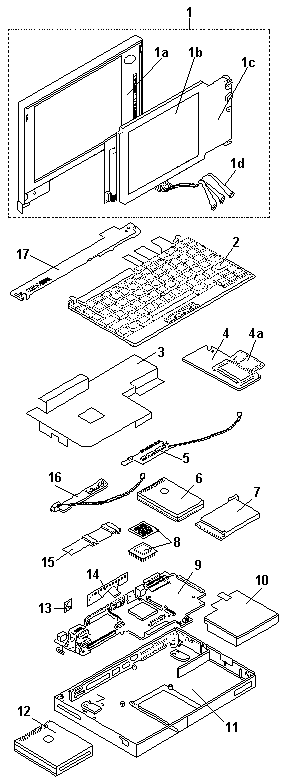
Parts Listing 365C, CD, CS, CSD #

d3kc6170

Parts Listing 365E, 365ED #

d3kc6170

Common Devices Checkout #

ThinkPad Common Parts List

ThinkPad - Common Parts Listing #

Common Parts Listing

This section contains FRUs common to most IBM portable, laptop, and notebook computers.

External Diskette Drives

5.25-Inch Diskette Drives:
360KB External (4869-360KB External (4869-360KB External (4869-360KB External (4869-001)))) 72X6759
360KB External (4869-501) 72X6768
1.2MB External (4869-1.2MB External (4869-1.2MB External (4869-1.2MB External (4869-002)))) 15X7993
1.2MB External (4869-502) 15X7994
Hard Disk Drive.
1.2GB HDD (for all 9545) 85G8549
5.25-Inch Drive Adapter 72X6757
5.25-Inch Drive Adapter/A 15F7996
5.25-Inch External Diskette Drive Cable
(from system board to adapter) 27F4211
Diskette Drive Bus Adapter 72X8524

CD-ROM Drives

Enhanced Internal CD-ROM II Drive
(Eject button below slot) 61G1901
Internal CD-ROM I Drive
(Eject button above slot) 81F7930
Terminator Kit (for 81F7930) 59F3530
Cleaning Kit (for 81F7930)
(Disks, CD Caddy) 59F3562
Internal CD-ROM II Drive
(Eject button below slot) 92F0084
Terminator Kit (for 92F0084) 92F0082
Media Kit (for 92F0084)
(No cleaning necessary,
Test Disk, CD Caddy) 31F4232
Signal Cable 34F0043
Power Cable 72X8521
Remote ID Switch Cable (3510) 92F0086
Audio Card, Cable, Screws (3510) 92F0085
CD Caddy 22F9419
Rail Kit (3510) 34F0041
Headphones 53F3610

SCSI Adapters, Terminators, Cables

SCSI Adapter/A (without Cache) 85F0002
SCSI Internal Cable 64F4127
SCSI Adapter/A (with Cache) 85F0063
Terminator, External (for 85F0063) 33F8464
Terminator, Internal (for 85F0063) 34F0025
Terminator, Internal (for 85F0002) 57F2870
SCSI Fast Adapter (16 bit) 92F0330
SCSI External Cable (for 92F0330) 32G4089
SCSI Internal Cable (for 92F0330) 32G0084
Terminator, Inline (space permitting) 92F0412

Rewritable Optical Drives

3.5-Inch Rewritable Optical Drive 92F0167
Rewritable Optical Cartridge 38F8647
Rewritable Optical Cartridge (5 Pack) 38F8646
Drive Mounting Slide (for 92F0167) 85F0022
Tray with Bezel (for 92F0167) 85F0021
Objective Lens Cleaner (for 92F0167) 38F8681
Prism Lens Cleaner (for 92F0167) 38F8682
3.5-Inch Enhanced Rewritable Optical Drive 92F0167
Mounting Tray 92F0269
Mounting Tray/Bezel (Model 3510) 92F0268

External Keyboard/Mouse

Keyboard Cable 72X8537
Mouse 61X8923
Mouse Ball and Pop-Off Retainer 33F8461
Mouse Ball and Twist-Off Retainer 33F8462
Mouse (New Style) (33G5420) 06H4595
Mouse Retainer Ring 33G5417
Miniature Mouse 95F5723

Enhanced Keyboards (101/102 Key)

Country FRU P/N
Arabic 1391490
Belgian 1391414
Canadian French 1392011
Cyrillic 1393866
Danish 1391407
Dutch 1391511
French 1391402
German 1391403
Greek 1393285
Hebrew 1391408
Italian 1393395
Latin American Spanish 1392015
Norwegian 1391409
Portuguese 1391410
Russian/Cyrillic 1395622
Spanish 1391405
Swedish/Finnish 1391411
Swiss 1391412
Swiss/French 1395881
Swiss/German 1395882
Turkish 1393286
U.K. English 1391406
U.S. English (E/ME/A use only) 1396790
U.S. English 1392090
Yugoslavian 1393669

Optional Enhanced Keyboards (101/102 Key)

with PS/2 Style Cable 59G7980
with AT Style Cable 59G7981
with 25mm PS/2 Trackball 59G7982
with 25mm Serial Trackball 59G9757

Keybutton Kits (101/102 Key)

Keybutton Kits (R), Belgian 1392033
Keybutton Kits (R), Canadian French 1392032
Keybutton Kits (R), Danish 1392026
Keybutton Kits (R), Dutch 1392034
Keybutton Kits (R), French 6447047
Keybutton Kits (R), German 6447048
Keybutton Kits (R), Italian 6447049
Keybutton Kits (R), Norwegian 1392028
Keybutton Kits (R), Portuguese 1392029
Keybutton Kits (R), Spanish 6447050
Keybutton Kits (R), Spanish / Latin 1392035
Keybutton Kits (R), Swedish 1392030
Keybutton Kits (R), Swiss / French / German 1392031
Keybutton Kits (R), U.K. English 6447046
Keybutton Kits, U.S. English 6447045

Japanese Keyboard Type 2 (106 Key, DBCS Support)

Japanese Keyboard 94X1110
Keyboard Cable 94X1147

Space-Saving Keyboards (84/85 Key)

Canadian French 1396046
Spanish/Latin 1396047
U.S. English 1393290
Cable Assembly, External 1393082

Tools and Miscellaneous

Audio Wrap Cable 66G5180
Ethernet BNC T-Connector 84F8207
Ethernet BNC 50-ohm Terminator
(2 required) 85F0037
Grounding Wire Set 38F4684
Keyboard Key Cap Removal Tool 6110464
PC Test Card 33G4703
Screwdriver Kit 95F3598
SCSI Terminator
(any SCSI device, space permitting) 92F0142
SCSI Terminator Kit
(R-PAC Terminator Modules (3) for 40, 60,
80, 120, and 160MB SCSI Hard Disk Drives) 92F0143
Wrap Plug Ethernet D-Shell 85F0036
Wrap Plug, Tri-Connector 72X8546
Wrap Plug (6157 Tape Attachment Adapter/A) 4178459
Wrap Plug (Token-Ring Network Adapter/A) 6165899
Plastic Envelope (For Wrap Plug) 6138013

Safety Notice 1. #

warn3  Safety Notice 1

Before the computer is powered-on after FRU replacement, make sure all screws, springs, or other small parts are in place and are not left loose inside the computer. Verify this by shaking the computer and listening for rattling sounds. Metallic parts or metal flakes can cause electrical shorts.

Avant de remettre l'ordinateur sous tension après remplacement d'une unité en clientèle, vérifiez que tous les ressorts, vis et autres pièces sont bien en place et bien fixées. Pour ce faire, secouez l'unité et assurez-vous qu'aucun bruit suspect ne se produit. Des pièces métalliques ou des copeaux de métal pourraient causer un court-circuit.

Bevor nach einem FRU-Austausch der Computer wieder angeschlossen wird, muß sichergestellt werden, daß keine Schrauben, Federn oder andere Kleinteile fehlen oder im Gehäuse vergessen wurden. Der Computer muß geschüttelt und auf Klappergeräusche geprüft werden. Metallteile oder -splitter können Kurzschlüsse erzeugen.

Prima di accendere l'elaboratore dopo che é stata effettuata la sostituzione di una FRU, accertarsi che tutte le viti, le molle e tutte le altri parti di piccole dimensioni siano nella corretta posizione e non siano sparse all'interno dell'elaboratore. Verificare ci• scuotendo l'elaboratore e prestando attenzione ad eventuali rumori, eventuali parti o pezzetti metallici possono provocare cortocircuiti pericolosi.

Antes de encender el sistema despues de sustituir una FRU, compruebe que todos los tornillos, muelles y demás piezas pequeñas se encuentran en su sitio y no se encuentran sueltas dentro del sistema. Compruébelo agitando el sistema y escuchando los posibles ruidos que provocarían. Las piezas metálicas pueden causar cortocircuitos eléctricos.

Safety Notice 3 #

warn3  Safety Notice 3

The battery pack contains small amounts of nickel. Do not disassemble it, throw it into fire or water, or short-circuit it. Dispose of the battery pack as required by local ordinances or regulations. Use only the battery in the appropriate parts listing when replacing the battery pack. Use of an incorrect battery can result in ignition or explosion of the battery.

La batterie contient du nickel. Ne la démontez pas, ne l'exposez ni au feu ni à l'eau. Ne la mettez pas en court-circuit. Pour la mettre au rebut, conformez-vous à la réglementation en vigueur. Lorsque vous remplacez la batterie, veillez à n'utiliser que les modèles cités dans la liste de pièces détachées adéquate. En effet, une batterie inappropriée risque de prendre feu ou d'exploser.

Akkus enthalten geringe Mengen von Nickel. Sie dürfen nicht zerlegt, wiederaufgeladen, kurzgeschlossen, oder Feuer oder Wasser ausgesetzt werden. Bei der Entsorgung die örtlichen Bestimmungen für Sondermüll beachten. Beim Ersetzen der Batterie nur Batterien des Typs verwenden, der in der Ersatzteilliste aufgeführt ist. Der Einsatz falscher Batterien kann zu Entzündung oder Explosion führen.

La batteria contiene piccole quantità di nichel. Non smontarla, gettarla nel fuoco o nell'acqua né cortocircuitarla. Smaltirla secondo la normativa in vigore (DPR 915/82, successive disposizioni e disposizioni locali). Quando si sostituisce la batteria, utilizzare soltanto i tipi inseriti nell'appropriato Catalogo parti. L'impiego di una batteria non adatta potrebbe determinare l'incendio o l'esplosione della batteria stessa.

Las baterías contienen pequeñas cantidades de níquel. No las desmonte, ni recargue, ni las eche al fuego o al agua ni las cortocircuite. Deséchelas tal como dispone la normativa local. Utilice sólo baterías que se encuentren en la lista de piezas al sustituir la batería. La utilización de una batería no apropiada puede provocar la ignición o explosión de la misma.

Safety Notice 8 #

warn3  Safety Notice 8

Before removing any FRU, power-off the computer, unplug all power cords from electrical outlets, remove the battery pack, then disconnect any interconnecting cables.

Avant de retirer une unité remplaçable en clientèle, mettez le système hors tension, débranchez tous les cordons d'alimentation des socles de prise de courant, retirez la batterie et déconnectez tous les cordons d'interface.

Die Stromzufuhr muß abgeschaltet, alle Stromkabel aus der Steckdose gezogen, der Akku entfernt und alle Verbindungskabel abgenommen sein, bevor eine FRU entfernt wird.

Prima di rimuovere qualsiasi FRU, spegnere il sistema, scollegare dalle prese elettriche tutti i cavi di alimentazione, rimuovere la batteria e poi scollegare i cavi di interconnessione.

Antes de quitar una FRU, apague el sistema, desenchufe todos los cables de las tomas de corriente eléctrica, quite la batería y, a continuación, desconecte cualquier cable de conexión entre dispositivos.

Safety Notice 4 #

warn3  Safety Notice 4

The lithium battery can cause a fire, explosion, or severe burn. Do not recharge it, remove its polarized connector, disassemble it, heat it above 100°C (212°F), incinerate it, or expose its cell contents to water. Dispose of the battery as required by local ordinances or regulations. Use only the battery in the appropriate parts listing. Use of an incorrect battery can result in ignition or explosion of the battery.

La pile de sauvegarde contient du lithium. Elle présente des risques d'incendie, d'explosion ou de brûlures graves. Ne la rechargez pas, ne retirez pas son connecteur polarisé et ne la démontez pas. Ne l'exposez pas à une temperature supérieure à 100°C, ne la faites pas brûler et n'en exposez pas le contenu à l'eau. Mettez la pile au rebut conformément à la réglementation en vigueur. Une pile inappropriée risque de prendre feu ou d'exploser.

Die Systembatterie ist eine Lithiumbatterie. Sie kann sich entzünden, explodieren oder schwere Verbrennungen hervorrufen. Batterien dieses Typs dürfen nicht aufgeladen, zerlegt, über 100 C erhitzt oder verbrannt werden. Auch darf ihr Inhalt nicht mit Wasser in Verbindung gebracht oder der zur richtigen Polung angebrachte Verbindungsstecker entfernt werden. Bei der Entsorgung die örtlichen Bestimmungen für Sondermüll beachten. Beim Ersetzen der Batterie nur Batterien des Typs verwenden, der in der Ersatzteilliste aufgeführt ist. Der Einsatz falscher Batterien kann zu Entzündung oder Explosion führen.

La batteria di supporto e una batteria al litio e puo incendiarsi, esplodere o procurare gravi ustioni. Evitare di ricaricarla, smontarne il connettore polarizzato, smontarla, riscaldarla ad una temperatura superiore ai 100 gradi centigradi, incendiarla o gettarla in acqua. Smaltirla secondo la normativa in vigore (DPR 915/82, successive disposizioni e disposizioni locali). L'impiego di una batteria non adatta potrebbe determinare l'incendio o l'esplosione della batteria stessa.

La bateria de repuesto es una bateria de litio y puede provocar incendios, explosiones o quemaduras graves. No la recargue, ni quite el conector polarizado, ni la desmonte, ni caliente por encima de los 100°C (212°F), ni la incinere ni exponga el contenido de sus celdas al agua. Deséchela tal como dispone la normativa local.

Power Systems Checkout — 1 #

To verify the symptom of the problem:

  1. Remove the port replicator (if attached), reconnect the  AC Adapter, and replace the battery pack in the computer.

If the computer power problem remains, do the following:

  • Remove the battery pack, external diskette drive,  and hard disk drive.
  • Connect the AC Adapter and check that power is supplied.
  • Connect one at a time, the external  diskette drive, and hard disk drive  and check that power is supplied from  each power source.
  • Disconnect the AC Adapter, remove the hard disk and  diskette drive, and install the charged battery pack;  then check that power is supplied by battery pack.
  • Remove the memory card and PCMCIA cards and check the power supply.  Reinstall one at a time and check the power supply.
  • Disconnect the AC Adapter.  Remove the CD-ROM and Audio Card. Reinstall one at a time, connect  the AC Adapter and check that power is supplied.

If you suspect a power problem, see the appropriate power supply check listed below.

Power Management Features #

Five power management modes are provided by the computer to save power consumption and prolong battery power.

Standby Mode

When in standby mode the following occurs:

  • The LCD backlight turns off.
  • The hard disk motor stops.
  • The CPU clock is set to the lowest speed.

Events that cause entering of standby mode:

  • Standby requested by the Fn key (Fn+F3) .
  • No activity under auto-standby enabled by the feature  utility.

Events that cause exiting or resuming of standby mode:

  • (Resume) Any key operation.- Ring wakeup if enabled.

    Suspend Mode

    When in suspend mode, the following, in addition to the four  actions of standby mode, occur:

    • The Audio is powered-off
    • The CD-ROM is powered off.
    • The LCD power is powered-off.
    • The hard disk is powered-off.
    • The CPU is stopped.

When the computer is powered with AC power and is used with one of the following IBM PC cards, the computer does not enter suspend or hibernate mode by either the LCD suspend switch or power-management timeout; the PC card and application program remain active.

  • 3270 Emulation Credit Card Adapter
  • 5250 Emulation Credit Card Adapter
  • Token-Ring 16/4 Credit Card Adapter
  • Credit Card Adapter for Ethernet
  • IBM Modem

In the following condition, the computer cannot enter the suspend mode.

  • While the communication link is running.
  • Active interrupts (CD-ROM activity, etc.)

Events that cause entering of suspend mode:

  • Suspend mode is requested by the Fn key ( Fn+F4 ).
  • The LCD is closed.
  • The specified time has elapsed from the last operation with  the keyboard, mouse, hard disk drive, parallel connector,  diskette drive, or the AC Adapter is plugged in.  The time is specified by Suspend Timer in the setup program (if enabled).
  • If the battery condition is low the system enters the Safe Suspend  mode and the configuration/setup information is saved. If the battery gets  to critical the battery power indicator  blinks (amber) and the system goes into the Hibernation mode.

Events that cause exiting or resuming of suspend mode:

  • (Resume) The LCD is opened.
  • (Resume) Real time clock alarm signaled.
  • (Resume) Ring indicator  (RI) signaled by serial or PCMCIA device.
  • (Resume) Any keyboard key is pressed.
  • (Exit) Timer conditions are satisfied  to enter hibernation mode.

Hibernation Mode

When in hibernation mode, the following occurs:

  • The system status, RAM, VRAM, and setup  data are stored on the hard disk.
  • The system is powered-off.

When the computer is powered with AC power and is used with one of the following IBM PC cards, the computer does not enter suspend or hibernate mode by either the LCD suspend switch or power-management timeout; the PC card and application program remain active.

  • PCMCIA Data/FAX Modem
  • High Speed PCMCIA Data/FAX Modem
  • 3270 Emulation Credit Card Adapter
  • 5250 Emulation Credit Card Adapter
  • Token-Ring 16/4 Credit Card Adapter
  • Credit Card Adapter for Ethernet

Events that cause entering of hibernation mode:

  • The hibernation mode is requested by the Fn  key ( Fn+F12 ).
  • Timer conditions are satisfied in suspend mode.
  • Critical low battery condition. The system first goes into  safe suspend mode, then when the battery reaches critical the  system goes into the hibernation mode.

Event that causes exiting of hibernation mode.

  • The power-on switch is operated.

When power is turned on, the hibernation history of the boot record on the hard disk is recognized and system status is restored from the hard disk to resume operation.

Doze Mode

In the Doze mode, the system slows down the central processing unit and the system uses less power. Enable the doze mode in the setup program. Exiting the doze mode is instantaneous by pressing any keyboard key.

Safe Suspend

Saves the computer state, then enters the suspend mode.

Checking the AC Adapter — 1 #

Note: An audible noise from the AC Adapter does not always indicate a defective adapter.

You are here because the computer fails only when the AC Adapter is used.

  • If the power problem occurs only when the port replicator is used,  replace the replicator.
  • If the power-on indicator does not turn on, check the power  cord of the AC Adapter for correct continuity and installation.
  • If the operational charge does not work, go to Checking Operational Charging

Use the following procedure to check the adapter.

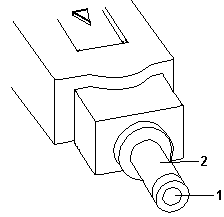
  1. Unplug the AC Adapter cable from the computer and  measure the output voltage at the plug of the AC Adapter cable.

d3za1300 

Pin Voltage (Vdc)
1 +10.0 to +16.0
2 Ground
  • If the voltage is correct:

    • Replace the DC/DC Card.
    • If the problem remains, replace the system board.

    If the  problem still is not corrected, go to 'Undetermined Problems'- If the voltage is not correct, go to the next step.

  • Unplug the AC Adapter cable from the ac power outlet and wait  five minutes or longer to allow the over voltage protection circuit  to be fully discharged and initialized.
  • Plug the AC Adapter cable into the ac power outlet.
  • Measure the output voltage of the AC Adapter.
  • If the voltage is still not correct, replace the AC Adapter.

NOTE: An audible noise from the AC Adapter does not always indicate a defective adapter.

Checking the Battery Pack — 1 #

Battery charging will not start until the Fuel-Gauge shows that less than 90% of the total power remains; with this condition the battery pack will charge to 100% of its capacity. This protects the battery pack from being over-charged or having a shortened life.

Before you perform the following procedure, be sure you have the correct battery pack for this model.

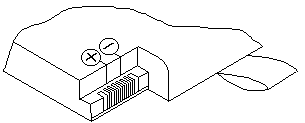
  1. Power-off the computer.- Remove the battery pack and measure the voltage between battery  terminals 2 (+) and 6 (-).  See the following figure.

    d3za1010 
    - If the voltage is less than +7.2 Vdc, the battery pack has  been discharged or is defective.  Recharge the battery.  If the recharging does not work,  go to Step 5 to check the charging circuit.

    If the voltage is still less than +7.2 Vdc after the recharging,  replace the battery.

    • If the voltage is more than +7.2 Vdc,  measure the resistance between  battery terminals 4 and 6.  The resistance must be 4K ohms to 30K ohms. If the resistance is not correct, replace the battery pack. If the resistance is correct, replace the DC/DC card.
    • To check the charging circuit, do the following.  Plug in the AC Adapter with the battery pack removed, then  power-on the computer.
    • Measure the charging voltage between DC/DC terminals  2 (+) and 6 (-).
    • If the voltage is less then +9.0 Vdc, replace the DC/DC card.  If the voltage is more than +9.0 Vdc, the charging circuit is  working correctly, replace the battery pack.

Checking Operational Charging — 1 #

To check operational charging, use a discharged battery pack or a battery pack that shows an amber battery status indicator when it is installed in the computer.

Perform operational charging. If the battery status indicator turns orange and the battery charging indicator turns green within two minutes, replace the AC Adapter.

Port Replicator Power Overload #

If power shut downs occur intermittently when using a port replicator, suspect an over-current problem. Some devices use more power; if the maximum usage of each device occurs simultaneously, the total current will exceed the limit, thereby causing a power shut down. Isolate this problem by removing one of the devices, and use the computer under the same condition to see whether a power shut down occurs. Do this procedure for all devices, then determine the cause.

1020 Battery Pack #

  • Disconnect the AC Adapter.
  • Open the computer.
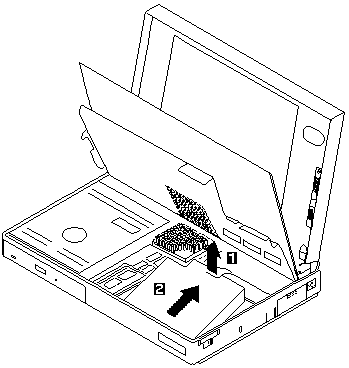
  • Release the keyboard latches and raise the keyboard.
  • Be careful the computer does not fall over backwards as you  remove the battery.

d3kc6035

Power-on the TV Tuner #

Use the ThinkPad Features program or PS2.EXE. to power-on the TV Tuner, then power-on the internal device in the diskette drive compartment.

warn   If power for the internal device is turned off when the TV Tuner is set up, nothing appears on the LCD display. Turn on power for the TV Tuner again.

  • If you are using DOS, do one of the following:

  • Power-on the computer and type PS2 from the  command prompt to start the ThinkPad Features program. Select Set Power Features from the ThinkPad Features  menu,then put a check mark at Internal Serial Port (or Diskette Drive Compartment )  under the Power for devices .  If you need help, press F1 to display the help menu.
  • Type ps2 modem on from the command prompt,  press the Enter key to set the power ON.
  • If you are using OS/2 or  Microsoft Windows, do the following:

    1. Power-on the computer and start the ThinkPad Features program.
    2. Select the Power icon, then move the pointer to Internal Serial Port (or Diskette Drive Compartment )  under the Power for devices and click the button to check mark it.
    3. Press the OK button.

Power Systems Checkout — 2 #

To verify the symptom of the problem, power-on the computer using each of the power sources available as follows.

  1. Remove the battery pack and diskette drive
  2. Connect the AC Adapter and check that power is supplied.
  3. Disconnect the AC Adapter  and install the charged battery pack,  then check that power is supplied by battery pack.

If you suspect a power problem, see the appropriate power supply check listed below.

Checking the AC Adapter — 2 #

Note: An audible noise from the AC Adapter does not always indicate a defective adapter.

You are here because the computer fails only when the AC Adapter is used.

  • If the power problem occurs only when the port replicator is used,  replace the replicator.
  • If the power-on indicator does not turn on, check the power  cord of the AC Adapter for correct continuity and installation.
  • If the operational charge does not work, go to 'Checking Operational Charging' .
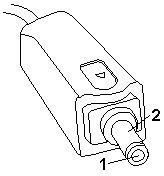
  1. Unplug the AC Adapter cable from the computer and  measure the output voltage at the plug of the AC Adapter cable.

560_2 

(20 - 10V)

Pin Voltage (Vdc)
1 +18.0 to +21.0
2 Ground

(16 - 10V)

Pin Voltage (Vdc)
1 +14.5 to +17.0
2 Ground
  • If the voltage is correct, replace the DC/DC board.
  • If the problem is not corrected, replace the system board.
  • If the problem is not corrected, go to 'Undetermined Problems' .
  • If the voltage is not correct, go to the next step.
  • Unplug the AC Adapter cable from the ac power outlet and wait  five minutes or longer to allow the protection circuit  to be fully discharged and initialized.
  • Plug the AC Adapter cable into the ac power outlet.
  • Measure the output voltage of the AC Adapter.
  • If the voltage is still not correct, replace the AC Adapter.

NOTE: An audible noise from the AC Adapter does not always indicate a defective adapter.

Checking Operational Charging — 2 #

To check operational charging, use a discharged battery pack or a battery pack that has less than 50% of the total power remaining when installed in the computer.

Perform operational charging. If the battery status indicator does not turn on, remove the battery pack and leave it to return to room temperature. Reinstall the battery pack. If the charge indicator still does not turn on, replace the battery pack.

Checking the Battery Pack — 2 #

Note: Signal lines, not used in these steps,  are used for communication between the system and the battery.

Note: If the voltage of the battery pack is 0 V, it is not defective.  replace the battery.- If the voltage is more than + 11.0 Vdc,  measure the resistance between  battery terminals 3 and 4.  The resistance must be 4 to 30 kilohms.

Battery charging will not start until the Fuel-Gauge shows that less than 95% of the total power remains; with this condition the battery pack will charge to 100% of its capacity. This protects the battery pack from being over-charged or having a shortened life.

Do the following:

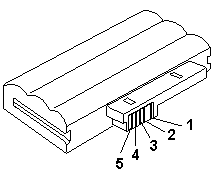
  1. Power-off the computer.- Remove the battery pack and measure the voltage between battery  terminals 1 (+) and 4 (-)

    560_3 

    Terminal Voltage (V dc) / Signal
    1 + 0 to + 13.5
    2 Send
    3 Thermal
    4 Ground (-)
    5 Select

    NOTE: Signal lines, not used in these steps,  are used for communication between the system and the battery.

    • If the voltage is less than + 11.0 Vdc, the battery pack has  been discharged.  Recharge the battery.

    If the voltage is still less than +11.0 Vdc after recharging, replace the battery.

    NOTE: If the voltage of the battery pack is 0 V, it is not defective.  replace the battery.- If the voltage is more than + 11.0 Vdc,  measure the resistance between  battery terminals 3 and 4.  The resistance must be 4 to 30 kilohms.

     If the resistance is not correct, replace the battery pack.
    
      If the resistance is correct, replace the system board.
    

Checking the Backup Battery #

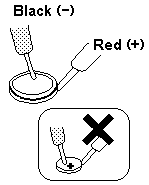
Note: Be careful not to measure the wrong side of the backup battery.

  1. Power-off the computer and unplug the AC Adapter  from the computer.
  2. Turn the computer upside down
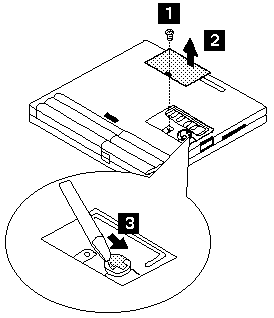
  3. Remove the DIMM cover and backup battery (see 'Backup Battery'
  4. Measure the voltage of the backup battery.

NOTE: Be careful not to measure the wrong side of the backup battery.

560_4 

Wire Voltage (Vdc)
Red +2.5 to +3.7
Black Ground
  • If the voltage is correct, replace the system board.
  • If the voltage is not correct, the backup battery has been  discharged. Replace the backup battery.
  • If the backup battery discharges quickly after replacement,  replace the system board.

Power Systems Checkout (60x 70x) #

Power Systems Checkout

To verify the symptom of the problem, power on the computer using each of the following power sources.

  1. Remove the battery pack and diskette drive.
  2. Connect the AC Adapter and check that power is supplied.
  3. Disconnect the AC Adapter, and  install the charged battery pack,  then check that power is supplied by battery pack.

If you suspect a power problem, see the appropriate power supply check listed below.

1010 Backup Battery #

Note: Make sure you use the correct screw.

Backup Battery

warn1   pleaseREAD**** - see

Turn the computer upside down.

560_7 

Step Location (Quantity) Length
1 DIMM Cover (1) 6 mm

NOTE: Make sure you use the correct screw.

Checking the Backup Battery (60x 70x) #

Checking the Backup Battery

  1. Power off the computer and unplug the AC Adapter from the computer.
  2. Turn the computer upside down.
  3. Remove the DIMM cover and backup battery (see 'Backup Battery' ).
  4. Measure the voltage of the backup battery.

batx_1 

Wire Voltage (Vdc)
Red +2.5 to +3.7
Black Ground
  • If the voltage is correct, replace the system board.
  • If the voltage is not correct, replace the backup battery.
  • If the backup battery discharges quickly after replacement, replace the system board

Checking the Battery Pack (60x 70x) #

Checking the Battery Pack

Battery charging will not start until the Fuel-Gauge shows that less than 95% of the total power remains, with this condition the battery pack will charge to 100% of its capacity. This protects the battery pack from being over-charged or having a shortened life.

Do the following:

  1. Power-off the computer.- Remove the battery pack and measure the voltage between battery  terminals 1 (+) and 4 (-).  See the following figure.

    560_3 
    - If the voltage is less than +11.0 Vdc, the battery pack has  been discharged. Recharge the battery.

    In this case, the battery pack is over-discharged. It takes at least 2 hours  to recharge the battery pack even if the indicator does not turn on.

    If the voltage is still less than +11 Vdc after recharging, replace the battery.

    • If the voltage is more than +11.0 Vdc,  measure the resistance between  battery terminals 3 and 4.  The resistance must be 4K ohms to 30K ohms.

      If the resistance is not correct, replace the battery pack.

      If the resistance is correct, replace the DC/DC card.

      If the problem persists, replace the system board.

Checking the AC Adapter (60x 70x) #

Note: An audible noise from the AC Adapter does not always indicate a defective adapter.

Checking the AC Adapter

You are here because the computer fails only when the AC Adapter is used.

  • If the power problem occurs only when the port replicator is used,  replace the replicator.
  • If the power-on indicator does not turn on, check the power  cord of the AC Adapter for correct continuity and installation.
  • If the operational charge does not work, go to Checking Operational Charging
  • Unplug the AC Adapter cable from the computer and  measure the output voltage at the plug of the AC Adapter cable.

d2na7105 

Pin Voltage (Vdc)
1 +14.5 to +17.0
2 Ground

If the voltage is not within range, replace the AC Adapter.

If the voltage is within range, do the following:

  • Replace the DC/DC Card.
  • Replace the system board.
  • If the problem is not corrected, go to 'Undetermined Problems' .
  • If the voltage is not correct, go to the next step.

NOTE: An audible noise from the AC Adapter does not always indicate a defective adapter.

Checking Operational Charging (60x 70x) #

Checking Operational Charging

To check operational charging, use a discharged battery pack or a battery pack that has less than 50% of the total power remaining when installed in the computer.

Perform operational charging. If the battery status indicator does not turn on, remove the battery pack and let it return to room temperature. Reinstall the battery pack. If the charge indicator still does not turn on, replace the battery pack.

If the charge indicator still does not turn on, replace the DC/DC card. Then reinstall the battery pack. If the reinstalled battery pack is not charged, go to 'Checking the Battery Pack'

1010 Backup Battery (60x 70x) #

Note: Make sure you use the correct screw, and tighten it firmly to the torque shown in the table if you have a torque screwdriver.

Backup Battery

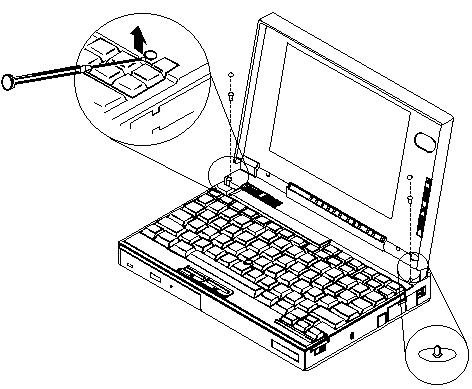
warn1   pleaseREAD**** - see

Turn the computer upside down.

560x_7

To replace the battery,connect the battery connector using a small screwdriver, then insert it into the computer.

+----+----+-------+
 |Step|Qty |Torque |  Screw No.
 +----+----+-------+

1    1    4kgcm   scrw_1 
 -------------------

NOTE: Make sure you use the correct screw, and tighten it firmly to the torque shown in the table if you have a torque screwdriver.

Never use a screw that you removed.Use a new one. Make sure the screw is tightened firmly.

(see Screw Tightening Information if you do not have a torque screwdriver.)

Keyboard/Auxiliary Input Device Checkout #

Disconnect the external keyboard and mouse, then try the internal keyboard. If the internal keyboard works correctly, replace the external keyboard or mouse.

If the internal keyboard does not work correctly or an unexpected character appears, make sure that the three flexible cables extending from the keyboard are correctly seated in the connectors on the keyboard card.

If the keyboard cables are seated correctly, run the Keyboard Test using the IBM ThinkPad 365 Advanced Diagnostics Diskette.

warn  To use the IBM ThinkPad 365 Advanced Diagnostics Diskette, you must have at least 500KB of free memory. Be sure to read the README.PO file on the IBM ThinkPad 365 Advanced Diagnostics Diskette before using the following instructions.

  1. Power-off the computer.
  2. Insert the IBM ThinkPad 365 Advanced Diagnostics Diskette into drive A.
  3. Power-on the computer.
  4. Follow the instructions on the screen and proceed to the  Main Menu. Allow two to four minutes for the diagnostic programs to load.
  5. At the Main Menu, select Diagnostics .
  6. At the Diagnostics Menu, select Module Tests .
  7. At the Module Tests Menu, select Keyboard .
  8. Press Enter to run the keyboard tests.
  9. Do not press any key until prompted, then follow the instructions  on the screen.
  10. When the tests are completed, press Esc twice to return  to the main menu.
  11. Select Exit .

If the tests detect a keyboard problem, do the following one at a time to correct the problem. Do not replace a non-defective FRU.

  • Reseat the three cables.
  • Replace the keyboard.
  • Replace the keyboard card.
  • Replace the system board.

The following auxiliary input devices are supported for this computer.

  • Space-saver keyboard
  • Mouse (PS/2 compatible)

If any of the above devices do not work, reseat the cable connector and repeat the failing operation. If the problem does not occur again, recheck the connector. If the problem remains, replace the device, and then the system board.

TrackPoint III Checkout #

The TrackPoint automatically compensates to adjust the pointer sensor. During this process, the pointer moves on the screen automatically for a short time. This self-acting pointer movement can occur when a slight, steady pressure is applied to the TrackPoint pointer while the computer is powered on or while the system is running, or re-adjustment is required because the temperature has exceeded its normal temperature range. This symptom does not indicate a hardware problem.

No service actions are necessary if the pointer movement stops in a short period of time.

If either the pointing stick or the click button will not work, do the following actions one at a time to correct the problem. Do not replace a non-defective FRU.

  • Reseat the three keyboard cables.
  • Replace the keyboard.
  • Replace the keyboard card.
  • Replace the system board.

Audio Card Checkout #

Note: The setup screen can only be accessed  at a full-screen DOS prompt.

Do the following to run the audio tests.

  • Go to a DOS full screen, press Ctrl+Alt+F11  to access the setup utility.

NOTE:   The setup screen can only be accessed  at a full-screen DOS prompt.

  • Use the arrow keys to  select Audio , then use the space bar to toggle the  audio selection to enabled ( IRQ 7 ).
  • Set the volume control to mid range.
  • Press Esc then F4 to save and reboot.
  • Listen for the sounds.

If the audio card does not produces any sound during reboot, replace the Audio card. If the problem remains, replace the system board.

Diskette Drive Checkout #

warn  The ThinkPad 365 does not support both an internal and external drive simultaneously.

Do the following to isolate the problem to a controller, drive, or diskette. A scratch, write enabled, non-defective 2HD diskette is required. Make sure that the diskette does not have more than one label attached to it. Multiple labels can cause damage to the drive or can cause the drive to fail.

Use the following information to test the diskette drive.

warn  To use the IBM ThinkPad 365 Advanced Diagnostics Diskette, you must have at least 500KB of free memory. Be sure to read the README.PO file on the IBM ThinkPad 365 Advanced Diagnostics Diskette before using the following instructions.

  1. Power-off the computer.
  2. Insert the IBM ThinkPad 365 Advanced Diagnostics Diskette into drive A.
  3. Power-on the computer.
  4. Follow the instructions on the screen and proceed to the  Main Menu. Allow two to four minutes for the diagnostic  programs to load.
  5. At the Main Menu, select Diagnostics .
  6. At the Diagnostics Menu, select Module Tests .
  7. At the Module Tests Menu, select Floppy Disks .
  8. Press Enter to run the Floppy Disks tests.
  9. Do not press any key until prompted, then follow the instructions  on the screen.
  10. When the tests are completed, press Esc twice to return  to the main menu.
  11. Select Exit .

If the drive is attached through a Port Replicator and the test detects errors, move the drive to the computer's diskette drive connector directly, and test it again.

  • If an error occurs replace the diskette drive.
  • If no errors occur, the drive is not defective.  Go to 'Port Replicator Checkout' to isolate the replicator problem.

If the drive is attached through a Diskette Drive Attachment Unit, replace the unit.

PC Test Card LED #

The green LED on the PC test card turns on when the PCMCIA test is running. If the LED does not turn on, check that the card is installed correctly by reseating the card. If it still does not turn on after it is reseated, try using another slot for the test. If the LED still does not turn on and the test fails, replace the FRU shown in the diagnostic error code.

External Keyboard Key Combinations #

The following table shows the external keyboard combinations used with the IBM ThinkPad Space Saver Keyboard.

Key Combinations Description
Ctrl+Alt+F2 Fuel gauge display.
Ctrl+Alt+F4 Suspend Mode invocation.
Ctrl+Alt+F7 Toggles LCD/SIMUL/CRT.
Ctrl+Alt+F12 Hibernation invocation.
Ctrl+Alt+F11 Accesses setup and Power Management screens.

warn  To avoid possible conflicts with certain software applications, you might need to disable these hot-key combinations. The Ctrl+Alt+Right-Shift-Key toggles the hot-keys On and Off for the external keyboard.

Port Replicator Checkout — 1 #

Use the following procedure to isolate a port replicator problem. A port replicator attaches to the system expansion connector at the bottom of the computer.

  1. Power-off the computer.- Remove the failing devices from the replicator.- Unplug the AC adapter from the replicator, if attached.- Remove the port replicator from the computer.- Reconnect the failing device directly to the computer.  (If another device occupies the connector, remove it first.)- Go to 'Checkout Guide' and follow that procedure.- If the advanced diagnostic device test does not find an error,  suspect a problem with the port replicator  or the system expansion bus.- Power-off the computer and reconnect the port replicator.- Power-on the computer and run the following advanced diagnostic tests:
               - Serial port test with the wrap plug installed on the replicator.- Parallel port test with the wrap plug installed on the replicator.- FDD-2 (FDD-1 if no drive is installed in the computer)
                      drive test on the failing device.
    
               - If diagnostic errors appear, replace the replicator or diskette
                  drive attachment unit.
    
                  If the problem remains after the replacement, replace the
                  system board.
    
                 - If power problems appear only when using the replicator, replace the
                    replicator.
    

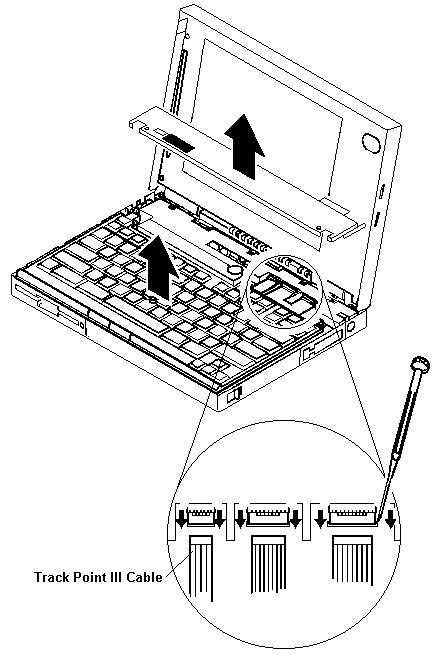
1050 Keyboard Unit #

d3kc6055

warn  During removal and replacement procedures, pay special attention to the LCD Suspend Switch 2. Be sure the LCD Suspend Switch actuator is properly aligned with the hole in the cover.

  1. Remove the plastic upper cover as shown.
  2. Lift the keyboard and locate the cables as shown.

warn  The keyboard cables are fragile and can be damaged.

Do not pull on the keyboard cables. Pull on the connectors only.

d3za1255

warn

  • When replacing the keyboard, check that the three cables are clean,  and inserted straight and fully into the connectors.- Test all keyboard keys before returning the computer to the customer.- When replacing the top cover:

    • Be sure the tabs on the back of the  top cover are seated in the bottom of the LCD display
    • Be sure the LCD Suspend Switch actuator is properly aligned with the  hole in the cover.

1090 CD-ROM Drive #

Note: Screws shown above are 6 mm long.

warn  During replacement, make sure that all connectors are properly aligned and seated.

d3kc6040

NOTE: Screws shown above are 6 mm long.

1120 Keyboard Card #

  1. Disconnect all attached cable connectors.
  2. Release the locking tab at the right rear of the keyboard card.
  3. Remove the keyboard card.

d3kc6210

External Diskette Drive Test #

Use the following procedure to isolate the diskette problem to a controller, drive or diskette. A scratch, write-enabled 2HD diskette is required.

  1. Select the icon FDD on the TEST MENU . By  doing this, the controller test and the drive  read/write test run.  If the controller test detects an error, FRU code 10 appears.  In this case, replace the system board.
  2. If the controller test run without errors,  follow the instructions on the screen and insert a scratch  diskette.
  3. If the drive test detects an error, FRU code 50 appears.  If the diskette media are known to be good, replace the drive or the  drive cable.

External Display Self-Test #

Note: Before you replace a display, check the following list to see if it is connected correctly.

Note: The location of the test margin varies with the type of display. The  test margin might be on the top, bottom, or one or both sides.

If the display problem occurs only when using an external display, use the following instructions to correct the problem.

Note: Before you replace a display, check the following list to see if it is connected correctly.

  • 8506 and 8508 displays must be connected to an Image Adapter/A or an  Image-I Adapter/A.
  • 63XX and 85XX systems support either 63XX or 85XX displays.
  • 85XX systems with an XGA-2 adapter support 95XX displays.
  • 95XX systems support either 63XX, 85XX, or 95XX displays.
  • ThinkPad models support either 85XX or 95XX displays.

If the screen is rolling, replace the display assembly. If that does not correct the problem, replace FRUs in the following order until the problem goes away:

  1. Video card
  2. Display adapter (any type)
  3. System board
  4. Bus adapter (if used)

If the screen is not rolling, run the display self-test as follows:

  1. Power-off the computer and display.
  2. Disconnect the display signal cable.
  3. Power-on the display.
  4. Set the contrast to its maximum position.
  5. Set the brightness control to the center detent position.

Check for the following conditions:

  • You should be able to vary the screen intensity by adjusting the contrast  and brightness controls.
  • The screen should be white or light gray,  with a black margin (test margin) on the screen. NOTE: The location of the test margin varies with the type of display. The  test margin might be on the top, bottom, or one or both sides.

If you do not see a test margin on the screen, replace the display. If there is a test margin on the screen, replace the system board.

On ThinkPad Models 700, 700C, 720C, 720C, do the following:

  1. Video card
  2. System board

External Keyboard / Auxiliary Input Device Checkout #

The following auxiliary input devices may be available for IBM ThinkPad models.

  • Numeric keypad
  • Mouse (PS/2 compatible)
  • External keyboard (with Keyboard/Miniature Mouse cable)
  • If you suspect a problem with any of the auxiliary input devices  (listed above), replace the device.

If the problem is not corrected, replace the following FRUs one  at a time to correct the problem.

  • Keyboard control card
  • System board
  • If the computer receives an incorrect keyboard response,  remove other external devices, check the keyboard connections, and recheck  the keyboard responses. If the problem remains, replace the following FRUs  one at a time to correct the problem.

    • Keyboard
    • Keyboard control card
    • System board
    • If a 00030100 error message appears,  power-off the computer and the external devices.  Then power-on the computer before you power-on the external devices.

Fax/Modem Checkout #

  • Note: PCMCIA cards can be inserted and removed while
  • the system is powered on
  • - Power-on the system.
  • - Insert the IBM Data/FAX Modem diskette into the default
  • diskette drive.
  • - If you are servicing a High Speed Internal Data/Fax Modem (Models
  • FC3632 and FC3650), at the DOS prompt (for example, A:), type
  • IBMDIAG, then press Enter.
  • - If you are servicing a PCMCIA Data/FAX Modem (Models FC3634 and
  • FC3635), at the DOS prompt (for example, A:), type ESTDIAG,
  • then press Enter.
  • - Follow the instructions on the screen.  (If you need help, press
  • F1.)
  • DID THE DIAGNOSTIC TESTS DETECT AN ERROR?
  • If Yes / If No:
  • |           The diagnostic tests have completed successfully.
  •          If you suspect a problen, go to step          If you suspect a problen, go to step          If you suspect a problen, go to step          If you suspect a problen, go to step 004
  • Go to the Symptom-to-FRU Index for the computer you are servicing.
  • ------------------------------------------------------------------------
  • - Check the PSTN cable and the DAA cable, if installed, for continuity.
  • IS THE CABLE(S) GOOD?
  • If Yes / If No:
  • Replace the defective cable(s).
  • - Have the customer transmit a call.
  • WAS THE CALL TRANSMITTED SUCCESSFULLY?
  • If Yes / If No:
  • Go to step          Go to step          Go to step          Go to step 011
  • - Have the customer receive an incoming call on the modem.
  • WAS THE INCOMING CALL RECEIVED?
  • If Yes / If No:
  • Go to step          Go to step          Go to step          Go to step 014
  • The diagnostic tests have completed successfully.  If you still suspect
  • a problem that is not software related, replace the External DAA, then
  • replace the modem.
  • ------------------------------------------------------------------------
  • - Have the customer transmit a call at a lower speed.
  • WAS THE CALL TRANSMITTED SUCCESSFULLY?
  • If Yes / If No:
  • |           If installed, replace the external DAA.
  • |           If you do not have an external DAA installed,
  • |           or replacing the external DAA does not correct
  • the problem, replace the modem.
  • Have the telephone line checked.
  • ------------------------------------------------------------------------
  • - Have the customer receive an incoming call on the modem
  • at a lower speed.
  • WAS THE INCOMING CALL RECEIVED?
  • If Yes / If No:
  • |           If installed, replace the external DAA.
  • |           If you do not have an external DAA installed,
  • |           or replacing the external DAA does not correct
  • the problem, replace the modem.
  • Have the telephone line checked.
  • - Power-off the computer.
  • - Ensure that the modem is installed correctly.
  • - If the modem never worked in customer mode, ensure that all
  • drivers are loaded correctly onto the computer.
  • - Ensure that the communication program is supported on the computer.
  • - Ensure that the public switch telephone network (PSTN) cable and the
  • data access arrangement (DAA) cable, if installed,
  • are connected correctly.
  • If you need to correct one of the above conditions, do so now,
  • then continue.
  • NOTE: PCMCIA cards can be inserted and removed while
  • the system is powered on
  • - Power-on the system.
  • - Insert the IBM Data/FAX Modem diskette into the default
  • diskette drive.
  • - If you are servicing a High Speed Internal Data/Fax Modem (Models
  • FC3632 and FC3650), at the DOS prompt (for example, A:), type
  • IBMDIAG, then press Enter.
  • - If you are servicing a PCMCIA Data/FAX Modem (Models FC3634 and
  • FC3635), at the DOS prompt (for example, A:), type ESTDIAG,
  • then press Enter.
  • - Follow the instructions on the screen.  (If you need help, press
  • F1.)
  • DID THE DIAGNOSTIC TESTS DETECT AN ERROR?
  • If Yes / If No:
  • |           The diagnostic tests have completed successfully.
  •          If you suspect a problen, go to step          If you suspect a problen, go to step          If you suspect a problen, go to step          If you suspect a problen, go to step 004
  • Go to the Symptom-to-FRU Index for the computer you are servicing.
  • ------------------------------------------------------------------------
  • - Check the PSTN cable and the DAA cable, if installed, for continuity.
  • IS THE CABLE(S) GOOD?
  • If Yes / If No:
  • Replace the defective cable(s).
  • - Have the customer transmit a call.
  • WAS THE CALL TRANSMITTED SUCCESSFULLY?
  • If Yes / If No:
  • Go to step          Go to step          Go to step          Go to step 011
  • - Have the customer receive an incoming call on the modem.
  • WAS THE INCOMING CALL RECEIVED?
  • If Yes / If No:
  • Go to step          Go to step          Go to step          Go to step 014
  • The diagnostic tests have completed successfully.  If you still suspect
  • a problem that is not software related, replace the External DAA, then
  • replace the modem.
  • ------------------------------------------------------------------------
  • - Have the customer transmit a call at a lower speed.
  • WAS THE CALL TRANSMITTED SUCCESSFULLY?
  • If Yes / If No:
  • |           If installed, replace the external DAA.
  • |           If you do not have an external DAA installed,
  • |           or replacing the external DAA does not correct
  • the problem, replace the modem.
  • Have the telephone line checked.
  • ------------------------------------------------------------------------
  • - Have the customer receive an incoming call on the modem
  • at a lower speed.
  • WAS THE INCOMING CALL RECEIVED?
  • If Yes / If No:
  • |           If installed, replace the external DAA.
  • |           If you do not have an external DAA installed,
  • |           or replacing the external DAA does not correct
  • the problem, replace the modem.
  • Have the telephone line checked.

Printer Checkout #

  1. Make sure the printer is correctly connected and is powered-on.
  2. Run the printer self-test.

If the printer self-test does not run correctly, the problem is in the printer. Refer to the printer service manual.

If the printer self-test runs correctly, do the following.

  1. Verify the port settings in configuration.
  2. Install a wrap plug on the port (indicated in configuration)  and run the advanced diagnostic tests.
  3. If the advanced diagnostic tests (with the wrap plug installed)  do not detect a failure, replace the printer cable. If the problem is not corrected, replace the system board.

Port Replicator Checkout — 2 #

Use the following procedure to isolate a port replicator problem. A port replicator attaches to the system expansion connector at the rear of the computer.

  1. Power-off the computer.- Remove the failing devices from the replicator.- Unplug the AC adapter from the replicator, if attached.- Remove the port replicator from the computer.- Reconnect the failing device directly to the computer.  (If another device occupies the connector, remove it first.)- Go to General Checkout and follow that procedure.- If the advanced diagnostic device test does not find an error,  suspect a problem with the port replicator  or the system expansion bus.- Power-off the computer and reconnect the port replicator.- Power-on the computer and run the following advanced diagnostic tests:
               - Serial port test with the wrap plug installed on the replicator.- Parallel port test with the wrap plug installed on the replicator.- PCMCIA-2 test with the PC test card installed.- FDD-2 (FDD-1 if no drive is installed in the computer)
                        drive test on the failing device.
    
               - If diagnostic errors appear, replace the replicator or diskette
                  drive attachment unit.
    
                  If the problem remains after the replacement, replace the
                  system board.
    
                 - If power problems appear only when using the replicator, replace the
                    replicator.
    

If power shut downs occur intermittently when using PCMCIA-2 devices via a port replicator, suspect an over-current problem. Some PCMCIA devices use more power; if the maximum usage of each device occurs simultaneously, the total current will exceed the limit, thereby causing a power shut down. Isolate this problem by removing one of the devices, and use the computer under the same condition, and see whether a power shut down occurs. Do this procedure for all devices then determine the cause.

Customer purchase of the larger AC adapter (50W, optional) is recommended, if it is not yet in use.

TrackPoint II Checkout #

Note: TrackPoint II automatically compensates to adjust  the pointer sensor. This causes the pointer to move slightly on  the screen and then stop. Pointer  movement might occur when  a slight, steady pressure is applied to the TrackPoint II pointer when  the computer is powered-on or running, or  when exceeded temperature range requires re-adjustment.

  • If the TrackPoint II  does not work, check the configuration.  If the configuration of the TrackPoint II is set to Disabled or Off, change it to Enable or On.

If the problem remains, continue.

NOTE: TrackPoint II automatically compensates to adjust  the pointer sensor. This causes the pointer to move slightly on  the screen and then stop. Pointer  movement might occur when  a slight, steady pressure is applied to the TrackPoint II pointer when  the computer is powered-on or running, or  when exceeded temperature range requires re-adjustment.

  • If the cursor floats or moves erratically, power-off and disconnect the  mouse. Power-on the computer. If the  problem goes away, replace the mouse. If the problem remains, replace the  keyboard.- For click button or pointing stick problems:

    1. Go to the Easy-Setup screen.
    2. Select an item with the pointing stick.
    3. Press either left or right click button.
    4. Verify that both buttons work correctly.

    If the pointing stick or the click button does not work,  do the following.

    1. Reseat the keyboard cables.
    2. Replace the keyboard.
    3. Replace the interposer card (355x, 360x, 750x, 755x).
    4. Replace keyboard control card (720).
    5. Replace the system board.

TV Tuner #

The TV Tuner Pack (hereafter called TV Tuner) is an option for watching TV programs or videos on the IBM TFT color notebook computer. The computer changes to TV reception when the removable diskette drive is replaced with the TV Tuner.

The TV screen and normal computer display are easily switched by using the Hot key on the front panel of the TV Tuner.

Identifying Names and Functions

The following figure and table show the names and functions of each part of the TV Tuner.

c73pvew

Icons Functions
c73pihd Connects the headphones.
c73pipo Powered on and off the TV Tuner.
c73piht Switches between the TV screen and computer screen.
c73piin Increases the value such as the channel number.
c73pide Decreases the value such as the channel number.
c73pifn Enters the mode to change the value of each function,
c73pitv Switches the TV mode or external video mode.
c73pivm Controls the speaker volume.
c73piad Connects the audio-in connector of the AV cable.
c73pivi Connects video-in connector of the AV cable.

c73pian    Connects the active antenna unit or antenna cable.
 --------------------------------------------------------------

Using the Front Panel

The following table shows how to operate all functions of the TV Tuner with the controls on the front panel.

Key            Function
 Power

c73pipo    Turns on the TV Tuner.
        This key is used only when the computer is turned on.
 Hot Key

c73piht    Switches computer display and TV screen.
Up

c73piin    Increases the value of parameters, Channel Number,
        Color, Tint, Brightness, Contrast, Auto Tuning Sensitivity,
        On-screen Message Selection.
 Down

c73pide    Decreases the value of parameters, Channel Number
        Color, Tint, Brightness, Contrast, Auto Tuning Sensitivity,
        On-screen Message Selection.
 Function

c73pifn    Selects a function mode to adjust each function parameter.
        (See Using the Function Key)
 TV/Ext

c73pitv    Switches the displayed video source between
        the receiving TV broadcast program and external devices such as
        VCR, video camera recorder, laser disk, and so on.

Keyboard / Auxiliary Input Device Checkout #

Note: When a Fn key is pressed, a black square briefly appears.

Remove the external keyboard if the internal keyboard is to be tested.

If the internal keyboard does not work or an unexpected character appears, make sure that the three flexible cables extending from the keyboard are correctly seated in the connectors on the system board.

If the keyboard cable connection is correct, run the Keyboard Test by doing the following:

  1. Go to advanced diagnostic menu screen  by pressing Ctrl+A in the Easy Setup screen.
  2. Press Ctrl+K , a layout of the keyboard  appears on the screen.
  3. Check that when each key is pressed, the key's position  on the keyboard layout on the screen changes to a black square. NOTE: When a Fn key is pressed, a black square briefly appears.

If the tests detect a keyboard problem, do the following one at a time to correct the problem.

Do not replace a non-defective FRU.

  • Reseat the keyboard card cable.
  • Replace the keyboard card cable.
  • Replace the keyboard card assembly.
  • Replace the video card.
  • Replace the system board.

The following auxiliary input devices are supported for this computer.

  • Numeric keypad
  • Mouse (PS/2 compatible)
  • External keyboard (with keyboard/mouse cable)

If any of the above devices do not work, reseat the cable connector and repeat the failing operation.

If the problem does not occur again, recheck the connector.

If the problem is not corrected, replace the device, and then the system board.

Diskette Drive Test #

Do the following to isolate the problem to a controller, drive, or diskette. A scratch, write enabled, non-defective 2HD diskette is required.

FDD-1 represents external diskette drive attached through the external diskette drive connector. FDD-2 represents the port replicator.

warn   Make sure that the diskette does not have more than one label attached to it. Multiple labels can cause damage to the drive or can cause the drive to fail.

  1. Do following to select the test device:

  2. Select the advanced diagnostic mode and  select Tool, then  select the FDD-1 or FDD-2 icon  and press the spacebar.  A OK mark appears next to the selected icon.  Insert the blank diskette when instructed.

  • Run the diskette drive test.
  • If the controller test detects an error, FRU code 10 appears.  Replace the system board.
  • If the controller test runs without errors,  the drive read/write tests start automatically.
  • If the drive test detects an error, FRU code 50 for FDD-1 or 51 for FDD-2 appears.  If the diskette itself is known to be good, replace the drive.
  • If FDD-2 test detects an error, move the drive to the computer's diskette drive connector  directly, if possible, and test it again as FDD-1.

If no errors occur in the FDD-1 position, the drive is not defective. Go to ''Port Replicator Checkout'' to isolate the problem.

Port Replicator Checkout (60x 70x) #

Port Replicator Checkout

Use the following procedure to isolate a port replicator problem. A port replicator attaches to the system expansion connector at the bottom of the computer.

  1. Power-off the computer.- Remove the failing devices from the port replicator.- Unplug the AC adapter from the replicator, if attached.- Remove the port replicator from the computer.- Reconnect the failing device directly to the computer.  (If another device occupies the connector, remove it first.)- Go to 'Running the Diagnostics' and follow run the diagnostics.- If the advanced diagnostic device test does not find an error,  suspect a problem with the port replicator  or the system expansion bus.- Power-off the computer and reconnect the port replicator.- Power-on the computer and run the following advanced diagnostic tests:
               - Serial port test with the wrap plug (P/N 72X8546) installed on the port replicator.- Universal Serial Bus test with test cable (P/N 05K2580) see ['Universal Serial Bus (USB) Test'](#universal-serial-bus-usb-test).- Parallel port test with the wrap plug (P/N 72X8546) installed on the replicator.- PC Card (PCMCIA) test with the PC test card (P/N 35G4703) installed.- FDD-2 device test on the failing device with a scratch diskette.
               - If diagnostic errors appear, replace the port replicator or diskette
                  drive.
    
                  If the problem remains after the replacement, replace the
                  system board.
    
                 - If power problems appear only when using the replicator, replace the
                    replicator.
    

If power shutdown occurs intermittently when using PC Card devices via port replicator, suspect an over-current problem. Some PC Card devices use more power, if the maximum usage of each device occurs simultaneously the total current will exceed the limit, thereby causing a power shutdown. Isolate this problem by removing one of the devices, and use the computer under the same condition, and see whether a power shutdown occurs. Do this procedure for all devices to determine the cause.

Keyboard or Auxiliary Input Device Checkout (60x 70x) #

Note: When a Fn key is pressed, a black square briefly appears.

Keyboard or Auxiliary Input Device Checkout

Remove the external keyboard if the internal keyboard is to be tested.

If the internal keyboard does not work or an unexpected character appears, make sure that the flexible cable extending from the keyboard is correctly seated in the connector on the system board.

If the keyboard cable connection is correct, run the Keyboard Test. See 'Running the Diagnostics' for details.

NOTE: When a Fn key is pressed, a black square briefly appears.

If the tests detect a keyboard problem, do the following one at a time to correct the problem.

Do not replace a non-defective FRU.

  • Reseat the keyboard card cable.
  • Replace the keyboard
  • Replace the system board.

The following auxiliary input devices are supported for this computer.

  • Numeric keypad
  • Mouse (PS/2 compatible)
  • External keyboard (with keyboard/mouse cable)

If any of these devices do not work, reseat the cable connector and repeat the failing operation.

If the problem does not recur, recheck the connector.

If the problem is not corrected, replace the device, and then the system board.

Diskette Drive Checkout (60x 70x) #

Diskette Drive Checkout

Do the following to isolate the problem to a controller, drive, or diskette. A scratch, write enabled, nondefective 2HD diskette is required.

FDD-1 represents an external diskette drive attached through the external diskette drive connector. FDD-2 represents the external diskette drive attached to the port replicator.

warn   Make sure the diskette does not have more than one label attached to it. Multiple labels can cause damage to the drive or cause the drive to fail.

Do the following to select the test device. See 'Running the Diagnostics' for details.

  1. Go to the advanced diagnostic mode by pressing Ctrl+A from the test menu of the  Easy-Setup.- Click on Exit twice.- Click on FDD-1 or FDD-2 to start the test.- Insert the blank diskette when instructed and follow the instructions  on the screen.- If the controller test detects an error, FRU code 10 appears. Replace the system board.- If the controller test runs without errors, the drive read/write tests start automatically. If a drive  test detects an error, FRU code 50 for FDD-1 or 51 for FDD-2 appears. If the diskette itself  is known to be good, replace the drive.- If the FDD-2 test detects an error, move the drive to the computer's diskette drive connector directly, if  possible, and test it again as FDD-1.
            If no errors occur in the FDD-1 position, the drive is not defective. Go to ['Port Replicator Checkout'](#port-replicator-checkout-3) to isolate
            the port replicator problem.
    

Displaying the Error Log (60x 70x) #

Error Log

Diagnostic errors are printed on a printer that is attached to the parallel port when the error is detected. The error is also logged in the system memory.

Use the following procedure to display the errors.

  1. Enter the advanced diagnostic test.
  2. Press Ctrl+E .
  3. The error log appears.
  4. To exit the screen, select the cancel icon or press Esc .

The error log is not saved when system power is turned-off.

What to Do First #

Before servicing the computer, determine whether or not the damage applies to the warranty by referring to the following:

warn  During the warranty period, the customer may be responsible for repair costs if the damage was caused by misuse, accident, modification, unsuitable physical or operating environment, or improper maintenance by the customer.

The following list provides some common items that are not covered under warranty and some symptoms that could indicate that the system was subjected to stresses beyond normal use.

Warranty Coverage Notes

The following is not covered under warranty:

  • LCD panel cracked from being dropped or applying too much force.
  • Scratched (cosmetic) parts.
  • Cracked or broken plastic parts, broken  latches, broken pins  or connectors caused by excessive force.
  • Damage caused by liquid spilled onto the system.
  • Damage caused by improperly inserting a PCMCIA card or installation  of an incompatible card.
  • Damage due to foreign material in the FDD or FDD bay.
  • Damage to the diskette drive caused by pressing the  diskette drive cover or inserting diskettes with multiple labels.
  • Diskette eject button was bent or damaged.
  • Damage to the CD-ROM drive caused by excessive force shocked or dropped.
  • Fuse blown by attaching non-supported devices.
  • Computer or hard disk could not be used  because the password was forgotten.

If the following symptoms are present, they could indicate the damage was caused by non-warranted activity:

  • Missing parts can be a symptom of unauthorized service or  modification.
  • HDD spindles can become noisy if subjected to  excessive force or if dropped.
  • Errors  can be caused by exposure to strong magnetic fields.

Memory Checkout — 1 #

Note: Refer to 'Memory Board Switch Settings' Switch location.

Memory Checkout

Depending on the model, the memory size that is available for customer use appears differently. See the following table for the available memory size of each card.

System Board 8MB Memory Board Optional SO-DIMM Extended Memory Switch Setting
640KB 8MB 0 7168KB 1,2,3,4 OFF
640KB 8MB 4 11264KB 1,2,3,4 OFF
640KB 8MB 16 23552KB 2 ON 1,3,4 OFF
640KB 16MB 0 15360KB 1,2,3,4 OFF
640KB 16MB 4 19456KB 1,2,3,4 OFF
640KB 16MB 16 31744KB 2 ON 1,3,4 OFF

NOTE: Refer to 'Memory Board Switch Settings' Switch location.

Memory errors might stop system operations, show error messages on the screen, or hang the system. The computer detects memory parity errors but does not correct them.

Use the following procedure to isolate memory problems.

Memory Error Notes

  • Ignore any references to parity errors.
  • Remove any installed PCMCIA memory cards.
  1. Make sure that any memory options are fully installed  into their connectors. A loose connection can cause an error.
  2. Run the diagnostics. See 'How to Run Diagnostics'
  3. If memory problems occur intermittently,  use the loop option to repeat the test.
  4. FRUs should not be replaced because of a single, un-reproducible  failure. Single failures can occur from a variety of reasons  that have nothing to do with a hardware defect such as  electrostatic discharge or software errors.  FRU replacement should only be considered when  a recurring problems exits.

Error Messages — 1 #

Error Message/Symptom FRU/Action
Bus Timeout NMI, Slot n. Type (S)hut off NMI, (R)eboot, other keys to continue. 1. System Board
Configuration for slot n. 1. Run Setup Utility.
Diskette drive failure 1. See 'Diskette Drive Checkout'
Diskette drive x failure where x=0 or x=1. 1. See 'Diskette Drive Checkout'
Diskette read failure press F1 to retry boot (or may also say 1. Replace diskette with a bootable diskette and retry.
F2 for Setup Utility).
Gate A20 failure 1. System Board
Hard disk configuration error 1. Correct the hard disk configuration.
Hard disk controller failure 1. System Board
Hard Disk failure 1. Hard Disk
Hard disk failure - press F1 to retry boot (or may also say press F2 for Setup Utility). 1. Check drive selection in setup.
2. Hard Disk.
F2 to enter ROM-based SETUP 1. Run Setup Utility.
2. Verify Configuration.
ID information mismatch for slot n 1. Run Setup Utility.
Invalid configuration information. 1. Run Setup Utility.
Internal cache test failed - 1. Processor Card
cache is disabled. 2. System Board
Keyboard clock line failure. 1. Keyboard cable and Keyboard connection.
2. System Board
Keyboard controller failure. 1. System Board
Keyboard data line failure. 1. System Board
Keyboard is locked. 1. Unlock the Keyboard
Keyboard stuck key failure. 1. Locate and fix.
2. Keyboard cable and Keyboard connection.
3. System Board
Memory failure at hex-value, read hex-value, expecting hex-value. 1. RAM Memory Board
No boot device available - 1. Diskette
press F1 to reboot 2. Diskette Drive
or press F2 for Setup Utility. 3. Hard Disk
No boot sector on hard disk. Press F1 to reboot or F2 for Setup Utility. 1. Format the C drive.
No fail safe timer NMI 1. System Board
No software port NMI 1. System Board
No timer tick interrupt 1. System Board
Not a boot diskette - 1. Replace diskette with a bootable diskette.
press F1 to reboot or F2 for Setup Utility
Pointer device failure 1. Check cable connections
2. Keyboard (TrackPoint)
3. External Mouse
Real time clock failure 1. Run Setup Utility
Shutdown failure 1. Power-off, Power-on, Retry
2. System Board
Time of day not set - 1. Run Setup Utility
run SETUP program
Timer 2 failure 1. System Board
Unexpected HW interrupt at address Type (R)eboot, other keys to continue. Hardware problem. Not displayed if the extended interrupt handler is not enabled. 1. System Board
Unexpected interrupt 1. System Board
in protected mode
Unexpected SW interrupt at address Type (R)eboot, other keys to continue. Error(s) in software program. Not displayed if the extended interrupt handler is not enabled. 1. System Board
Unexpected type 02 interrupt 1. System Board
at xxxxxh Type (S)hut off NMI, (R)eboot, other keys to continue. Parity error occurred. Cause undetermined.
Unresolved BUS Timeout NMI, Type (S)hut off NMI, (R)eboot, other keys to continue. Parity error occurred. Cause undetermined. 1. System Board
2. Processor Card
Unresolved memory parity error Type (S)hut off NMI, (R)eboot, other keys to continue. Parity error occurred. Cause undetermined. 1. System Board
2. SO-DIMM
3. Optional Memory (8MB or 16MB Board)
xxxxxh Option ROM checksum failure 1. Power-off, Power-on, Retry
where xxxxxh is the 2. Peripheral Card
starting address of the option ROM

Miscellaneous Error Messages #

Message/Symptom FRU/Action
Changing colors. 1. Display
Computer will not power-off. See 'Power Systems Checkout' 1. Power Switch
2. System Board
3. DC/DC card
Dead computer. See 'Power Systems Checkout' 1. Power Switch
2. Power Supply
3. System Board
Diskette drive in-use light remains on or does not light when drive is active. 1. Diskette Drive
2. System Board
3. Diskette Drive Cable
Flashing cursor with an otherwise blank display. 1. System Board
2. Primary Hard Disk Drive
3. Hard Disk Drive Cable
Incorrect memory size during POST. 1. Run the Memory tests.
2. Memory Module
3. System Board
'Insert a Diskette' icon appears with a known-good diagnostics diskette in the first 3.5-inch diskette drive. 1. Diskette Drive
2. System Board
3. Diskette Drive Cable
4. Network Adapter
Intensity or color varies from left to right of characters and color bars. 1. Display
2. System Board
No power, or fan not running. 1. Check power supply
Nonsystem disk or disk error-type message with a known-good diagnostic diskette. 1. Diskette Drive
2. System Board
3. Diskette Drive Cable
Other display symptoms not listed above (including blank or illegible display). 1. Check Display.
2. System Board
3. Display
Power-on indicator or hard disk drive in-use light not on, but computer works correctly. 1. Power Supply
2. System Board
3. LED Cables
Printer problems. 1. Check printer
Program loads from the hard disk with a known-good diagnostics diskette in the first 3.5-inch diskette drive. 1. Run Setup
2. Diskette Drive
3. Diskette Drive Cable
4. System Board
5. Power Supply
Serial or parallel port device failure (system board port). 1. External Device Self-Test OK?
2. External Device
3. Cable
4. System Board
Serial or parallel port device failure (adapter port). 1. External Device Self-Test OK?
2. External Device
3. Cable
4. System Board
Some or all keys on the keyboard do not work. 1. Keyboard
2. Keyboard Cable
3. System Board
Clock Battery inaccurate. 1. System Board

Other Symptoms — 1 #

Note: If you cannot find a symptom or error in this list and the problem remains, see 'Undetermined Problems'

Symptom/Error FRU/Action
Errors occur only when Port Replicator is used. 1. See 'Port Replicator Checkout'
PCMCIA slot pin is damaged. 1. PCMCIA Socket
2. System Board

NOTE: If you cannot find a symptom or error in this list and the problem remains, see 'Undetermined Problems'

Undetermined Problems — 1 #

Note: Remember that removing the hard disk drive,  or any adapter or device, might cause configuration errors.  Ignore error code 174.- Power-on the computer.- Determine if the problem has changed.- If the problem does not occur again,  reconnect the removed devices one  at a time until you find the failing FRU.- If the problem remains, replace the following FRUs one at a time.  Do not replace a non-defective FRU.

You are here because the diagnostic tests did not identify which adapter or device failed, installed devices are incorrect, a short circuit is suspected, or the system is inoperative. Follow the procedures below to isolate the failing FRU (do not isolate non-defective FRUs).

Verify that all attached devices are supported by the computers.

Verify that the power supply being used at the time of the failure is operating correctly. (See 'Power Systems Checkout').

  1. Power-off the computer.- Check the cables, wires, and connectors for  short circuits and open circuits. Visually check them for damage.  If any problems are found, replace the FRU.- Remove or disconnect all of the following devices.

    1. Non-IBM devices- Devices attached to external connectors- Printer, mouse, and other external devices- Battery pack- Hard disk drive- Diskette drive or the device attached to the diskette drive  connector- DIMM card- CD-ROM- Sound card- Port replicator- Keyboard- Keyboard card
                          **NOTE:**
                            Remember that removing the hard disk drive,
                           or any adapter or device, might cause configuration errors.
                           Ignore error code 174.- Power-on the computer.- Determine if the problem has changed.- If the problem does not occur again,
        reconnect the removed devices one
        at a time until you find the failing FRU.- If the problem remains, replace the following FRUs one at a time.
          Do not replace a non-defective FRU.
      
         - DC/DC card- System board- LCD assembly- Processor card
      

Error Messages — 2 #

Messages generated by the software-the operating system or application programs-generally are text messages, but they also can be numeric. The following are the various error messages.

  • POST beep codes
  • POST error messages
  • Diagnostic error messages
  • Software generated messages
  • Multiple messages
Error Message Description
POST Beep Codes Sounds emitted from the speaker if POST finds a problem. One beep indicates POST completed successfully. Multiple beeps indicate a problem was found by the POST.
POST Error Messages Displayed when POST detects hardware or configuration problems.
Diagnostic Error Messages Displayed when a test program finds a hardware problem.
Software Generated Error Messages Displayed if a problem or conflict is found by an application program, the operating system, or both. For an explanation of these messages, refer to the information supplied with that software package.
Multiple Messages The first error that occurs can cause additional errors. Always follow the suggested action instructions for the first error message displayed.

System Status Indicators #

The system status indicators show the current computer status in different colors (amber and green).

Symbol            Color           Meaning
 ------------------------------------------------------------------------

d2nai160 
              Blinking green  Speaker sounds.
 ------------------------------------------------------------------------

d2na1055
d2na1053

d2na1060 
              Amber           PC card in-use.
 ------------------------------------------------------------------------

d2na1010 
              Amber           Diskette drive in-use.
 ------------------------------------------------------------------------

d2nai120 
              Amber           Hard disk drive in-use.
 ------------------------------------------------------------------------

d2nai110 
              Green           Keys in Num Lock mode.
 ------------------------------------------------------------------------

d2na1050 
              Green           Keys in Caps Lock mode.
 ------------------------------------------------------------------------

d2na1065 
              Green           Keys in Scroll Lock mode.
 ------------------------------------------------------------------------

d2na1070 
              Green           Computer in suspend mode.
 ------------------------------------------------------------------------

d2na1070 
              Green           Computer powered-on.
 ------------------------------------------------------------------------

See -> I/O Status Indicators

I/O Status Indicators #

The I/O status indicators on the front panel of the CD-ROM drive or the FDD drive indicate the current status.

Symbol      Color           Meaning
  I/O         Amber           CD-ROM in use
 Status       Green           Disk Drive in use

Diagnostic Test Programs #

The diagnostics diskette outline follows:

Main Menu:

  • Diagnostics

  • Quick Check

    When selected runs the system quick check diagnostics.- Module Tests

    When selected displays a menu of the modules you can select to  test.- Options

    When selected displays a menu of test preferences, log results,
     and save script options.
    
  • System info

    • When selected displays a menu with selections for system information
    • Reports
    • When selected displays a list of the reports you can select.- Utilities
      • When selected displays a list of diagnostic utilities.
      • Exit
      • When selected exits diagnostics and returns  you to the system prompt.

Viewing the Test Groups #

As you move the cursor bar up or down in the Module Tests menu, the right hand screen changes to show the attributes, parameters, and the selected tests of the corresponding Test Group. The  mark indicates a module selected for testing.

The indicated attributes are characteristics of the selected test module that are used by the test programs to determine which tests to run or how to run selected tests. Attributes are also used to limit the allowable range of parameters (for example, - ending cylinder).

Parameters are values you select to establish the scope of tests. For example, you can select Extended Memory testing parameters and limit the testing to a specific range of test blocks by specifying the starting and ending memory block. This might be appropriate if prior experience indicates that problems are likely to exist in a specific area of memory. By selecting these limiting parameters, you reduce memory testing time.

Module Testing Mode #

If the Quick Check does not find a problem, or you want to perform in-depth testing, the Module Testing mode provides a method to run individual tests on a single module. For example, you can run an individual test for the diskette drive, or you can the test for all selected modules.

To start the Module Tests:

warn  To use the IBM ThinkPad 365 Advanced Diagnostics Diskette, you must have at least 500KB of free memory. Be sure to read the README.PO file on the IBM ThinkPad 365 Advanced Diagnostics Diskette before using the following instructions.

  1. Power-off the computer.- Insert the IBM ThinkPad 365 Advanced Diagnostics Diskette into drive A.- Power-on the computer.- Follow the instructions on the screen and proceed to the  Main Menu. Allow two to four minutes for the diagnostic  programs to load.- At the Main Menu, select Diagnostics.- At the Diagnostics Menu, select Module Tests.- At the Module Tests Menu, select the modules to test.- Use the up and down arrow keys (  uparr   and   dwnarr  )  to move the highlight bar from one selection to the next.- Press Enter to run the tests.- Do not press any key until prompted, then follow the instructions  on the screen.- Follow the instructions on the screen.- Select Exit.

Stopping the Tests #

To stop running a specific test or stop testing after you have started a test, press Esc while the test is running. The test pauses at the first possible opportunity, and the Skip/Abort Test Menu appears with the following options:

Option Action
Continue The test program begins testing where it left off.
Skip to next test The test program skips the current test, but remaining tests for the selected Module Tests continue.
Skip to next group The test program skips the remaining tests in the current test group.
Abort all tests The test program stops and returns to the previous menu.

Checking the Installed Devices List — 1 #

If a device is installed but the icon appears in a gray shade rather than a dark shade on the basic diagnostics screen, the device is defective. Reseat the device connectors. If the symptom remains, replace the device or the system board. If needed, adjust the contrast control to clearly distinguish the shades of the icon.

If a device that is not installed appears in a dark shade, for example, FDD-2 appears in a dark shade when NO second FDD is installed, do the following.

  1. Replace the first device, such as a FDD-1, HDD-1, or PCMCIA-1.
  2. If the problem remains, replace the system board.

PCMCIA-1, Parallel, and Serial icons are always displayed in dark shade, because the icons represent subsystems of the system board and not attachment of the devices.

The HDD-1, FDD-1, or PCMCIA-1 represents the first drive in the system configuration, respectively. Similarly, the HDD-2, FDD-2, or PCMCIA-2 represents the second drive, usually attached through a port replicator or an expansion unit.

How to Use Error Messages #

Use the error codes or messages displayed on the screen to diagnose failures. If more than one error code is displayed, begin the diagnosis with the first error code.

The cause of the first error code can result in false error codes being displayed. If no error code is displayed, see if the error symptom is listed in the 'Symptom-to-FRU Index'

Using the Function Keys #

Note: You can use a - instead of a / as the command line switch.

Use the following keys to maneuver throughout the test programs:

Keys Action
Enter Select an item, run the test module, or run the test
Down Arrow ( dwnarr ) Moves the cursor down
Up Arrow ( uparr ) Moves the cursor up
F1 Calls up the appropriate Help information. Use the up arrow key ( uparr ) or the down arrow key ( dwnarr ) to scroll through the information. Pressing F1 from within a Help screen provides a help index from which you can select different categories. One of the important help categories is function key usage. Pressing Esc exits Help and returns to where you left off.
Esc Go back to the previous menu.

Additional functions are available in the Module Tests screen and the Test Group screen using the following keys:

Keys Action
Spacebar Toggle modules on/off (or toggle tests on/off)
F2 View test results log
F10 Local menu

The following Command Line Options are available when initially starting the diagnostic program from within its directory.

Type QAPLPRO/XXX (where /XXX represents one of the following from the list below) then press Enter.

Command Action
/B&W The /B&W command line option forces the program to load in Black and White (Monochrome) mode, which is often more readable on laptop computers.
/LOG=file The /LOG=file command line option directs the test programs to start using a specified Error Log file.
/INT10 The /INT10 command line option forces the test programs to use the BIOS for screen writes.
/OXXX The /OXXX command line option, where XXX=test group (for example, MBD/MEM/VID/HDU/FDU/KBD/COM/LPT, and so on), omits the designated test group from testing.
/USRCONFIG = file The /USERCONFIG=file command line option tells the test programs to look for a user diagnostic configuration file other than the default USERDIAG.CFG.
/SCRIPT = file[,R] The /SCRIPT = file[,R] command line option with the ,R runs the selected script. Please see 'Scripting' for a description of scripting.

NOTE: You can use a - instead of a / as the command line switch.

Running Selected Module Tests #

Note: A  appears next to your selection.

To run a selected tests for a test group:

  1. Use the up and down arrow keys (  uparr   and   dwnarr  ) to  move the cursor to your selection.- Press Enter.

NOTE: A  appears next to your selection.

Changing Selected Tests in Test Groups #

Note: Pressing the first letter of a test does not activate the test, unlike menu  operation.- Press Enter.

To change selected tests in a Test Group:

  1. In the Module Tests Menu,  use the up and down arrow keys  (  uparr   and   dwnarr  ) to move the cursor to your selection.- Scroll to the test you want to select or deselect.- Press the spacebar at the highlighted  test to toggle between select (indicated  by a ) and deselect.

    NOTE:

    Pressing the first letter of a test does not activate the test, unlike menu  operation.- Press Enter.

Running an Individual Test #

To run an individual test:

  1. Use the up and down arrow keys  (  uparr   and   dwnarr  ) to move to the highlighted bar to the  test you want to run.- Press Enter to run the test.  :nt.The results of the test appear in the lower-right-hand  Test Log window. Also, if you enabled Test Logging, the results are  recorded in the Test Log.  :ent.- When the test completes, press Esc to return to the Test  Group Menu.

1130 LED/IR Board #

Note: Screws shown above are 5 mm long.

d3kc6115

NOTE: Screws shown above are 5 mm long.

Using the Function Key #

Each time you press the Function key c73pifn 
one of the following messages (called On-Screen Message) appears at the top left corner of the LCD.

The changed values are automatically saved when you return to the TV Channel On-Screen message. The values are not saved when you power-off the TV Tuner without returning to this message.

Message on       Parameter
 LCD

                   TV Channel
  (xx)             By using <- and +>  you can select the channels
                   from 2 to 69.
                   Color Adjustment
   COL             By pressing and holding <- or +>
                   you can change the color.
                   TINT Adjustment
   TNT             By pressing and holding <- or +>
                   you can change the tint.
                   Bright Adjustment
   BRT             By pressing and holding <- or +>
                   you can change the brightness.
                   Contrast Adjustment
   CNT             By pressing and holding <- or +>
                   you can change the contrast.
   ---             (No function)
                    Reserved.
                   Auto Tune Sensitivity Selection
    LO             LO: Means the sensitivity
                   of the TV is low.  In this mode, the TV Tuner receives
                   strong TV signals only.  To set LO,
                   press <-
    HI             HI: Means the sensitivity
                   of the TV is high (factory default).
                   In this mode, the TV Tuner receives weak and strong TV signals.
                   To set HI, press +>
    D3S            Time On-Screen Message appears
                   D3S: On-screen Message appears for 3 seconds.
                   To set D3S, press <-
    DON            DON: On-screen Message always appears.
                   To set DON press +>

Troubleshooting #

The following table shows what to do to solve problems when the TV Tuner does not work correctly.

Problem        Probable Cause
 The TV Tuner        ° Computer is not powered on.
 does not operate.   ° Computer is in suspend mode.
  (No picture        ° Volume control of the TV Tuner or computer
   or sound)           is not adjusted correctly.
                     ° The power for the TV Tuner is not supplied.
                       (See Power-on the TV Tuner)
                     ° The wall outlet from the outdoor antenna is not active.
                     ° The video or antenna cable is not connected correctly.
                     ° Antenna elements of the active antenna unit are not adjusted.
                     ° The batteries in the active antenna unit are not inserted
                       correctly.
                     ° The batteries in the active antenna unit are depleted.
                     ° The TV Tuner is not set up correctly.
                     ° You cannot watch TV or videos on the external display.
                     ° LO is set for the auto tune sensitivity
                       selection.
 No color.           ° The program is not in color.

Snow and noise      ° Switch the TV/EXT ( c73pitv  ) button.
 only.
 Pictures are out    For TV:
 of shape, or have   ° The channel is not tuned correctly.
 double images.      ° Adjust the antenna.
                     For VCR:
                     ° Change the tracking adjustment.
 Dotted lines        ° Usually caused by interference from
 or stripes.           neon signs, hair dryers, and so on.
                       Move the computer to avoid the interference.
 Picture control     ° Do not power-off the TV Tuner
 are not saved.        when adjusting functions such as picture control,
                       color, tint, brightness, or contrast.
 Channel number is   ° Select your favorite mode for the on-screen message.
 always displayed or
 is not displayed.

Checking the Installed Devices List — 2 #

If a device is installed but the icon appears in a gray shade rather than a dark shade on the basic diagnostics screen, the device is defective. Reseat the device connectors. If the symptom remains, replace the device or the system board. If needed, adjust the contrast control to clearly distinguish the shades of the icon.

If a device that is not installed appears in a dark shade, (for example, FDD-2 appears in a dark shade when NO second FDD is installed), do the following.

  1. Replace the first device, such as a FDD, HDD, or PCMCIA.
  2. If the problem remains, replace the system board.

The Parallel, and Serial icons are always displayed in dark shade, because the icons represent subsystems of the system board and not attachment of the devices.

The FDD-1 icon represent the first drive in the system configuration for each type of device. For Model 560, FDD-1 represents an external diskette drive attached through the external diskette drive connector. Similary, the FDD-2 icon represent the second drive, usually attached through a port replicator.

Other Symptoms — 2 #

Note: If you cannot find a symptom or error in this list and the problem remains, see 'Undetermined Problems'

Symptom/Error FRU/Action
Errors occur only when 1. See Port Replicator Checkout
Port Replicator is used. ° For TP 2640-560
° For TP 2640-560x (60x, 70x)
PCMCIA slot pin is damaged. 1. System Board

NOTE: If you cannot find a symptom or error in this list and the problem remains, see 'Undetermined Problems'

Undetermined Problems — 2 #

You are here because the diagnostic tests did not identify which adapter or device failed, installed devices are incorrect, a short circuit is suspected, or the system is inoperative. Follow the procedures below to isolate the failing FRU (do not isolate non-defective FRUs).

Verify that all attached devices are supported by the computer.

Verify that the power supply being used at the time of the failure is operating correctly.

  • For 2640
  • 560 see - > 'Power Systems Checkout'
  • For 2640
  • 560x
  • 60x, 70x - see > 'Power Systems Checkout'
  1. Power-off the computer.- Check the cables, wires, and connectors for  short circuits and open circuits. Visually check them for damage.  If any problems are found, replace the FRU.- Remove or disconnect all of the following devices.

    1. Non-IBM devices
    2. Devices attached to the expansion bus connector
    3. Printer, mouse, and other external devices
    4. Battery pack
    5. Hard Disk drive
    6. Diskette drive
    7. DIMM card
    8. PC cards
    • Power-on the computer.
    • Determine if the problem has changed.
    • If the problem does not occur again,  reconnect the removed devices one  at a time until you find the failing FRU.
    • If the problem remains, replace the following FRUs one at a time. Do not replace a non-defective FRU.
  • System board
  • LCD assembly

Memory Checkout — 2 #

Note: Make sure that the DIMM card is fully installed into the connector. A loose connection can cause an error.

DIMM cards are available for increasing memory capacity.

DIMM Displayed Value
No DIMM installed 7808 KB
8 MB 16000 KB
16 MB 24192 KB
32 MB 40576 KB

Memory errors might stop system operations, show error messages on the screen, or hang the system.

Use the following procedure to isolate memory problems.

NOTE: Make sure that the DIMM card is fully installed into the connector. A loose connection can cause an error.

  1. Power-off the computer and  remove the IC DRAM card from its slot (if installed).
  2. Press and hold the F1 key; then power-on the computer.  Hold the F1 key down until the Easy-Setup screen appears.
  3. Select Test and press enter.
  4. Select Memory and press enter to  run the memory test on base memory. If an error appears, replace the  system board.
  5. Power-off the computer and reinstall the DIMM card,  then power-on the computer.  Verify the memory size, then test the memory.  If an error appears, replace the DIMM card.

If memory problems occur intermittently, use the loop option to repeat the test. When the test detects an error, an error log is printed on the printer connected to the parallel port. See 'Error Log' for more information.

Memory Checkout (60x 70x) #

Note: Make sure that the DIMM card is fully installed into the connector. A loose connection can cause an error.

Memory Checkout

DIMM cards are available for increasing memory capacity.

DIMM Displayed Value
No DIMM installed 32192 KB
8 MB 40384 KB
16 MB 48576 KB
32 MB 64960 KB
64 MB 97728 KB

Memory errors might stop system operations, show error messages on the screen, or hang the system.

Use the following procedure to isolate memory problems.

NOTE: Make sure that the DIMM card is fully installed into the connector. A loose connection can cause an error.

See 'Running the Diagnostics' for details.

If memory problems occur intermittently, use the loop option to repeat the test. When the test detects an error, an error log is printed on the printer connected to the parallel port. See 'Error Log' for more information.

Error Log #

Diagnostic errors are printed on the printer that is attached to the parallel port when the error is detected. The error is also logged in the system memory.

Do the following to display the errors.

  1. End the test, if it is running.
  2. Press Ctrl+A to select the advanced diagnostic mode.
  3. Press Ctrl+E .
  4. The error log appears.
  5. To exit the screen, select the cancel icon or press Esc .

The error log is not saved when system power is powered-off.

Universal Serial Bus (USB) Test (60x 70x) #

Universal Serial Bus (USB) Test

At the advanced diagnostic window, connect the USB parallel test cable (P/N 05K2580) to the computer as shown.

560x_a

Click on the USB-1 icon to run the test. Follow the instructions on the screen. OK appears if the test passed, but three lines of error codes appear if the test failed. The defective FRU is the system board.

Use cable number 2 for an external USB port, such as a port replicator or a docking station.

Screw Tightening Information #

2640-560x - 60x, 70x - Screw Information

The following types of screws are used in this machine.

Use the correct screw from Screw Kit FRU P/N 12J0808, when replacing any 2640 ThinkPad FRUs.

Screw Type Color Length

scrw_1    Pan   Black     6.5

scrw_2    Pan   Black    11.5

scrw_3    Flat  Black     3.5

scrw_4    Pan   Brass     2.5

scrw_5    Hex   Silver    7.0

scrw_6    Pan   Black     2.5

scrw_7    Flat  Brass     5.5

scrw_8    Flat  Brass     3.0

scrw_9    Pan   Black     3.5

warn   ThinkPad/WorkPad - SCREW KIT FRUs

A new range ofFRU Screw Kits have been released for various Thinkpad/WorkPad Models.These new Screw Kits contain *Nylock screws where the thread of the screws have been coated with Nylon to ensure that the appropriate screw torque is maintained for the life of the product.

  • They maintain tight connections.
  • They do not easily come loose, even with shock or vibration.
  • They need additional force to tighten.
  • The should be used only once .

Do the following when you service one of the below listed machines:

  • Keep the screw kit in your tool bag.
  • Always use new screws .
  • Use a torque screwdriver if available. (see below 'Screw Tightening Information')

The following screw FRU part numbers have been made available for servicers.

Bulk, kit, and individual screw FRUs are listed.

Use the appropreate FRU P/N that correspond to your usage of screw FRUs.

D/T FRU P/N Qty Description
2608 05K5941 Kit Various screws incl. Nyloc
2609 10L1956 Kit Various screws incl. Nyloc
2611 05K5687 Kit Various screws incl. Nyloc
2621 05K5877 Kit Various screws incl. Nyloc
2635 05K4313 Kit 2 M2.5 x 8mm Nyloc screws
2635 " 5 M2.5 x 8mm Nyloc screws
2635 " 1 M2.5 x 16mm flat screw
-------------------------------------------------
2635 97H3445 1 Nyloc screw M2.5 x 6mm
2635 97H3446 1 Nyloc screw M2.5 x 8mm
2635 05K4314 1 Nyloc screw M2.5 x 25mm
2635 380Z 05K5725 9 M2.5 x 6mm Flat Head
2635 " 1 M2.5 x 3mm Flat Head
2635 " 1 M2.5 x 4.8mm Flat Head
2635 " 6 Hex Stud
2635 " 19 M2.5 x 6 Bind Black
2635 " 7 M2.5 x 8 Bind Black
2635 " 4 M2 x 6 Bind
2635 " 3 M2 x 18 Bind
2635 " 2 M2.5 x 22 Bind Nylock
2635 " 3 M2.5 x 12 Bind Nylock
2635 " 1 M2.6 x 4 Bind Yellow
2635 " 3 M2.6 x 2.8 Bind Red
2635 " 4 M2 x 1.7 Special Pan Blue
2635 " 2 M2 x 2.4 Special Pan Yellow
2635 " 4 M3 x 3 Flat
2635 " 1 M2.5 x 6 Special
2635 " 1 M2.5 x 6 Big Head Yellow
2635 " 1 M2.5 x 25 Bind Nylock
2640 12J0808 Kit 4 M2.5 x 4mm
2640 " 4 M2.5 x 4mm FLAT/LOC screws
2640 " 19 M2.5 x 7mm BIND/LOC screws
2640 " 2 M2.5 x 12mm BND/LOC screws
2640 " 10 M2.5 x 16mm FLAT screws
2640 " 1 M2.0 x 13mm PAN screw
2640 " 6 M2.5 HEX STUD
-------------------------------------------------
2640 97H3917 200 Nyloc screw M2.5 x 4mm
2640 97H3918 1000 Nyloc screw M2.5 x 7mm
2640 97H3919 100 Nyloc screw M2.5 x 12mm
2644 05K6083 Kit Various screws incl. Nyloc
2645 05K4841 Kit Various screws incl. Nyloc
9545 05K4464 Kit Various screws incl. Nyloc
9546 97H3449 Kit 20 M2.5 x 4mm BW/N
9546 " 15 M2.5 x 6mm Nyloc
9546 " 10 M2.5 x 8mm Nyloc
9546 " 5 M2.5 x 14mm Nyloc
9546 " 5 M2 x 14mm PAN W/NY
9546/47 97H3444 1 Nyloc screw M2.5 x 4mm
9546/47 97H3445 1 Nyloc screw M2.5 x 6mm
9546/47 97H3446 1 Nyloc screw M2.5 x 8mm
9546/47 97H3447 1 Nyloc screw M2.5 x 14mm
9546/47 97H3448 1 Nyloc screw M2 x 14mm
9548/49 05K4478 Kit Various screws incl. Nyloc

Screw Tightening Information

Loose screws can cause reliability problems. The IBM ThinkPad/WorkPad computer addresses this problem with nylon-coated screws.

Tighten screws as follows:

Plastic to Plastic

Turn an additional 90 degrees after the screw head touches the surface of the plastic part.

torqa

Logic Card to Plastic

Turn an additional 180 degrees after the screw head touches the surface of the plastic part.

torqb

Torque screw-drivers can be ordered from:

Techni-Tool
    5 Apollo Road
    Box 368
    Plymouth Meeting
    PA 19462
    USA
    Phone : Sales  1-610-941-2400
    Fax   :        1-610-828-5623
http://www.techni-tool.com

ThinkPad 365C, CD, CS, CSD, 365E and ED #

(IBM Mobile Systems HMM Vol.-3 S82G-1503-03 May 1996 U.K.)

ThinkPad 365C 365CD 365CS 365CSD 365E and 365ED (2625)

Read This First

What to Do First

General Checkout startpi 

passpi   Password Disable

flashpi   Flash Memory

symptpi   Symptom-to-FRU Index

Related Service Procedures

errorpi   Error Messages

testpi   How to Run Diagnostics

specpi   Product Overview (365C 365CD 365CS 365CSD)

Product Overview (365E 365ED)

reminpi   FRU Removals and Replacements

boardpi   System Board Switch Settings

Memory Board Switch Settings

locpi   Locations

partpi   Parts Listing (365C 365CD 365CS 365CSD)

Parts Listing (365E 365ED)

Read This First #

This hardware maintenance section contains information for the IBM ThinkPad 365 computer.

  • Only cerified trained personnel should service the computer .
  • Read the entire FRU removal and replacement page before replacing any FRU.
  • Use new nylon coated screws when you replace FRUs
  • Be extremely careful during write operations  such as copying, saving, or formatting. Drives in the computer that you are servicing  might have been rearranged or the drive startup  sequence might have been altered.  If you select an incorrect drive,  data or programs can be written over.
  • Replace FRUs only for the correct model. When you replace a FRU, make sure the model of the machine  and FRU part number are correct by referring to the parts list.
  • A FRU should not be replaced because of a single, un-reproducible  failure. Single failures can occur from a variety of reasons  that have nothing to do with a hardware defect such as  electrostatic discharge or software errors.  FRU replacement should only be considered when  a recurring problem exists.

The servicer must include the following in the parts exchange form or part return form that is attached to the returned FRU.

  1. Name and phone number of servicer.
  2. Date of service.
  3. Date when part failed.
  4. Date of purchase.
  5. Failure symptoms, error codes appearing on display,  and beep symptoms.
  6. Procedure index and page number in which failing FRU was detected.
  7. Failing FRU name and part number.
  8. Machine type, model number, and serial number.
  9. Customer's name and address.

Before checking problems with the computer, determine whether the damage is covered under the warranty by referring to 'What to Do First'

Passwords #

passpi   Passwords

The Passwords are security features that are used to protect the system and the hard disk data from unauthorized access. There are two types of passwords:

  • User Password
  • Supervisor Password

How to Disable the Passwords

The following procedure disables both passwords.

  1. Power-off the computer.
  2. Disconnect the AC Adapter.
  3. Open the keyboard and remove the battery pack.
  4. Remove the Mylar cover.  See FRU Removals and Replacements
  5. Locate the S2 switch block on the system board.
  6. Set Switch 1 to Off.
  7. Wait 30 seconds.
  8. Set Switch 1 to On.
  9. Replace the Mylar cover.
  10. Replace the battery.
  11. Connect the AC Adapter.
  12. Power-on the computer.
  13. Go to a DOS full screen.
  14. Press Ctrl+Alt+F11 to access the setup screen and reset the passwords.

Flash Memory #

BIOS, System setup programs, and diagnostic tests are stored in flash memory.

Flash Memory Update

A flash memory update is required for new versions.

warn   When Updating Flash Memory

During the flash update do not:

  • Power-off the computer.
  • Disconnect the AC Adapter.
  • Remove the battery.
  • Lift the keyboard.
  • Press any key.

warn  On certain systems, updating flash memory can reset all customer's configuration settings to the default values. The following steps bypass the CONFIG.SYS and AUTOEXEC.BAT files, so the customer's configuration setting are not reset to the default values.

To update the flash memory

  1. Power-off the computer.
  2. Install the battery pack and connect the AC Adapter.
  3. Insert the update diskette in drive A.
  4. Power-on the computer.
  5. When the message Starting PC DOS appears, press F5 to bypass the CONFIG.SYS and AUTOEXEC.BAT.
  6. At the prompt, select Country Language then press Enter .
  7. Follow the instructions on the screen.

Setup Utility #

Note: The Setup Utility is ROM-resident and can only be started at a full-screen DOS prompt.

NOTE: The Setup Utility is ROM-resident and can only be started at a full-screen DOS prompt.

Do the following to run the Setup Utility.

  1. Go to a DOS full screen.
  2. Press Ctrl+Alt+F11 .
  3. Follow the instructions on the screen.

When exiting the Setup Utility using Fn+6, press Ctrl+Alt together after returning to the full-screen DOS. This ensure the keyboard controller is in the proper reset state.

Return Codes #

For the test programs to properly determine if a test Passed, Failed, or Aborted, the test programs check the error-return code at test completion. To register the test properly in the test log, the test programs must generate one of the following return codes:

Return Code Description
0 Indicates device passed its test.
1 Indicated device failed its test.
2 or greater Indicates test stopped or aborted.

System Key Combinations #

The following table shows the system Fn key and function key combinations and their corresponding functions.

The Fn key works independently from the operating system. The operating system obtains the status through the system management interface to control the system.

Key Combinations Description
Ctrl+Alt+F11 Accesses the system setup screen from any full-screen DOS program.
Fn+F2 Displays the fuel gauge.
Fn+F3 Standby mode invocation.
Fn+F4 Suspend mode invocation.
Fn+F7 Toggles LCD/SIMUL/CRT.
Fn+F8 Toggles normal/reverse video.
Fn+F12 Hibernation mode invocation.
Fn+PgUp Speaker enable.
Fn+PgDn Speaker disable.

System Board Switch Settings #

d3kc6749

Memory Board Switch Settings #

d3kc6747

How to Diagnose Multiple FRUs #

When the adapter or device has more than one FRU, the error code could be caused by either FRU. Before replacing multiple-FRUs, try removing or exchanging each FRU, one by one in the designated sequence, to see if the symptoms change.

Scripting #

Scripting allows you to select specific groups of tests, testing parameters, and options. Your selection is saved for later use as a test Script. To set up a test script, first select all the appropriate test groups and specific tests you want to run from the Module Testing section under Diagnostics. You should also select appropriate testing parameters and options. See 'Using the Function Keys', for instructions to save a test script.

Changing Logical Unit Numbers #

In some instances, you can have more than one logical unit number (LUN) for a particular module. LUNs represent individual devices within a test group or module. For example, you might have two diskette drives or two hard disk drives, or, you might have base, extended, shadow, and cache memory installed in the computer. This configuration might result in as many as four or five different LUNs in the Memory Test Group. Or you might have base, extended, shadow, and cache memory installed in the system which might result in as many as four or five different LUNs in the Memory Test Group.

Running All Selected Modules #

Note: A  appears next to your selection.

To run all selected test modules:

  1. Use the down arrow key (  dwnarr  ) to  move the cursor to the last choice, Run All Selected Modules.- Press Enter.

NOTE: A  appears next to your selection.

1010 Rear Connector Door #

Open the door, then push down on the center of the door to remove it.

d3za1165

1015 Foot #

To replace the foot:

  • Align the foot in the open position with one pivot pin in its  hinge in the cover base.
  • Press the other pivot pin into position by rotating the foot  as shown.

d3za1030

1030 SO-DIMM/Memory Board #

To remove the optional SO-DIMM, release the latches as shown, then remove the SO-DIMM card.

d3kc6050

d3kc6051

1040 Hard Disk Drive #

warn  Do not drop or apply any shock to the hard disk drive. The hard disk drive is sensitive to physical shock. Incorrect handling can cause damage and permanent loss of data on the hard disk. Before removing the hard disk drive, have the user make a backup copy of all the information on the hard disk. Never remove the hard disk drive while the system is operating or is in suspend mode.

d3kc6310

1055 Mylar Cover #

Note: The ThinkPad 365C, CD, CS, and CSD Model mylar cover is not secured with screws and can be easily removed after raising the keyboard.

NOTE: The ThinkPad 365C, CD, CS, and CSD Model mylar cover is not secured with screws and can be easily removed after raising the keyboard.

The ThinkPad 365E, ED Model mylar cover is secured with screws. The following procedure is for ThinkPad 365E, ED Models only.

  1. Remove the two screws as shown.
  2. Carefully remove the mylar cover.

d3kc6056

warn  During removal and replacement procedures, make sure the Mylar Cover does not interfere with the LCD Suspend Switch.

1060 Processor Card #

d3kc6230

1065 LCD Inverter Card #

Note: Screws shown above are 8 mm long.

d3za1360

NOTE: Screws shown above are 8 mm long.

1068 LCD Panel #

Note: Screws shown above are 8 mm long.

d3za1362

NOTE:

Screws shown above are 8 mm long.

1070 LCD Assembly #

Note: Screws shown above are 6 mm long.

Note: Screws shown above are 8 mm long.

warn  Make note of the location and placement of ground points and tape. Replace tape to its original position.

d3kc6330

NOTE: Screws shown above are 6 mm long.

d3kc6abc

NOTE: Screws shown above are 8 mm long.

1080 Sound Card #

Note: Screws shown above are 6 mm long.

warn 

During replacement, make sure the microphone (A), speaker (B), and sound card (C) cable connections are correct.

d3kc6200

NOTE: Screws shown above are 6 mm long.

System Front View #

  1. Color LCD Screen
  2. Contrast Control
  3. Brightness Control
  4. Status Indicator
  5. Built in Microphone
  6. LCD Suspend Switch
  7. PCMCIA Release Levers
  8. PCMCIA Slots
  9. Locking Device Keyhole
  10. LCD and Keyboard Latch
  11. Keyboard
  12. Click Buttons
  13. CD-ROM or Diskette Drive
  14. Mechanical CD-ROM Eject Button
  15. Electronic CD-ROM Eject Button
  16. Fn Key
  17. TrackPoint
  18. Speaker Volume Control
  19. Built in Speaker

d3za1160

System Rear View #

  1. LCD and Keyboard Latch
  2. Power Switch
  3. Microphone/Line-In Jack
  4. Line-in Jack
  5. Line-out Headphone Jack
  6. Power Jack
  7. MIDI/Joystick Port
  8. External Diskette Drive Connector
  9. Parallel Connector
  10. Infrared (IR) Port
  11. Serial Connector
  12. Rear Door
  13. External Display Connector
  14. External Keyboard/Mouse Connector
  15. Port Replicator Connector

d3za1166