ThinkPad Laptops

ThinkPad 390 / 390E

Machine Type 2626 · 1998-99 · 52 sections

ThinkPad 390 and 390E mainstream notebooks.

Product Overview (TP i Series) #

The ThinkPad 390 and 390E are flexible desktop-replacement laptops featuring integrated floppy and CD-ROM drives.

Product Overview

The following shows an overview of the system features of the computer.

Feature Description
Processor TP 390/i Series 1700
° Intel® Pentium® MMX ™ processor 233 MHz, L2 cache
° Intel® Pentium® II processor 233 MHz, L2 cache
° Intel® Pentium® II processor 266 MHz, L2 cache
TP 390E
° Intel® Mobile Pentium® II processor 300 MHz, L2 cache
° Intel® Mobile Pentium® II processor 333 MHz, L2 cache
° Intel® Mobile Celeron ™ processor 300 MHz, L2 cache
Bus architecture PCI Bus
Memory 2 DIMM slots, no memory on the planar board
32 MB, 64 MB or 128 MB DIMM card (max. 256 MB)
CMOS RAM 114 bytes + 4 Kbytes
Video ° 12.1-inch, 64K colors, 800x600 pixel TFT color LCD
° 13.3-inch, 64K colors, 1024x768 pixel TFT color LCD
° 14.1-inch, 64K colors, 1024x768 pixel TFT color LCD
Audio ° 16-bit audio
° Internal stereo speakers
° Internal microphone
° Wavetable MIDI
Diskette drive 1.44MB (3-mode), 3.5-inch
Hard disk drive TP 390/i Series 1700
° 3.2 GB, 2.5-inch, IDE interface
° 4.0 GB, 2.5-inch, IDE interface
TP 390E
° 3.2 GB, 2.5-inch, IDE interface
° 4.0 GB, 2.5-inch, IDE interface
° 6.4 GB, 2.5-inch, IDE interface
° 10.0 GB, 2.5-inch, IDE interface
CD-ROM drive TP 390/i Series 1700
5.25-inch, 20X speed, E-IDE interface
TP 390E
5.25-inch, 24X speed, E-IDE interface
I/O ports ° External monitor
° Headphone/line-out
° Line-in
° Microphone-in
° Mouse/keyboard
° Parallel
° Serial
° USB
° RJ11
Infrared transfer IrDA 1.1
Internal modem 56Kbps (depends on the model) PCI
PC Card (PCMCIA) One Type III or two Type II CardBus, ZV port support
AC Adapter 56-Watt type

Checkout Guide #

Note: The diagnostic tests are intended to test only IBM products. Non-IBM products, prototype cards, or modified options can give false errors and invalid system responses.

Note: To run the diagnostics, refer to 'Running the Diagnostics'

The ThinkPad 390 and 390E are flexible desktop-replacement laptops featuring integrated floppy and CD-ROM drives.

Use the following procedure as a guide for computer problems.

Note: The diagnostic tests are intended to test only IBM products. Non-IBM products, prototype cards, or modified options can give false errors and invalid system responses.

  1. Obtain the failing symptoms in as much detail as possible.- Verify the symptoms by attempting to recreate the failure by  running the diagnostic test or by repeating the same operation.

    • Note: To run the diagnostics, refer to 'Running the Diagnostics'

    • Use the following table with the verified symptom to determine which page to go to.  Search the symptoms column and find the description that best matches your symptom,  then go to the page shown in the "Go to" column.

Symptoms (Verified) Go to
Power failure. 'Power System Checkout', then use table
(The power-on indicator in 'Power Related Symptoms'.
does not go on or stay on.)
POST does not complete. 'Symptom-to-FRU Index', then use table in
No beeps or error 'No Beep Symptoms'.
codes/messages are indicated.
POST beeps, but no error 'Symptom-to-FRU Index'.
codes are displayed.
POST detected an error and 'Symptom-to-FRU Index', then use table in
displayed numeric error codes. 'Numeric Error Codes'.
The diagnostic test detected 'Running the Diagnostics'.
an error and displayed a FRU code.
Other symptoms (such as 'Symptom-to-FRU Index'.
LCD display problems).
Symptoms cannot be recreated Use the customer-reported symptoms, and go to
(intermittent problems). 'Symptom-to-FRU Index'.

Running the Diagnostics #

For ThinkPad 390E - (2626), see > PC Doctor System Diagnostics

For ThinkPad 390/i Series 1700 - (2626, 2627)

The Diagnostic Program Diskette contains the following seven programs:

  • PQA System Diagnostics

  • Audio Resource and Speaker-out Test
  • PCMCIA WrapCard Test
  • Modem Dial and Data Transfer Test
  • FIR Data Transfer Test
  • USB Connect/Disconnect Test
  • Fan Diagnostics

PQA System Diagnostics #

Note: Some test items require tools as shown below:

PQA System Diagnostics - TP 390/i Series 1700

warn   Attention Before running the PQA Diagnostic Program, make sure that the write enable tab of the Diagnostic Program Diskette is set to enable.

Note: Some test items require tools as shown below:

  • FDD: Erasable 2HD diskette
  • Parallel: Wrap plug (P/N 72X8546)
  • Serial: Wrap plug (P/N 72X8546)
  • PCMCIA: PC test card (P/N 35G4703)
  • CD-ROM: Any data and audio CDs
  • Diagnostics Diskette (P/N 10L9942)
  • CE Utility Diskette (P/N 10L9947)

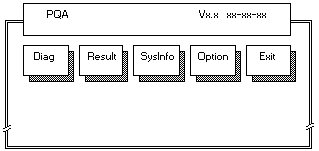
Boot from the Diagnostic Program Diskette and select PQA System Diagnostics Program from PC DOS 7.0 Startup Menu.

The PQA main menu appears on the screen.

2600_6

Press the left and right arrow keys to move around the main menu.

Press Enter to enable the selected option.

The main options are Diag, Result, SysInfo, Option and Exit.

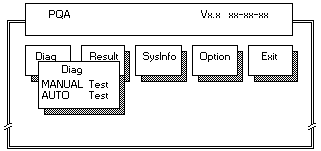
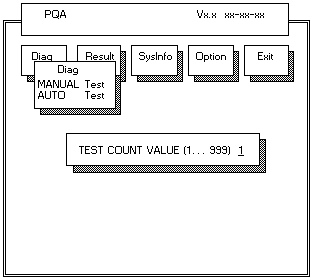
The Diag option lets you select testing items and testing times.

The following screen appears when you select Diag from the main menu.

2600_5

This screen allows you to specify the number of tests to perform.

The options are as follows:

  • Manual Test performs a single test and manually checks the selected test items in sequence.
  • Auto Test performs multiple tests and auto-checks the selected test items in sequence.

The screen below appears if you select Auto Test.

2600_7

Specify the desired number of tests and press Enter.

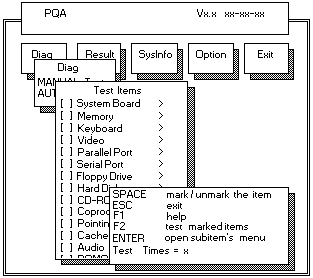
After you specify the number of tests to perform, the screen shows a list of test items (see below).

2600_8

Press the up and down arrow keys to move the highlight bar from one item to another.

Press Space to enable or disable the item. The > mark indicates that there are available sub-options. Press Enter to view the available sub-options of each selected item.

Press Esc to close the submenu.

The right corner screen information gives you the available function keys and the specified test number.

  • Space enables/disables the item.
  • Esc exits the program.
  • F1 accesses help.
  • F2 tests the selected item(s).
  • Enter opens the available suboptions.
  • Test Times show the number of tests to perform.

PQA Diagnostic Program Error Codes and Messages

Error Code Message FRU/Action in Sequence
16XX Backup battery error Backup battery (RTC)
1XXX CPU or planar board error ° Reload BIOS default setting. ° CPU card ° Planar board
2XXX Memory error ° Reconnect PU card. ° DIMM ° Planar board
3XXX Keyboard error ° Reseat keyboard. ° Keyboard ° Planar board
4XXX Video error Planar board
5XXX Parallel port error Planar board
6XXX Serial port or planar board error Planar board
7XXX Diskette drive error ° Diskette drive (FDD ASM) ° Planar board
8XXX Hard disk error ° Reload BIOS default setting ° Hard disk drive ° Planar board
9XXX CD-ROM error ° Reseat CD-ROM cable. ° CD-ROM drive ° Planar board
10XXX CPU or planar board error ° CPU card ° Planar board
11XXX Pointing device error ° Reseat keyboard. ° Keyboard ° Planar board

Fan Diagnostics #

Note: If the test fails, try reseating the Fan ASM connector or replacing the Fan ASM.

The system is equipped with sensors to protect against system overheating.

By setting the video controller and processor thermal thresholds, the system can turn on the cooling Fan ASM or shut down automatically when temperatures reach the defined threshold parameters.

Systems experiencing frequent auto sensor shutdown may need to reset the thermal sensor threshold (refer to 'Setting the Thermal Sensor'') and execute the fan test to ensure the cooling Fan ASM is operating normally.

Follow the steps below to use the Fan Diagnostics program:

  1. Boot from the Diagnostics Program Diskette.
  2. Select Fan Diagnostics from PC DOS 7.0 Startup menu.
  3. Follow the instructions on the screen to execute the fan diagnostics.

Note: If the test fails, try reseating the Fan ASM connector or replacing the Fan ASM.

Symptom-to-FRU Index #

Note: Perform the FRU replacement or actions in the sequence shown in the FRU/Action columns.

Note: For IBM devices not supported by diagnostic codes in this ThinkPad computer, see the manual for that device.

  • Numeric Error Codes

  • LCD-Related Symptoms
  • Keyboard-Related Symptoms
  • Indicator-Related Symptoms
  • Power-Related Symptoms
  • PC Card (PCMCIA)-Related Symptoms
  • Speaker-Related Symptoms
  • Power Management-Related Symptoms
  • Peripheral-Device-Related Symptom

The Symptom-to-FRU Index lists the symptoms and errors and the possible causes. The most likely cause is listed first.

Note: Perform the FRU replacement or actions in the sequence shown in the FRU/Action columns.

If a FRU replacement does not solve the problem, put the original part back in the computer. Do not replace a non-defective FRU.

This index can also be used to help you decide the next possible FRUs to be replaced when servicing a computer.

Numeric error codes show the errors detected in POST or system operation (runtime). In the following error codes, X can be any number. If no codes are available, use narrative symptoms.

If the symptom is not listed, go to 'Undetermined Problems'.

Note: For IBM devices not supported by diagnostic codes in this ThinkPad computer, see the manual for that device.

Numeric Error Codes #

errorpi   Numeric Error Codes

The following is a list of the message that the BIOS can display.

Most of them occur during POST. Some of them display information about a hardware device, e.g., the amount of memory installed. Others may indicate a problem with a device, such as the way it has been configured. Following the list are explanations of the messages and remedies for reported problems.

If the system fails after you make changes in the Setup menus, reset the computer, enter Setup and install Setup defaults or correct the error.

Symptom/Error FRU/Action in Sequence
0200 Failure Fixed Disk 1. Reseat hard disk drive.
2. Load Setup Defaults in BIOS Setup Utility.
3. Hard disk drive
4. System/planar board
0211 Stuck Key Go to 'Keyboard and Auxiliary Input Device Checkout'.
0211 Keyboard error Go to 'Keyboard and Auxiliary Input Device Checkout'.
0212 Keyboard Controller Failed Go to 'Keyboard and Auxiliary Input Device Checkout'.
0213 Keyboard locked - Unlock key switch Unlock external keyboard.
0220 Monitor type does not match CMOS - Run Setup Load Setup Defaults in BIOS Setup Utility.
0230 Shadow RAM Failed at offset:nnnn 1. BIOS ROM
2. Planar board
0231 System RAM Failed at offset:nnnn 1. DIMM
2. Planar board
0232 Extended RAM Failed at offset:nnnn 1. DIMM
2. System/planar board
0250 System battery is dead - Replace and run SETUP Replace backup battery (RTC) and run BIOS Setup Utility to reconfigure the system time, then reboot the system.
0251 System CMOS checksum bad - Default configuration used 1. Backup battery (RTC)
2. Run BIOS Setup Utility to reconfigure the system, then reboot the system.
0260 System timer error 1. Backtup battery (RTC)
2. Run BIOS Setup Utility to reconfigure the system, then reboot the system.
3. System/planar board
0270 Real time clock error 1. Backtup battery (RTC)
2. Run BIOS Setup Utility to reconfigure the system, then reboot the system.
3. System/planar board
0280 Previous boot incomplete - Default configuration used 1. Load Setup Defaults in the BIOS Setup Utility.
2. Backup battery (RTC)
3. System/planar board
0281 Memory size found by POST differed from CMOS 1. Load Setup Defaults in the BIOS Setup Utility.
2. DIMM
3. System/planar board
02B0 Diskette drive A error 1. Check that the drive is defined with the proper diskette type in BIOS Setup Utility.
2. Go to 'Diskette Drive Checkout'.
02B2 Incorrect Drive A type - run SETUP 1. Check that the drive is defined with the proper diskette type in BIOS Setup Utility.
2. Go to 'Diskette Drive Checkout'.
02D0 System cache error - Cache disabled 1. CPU card
2. System/planar board
02F0 CPU ID: 1. CPU card
2. System/planar board
02F5 DMA Test Failed 1. DIMM
2. CPU card
3. System/planar board
02F6 Software NMI Failed 1. DIMM
2. CPU card
3. System/planar board
02F7 Fail-Safe Timer NMI Failed 1. DIMM
2. CPU card
3. System/planar board

PC Doctor Diagnostics Error Codes and Messages #

The following table does not include userinitiated aborts, which display the error type 195.

Error Code 0-199

Error Code Test(s) Message
0-199 Y2K Year 2000 issue detected

FRU/Action in Sequence:

  • Backup battery (RTC)
  • System board

Error Code 1-1 to 1-260

Error Code Test(s) Message
1-1 SMBUS No SMBUS detected (if iFailNoSmbus=1)
1-34 DMA DMA transfer buffer allocate
1-198 SMBUS No SMBUS detected (if iFailNoSmbus=0)
1-254 DMA DMA transfer
1-255 DMA DMA page register
1-256 DMA DMA register
1-260 IRQ IRQ controller

FRU/Action in Sequence:

  • System board

Error Code 1-286 to 1-300

Error Code Test(s) Message
1-286 Timer Timer 0 BIOS timer
1-287 Timer Timer 1 RAM refresh
1-288 Timer Timer 2
1-292 CMOS RAM Pattern test
1-298 RTC Time update
1-299 RTC Periodic interrupt
1-300 RTC Alarm interrupt

FRU/Action in Sequence:

  • Check BIOS setting
  • Backup battery (RTC)
  • System board

Error Code 5-16 to 15-36

Error Code Test(s) Message
5-16 Video Memory pattern failed
5-24 Video Video page test failed
5-26 Video Register failed
5-199 Video Could not initialize mode 13H for register test.
11-2 COM Timeout sending
11-13 COM LCR/MCR fail
11-14 COM Internal loopback
11-15 COM External loopback
11-40 COM No interrupt detected
11-197 COM No FIFO part (can't run FIFO test) IR mode enabled (can't run serial test) No external loopback adapter (if prompt times out)
11-198 COM Aborted
11-286 COM Baudrate register
11-290 COM DLAB
14-15 LPT External loopback fail
14-40 LPT No interrupt
14-196 LPT Test aborted (too many failures)
14-197 LPT No loopback (prompt timed out)
14-250 LPT Data register
15-1 USB Not detected
15-36 USB Register failed

FRU/Action in Sequence:

  • System board

Error Code 18-1 to 18-27

Error Code Test(s) Message
18-1 PCMCIA No PCMCIA detected
18-5 PCMCIA Incorrect PCMCIA version
18-9 PCMCIA Incorrect number of sockets
18-24 PCMCIA Index register failed
18-27 PCMCIA Socket configuration read error

FRU/Action in Sequence:

  • PCMCIA holder
  • System board

Error Code 20-1 to 71-41

Error Code Test(s) Message
20-1 PCI No PCI detected
20-5 PCI Incorrect PCI BIOS version
20-27 PCI Problem reading PCI configuration
20-196 PCI To many PCI errors
25-14 IDE Controller data loop
25-32 IDE Inquiry data change between reads
25-195 IDE User abort
25-198 IDE No drive parameters readable Testing parameters out of range
25-250 IDE POST/BIST
25-260 IDE Read/verify
25-262 IDE Seek error
71-1 SB - PNPISA sound card detected, but not enabled - PCI sound card detected, but not enabled - Sound card not detected
71-11 SB DSP data loopback failed
71-40 SB IRQ test failed
71-41 SB DMA test failed

FRU/Action in Sequence:

  • System board

Error Code 75-1

Error Code Test(s) Message
20-1 PCI No PCI detected
75-1 ACCHARGER AC Charger not supported

FRU/Action in Sequence:

  • DC-DC & BATT board ASM
  • System board

Error Code 89-250 to 89-294

Error Code Test(s) Message
89-250 CPU Math coprocessor
89-266 CPU Registers MMX™
89-278 CPU Arithmetics
89-282 CPU Logical ops
89-286 CPU String ops
89-294 CPU Exceptions

FRU/Action in Sequence:

  • Reload BIOS default setting
  • CPU card
  • System board

Error Code 170-1 to 175-198

Error Code Test(s) Message
170-1 LM80/LM81 Chip not detected (iFailNoLm80=1)
170-27 LM80/LM81 All interrupts masked
170-198 LM80/LM81 Chip not detected (iFailNoLm80=0)
170-250 LM80/LM81 Interrupt condition detected
175-1 LM75/ Max1617 FAN Chip not detected (iFailNoLm80=1) Fan test not supported No fan detected
175-198 LM75/ Max1617 Chip not detected (iFailNoLm80=0)

FRU/Action in Sequence:

  • System board

Error Code 175-199

Error Code Test(s) Message
175-199 FAN Fan test failed

FRU/Action in Sequence:

  • Fan ASM
  • System board

Error Code 175-250 to 185-262

Error Code Test(s) Message
175-250 LM75/ Max1617 Interrupt condition detected
185-1 RFID/ ALERTPACK Asset ID not supported SMBUS not detected (if not required) AlertPack not supported AlertPack not detected (if not required)
185-2 ALERTPACK Transmission timeout
185-5 ALERTPACK Invalid revision
185-9 RFID/ ALERTPACK SMBUS not detected (if required) AlertPack not detected (if required)
185-16 ALERTPACK Pattern test
185-262 RFID/ ALERTPACK Problem reading EEPROM Bad header checksum Bad area checksum Problem detecting antenna No antenna detected

FRU/Action in Sequence:

  • System board

Error Code 201-1 to 201-198

Error Code Test(s) Message
201-1 DIMM No SMBus detected (iFailNoSmbus=1) No DIMMs detected (iFailNoSmbus=1)
201-13 DIMM EEPROM write protect failed (iFailEpWr=1)
201-25 DIMM Bad EEPROM checksum
201-198 DIMM No SMBus detected (iFailNoSmbus=0)

FRU/Action in Sequence:

  • DIMM
  • System board

Error Code 202-1 to 202-18

Error Code Test(s) Message
202-1 CACHE CPU not in correct mode for test
202-3 CACHE NMI detected during cache test
202-18 CACHE Cache failed random pattern test

FRU/Action in Sequence:

  • DIMM
  • System board

Error Code 206-16 to 206-290

Error Code Test(s) Message
206-16 FD Sector pattern test failed
206-27 FD Read failure (not able to detect disk size)
206-198 FD Not able to detect disk size parameters
206-262 FD Read, write or verify failure
206-290 FD Seek failed

FRU/Action in Sequence:

  • Reseat diskette drive cable
  • Diskette drive (FDD ASM)
  • System board

Error Code 215-1 to 215-254

Error Code Test(s) Message
215-1 CDROM No drive or MSCDEX driver detected
215-196 CDROM Too many errors
215-254 CDROM Sector read failed

FRU/Action in Sequence:

  • Reseat CD-ROM cable
  • CD-ROM drive
  • System board

Error Code 217-14 to 217-262

Error Code Test(s) Message
217-14 HD Controller data loop
217-32 HD Inquiry data change between reads
217-195 HD User abort
217-198 HD No drive parameters readable Testing parameters out of range
217-250 HD POST/BIST
217-260 HD Read/verify
217-262 HD Seek error

FRU/Action in Sequence:

  • Reload BIOS default setting
  • Hard disk connector
  • Hard disk drive

Error Code 301-250 to 301-266

Error Code Test(s) Message
301-250 KBD Interrupt
301-254 KBD POST
301-258 KBD Interface

FRU/Action in Sequence:

  • Reseat keyboard connector
  • Keyboard
  • System board

Error Code 304-1 to 304-199

Error Code Test(s) Message
304-1 BATTERY No battery installed No battery detected
304-199 BATTERY General battery failure

FRU/Action in Sequence:

  • Battery pack
  • DC-DC & BATT board ASM
  • System board

Error Code 415-1 to 415-250

Error Code Test(s) Message
415-1 MODEM PNPISA modem detected but not enabled PCI modem detected but not enabled Modem not detected
415-250 COM/Modem Modem ATZ No dial tone detected

FRU/Action in Sequence:

  • Reseat Modem card
  • Modem card
  • System board

No Beep Symptoms #

Symptom/Error FRU/Action in Sequence
No beep, power-on indicator on, LCD blank, no POST ° Ensure every connector is connected tightly and correctly.
° DIMM
° Reseat CPU card.
° CPU card
° System/planar board
No beep, power-on indicator off, LCD blank during POST ° Battery ASM
° AC Adapter
° DC-DC & BATT board ASM
° System/planar board
No beep, power-on indicator on, LCD blank during POST ° Reseat DIMM.
° CPU card
° System/planar board
No beep during POST but system runs correctly. Speaker

Intermittent Problems #

Intermittent system hang problems can be caused by a variety of reasons that have nothing to do with a hardware defect, such as cosmic radiation, electronic discharge, or software errors.

FRU replacement should be considered only when a recurring problem exists.

When analyzing an intermittent problem, do the following:

  1. Run the advanced diagnostic test for the planar board in loop mode at least 10 times.
  2. If no error is detected, do not replace any FRUs.
  3. If any error is detected, replace the FRU shown by the FRU code..  Rerun the test to verify that no more errors exist.

FRU Removals and Replacements #

This section contains information about removals and replacements.

  • Do not damage any parts. Only certified and trained personnel should service the computer.

  • The arrows in this section show the direction of movement to remove a FRU, or to turn a  screw to release the FRU. The arrows are marked in numeric order, in square callout,  to show the correct sequence of removal.

    • When other FRUs must be removed before the failing FRU is removed, they are  listed at the top of the page.

    • To replace a FRU, reverse the removal procedure and follow any notes that pertain to replacement.

      • When replacing a FRU, use the correct screw size, as shown in the procedures.

warnpi   Safety Notice 1:

Before the computer is powered on after FRU replacement, make sure all screws, springs, or other small parts are in place and are not left loose inside the computer.

Verify this by shaking the computer and listening for rattling sounds. Metallic parts or metal flakes can cause electrical short circuit.

Safety Notice 4:

The lithium battery can cause a fire, explosion, or severe burn.

Do not recharge it, remove its polarized connector, disassemble it, heat it above 100°C (212 °F), incinerate it, or expose its cell contents to water.

Dispose of the battery as required by local ordinances or regulations.

Use only the battery in the appropriate parts listing.

Use of an incorrect battery can result in ignition or explosion of the battery.

Safety Notice 8:

Before removing any FRU, power-off the computer, unplug all power cords from electrical outlets, remove the Battery ASM, and then disconnect any interconnecting cables.

An electrostatic discharge (ESD) strap (P/N 6405959) must be used to establish personal grounding.


Back to

Power System Checkout #

To verify the symptom of the problem power on the computer using each of the following power sources:

  1. Remove the battery ASM.
  2. Connect the AC Adapter and check that power is supplied.
  3. Disconnect the AC Adapter and install the charged battery ASM, then  check that power is supplied by the battery ASM.

If you suspect a power problem, refer the the appropriate power supply check listed below:

Power Management Features #

Note: When battery is low, the battery status indicator blinks orange.

Note: Before using hibernation mode, you need a hibernation file.

Note: If you change the memory size, you need to recreate the hibernation file or partition. For partition-based hibernation, use the hibernation utility to delete the partition first before creating a new one.

Three power management modes are available in the computer system to reduce power consumption and to prolong battery life.

Standby Mode:

In standby mode, the following occurs:

For TP 390E - (2626)

  • The LCD backlight turns off.
  • The audio amplifier turns off. (Fn+F3)

For TP 390/i Series 1700 - (2626, 2627)

  • The LCD backlight turns off.
  • The hard disk drive motor stops.
  • The audio amplifier turns off. (Fn+F3)

Events that cause the computer to enter standby mode:

  • Standby mode requested by the Fn key (Fn+F3).

The computer exits standby and resumes operation when any key is pressed.

Suspend Mode:

In suspend mode, the following occurs:

  • The LCD is powered off.
  • The hard disk drive is powered off.
  • The CPU stops.

Events that cause the computer to enter suspend mode:

  • Suspend mode requested by the Fn key (Fn+F4).- The Lid is closed (BIOS Setup)- The specified time has elapsed.- Battery low occurs and hibernation conditions are insufficient.
    **Note:** When battery is low, the battery status indicator blinks orange.
    - The computer is ejected from the ThinkPad Port Replicator with Advanced Etherjet Feature.- The UltraBay FX (Combobay) switch is pressed.
    

Notes:

  1. In the IBM BIOS Setup Utility, the computer can be set to suspend when lid is closed.
  2. In the IBM BIOS Setup Utility, the computer can be set to suspend when docked.

The following events cause the computer to resume operation from suspend mode:

  • The Lid is opened.
  • The real time clock alarm is signaled.
  • The ring indicator (RI) is signaled by a serial device or a PC Card device.
  • The Fn key is pressed.
  • Wake on LAN occurs.
  • Power switch is pressed.

The computer also exits suspend mode when timer conditions are satisfied for entering hibernation mode.

Hibernation Mode: For Windows NT or OS/2 user:

A Windows NT or OS/2 user cannot create a hibernation file in a Windows NT or OS/2 system that uses the NTFS/HPFS format system.

If you want to use hibernation mode, you should reinstall Windows NT with a FAT format system.

Also, if boot manager is installed, the computer cannot enter hibernation mode.

Note: Before using hibernation mode, you need a hibernation file.

In hibernation mode, the following occurs:

  • The system status, RAM, VRAM, and setup data are stored on the hard disk.
  • The system is powered off.

Notes:

  1. In the ThinkPad Configuration program, the computer can be set to suspend when docked.
  2. The computer cannot enter hibernation mode when it is attached to the ThinkPad Port Replicator with  Advanced Etherjet Feature.

Events that cause the computer to enter hibernation mode:

  • Hibernation mode requested by function key (Fn+F12).
  • Timer conditions are satisfied in suspend mode when hibernate by timer is enabled.
  • A critically low battery condition occurs.
  • The power switch is pressed. (BIOS Setup)

The computer exits hibernation mode and resumes operation when the power-on switch is pressed.

When power is turned on, the hibernation file in the boot record on the hard disk drive is read and the system status is restored from the hard disk drive.

The following events cause the computer to resume operation from hibernation mode.

  • The power switch is pressed.
  • The real time clock alarm is signaled.
  • Wake on LAN occurs.

How to Create the Hibernation Function:

Do as follows:

For TP 390E - (2626)

  • Start the ThinkPad Configuration program.
  • Click on the Power Management icon.
  • Click on the Hibernation Options tab.
  • Click on Enable Hibernation .
  • Click on OK .

For TP 390/i Series 1700 - (2626, 2627)

  • Turn off the computer.
  • Insert the hibernation utility diskette into the diskette drive (you can create the diskette using the Diskette Factory).
  • Turn on the computer.
  • Follow the instructions on the screen.

Note: If you change the memory size, you need to recreate the hibernation file or partition. For partition-based hibernation, use the hibernation utility to delete the partition first before creating a new one.

Checking the AC Adapter #

Note: An audible noise from the AC Adapter does not always indicate a defective adapter.

Checking the AC Adapter.

You are here because the computer fails only when the AC Adapter is used:

  • If the power problem occurs only when the ThinkPad Port Replicator with Advanced Etherjet Feature.
  • If the power-on indicator does not turn on, check the power cord of the AC Adapter for correct  continuity and installation.
  • If the operational charge does not work, go to 'Checking the Operational Charging' .

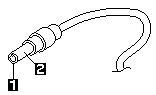
Unplug the AC Adapter cable from the computer and measure the output voltage at the plug of the AC Adapter cable. See the following figure.

390_4

Pin Voltage (Vdc)
1 for 390/i +14.5 to +17.0 for 390E +15.5 to +17.0
2 Ground

If the voltage is not correct, replace the AC Adapter.

If the voltage is within the range, do the following:

  • Replace the DC-DC & BATT board.
  • Replace the system/planar board.
  • If the problem is not corrected, go to 'Undetermined Problems' .

Note: An audible noise from the AC Adapter does not always indicate a defective adapter.

Checking the Operational Charging #

Checking the Operational Charging.

To check operational charging, use a discharged battery pack (Battery ASM) or a Battery ASM that has less than 50% of the total power remaining when installed in the computer.

Perform operational charging. If the battery status indicator does not turn on, remove the Battery ASM and let it return to room temperature.

Reinstall the Battery ASM.

If the charge indicator still does not turn on, replace the Battery ASM. If the charge indicator still does not turn on, replace the DC-DC & BATT board, then the system/planar board.

Then reinstall the Battery ASM. If the reinstalled Battery ASM is not charged, go to the next section ('Checking the Battery ASM').

Checking the Battery ASM #

Note: Signal lines, not used in these steps, are used for communications  between the system and the battery.

Battery ASM charging will not start until the Fuel-Gauge shows that less than 95% of the total power remains, with this condition, the Battery ASM can charge to 100% of its capacity.

This protects the Battery ASM from being overcharged or having a shortened life.

Do the following:

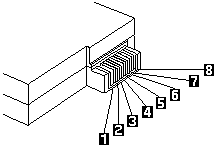
  1. Power off the computer.- Remove the Battery ASM and measure the voltage between battery terminals 1(+) and 7(-).

    See the following figure:

    390_2

    Note: Signal lines, not used in these steps, are used for communications  between the system and the battery.

    • If the voltage is less than 10.6V (Li-Ion) or 9.6V (NiMH), the Battery ASM has been discharged,  recharge the Battery ASM. If the voltage is still less than 10.6V (Li-Ion) or 9.6V (NiMH), replace the  battery.
    • If the voltage is more than 10.6V (Li-Ion) or 9.6V (NiMH), measure the resistance between battery  terminals 5 and 7. The resistance must be 390 ohm (Li-Ion) or 4 to 3K ohm. If the resistance is not  correct, replace the Battery ASM. If the resistance is correct, replace the DC-DC &  BATT board then the system/planar board.

Drive and Diskette Compatibility Matrix #

Note: A 360KB diskette written to or formatted on a 1.2MB drive can be read reliably only on a 1.2MB drive.

Diskette Drive Identifying Mark
3.5-Inch - 1.44MB 1.44 on the eject button
3.5-Inch - 2.88MB 2.88 on the eject button
Diskette Capacity 1.44MB Drive 2.88MB Drive
1.0MB Read/Write Read/Write
2.0MB Read/Write Read/Write
4.0MB Not Compatible Read/Write
Diskette Drive Identifying Mark
5.25-Inch - 360KB (External) Asterisk on bezel
5.25-Inch - 1.2MB (Internal) 1.2 on the eject button
Diskette Capacity 360KB Drive 1.2MB Drive
360KB Read/Write Read/Write
1.2MB Not Compatible Read/Write

Note: A 360KB diskette written to or formatted on a 1.2MB drive can be read reliably only on a 1.2MB drive.

Audio Checkout #

Do as follows:

For TP 390E - (2626)

  1. Boot from and start PC Doctor, (See 'PC Doctor Systems Diagnostics' for details.)- Select Interactive Tests- Select Internal Speaker

    If no sound is played, replace the speaker or the system board.- Select Stereo Speaker

      If no music is played, replace the speaker or the system board.
    

For TP 390/i Series 1700 - (2626, 2627)

  1. Go to the Startup menu by selecting Audio Play and Record Test in the diagnostic diskette..
  2. If no music is played, replace the speaker or the planar board.

Diskette Drive Checkout #

Note: Make sure that the diskette does not have more than one label attached to it. Multiple labels can cause damage to the drive or can cause the drive to fail. Do the following to select the test device.

Do the following to isolate the problem to a controller, drive, or diskette.

A scratch, write-enabled, non-defective, high-density (2HD) diskette is required.

warn   CAUTION Make sure that the diskette does not have more than one label attached to it. Multiple labels can cause damage to the drive or can cause the drive to fail. Do the following to select the test device.

See 'Running the Diagnostics' for details.

For TP 390E - (2626)

Do the following to isolate the problem to a controller, drive, or diskette.

See 'Running the Diagnostics' for details.

  1. Boot from and start PC Doctor. (See 'PC Doctor System Diagnostics' for details.)
  2. Select Diagnostics .
  3. Select Diskette Drives .
  4. Follow the instructions in the message window.

For TP 390/i Series 1700 - (2626, 2627)

  1. Boot from the diagnostics diskette and start the PQA program  (please refer to 'PQA System Diagnostics' ).
  2. Go to Diskette Drive (FDD ASM) in the test items.
  3. Press F2 in the test items.
  4. Follow the instructions in the message window.

For TP 390E or 390/i - (2626, 2627)

If an error occurs with the internal diskette drive, reseat the connector on the planar board.

If the error still remains:

  1. Reseat the Combobay ASM.
  2. Reseat the Diskette Drive (FDD ASM).
  3. Replace the Diskette Drive (FDD ASM).
  4. Replace the Combobay Interposer card ASM.
  5. Replace the Planar board.

CD-ROM ASM Checkout #

Do the following to isolate the problem to a controller, drive, or CD-ROM.

Make sure that the CD-ROM disc does not have any label attached to it.

The label can cause damage to the drive or can cause the drive to fail.

Do the following to select the test device:

For TP 390E - (2626)

  1. Boot from and start PC Doctor. (See 'PC Doctor System Diagnostics' for details.)- Select Interactive Tests.- Select CD-ROM/DVD Test.- Follow the instructions in the message window.
      If an error occurs, reseat the connector on the system board.
    

For TP 390/i Series 1700 - (2626, 2627)

  1. Boot from the diagnostics diskette and start the PQA program  (please refer to 'PQA System Diagnostics').- Go to CD-ROM in the test items.- Press F2 in the test items.- Follow the instructions in the message window.
      If an error occurs, reseat the connector on the planar board.
    

For TP 390E or 390/i - (2626, 2627)

If the error still remains:

  1. Reseat the Combobay ASM.
  2. Reseat the CD-ROM ASM.
  3. Replace the CD-ROM ASM.
  4. Replace the Combobay Interposer card ASM.
  5. Replace the System/Planar board.

Keyboard and Auxiliary Input Device Checkout #

Note: Remove the external keyboard if the internal keyboard is to be tested.

Note: Remove the external keyboard if the internal keyboard is to be tested.

If the internal keyboard does not work or an unexpected character appears, make sure that the flexible cable extending from the keyboard is correctly seated in the connector.

If the keyboard cable connection is correct, run the Keyboard Test.

For TP 390E - (2626)

  1. Boot from and start PC Doctor. (See 'PC Doctor System Diagnostics' for details.)
  2. Select Interactive Tests .
  3. Select Keyboard .
  4. Follow the instructions in the message window.

For TP 390/i Series 1700 - (2626, 2627)

See 'Running the Diagnostics' for details.

If the test detects a keyboard problem, do the following one at a time to correct the problem. Do not replace a nondefective FRU.

  1. Replace the keyboard.
  2. Replace the system/planar board.

The following auxiliary input devices are supported for this computer:

  • Numeric keypad
  • Mouse (PS/2 compatible)
  • External keyboard (with keyboard/mouse cable)

If any of these devices do not work, reseat the cable connector and repeat the failing operation.

If the problem does not reoccur, replace the device and then the planar board.

Modem Board Checkout #

Do the following to isolate the problem to the system internal modem:

For TP 390E - (2626)

  1. Boot from and start PC Doctor. (See 'PC Doctor System Diagnostics' for details.)
  2. Select Diagnostics .
  3. Select Other Devices .
  4. Run Modem Loopback Test and Modem Dialtone/DTMF Test .
  5. Follow the instructions in the message window.
  6. If the test detects a modem problem, replace the modem card.

For TP 390/i Series 1700 - (2626, 2627)

  1. Go to the Startup menu by selecting Modem Dial and Data Transfer in the diagnostics diskette.
  2. Follow the instructions in the message window.
  3. If the test detects a modem problem, replace the modem card.

TrackPoint Checkout #

If the external mouse is connected, the TrackPoint does not work. In this case, please detach the external mouse to check the TrackPoint.

If this does not correct the TrackPoint problem, continue with the following.

After you use the TrackPoint, the pointer drifts on the screen for a short time. This self-acting pointer movement can occur when a slight, steady pressure is applied to the TrackPoint pointer.

This symptom is not a hardware problem. No service actions are necessary if the pointer movement stops ina short period of time.

If a click button problem or pointing stick problem occurs, do the following:

For TP 390E - (2626)

  1. Boot from and start PC Doctor. (See 'PC Doctor System Diagnostics' for details.)
  2. Select Interactive Tests
  3. Select Mouse
  4. Follow the instructions in the message window.

For TP 390/i Series 1700 - (2626, 2627)

  1. Boot from the diagnostics diskette and start the PQA program  (please refer to 'PQA System Diagnostics' ).
  2. Go to Pointing Dev. in the test items.
  3. Press F2 in the test items.
  4. Follow the instructions in the message window.

If either the pointing stick or the click button does not work, do the following actions one a time to correct the problem.

Do not replace a non-defective FRU.

  1. Reseat the keyboard cables.
  2. Replace the keyboard.
  3. Replace the system/planar board.

CE Utility Program Diskette #

Note: You can download the CE Utility Program Diskette from the IBM webside.

Note: When you set a new LCD Panel ID and the new LCD is not yet enabled  (to function), connect an external CRT to see the program execution process.

Note: . If the LCD cannot display after changing the ID code, make sure you write the correct ID code or try reconnecting the LCD FPC cable connectors.

NOTE: You can download the CE Utility Program Diskette from the IBM webside.

flashpi   Setting the LCD Panel ID

There is an EEPROM in the inverter which stores its supported LCD type ID code.

If you replace a LCD with one of a different brand or use a new inverter, the ID information in the inverter EEPROM should be updated.

Follow the steps below to set the LCD Panel ID:

  1. Boot from the Utility Program Diskette.- Select LCD Panel ID Utility from PC DOS 7.0 Startup Menu.- Follow the instructions on the screen to read the current or to set a new LCD Panel ID code.

    Note: When you set a new LCD Panel ID and the new LCD is not yet enabled  (to function), connect an external CRT to see the program execution process.

    warn   Attention: Make sure the new ID code you choose  corresponds to the LCD brand and type.

    If you write a wrong ID into the inverter, just reboot and re-execute the program  and input the correct ID code.- Restart the computer - the new LCD should work normally.

Note:. If the LCD cannot display after changing the ID code, make sure you write the correct ID code or try reconnecting the LCD FPC cable connectors.

Setting the Thermal Sensor

The system is equipped with sensors to protect against system overheating.

By setting the system and processor thermal thresholds, the system can turn on the cooling Fan ASM or shut down automatically when the temperature reaches the defined threshold parameters.

System experiencing frequent auto sensor shutdown may need to reset the thermal sensor threshold and execute the Fan ASM test to ensure the normal operation of the cooling Fan ASM

(For TP 390/i Series 1700 - refer to 'Fan Diagnostics', for TP 390E - refer to 'Fan ASM Checkout').

Follow the steps below to set the thermal threshold:

  1. Boot from the Utility Program Diskette.
  2. Select Thermal Sensor Utility from PC DOS 7.0 Startup menu, then press F4 .

For TP 390E - Writing the RFID Data

The EEPROM on the system board contains the system unit serial number and the system board serial number.

When you replace the system board, restore the system unit serial number using the RFID Utility in the ThinkPad CE Utility Diskette.

The serial number label is attached to the computer.

This utility allows you to

  • add S/N data to the EEPROM (option 1)- read S/N data from the EEPROM (option 2)- delete S/N data from the EEPROM (option 3)

Follow the instructions on the screen.

For TP 390/i Series 1700 - Writing the VPD Data

The EEPROM on the planar board contains the Vital Product Data (VPD) - that is, a system unit serial number and a planar board serial number.

When you replace the planar board, restore the system unit serial number using the VPD Data Utility in the ThinkPad CE Utility Diskette.

The serial number label is attached to the computer.

Edit the batch file in the diskette A:\active.bat

  • VPD_BUILDID
  • VPD_BOXSERIAL
  • VPD_PLANARSERIAL

Flash UUID

The EEPROM on the planar board contains the Universal Unique ID (UUID) - that is, for Microsoft or Internet use.

When you replace the planar board using the Flash UUID Utility in the ThinkPad CE Utility Diskette.

The UUID utility will automatically assign the UUID via Windows.

Audio Resource and Speaker-out Test #

Boot from the Diagnostic Program Diskette and select Running Audio Resource and Speaker-Out Test from PC DOS 7.0 Startup Menu. Follow the instructions on the screen to execute the audio test. If the test fails, go to 'Audio Checkout'.

warn   Attention You should execute this program two times (one for internal and the other for external speakers) to verify if the system's audio function is in working order.

Modem Dial and Data Transfer Test #

Note: A telephone line is required for completing the modem test.

Boot from the Diagnostic Program Diskette and select Modem Dial and Data Transfer Test from PC DOS 7.0 Startup Menu. Follow the instructions on the screen to execute modem test. If the test fails, go to 'Modem Board Checkout'.

Note: A telephone line is required for completing the modem test.

Fn Key Combinations #

The following table shows the Fn key and function key combinations and their corresponding functions.

The Fn key works independently of the operating system. The operating system obtains the status through the system management interface to control the system.

Fn + Result
F2 Fuel-Gauge display on and off
F3 Standby mode
F4 Suspend mode
F7 Switch between the LCD, the external monitor, and both the LCD and external monitor
F8 Expand/shrink screen
F11 Switch power mode
F12 Hibernation mode

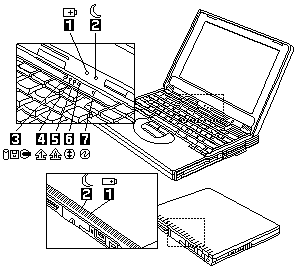
Status Indicators #

The system status LED indicators show the current com puter status. The following shows the location of each indicator symbol and the meaning of each indicator.

390_1

Symbol Color Meaning
-1- Battery status Green Enough battery power remains for operation.
Blinking orange The battery pack needs to be charged
Orange The battery pack is being charged.
-2- Suspend mode Green The computer is in suspend mode.
Blinking green The computer is entering suspend mode.
-3- Drive in use Orange Data is being read from or written to the hard
disk drive, diskette drive, or data is being read
from the CD-ROM drive.
Do not enter hibernation mode or power off the
computer when this indicator is on.
-4- Numeric lock Green The numeric keypad on the keyboard is enabled.
You enable or disable the keypad by pressing
and holding the Shift key, and pressing
the NumLk key.
For details, see the User's Reference.
-5- Caps lock Green Caps Lock mode is enabled.
All alphabetic characters (A-Z) are entered in
capital letters without the Shift key being pressed.
You enable or disable the Caps Lock mode by pressing
the Caps Lock key.
-6- Scroll lock Green Scroll Lock mode is enabled. The Arrow keys can be
used as screen-scroll function keys.
The cursor cannot be moved with the Arrow keys.
Not all application programs support this function.
You enable or disable Scroll Lock mode by pressing
the ScrLk key.
-7- Power on Green The computer is operational. This indicator is always on
when the computer is on and not in suspend mode.

Fan ASM Checkout #

To check the Fan ASM, do the following:

For TP 390E - (2626)

  1. Boot from and start PC Doctor. (See 'PC Doctor System Diagnostics' for details.)
  2. Select Diagnostics .
  3. Select Other Devices .
  4. Select Fan .
  5. Follow the instructions in the message window.

For TP 390/i Series 1700 - (2626, 2627)

  1. Boot from the diagnostics diskette and start the Fan ASM Diagnostics.
  2. Follow the description in the window. If the test detects the Fan ASM problem, replace it.

Memory Checkout #

Note: Make sure that the DIMM is properly installed into the connector.

DIMM are available for increasing memory capacity.

Slot 1 (MB) Slot 2 (MB) Total Memory (MB)
32 0 32
0 32 32
32 32 64
64 0 64
0 64 64
64 32 96
32 64 96
64 64 128
128 0 128
0 128 128
128 32 160
32 128 160
128 64 192
64 128 192
128 128 256

Memory errors might stop system operation, show error messages on the screen, or hang the system.

Use the following procedure to isolate memory problems:

For TP 390E - (2626)

  1. Boot from and start PC Doctor. (See 'PC Doctor System Diagnostics' for details.)
  2. Select Memory Test
  3. Full and/or Memory Test
  4. Quick .
  5. Follow the instructions in the message window.

For TP 390/i Series 1700 - (2626, 2627)

  1. Boot from the diagnostics diskette and start the PQA program  (please refer to 'PQA System Diagnostics' ).
  2. Go to Memory in the test items.
  3. Press F2 in the test items.
  4. Follow the instructions in the message window.

Note: Make sure that the DIMM is properly installed into the connector.

A loose connection can cause an error.

Error Messages #

Symptom/Error FRU/Action in Sequence
Device Address Conflict 1. Load Setup Defaults in BIOS Setup Utility.
2. Backup battery (RTC)
3. System/planar board
Allocation Error for: device 1. Load Setup Defaults in BIOS Setup Utility.
2. Backup battery (RTC)
3. System/planar board
Failing Bits: nnnn 1. DIMM
2. BIOS ROM
3. System/planar board
Invalid System Configuration Data 1. BIOS ROM
2. System/planar board
I/O device IRQ conflict 1. Load Setup Defaults in BIOS Setup Utility.
2. Backup battery (RTC)
3. System/planar board
Operating system not found 1. Enter BIOS Setup Utility and see if the hard disk drive and diskette drive A: are properly identified.
2. Diskette drive (FDD ASM)
3. Hard disk drive
4. System/planar board
Critical battery low Save your work, then connect the AC Adapter to the computer to recharge the battery.

Undetermined Problems #

You are here because the diagnostic tests did not identify which adapter or device failed, which installed devices are incorrect, whether a short circuit is suspected, or whether the system is inoperative.

Follow these procedures to isolate the failing FRU (do not isolate nondefective FRUs). Verify that the power supply being used at the time of the failure is operating correctly.

(See 'Power System Checkout').

  1. Power off the computer.- Visually check them for damage. If any problems are found, replace the FRU.- Remove or disconnect all of the following devices:

    1. Non-IBM devices
    2. Devices attached to the ThinkPad Port Replicator with Advanced Etherjet Feature
    3. Printer, mouse, and other external devices
    4. Battery ASM
    5. Hard disk drive
    6. DIMM
    7. CD-ROM and Diskette Drive (FDD ASM) in the Combobay (UltraBay FX)
    8. PC Cards (PCMCIA)
    • Power on the computer.- Determine if the problem has changed.- If the problem does not recur, reconnect the removed devices one at a time until you find the failing FRU.- If the problem remains, replace the following FRUs one at a time. Do not replace a non-defective FRU.
         1. System/planar board- LCD panel ASM- CPU card
      

PCMCIA WrapCard Test #

Boot from the Diagnostic Program Diskette and select PCMCIA WrapCard Test from PC DOS 7.0 Startup Menu. Follow the instructions on the screen to run the PCMCIA test.

The green LED on the PC test card lights up when the PCMCIA test is running.

If the LED does not light up, check whether the card is installed correctly by reseating the card. If it still does not light up after it is reseated, try using another slot for the test. If the LED still does not turn on and the test fails, replace the FRU shown by the diagnostic error code.

FIR Data Transfer Test #

Boot from the Diagnostic Program Diskette and select Running FIR Data Transfer Test from PC DOS 7.0 Startup Menu.

Follow the instructions on the screen to execute FIR test.

USB Connect/Disconnect Test #

Boot from the Diagnostic Program Diskette and select Running USB Connect/Disconnect Test from PC DOS 7.0 Startup Menu.

Follow the instructions on the screen to execute the USB test.

PC Doctor System Diagnostic #

Note: Some test items require tools as shown below:

Note: You can press F1 for help.

Running the Diagnostics - TP 390E - 2626

PC Doctor for DOS is used to perform diagnostics on the ThinkPad 390E

Note: Some test items require tools as shown below:

  • FDD: Erasable 2HD diskette
  • Parallel: Wrap plug (P/N 72X8546)
  • Serial: Wrap plug (P/N 72X8546)
  • PCMCIA: PC test card (P/N 35G4703)
  • CD-ROM: Any data and audio CDs
  • ThinkPad 390E PC Doctor for DOS Diskettes 1 and 2 (available from the website)
  • ThinkPad 390E CE Utility Diskette (available from the website)

To run PC Doctor:

  1. Shutdown the computer.- Insert the PC Doctor for DOS diskette #1 into the diskette drive.- Turn on the computer.- Select the correct model name and test type:
     - Option 1: TP-390E without audio- Option 2: TP-390E with audio
      and press **Enter**
    
     - When prompted, remove the diskette from the diskette drive, then insert
        the PC Doctor for DOS diskette #2 into the diskette drive and press any key.
    
        The PC Doctor for DOS diagnostics program screen appears.
    

To use PC Doctor:

  1. Press the left and right arrow keys to move around the main menu.

Press Enter to enable the highlighted option. The main options are:

  • Diagnostics
  • Interactive Tests
  • Hardware Info
  • Utility
  • Quit
  • Press the up and down arrow keys to move in a selected menu.

    Press Enter to enable the highlighted option.

Note: You can press F1 for help.

The Diagnostics and Interactive Tests menus contain test items you perform on the computer.

After performing a test, press F3 to view the test result log for detailed information.

See PC Doctor Diagnostics Error Codes and Messages

Introduction #

Note: Diskette fixes are customer installable.

Important Service Information

warn   Important Diskette fixes are customer installable.

The diskette fixes are located on the PC Company Bulletin Board Service (BBS).

The direct phone line for modem connection is 919-557-0001 or tieline 255-0001.
Advise customers to contact the PC Company HelpCenter at 800-772-2227 if they need assistance in obtaining or installing any diskette fixes.

Customers in Canada should call IBM HelpPC at 800-565-3344 for assistance or down-load information.

The Canadian BBS phone numbers are:

  • Montreal 514-938-3022
  • Toronto 905-316-4255
  • Vancouver 604-664-6464
  • Winnipeg 204-934-2735

FRU Replacement Strategy

Before Replacing Parts Ensure that all diskette fixes are installed prior to replacing any FRUs listed in this manual.

Use the following strategy to prevent unnecessary FRU replacement and service expense:

  • If you are instructed to replace a FRU and that does not correct the problem, reinstall the original  FRU before you continue.
  • Some computers have both a processor board and a system board.  If you are instructed to replace either the processor board or the system board, and the first  board that you replaced does not correct the problem, reinstall the original board, then replace the other  (processor or system) board.
  • If an adapter or device consists of more than one FRU, an error code may be caused by any of the  FRUs. Before replacing the adapter or device, remove the FRUs, one by one, to see if the symptoms change.  Replace only the FRU that changed the symptoms.

warn   Attention A customized setup configuration (other than default settings) may exist on the computer you are servicing.

Running Automatic Configuration may alter those settings. Note the current configuration settings (using the View Configuration option) and verify that the settings are in place when service is complete.

Hard Disk Drive Replacement Strategy:

Always try to run a low-level format before replacing a hard disk drive.

warn   Attention The drive startup sequence in the computer you are servicing might have been changed.

Be extremely careful during write operations such as copying, saving, or formatting.

Data or programs can be overwritten if you select an incorrect drive.

How to Use Error Messages

Use the error codes displayed on the screen to diagnose failures.

If more than one error code is displayed, begin the diagnosis with the first error code.

The cause of the first error code can result in false error codes being displayed. If no error code is displayed, see if the error symptom is listed in the Symptom-to-FRU Index for the computer you are servicing.

How to Read POST Error Messages

POST error messages are displayed on the screen as three, four, five, or eight digits.

The error messages that can be displayed as shorter POST messages are highlighted in this index.

Some digits will represent different information for SCSI errors versus non-SCSI errors.

The following example shows which digits display the shorter POST error messages and also defines the SCSI information in an eight-digit error message.

Shorter POST Messages

  • Format: an 8-character string with varying definitions.
  • Characters 1 and 2: Reserved.
  • Character 3: Device Code.
  • Characters 4 to 8: Dependent on SCSI or non-SCSI error.
  • For SCSI errors:
    • Character 4: SCSI ID.
    • Character 5: Logical Unit Number (SCSI).
    • Character 6: Slot Number (SCSI).
    • Characters 7 and 8: Size (SCSI).

All SCSI devices are set to a different SCSI ID. Duplicate SCSI ID settings can generate a false error message.

Use the SCSI ID to determine whether the error message is coming from an internal or an external device.

How to Disable the Password #

passpi   How to Disable the Password

There are three passwords used at a typical customer site:

The Setup password, the HDD password, and the Power On password.

  • Power On password:
  1. Power off the computer.
  2. Remove the battery pack and AC Adapter.
  3. Remove the backup battery (RTC) for 20 minutes or use a screwdriver to touch the  backup battery (RTC) for 1 second.
  4. Put back the backup battery (RTC).
  5. Power on the computer and wait until POST ends.
  6. Verifty that the password prompt does not appear.
  • Supervisor and HDD passwords:No overriding capability is provided, so it cannot be reset if forgotten.****

    The Supervisor password and HDD password (HDD-1 and HDD-2) are security features that are used to  protect the system and the hard disk drive data from unauthorized access.

warn   If the customer forgets the Supervisor password, the planar board must must be replaced. If the customer forgets the HDD password, the hard disk drive must be replaced.

System Programs in Flash Memory #

System Programs in Flash Memory.

System setup programs are stored in the flash memory.

Flash Memory Update: The flash memory update is required for the following conditions:

  • New versions of system programs
  • New features or options

FRU Service Procedures #

Note: Do not power off the computer while restoring the VPD.

Review the following procedures before replacing any FRU.

LCD FRU Replacement Notice: The TFT LCD for the notebook computer contains over 2,359,296 thinfilm transistors (TFTs). A small number of missing, discolored, or lighted dots (on all the time) is characteristic of TFT LCD technology, but excessive pixel problems can cause viewing concerns. The LCD should be replaced if the number of missing, discolored, or lighted dots in any background is 8 or more.

Replacing the System Board

When you replace the system board, restore the system unit serial number using the VPD Data Utility and reassign the UUID using the Flash UUID Utility in the ThinkPad 390/i Series 1700 CE Utility Diskette.

Note: Do not power off the computer while restoring the VPD.

Screw Notices: When you service this machine, do the following:

  • Keep the screw kit (P/N 12J0808) in your tool bag.
  • Always use new screws. Plastic screws cannot be reused.
  • Use a torque screwdriver if possible.

warn   ThinkPad/WorkPad - SCREW KIT FRUs

A new range ofFRU Screw Kits have been released for various Thinkpad/WorkPad Models.These new Screw Kits contain *Nylock screws where the thread of the screws have been coated with Nylon to ensure that the appropriate screw torque is maintained for the life of the product.

  • They maintain tight connections.
  • They do not easily come loose, even with shock or vibration.
  • They need additional force to tighten.
  • The should be used only once .

Do the following when you service one of the below listed machines:

  • Keep the screw kit in your tool bag.
  • Always use new screws .
  • Use a torque screwdriver if available. (see below 'Screw Tightening Information')

The following screw FRU part numbers have been made available for servicers.

Bulk, kit, and individual screw FRUs are listed.

Use the appropreate FRU P/N that correspond to your usage of screw FRUs.

D/T FRU P/N Qty Description
2608 05K5941 Kit Various screws incl. Nyloc
2609 10L1956 Kit Various screws incl. Nyloc
2611 05K5687 Kit Various screws incl. Nyloc
2621 05K5877 Kit Various screws incl. Nyloc
2635 05K4313 Kit 2 M2.5 x 8mm Nyloc screws
2635 " 5 M2.5 x 8mm Nyloc screws
2635 " 1 M2.5 x 16mm flat screw
2635 97H3445 1 Nyloc screw M2.5 x 6mm
2635 97H3446 1 Nyloc screw M2.5 x 8mm
2635 05K4314 1 Nyloc screw M2.5 x 25mm
2635 380Z| 05K5725 9 M2.5 x 6mm Flat Head
2635 " 1 M2.5 x 3mm Flat Head
2635 " 1 M2.5 x 4.8mm Flat Head
2635 " 6 Hex Stud
2635 " 19 M2.5 x 6 Bind Black
2635 " 7 M2.5 x 8 Bind Black
2635 " 4 M2 x 6 Bind
2635 " 3 M2 x 18 Bind
2635 " 2 M2.5 x 22 Bind Nylock
2635 " 3 M2.5 x 12 Bind Nylock
2635 " 1 M2.6 x 4 Bind Yellow
2635 " 3 M2.6 x 2.8 Bind Red
2635 " 4 M2 x 1.7 Special Pan Blue
2635 " 2 M2 x 2.4 Special Pan Yellow
2635 " 4 M3 x 3 Flat
2635 " 1 M2.5 x 6 Special
2635 " 1 M2.5 x 6 Big Head Yellow
2635 " 1 M2.5 x 25 Bind Nylock
2640 12J0808 Kit 4 M2.5 x 4mm
2640 " 4 M2.5 x 4mm FLAT/LOC screws
2640 " 19 M2.5 x 7mm BIND/LOC screws
2640 " 2 M2.5 x 12mm BND/LOC screws
2640 " 10 M2.5 x 16mm FLAT screws
2640 " 1 M2.0 x 13mm PAN screw
2640 " 6 M2.5 HEX STUD
2640 97H3917 200 Nyloc screw M2.5 x 4mm
2640 97H3918 1000 Nyloc screw M2.5 x 7mm
2640 97H3919 100 Nyloc screw M2.5 x 12mm
2644 05K6083 Kit Various screws incl. Nyloc
2645 05K4841 Kit Various screws incl. Nyloc
9545 05K4464 Kit Various screws incl. Nyloc
9546 97H3449 Kit 20 M2.5 x 4mm BW/N
9546 " 15 M2.5 x 6mm Nyloc
9546 " 10 M2.5 x 8mm Nyloc
9546 " 5 M2.5 x 14mm Nyloc
9546 " 5 M2 x 14mm PAN W/NY
9546/47 97H3444 1 Nyloc screw M2.5 x 4mm
9546/47 97H3445 1 Nyloc screw M2.5 x 6mm
9546/47 97H3446 1 Nyloc screw M2.5 x 8mm
9546/47 97H3447 1 Nyloc screw M2.5 x 14mm
9546/47 97H3448 1 Nyloc screw M2 x 14mm
9548/49 05K4478 Kit Various screws incl. Nyloc

Screw Tightening Information

Loose screws can cause reliability problems. The IBM ThinkPad/WorkPad computer addresses this problem with nylon-coated screws.

Tighten screws as follows:

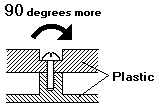
Plastic to Plastic

Turn an additional 90 degrees after the screw head touches the surface of the plastic part.

torqa

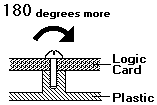
Logic Card to Plastic

Turn an additional 180 degrees after the screw head touches the surface of the plastic part.

torqb

Torque screw-drivers can be ordered from:

Techni-Tool
    5 Apollo Road
    Box 368
    Plymouth Meeting
    PA 19462
    USA
    Phone : Sales  1-610-941-2400
    Fax   :        1-610-828-5623
http://www.techni-tool.com

System Unit Parts (TP i Series) #

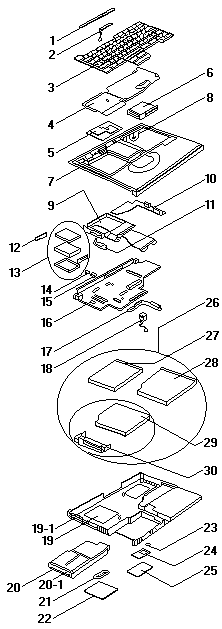
ThinkPad 390/i Series 1700 2626, 2627

390_p1

Parts - ThinkPad 390X / i 1700 - #

390_px1

System Unit Parts (TP) #

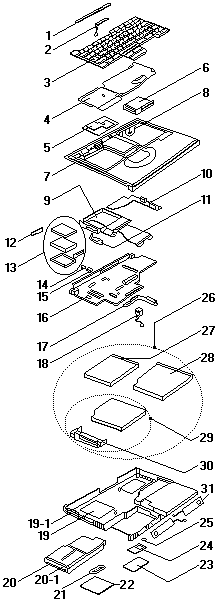
ThinkPad 390E 2626

390_p1