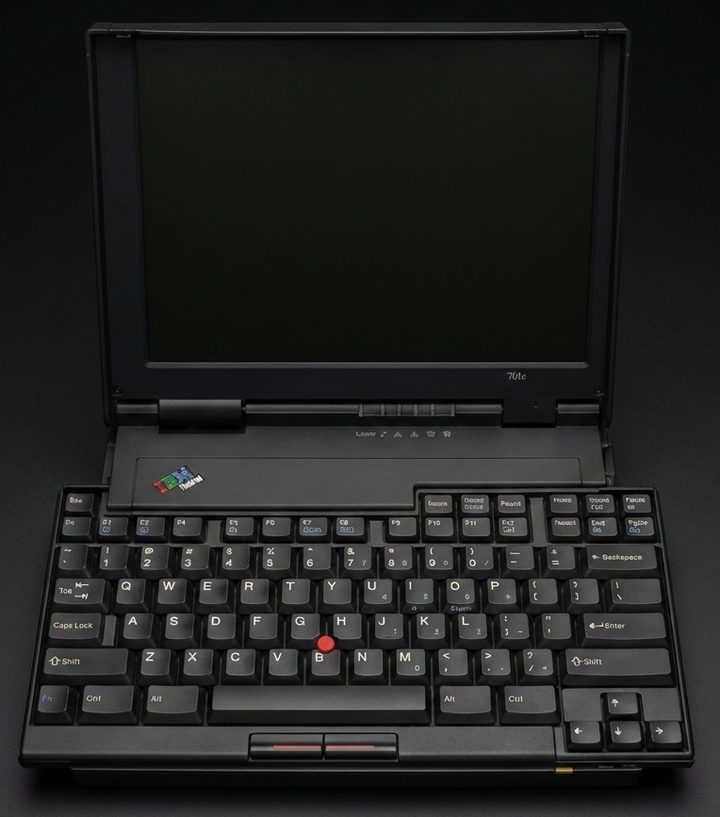
The ThinkPad 701C and 701CS (1995) earned the “Butterfly” nickname from a TrackWrite keyboard that unfolds wider than the case as the lid opens. This reference transcribes IBM’s maintenance manual: checkout procedures, error and beep codes, disassembly steps and FRU part numbers.
This is a transcribed historical service reference and may contain incomplete captures. Consult the linked original manuals as the authoritative sources before servicing.
Two variants side by side, compiled from a hardware survey and IBM's product records. A value spanning several columns applies to each of those variants; a dash means no source records it.
Specifications by variant
Specification
ThinkPad 701CS
ThinkPad 701C
Released
March 1995
Processor
Intel 486DX2, 50 MHz (soldered QFP package)
Intel 486DX4, 75 MHz (soldered QFP package)
Chipset
OPTi 82C465
Bus
Local bus for hard disk and video
ISA bus
Memory
Standard 4 or 8 MB soldered; maximum 36 or 40 MB; 1 socket
CMOS RAM
128 bytes
Storage
2.5" IDE: 360, 540 or 720 MB; drive adapter required
The following table shows the Fn key and function key
combinations and their corresponding functions.
The Fn key works independently from the operating system.
The operating system obtains the status through the system
management interface to control the system.
Fn+
Description
(alone)
Resumes operation from Suspend mode.
F1
Enters the Configuration Utility.
F2
Turns the battery-gauge icon on and off.
F3
Enters Standby mode.
F4
Enters Suspend mode.
F5
Mutes and unmutes speaker.
F6
Turns the hard disk off.
F7
Cycles through display options (LCD, CRT, both).
F8
Reverses video display.
F9
Reserved.
F10
Reserved.
F11
Reserved.
F12
Enters Hibernate mode.
Insert
Increases contrast. (This combination key does not provide this function on ThinkPad 701C as TFT screens do not require contrast adjustment.)
Delete
Decreases contrast. (This combination key does not provide this function on ThinkPad 701C as TFT screens do not require contrast adjustment.)
In the U. S. and Canada, the 701C / 701CS is serviced only through EasyServe.
Use the following procedure as a guide for
computer problems:
Ask the customer for as much detail as possible
about the failing symptoms.
Verify the symptoms by attempting to recreate the failure
either by running the diagnostics test or by repeating the same operation.
(To run the diagnostics, refer to Running the Diagnostics.)
Use the following table with the verified symptom to determine
which page to go to. Search the symptoms column
and find the description that best matches your symptom,
then, go to the page shown in the “Go to” column.
The diagnostic tests are intended to test only
IBM products.
Non-IBM products, prototype cards, or modified options can
give false errors and invalid system responses.
Only trained personnel should service the computer.
Drives in the computer that you are servicing
might have been rearranged or the drive startup
sequence might have been altered.
Be extremely careful during write operations
such as copying, saving, or formatting.
Data or programs can be destroyed if you select an incorrect drive.
Perform the following procedures to complete
a general checkout:
Power-off the computer and all external devices.
Check all cables and power cords for correct connection.
Power-on all external devices.
Power-on the computer.
Press the F1 key any time
while the POST memory count is proceeding.
The computer
emits one short beep at the end of POST and the
Easy-Setup screen appears.
If this does not occur,
go to Symptom-to-FRU Index.
Remove the external keyboard if the internal keyboard is to be tested.
If the internal
keyboard does not work or an unexpected character appears,
make sure that the three flexible cables extending
from the keyboard are correctly seated in the connectors on
the top system board.
If the keyboard cable connection is correct,
run the Keyboard Test by performing
the following steps:
Power-off the computer, and then
power it on again.
Press the F1 key any time
while the POST memory count is proceeding.
At the end of the memory test, the Easy-Setup screen appears.
Press the left or right arrow key to
select Test and press Enter
or position the pointer over the Test icon and
click the left click button once.
Press Ctrl+A
to enter advanced diagnostics.
Press Ctrl+K to start the keyboard diagnostics test.
Press each key.
A shaded box appears in
the corresponding key position on the
keyboard layout on the screen. Press the key again to remove the box.
Note: The shaded box appears in Fn only during the first keyboard test of a diagnostics session.
To exit from the test screen, press Esc.
If the tests detect a keyboard problem,
perform the following tasks one at a time to correct the problem:
Note: Do not replace a nondefective FRU.
Reseat the three cables.
Replace the keyboard.
Replace the top system board.
The following auxiliary input devices are supported for
this computer through the MultiPort II:
Numeric keypad
Mouse (PS/2 compatible)
External keyboard (standard PS/2 or
with keyboard/mouse cable)
If any of the above devices do
not work, reseat the cable connector and repeat the failing operation.
If the problem does not reoccur, recheck the connector.
If the problem reoccurs,
repeat the operation with a device that is known to be good.
If the problem still reoccurs,
go to MultiPort II Checkout.
If the TrackPoint III does not work, check the configuration in the Configuration Utility by
pressing PgDn to reach the
I/O Management screen.
If the setting for TrackPoint III is Off,
press the left or right arrow to change
it to On.
If this does not correct the problem, continue
with the following procedure:
Note: The TrackPoint III performs automatic compensations to adjust
the pointer sensor.
During this process, the pointer moves about the
screen for a short time.
This self-acting pointer
movement can occur when
a slight, steady pressure is applied to the TrackPoint III pointer when
the computer is powered on, when the system is running, or
when readjustment is required
because the temperature has
changed significantly within a short period of time
or the temperature is higher than its operating temperature.
This symptom does not indicate a hardware problem.
No service actions
are necessary if the pointer movement stops in a short period of time.
However, the TrackPoint III will not
stabilize if you apply pressure to it.
If pointer movement occurs, you
can go into Suspend mode, and then resume normal operation.
Resuming or turning the computer on both cause the
TrackPoint III to be calibrated, which may correct the problem.
If you see continual movement of the pointer,
the TrackPoint III is
probably defective.
In rare cases, the top system board can also cause
this problem.
If a click-button problem or
TrackPoint III problem
occurs, perform the following steps:
Power-off the computer, and then
power it on again.
Press the F1 key any time
while the POST memory count is proceeding.
At the end of the memory test, the Easy-Setup screen appears.
Select an item with the TrackPoint III.
Press either the left or right click button.
Verify that both buttons work correctly.
If either the TrackPoint III or the click button does not work,
perform the following tasks one at a time
to correct the problem:
Use the following procedure to isolate the diskette
problem to a controller, drive, or diskette.
For this test, you need
a scratch, write-enabled,
double-sided, high-density diskette
(2.0MB that formats to 1.44MB)
that is known to be good.
Power-off the computer.
Attach the external diskette drive
if it is not already attached.
Power-on the computer.
Press the F1 key any time
while the POST memory count is proceeding.
When the memory test is completed, the Easy-Setup screen appears.
Press the left or right arrow key to
select Test and press Enter or position the pointer over the Test icon and
click the left click button once.
Press Ctrl+A to enter the advanced diagnostics.
Select the FDD-1 icon
and press Enter.
This runs the controller test and the drive
read/write test.
If the controller test detects an error, FRU code 10 appears.
First, replace the diskette drive and cable and run the test again.
If FRU code 10 appears from this second test,
replace the top system board.
If the controller test runs without errors,
select Tool from the advanced diagnostics screen.
(See Running the Diagnostics for instructions.)
Select the FDD-1 icon and
insert a scratch diskette
to continue with the drive test.
Select the FDD-1 icon
from the advanced diagnostics screen
and press Enter.
If the drive test detects an error, FRU code 50
appears.
Replace the drive or the drive cable.
The green LED on a PC test card
(JEIDA/PCMCIA wrap card)
turns on when the PCMCIA test
is running.
If the LED does not turn on,
check that the card is installed
correctly by reseating the card.
If it still does not turn on
after the card is reseated
and you are using one PC test card, try
using the other slot for the test.
If you are using two cards, try swapping the cards in the slots.
If the LED still does not turn on and the test fails,
replace the FRU shown in the diagnostics error code.
Depending on the amount of additional memory installed
by the customer,
the memory size that is
available for customer use appears differently.
This is not a hardware problem.
Consult the following table for the available memory
on a system with a
4MB base memory when the customer installs different
sizes of
small outline dual inline memory module (SO-DIMM).
SO-DIMM Installed
Total Memory
Available Memory
None
4MB
3712KB
4MB
8MB
7808KB
8MB
12MB
11904KB
16MB
20MB
20096KB
The following table shows the available memory
on a system with an 8MB base memory with different
sizes of SO-DIMM.
SO-DIMM Installed
Total Memory
Available Memory
None
8MB
7808KB
4MB
12MB
11904KB
8MB
16MB
16000KB
16MB
24MB
24192KB
Memory errors might stop system operations or cause
error codes to be displayed.
Use the following procedure to isolate memory problems:
Note: Make sure that the SO-DIMM is fully installed
in the connector.
A loose connection can cause an error.
For more information about installing SO-DIMMs,
see FRU Removals and Replacements.
Power-on the computer.
Press the F1 key any time
while the POST memory count is proceeding.
At the end of the memory test, the Easy-Setup screen appears.
Select Test and press Enter.
Press Ctrl+A to enter
advanced diagnostics.
Select Memory and press Enter to
run the memory test on base memory.
If an error appears below 3712KB
on a system with a 4MB base memory
(7808KB with an 8MB base memory),
replace the bottom system board.
If an error appears above 3712KB
on a system with 4MB base memory
(7808KB with an 8MB base memory),
replace the SO-DIMM.
If after replacing the SO-DIMM, an error
above 3712KB
on a system with a 4MB base memory or
7808KB with an 8MB base memory still appears,
replace the bottom system board.
To exit from the test screen, press Esc.
If memory problems occur intermittently,
use the loop option to repeat the test.
For more information on running the loop test,
see Running the Diagnostics.
When the test detects an error,
an error log is printed on the
printer connected to the parallel port.
See Printing and Displaying Error Logs for more information.
Do not replace FRUs
because of a single, nonreproducible failure.
Single failures can occur for a variety of reasons
that have nothing to do with a hardware defect, such as
electrostatic discharge or software errors.
Consider replacing a FRU only
when a recurring problem exists.
If you suspect that problems besides a failing FRU exist,
clear the error log and run the test again.
Do not replace any FRUs if errors do not reoccur.
Power-on the computer.
Press the F1 key any time
while the POST memory count is proceeding.
When the memory test is completed, the Easy-Setup screen appears.
Press the left or right arrow key to
select Test and press Enter or position the pointer over the Test icon and
click the left click button once.
Press Ctrl+A to enter advanced diagnostics.
and press Enter.
If the test detects an error, FRU code 60 appears
under the HDD-1 icon.
Replace the hard disk drive.
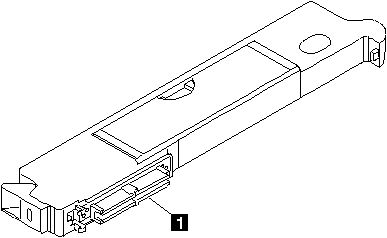
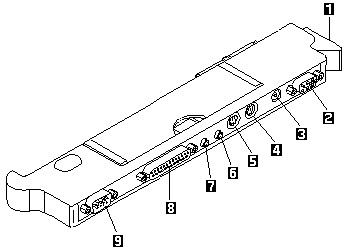
Use the following procedure to isolate a MultiPort II problem.
The MultiPort II attaches to the system expansion connector
at the rear of the computer.
Power-off the computer.
Remove all of the devices from the MultiPort II.
Unplug the AC adapter from the computer, if attached,
and plug the AC adapter into the MultiPort II
if it is not already
attached.
Attach wrap plugs to the serial port and the parallel
port on the MultiPort II.
Power-on the computer.
Press the F1 key any time
while the POST memory count is proceeding.
When the memory test is completed, the Easy-Setup screen appears.
Press the left or right arrow key to
select Test and press Enter
or position the pointer over the Test icon and
click the left click button once.
Press Ctrl+A to enter advanced diagnostics.
Select Tool to install the wrap plugs on the ports. (See Running the Diagnostics for instructions.)
Run the diagnostics tests on the parallel and serial ports on the computer and the MultiPort II. To test the external display device, select the Display icon. Test results will be displayed under the icon for each selected device.
If the diagnostics tests do not find errors,
suspect a problem with the previously attached devices.
If the tests find errors,
perform the following steps to recheck the computer:
Power-off the computer.
Remove the MultiPort II from the computer.
Power-on the computer and rerun the tests on the available parallel and serial ports.
If the errors do not reoccur, replace the MultiPort II. If the errors persist, suspect that the errors are related to internal FRUs and replace the appropriate FRU (for information on FRU codes, see FRU Codes).
If power problems appear only when using the MultiPort II,
replace the MultiPort II.
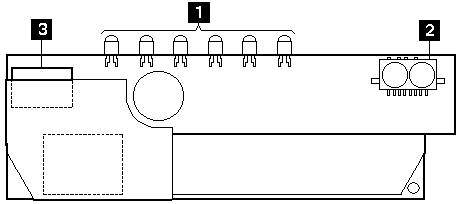
The infrared transceiver is located on the inverter card in the ThinkPad 701C / 701CS.
When you run diagnostics on the infrared transceiver, the test
is actually checking the top system board,
not the infrared transceiver itself.
Therefore, complete the following steps before
running diagnostics or replacing any FRUs.
If the customer cannot
establish a connection between the ThinkPad 701C / 701CS and a remote
system, perform the following steps:
Ensure that the device the customer attempted to connect
with is an Infrared Data Association (IRDA) compliant device.
Check to make sure that
both systems are using the same revision level
of the same software.
Check setup options on both systems to ensure that the baud rate
and other setup parameters are the same.
Check the Configuration Utility to ensure that the infrared transceiver
is assigned to the same serial
port that is designated in the application software
and that the IRQ assignment is not shared
with any other device such as the internal modem
or external serial port on the MultiPort II.
Verify that the two systems are in close proximity (less than 1
meter [3.2 feet]
apart for IRDA-compliant devices)
and that the infrared transceiver window on the ThinkPad 701C / 701CS
is aligned with (directly opposite)
the remote device's window.
Ensure that the windows
on both systems are clean and unobstructed.
If the two systems still will not connect after
you have followed the preceding steps
and the remote system is another computer with a terminal program
(for example, Windows Terminal or Procomm) installed,
perform the following tests:
Set up the terminal application on each system to communicate with
the infrared transceiver serial port at a speed of 115KB per second.
Type characters on the ThinkPad 701C / 701CS keyboard and check to see
whether or not
these characters appear on the remote system.
(Note that the characters you
type will not appear on the ThinkPad 701C / 701CS system.)
Type characters on the remote keyboard and check to see
whether or not
these
characters appear on the ThinkPad 701C / 701CS system.
If characters do not appear in
either step 2 or 3 and you
are certain that infrared is working correctly on the remote system,
replace the inverter card.
If characters do appear, consult the software vendor to ensure
that the customer is using a compatible software package
and that the setup parameters
are correct.
If data transfers between the ThinkPad 701C / 701CS and the remote system are
slow or unstable:
Verify that the two systems are in close proximity
(less than 1
meter [3.2 feet] apart
for IRDA-compliant devices)
and that the infrared window on the ThinkPad 701C / 701CS
is aligned with the remote device's window.
Ensure that the windows
on both systems are clean and unobstructed.
If you are using TranXit, check the IRDELAY parameter in the
TRANXIT.INI file in the TRANXIT directory.
The parameter should be set
to 10.
To run the diagnostics test on the infrared transceiver,
perform the following steps:
Power-off the computer, and
then power it on again.
Press the F1 key any time
while the POST memory count is proceeding.
When the memory test is completed, the Easy-Setup screen appears.
Press the left or right arrow key to
select Test and press Enter or position the pointer over the Test icon and
click the left click button once.
Press Ctrl+A to enter advanced diagnostics.
Select Infrared and press Enter to run the
test on the infrared transceiver.
Test results will be displayed under the Infrared icon.
If no errors are detected,
the OK message appears.
If an error is detected, the FRU code and error description message
appear.
Go to FRU Codes and replace the FRU.
For a more thorough test, use one PCMCIA card in each slot.
Perform the following steps to
test the PCMCIA slots:
Power-off the computer, and then
power it on again.
Press the F1 key any time
while the POST memory count is proceeding.
When the memory test is completed, the Easy-Setup screen appears.
Press the left or right arrow key to
select Test and press Enter or position the pointer over the Test icon and
click the left click button once.
Press Ctrl+A to enter advanced diagnostics.
If you are using PC test cards,
select Tool to install them.
Insert the cards when prompted.
(For instructions on installing test cards,
see Running the Diagnostics. For instructions on inserting the cards,
see Removing PCMCIA Cards.)
Select the PCMCIA icon and press Enter to run the test on the PCMCIA slots.
The green LED on the PCMCIA card should turn on when the test runs.
(If the green LED does not turn on, see Reading the PC Test Card LED.)
Test results will be displayed under the PCMCIA icon.
If no errors are detected,
the OK message appears.
If an error is detected, the FRU code and error description message
appear.
Go to FRU Codes and replace the FRU.
Installed devices are displayed as dark icons on the
diagnostics screen.
All other devices are displayed with gray icons.
If a device is installed but the icon appears gray rather
than dark, the device is defective.
Reseat the device connectors, and
then restart diagnostics.
If the symptom remains, replace the device or the system board.
If needed, adjust the contrast control to clearly
distinguish the shades of the icon.
If a device that is
not installed appears in a dark shade, for example,
if HDD-2
appears in a dark shade when a
second hard disk drive is not installed,
perform the following steps:
Replace the first device, such as HDD-1.
If the problem persists, replace the relevant system board.
The PCMCIA, System Board, Display, and infrared transceiver icons
are always displayed in a dark shade, because the
icons represent subsystems of the system board and
not attached devices.
The parallel port icon is dark except when
the diskette drive is attached to the parallel port;
in that case,
the FDD icon is dark and the parallel port icon is gray.
Icons for devices attached through the MultiPort II are dark when the devices
are attached, and are gray when the devices are removed
from the MultiPort II.
The HDD-1
icon represents the first
drive in the system configuration.
Similarly, the HDD-2
icon represents the second drive,
attached to the docking station.
To verify the symptom of the problem,
power-on the computer using each of the power sources available
as follows:
Remove the battery.
Connect the AC adapter and check that power is supplied
by pressing the power switch.
Disconnect the AC adapter and install the charged battery;
then, check that power is supplied from the battery by pressing the power switch.
Note: The battery is charged only while the computer is powered-on (the computer can be
in the suspend mode). The battery cannot be charged if the computer is
powered-off.
If you suspect a power problem, see the appropriate power-supply
check listed below:
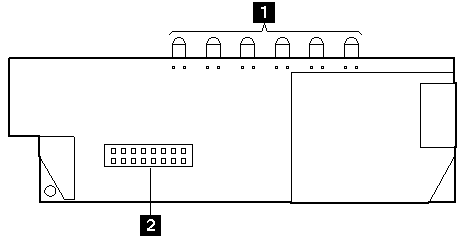
The system status indicators show the current computer
status in different colors (green and yellow).
Color
Meaning
Green
Battery charging.
Blinking green
Battery low.
Yellow
Hard disk drive in use.
Green
Keys in NumLk mode.
Green
Keys in Caps Lock mode.
Green
Keys in ScrLk mode.
Green
Computer powered on and not in Suspend mode.
Reading the Battery Status
If the computer is
using the battery, the Battery Status field in the Configuration Utility
indicates whether the battery is OK or low. If the computer is using
external power, this field indicates whether the battery is fully
charged or still charging. The battery fuel gauge provides a
visual indication of the battery power level.
Check the AC adapter if the computer fails only when the AC adapter is used,
or if the battery does not charge when the AC adapter is attached
and the computer is on or in suspend mode.
If the power problem occurs
only when the MultiPort II is used,
replace the MultiPort II.
If the power-on indicator does not turn on, check the
AC adapter for correct continuity and installation.
If the connection is suspect, replace the AC adapter.
Note: Several types of AC adapters can be supplied with the ThinkPad 701C / 701CS.
The procedure for
checking them is the same.
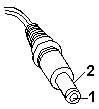
Unplug the AC adapter cable from the computer and
measure the output voltage at the plug of the AC adapter cable.
See the following figure.
Pin
Voltage (Vdc)
1
+15.5 to +17.0
2
Ground
If the voltage is not correct,
replace the AC adapter.
Note: In rare cases, the problem may be in the AC adapter even when
the voltage is correct.
If an AC adapter is available, try replacing the computer's AC adapter.
If the voltage is correct, replace the
top system board.
If this does not correct the problem,
go to Undetermined Problems.
Note: An audible noise from the
AC adapter does not always indicate a defective adapter.
Though main batteries have low voltage, a shorted or grounded battery
can produce enough current to burn combustible materials or personnel.
Remove the battery.
Note: To remove the battery, end external communications if you are not
using an AC adapter.
Power-off the computer,
and then close the lid.
Unlock the battery compartment door located on the bottom of the computer.
Slide the battery out of the compartment.
Measure the voltage between battery
terminals 1 (+) and 4 (-). See the following figure.
Terminal
Voltage (Vdc) / Signal
1
11.0 (nominal) (Range +10.0 to +16.0)
2
VCC
3
I/O
4
Ground
Note: The signal lines not used in these steps,
terminals 2 and 3,
are used for communication between the system and the battery.
If the voltage is less than +10.0 Vdc, the battery has
been discharged or is defective.
Recharge the battery.
If the voltage is still less than +10.0 Vdc after the recharging,
replace the battery.
Before performing the following steps, make sure that the standby battery is fully charged
by leaving the computer plugged into ac power while on or in suspend mode
for 24 hours. The computer can be used normally while the standby battery is charging.
If any problem is not corrected after charging the standby battery, perform the
following steps.
Power-off the computer and unplug the AC adapter from the computer.
Remove the battery.
Remove the top system board.
Replace the standby battery from the bottom of the top system board.
Reinstall the top system board.
Plug the computer into ac power,
power-on the computer, and let the standby battery charge for 24 hours.
To verify standby battery operation, remove and reinstall
the battery while the computer is in the suspend mode.
Note: For this test to be valid, the battery should reinstalled within 1 minute.
The resume operation should start.
If the resume operation does not work,
replace the top system board.
Use either the TrackPoint III or the cursor movement keys to interact
with the tests.
When asked for an “OK” response,
press Enter or select the OK button.
With the computer powered-off, attach any test tools
to the device to be tested.
For example, attach a wrap plug to the serial port on the MultiPort II
or insert
the PC test cards in the PCMCIA slot.
Power-on the computer.
Press the F1 key any time
while the POST memory count is proceeding.
When the memory test is completed, the Easy-Setup screen appears.
Select Test and press Enter.
Press Ctrl+A to enter
advanced diagnostics.
Select Tool to install a
test tool.
Select the test tool for a device,
and press the spacebar or click button to install
it.
A √ mark appears for the selected device.
Repeat this step to install multiple devices.
Note: A graphic message prompts you to attach the selected test tools.
Select OK and press Enter
if the selection is correct.
Select a device and press Enter to start the tests.
Select Test All to test all devices.
Select Looptest to loop tests.
A loop option menu appears in which
you can select a loop test for one or more devices.
Select a device and press the spacebar or click key.
A √ mark appears for the selected device.
Repeat this step to select multiple devices.
Press Enter to start the diagnostics loop.
If no device is selected,
all device tests are looped.
To exit the loop,
keep pressing Ctrl+Pause until the test exits.
The system emits a beep sound to notify you that the
test program has received the exit interrupt.
Press Esc to exit the test screen.
Choose Restart to leave Easy-Setup and restart your
system.
Each time you power-on the computer,
the power-on self-test (POST) is initiated.
The POST takes up to 90 seconds to complete, depending
on the options installed.
The POST checks the following items: system boards,
memory, display, keyboard,
diskette drive, hard disk drive, parallel port,
and serial port.
To start the POST, power-on the computer.
The following actions will happen:
If a critical error occurs during the POST, the system halts.
The system might beep or display a message.
If the POST cannot be completed successfully,
an error code appears on the display, and
you are prompted
to press Esc
or Enter.
If you press Esc, the computer
bypasses the error and attempts to complete the POST.
If you press Enter, the computer displays the Configuration Utility
window.
You can then try to correct the error.
(See Running the Diagnostics.)
The computer issues one short beep when the POST ends successfully.
The computer attempts to load the operating system
as customized.
If the computer does not find an operating system,
it displays a graphic message requesting
that you insert a bootable diskette in the diskette drive
and press F1
to resume operation.
If the display problem occurs only when using an external display, use the
following instructions to correct the problem.
Note: Before you replace a display, check the following list to see if it is
connected correctly.
8506 and 8508 displays must be connected to an Image Adapter/A or an
Image-I Adapter/A.
63XX and 85XX systems support either 63XX or 85XX displays.
85XX systems with an XGA-2 adapter support 95XX displays.
95XX systems support either 63XX, 85XX, or 95XX displays.
ThinkPad models support either 85XX or 95XX displays.
If the screen is rolling, replace the display assembly. If that
does not correct the problem, replace
FRUs in the following order until the problem goes away:
Video card
Display adapter (any type)
System board
Bus adapter (if used)
If the screen is not rolling, run the display self-test as follows:
Power-off the computer and display.
Disconnect the display signal cable.
Power-on the display.
Set the contrast to its maximum position.
Set the brightness control to the center detent position.
Check for the following conditions:
You should be able to vary the screen intensity by adjusting the contrast
and brightness controls.
The screen should be white or light gray,
with a black margin (test margin) on the screen.
Note: The location of the test margin varies with the type of display. The
test margin might be on the top, bottom, or one or both sides.
If you do not see a test margin on the screen, replace the
display. If there is a test margin on the screen, replace the system board.
Note: On ThinkPad Models 700, 700C, 720C, 720C, do the following:
Perform the following steps to format the hard disk:
All data and formatting
on the disk will be destroyed and cannot be recovered.
Have the user make a backup copy of all information on the hard disk
that should be saved.
Make sure that a bootable diskette is available.
Make sure that the drive address to be formatted is correct.
Use either the TrackPoint III or the cursor movement keys to interact
with the tests.
When asked for an “OK” response, press Enter
or select the OK button.
Power-off the computer, and then power it on again.
Press the F1 key any time
while the POST memory count is proceeding.
When the memory test is completed, the Easy-Setup screen appears.
Select Test and press Enter.
Press Ctrl+A to enter
advanced diagnostics.
Press Ctrl+F. The Format icon appears
at the top of the advanced diagnostics screen.
Select the Format icon and press Enter.
Select the hard disk to be formatted and press Enter.
A confirmation screen appears, showing the number of cylinders,
heads, and sectors on the hard disk.
Press Esc to exit the low-level format screen
without formatting the hard disk.
Press Enter to begin the
low-level format of the hard disk.
When the low-level format is completed,
the advanced diagnostics screen is displayed.
When you restart the computer,
a graphic message is displayed at the end of POST, requesting
that you insert a bootable diskette into the diskette drive
and press F1 to resume operation.
The Symptom-to-FRU Index
contains tables that list
causes of symptoms.
The most likely cause is listed first.
Use this index
to help you decide which FRUs to have available
when servicing a computer.
Before removing any FRU, power-off the computer, unplug all power cords
from electrical outlets, remove the battery pack, then disconnect any
interconnecting cables.
Perform the FRU replacement or actions in the sequence shown in
the “FRU / Action” columns.
If the replacement FRU did not solve the problem, put the original
FRU back in the computer.
Notes:
Before replacing the top and bottom system boards,
try reseating the boards.
If reseating the boards does not
correct the problem,
replace the boards.
If possible,
install the latest level of BIOS available
before replacing any FRU.
Before completely reassembling a computer that has been
repaired, try to reboot the computer to check the
repairs that have been completed.
However,
when you reboot without the keyboard attached,
the computer will display error codes 8603, 8613,
and 86XX.
Use displayed numeric error codes to determine
the system problem. If numeric error codes are not available,
use the other symptom tables that describe
specific symptoms.
If the symptom is not listed, go to Undetermined Problems.
Note: For IBM devices not supported by diagnostics codes of ThinkPad 701C / 701CS,
see the manual for those devices.
Diagnostics errors are printed
on the printer that is attached to the parallel port when the
error is detected.
The error is also logged in the system memory.
Use the following procedure to display the errors:
End the test, if it is running.
Press Ctrl+A to
enter the advanced diagnostics.
Press Ctrl+E.
The error log appears.
To exit the screen, select Cancel or press Esc.
The error log is not saved when system power is turned off.
Note that LCD-related symptoms might be a
result of software problems.
Therefore, before working on hardware to correct video problems,
make sure that the system has the latest versions of
the video drivers installed.
Systems that do not have the latest versions of video
drivers might experience symptoms such as random extra
pixels.
Note: To check the versions of the video drivers,
follow these steps:
In DOS.
Drivers display their version level
when they are loaded.
To check them after they have been loaded,
look in CONFIG.SYS or AUTOEXEC.BAT files
for video driver information.
In Windows.
Drivers installed using the video driver
installation utility place an icon in the
Control Panel, in the
Main group.
Double-click on the ChipsCPL
icon to display the driver dialog box.
Choose the Version button to display
the driver level.
Symptom/Error
FRU/Action
No beep, power-on indicator on, and a blank LCD during POST.
Adjust contrast.
Top System Board.
Bottom System Board.
LCD backlight not working, or
LCD too dark, or
LCD brightness cannot be adjusted.
Reseat LCD connectors.
Reseat inverter card.
Inverter Card.
LCD Assembly.
LCD contrast cannot be adjusted (ThinkPad 701CS only).
Before testing or replacing the MultiPort II,
ensure that the customer installed the MultiPort II
while the computer was powered-off or in Suspend mode.
Make sure the problems occur
when the MultiPort II has been installed correctly.
Symptom/Error
FRU/Action
Devices connected to the MultiPort II do not work correctly.
Check the device connectors to make sure that they are connected correctly.
Check the cables to make sure they are not defective or damaged.
Indicator incorrectly remains on or off, but system runs correctly.
Reseat the inverter card.
Inverter Card.
Top System Board.
Battery status indicator blinks green and beeps three times at power-on or Resume.
Check that a fully charged battery is installed.
Battery Pack
Reseat Top and Bottom System Boards together.
Top System Board.
Bottom System Board.
Battery status indicator blinks green at power-on.
Check the card-to-card connection. Reseat Top and Bottom System Boards together.
Top System Board.
Bottom System Board.
Battery status indicator does not turn on when battery fuel gauge is over 90% but less than 100%.
This is normal operation if charging continues. Leave the computer charging, and then recheck the battery fuel gauge a short time later to see whether the charge has increased.
Before testing or replacing any peripheral device,
go into the Configuration Utility and ensure that all of the
configurations are correct.
Also, check applications to ensure that devices are
configured correctly.
Perform the following procedures to isolate
the failing FRU if
the diagnostics tests did not identify
which adapter or device failed,
or whether the installed devices are incorrect,
a short circuit is suspected,
or the system is inoperative.
Note: Do not replace a nondefective FRU.
Before performing these procedures,
perform the following actions:
Verify that all attached devices are supported by the computer.
Verify that
the power supply being used at the time of the failure is operating
correctly.
(See Power Systems Checkout.)
Power-off the computer.
Check the cables, wires, and connectors for
short circuits and open circuits.
Visually check them for damage.
If any problems are found, replace the FRU.
Remove or disconnect all of the following devices:
Non-IBM devices
Devices attached to the expansion bus connector
Printer, mouse, and other external devices
Battery pack
Hard disk drive
Diskette drive or the device attached to the diskette drive connector
SO-DIMM card
PCMCIA cards
Note: Remember that removing the hard disk drive,
a SO-DIMM card,
or any adapter or device will cause configuration errors.
Error code 162 will occur.
Power-on the computer.
Determine whether the problem has changed.
If the problem does not occur again,
reconnect the removed devices one
at a time until you find the failing FRU.
If the problem remains, replace the following FRUs one at a time.
Numeric error codes show the errors detected in POST or
system operation.
Use the error codes displayed on the screen to diagnose failures.
If more than one error code is displayed, begin the diagnosis with
the first error code.
The cause of the first error code can result in false error codes being
displayed.
In the following error codes, X can be any number.
Symptom/Error
FRU/Action
02X, 101, 107
Battery
AC Adapter
Memory Option
Top System Board
10X
Bottom System Board
119
Top System Board.
161, 163
Set Configuration. (Press Fn+F1 to enter the Configuration Utility and set the time and date.)
Top System Board.
Bottom System Board.
162
(Check the Installed Devices list for a missing device.)
Set Configuration. (Press Fn+F1 to enter the Configuration Utility and set your configuration.)
Any Missing Device.
Top System Board.
Bottom System Board.
164
(Memory size error)
If a SO-DIMM card has been removed, press Fn+F1 to enter the Configuration Utility, and verify the memory size.
Replace the installed SO-DIMM.
Bottom System Board.
184
Press Fn+F1 to enter the Configuration Utility, and then reset the Power-on Password.
195
(The hibernate partition does not match memory size.)
Check if the disk drive is from another computer or if the memory size has changed.
If an error is detected by the diagnostics tests,
a four-digit
FRU code is displayed, along with an error code.
The FRU code indicates two suspected FRUs.
Replace the FRU that is indicated by the two leftmost
digits first, and then replace the FRU indicated by the two
rightmost digits.
No FRU is assigned to code 00.
If only one FRU is
suspected, the other FRU code is filled with zeros.
See the referenced page before replacing the FRU.
Insert a correctly formatted 2.0MB diskette into the Diskette Drive.
60
Reseat the Hard Disk Drive (HDD-1).
Hard Disk Drive (HDD-1)
61
Reseat the Hard Disk Drive (HDD-2) on the docking station.
Hard Disk Drive (HDD-2)
70
External PCMCIA
81
Internal Modem Card
91
If MultiPort II is installed:
Reseat MultiPort II.
MultiPort II.
If Dock II is installed:
Reseat Dock II.
Dock II
Note: The device ID and error codes are
used to indicate in detail the
portion of the FRU that caused the error.
If replacing a FRU does not correct a problem, see the device ID
or error code from the previous failure.
If they have changed, the new FRU might be
defective or incorrectly installed.
Intermittent system interruptions can be
caused by
a variety of reasons
that have nothing to do with a hardware defect, such as
electrostatic discharge or software errors.
Consider replacing a FRU
only when
a recurring problem exists.
When analyzing the intermittent problem,
perform the following steps:
Run the advanced diagnostics test in loop mode
at least 10 times.
If no error is detected, do not replace any FRUs.
If any error is detected, replace the FRU shown by the FRU code.
Rerun the test to verify that no more errors exist.
This section contains information about removals and replacements.
Follow the numerical sequence in Disassembling the ThinkPad 701C / 701CS
and the three
exploded views to remove or disconnect parts in the
correct order.
Reverse the numerical sequence to replace FRUs.
Note exceptions and special instructions for replacement
throughout the FRU removal procedure.
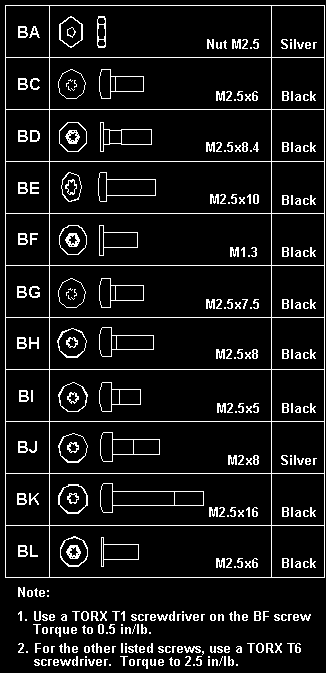
The letters in parentheses in the list indicate screw types.
Consult the following screw size chart
to match the letters to the correct screw type and size before
replacing each screw.
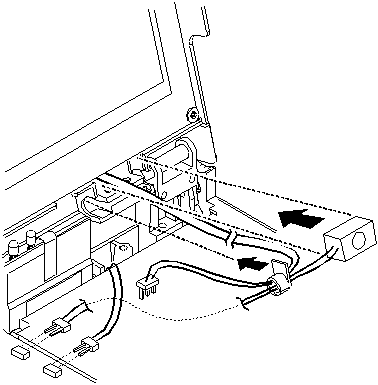
The right hinge should already be installed.
To replace the microphone and cables,
perform the following steps:
Insert the
microphone wires into the small
slit in the backlight cable protective sleeve.
Holding the microphone and sleeve near the hinge,
insert the yellow backlight cable
through the slit
in the sleeve, and then
the brown cable.
Do not allow the microphone cable to twist around the backlight cables.
Slip the sleeve into
place so that the flange is inside the
computer lid, toward the LCD.
Insert the microphone
into the space between the hinge and the LCD, with the
foam block against the right side of the space.
Press the block gently to ensure that it is completely inserted.
Make sure that the foam does not cover the microphone diaphragm.
When installed correctly, the microphone lines up with the two
small slots in the bezel.
With the LCD cable flat,
carefully
wrap the end
of the LCD cable around the attached sleeve on the
cable, finishing with
the end
of the cable
coming from behind the sleeve.
To prevent possible damage,
tape the end of the cable to the bezel
while you reattach the LCD assembly.
Place the LCD assembly on the base in the closed position.
Make sure that the backlight and microphone cables are inside the base unit.
Replace the four hinge screws (BG).
Open the computer lid all the way (180°)
and remove the tape from the
the LCD cable.
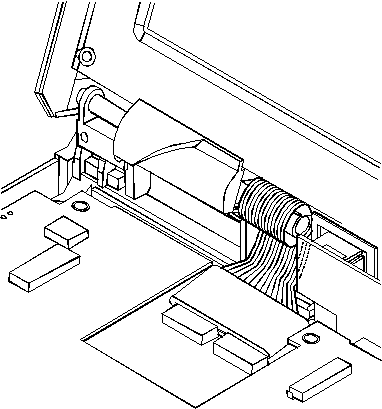
Slide the ferrite core over the end of the
LCD cable, pushing the core onto the cable
just far enough
to expose the two sets of silver contacts on the cable.
Connect the LCD cable to the connectors
on the bottom system board by inserting the flat
ends of the cable. Then, push in the small
sliding latch under each cable to secure the cable in the
connector.
Do not bend or fold the LCD cable. Press on the loop of cable around
the sleeve to insert the cable ends into the connectors.
Pull the ferrite core forward on the cable until
the core touches the connectors and it can be pressed
down flat on top of the bottom system board.
Perform the following steps when you
replace the top system board:
Before inserting the top system board,
move the power switch cover forward toward the
front of the base assembly.
Make sure that the spring in the power switch
is fully inside the plastic housing.
Insert the top system board,
tilting the board to the left and aligning the
appropriate connectors with the slots
on the base assembly.
Be careful to align the power switch
cover with the switch mechanism on the board.
Gently press the battery pack connector down
to place the connector in the slot on the base assembly.
Ensure that the inverter card is firmly attached to the
top system board, and that the infrared window is attached
to the inverter card.
The infrared window has a top and bottom.
Install the window with the long side with the partial cutout
facing the top of the inverter card.
Feed the speaker cable between the inverter card and the
top system board to the right of the inverter card connector
to the board.
As you press lightly down on the top system board
and the inverter card, slip the bottom corners of the inverter card
into the slots in the base assembly.
Gently but firmly press on the middle of the top
system board to finish inserting the board and
to ensure a complete connection between the
board-to-board connectors.
The SO-DIMM card is sensitive to physical shock.
Incorrect handling of the card can damage it.
To remove a SO-DIMM card, follow these steps:
Power-off the computer.
Remove the battery.
Disconnect all cables and other devices,
including the AC adapter.
Close the computer and turn it upside down.
Open the SO-DIMM door.
Press the metal tabs on each side of the SO-DIMM
away from the card.
The card should raise slightly as the tabs
are pulled away from it.
Remove the card by holding it at a
15 to 20 degree angle
and pulling it firmly away from the SO-DIMM
socket.
Replace the SO-DIMM door.
Reattach all cables and other devices, including the AC adapter.
Power-on the computer. The computer will display error code 164.
To insert a SO-DIMM card, follow these
steps:
Power-off the computer.
Remove the battery.
Disconnect all cables and other devices,
including the AC adapter.
Close the computer and turn it upside down.
Remove the SO-DIMM door.
Locate the notch on the SO-DIMM.
Do not insert the SO-DIMM too far.
You might damage the SO-DIMM or SO-DIMM socket.
Position the card at a
15 to 20 degree angle
to the SO-DIMM socket with the notch facing to the
right when you are looking into the socket,
and push it into the socket firmly.
The card is fully inserted when the
gold connectors are almost completely concealed by the SO-DIMM socket
and only the top of each connector is visible.
Warning: The card will not lock into place if it has not been
fully inserted into the socket.
Once the card is fully inserted into the socket,
press the card down until it locks into place.
It is held in place by two tabs, one on either side
of the card.
Replace the SO-DIMM door.
Reattach all cables and other devices, including the AC adapter, and power-on the computer.
Verify that the memory count displayed during the POST is correct.
(See Memory Checkout for information on memory size.)
After removing the PCMCIA cover, and filler plug
if it is installed,
you can insert or remove PCMCIA cards
during most computer operations.
To insert a PCMCIA card, perform the following steps:
Insert the PCMCIA card into one of the available slots,
with the long row of pin sockets facing the computer and the label on
the PCMCIA card facing up.
When the card is in place, the blue eject button at the left
of the slot pops out. Do not force the card.
If the card does not fit into the slot, turn it over.
Note: A Type III PCMCIA card occupies both PCMCIA slots.
To insert the card, aim its bottom ridges at the lower PCMCIA card slot.
Replace the outer cover over the PCMCIA slots.
To remove a PCMCIA card, perform the following steps:
Use a small pointed object such as the point of a pen
to press the blue eject button located to the left of
the PCMCIA card slot.
Note: A Type III PCMCIA card occupies both PCMCIA slots.
To remove the card, press the bottom eject button.
Carefully slide the PCMCIA card out of the slot.
If both PCMCIA slots are empty, replace the filler plug and
replace the outer cover over the PCMCIA slots.
Note: Do not remove PCMCIA cards while the system
is in Suspend or Hibernate mode.
If you remove a PCMCIA card while the system is in
either mode, you might lose configuration information.
Or, if you remove a PCMCIA card and insert another
card, your system might not recognize the new card.
This procedure provides the steps required to completely
disassemble the ThinkPad 701C/701CS.
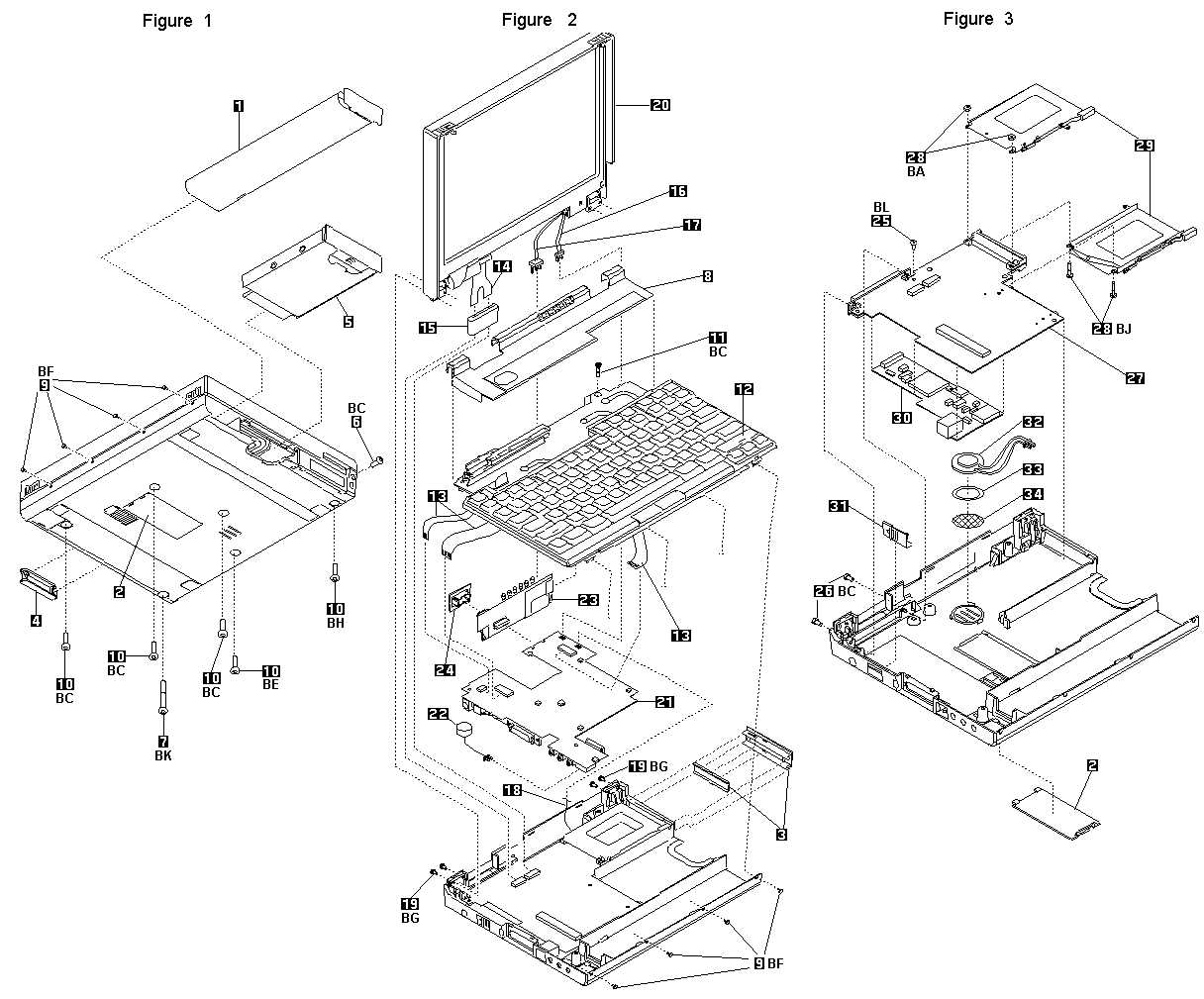
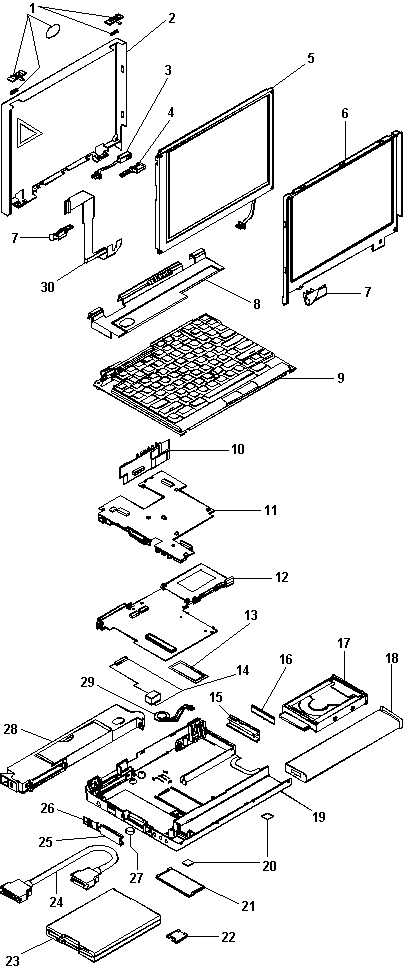
The three exploded views show the parts of the computer
that are removed at various stages of the disassembly
process. The numbered callouts in the figures correspond
to steps in the procedure.
ThinkPad 701C/701CS Exploded View
If you follow all of the steps in this procedure, you
completely disassemble the ThinkPad 701C/701CS.
However, for some replacement operations, you may not
need to completely disassemble the ThinkPad
701C/701CS. In those situations, the relative sequence of
steps in this procedure is important. Some FRUs must be
removed to reach the failing FRU, or to make it easier to
work with another FRU.
This procedure contains instructions for the following:
Removing the Keyboard Cover
Removing the Keyboard
Separating the Display and Base Units
Removing the Top System Board and Inverter Card
Removing the Bottom System Board and Modem
Taking Apart the Base Assembly
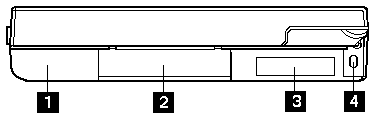
Remove the battery shown in Figure 1.
Remove the SO-DIMM cover and any installed
SO-DIMM cards, shown in Figure 1.
Remove the parallel port cover, shown in Figure 1.
Warning:Do not drop or apply any shock to the hard
disk drive. The hard disk drive is sensitive to physical
shock. Incorrect handling can damage it and cause
permanent loss of data on the hard disk. Before removing
the hard disk drive, have the user make a backup copy of
all the information on the hard disk. Never remove the
hard disk drive while the system is operating or while it is
in Suspend mode.
Remove the hard disk drive, shown in Figure 1.
Note: Remove the hard disk drive by inserting a
coin in the slot and twisting until the hard disk drive
is unseated. Do not apply any extra force to the
hard disk drive when removing it.
Removing the Keyboard Cover
Remove the screw (BC) located on the right side
toward the back of the computer, shown in Figure 1.
Remove the screw (BK) located on the rear
bottom left of the computer shown in Figure 1.
Open the computer lid all the way (180°) and
remove the keyboard shelf, shown in Figure 2.
To release the keyboard shelf from the base
assembly:
Gently pull up on the right side of the keyboard
shelf.
Insert a tool into the slots on the back of the
computer and gently push in to release the
tabs holding in the shelf.
Removing the Keyboard
Remove the four screws (BF) located on the
front, below the keyboard, shown in Figures 1 and 2.
Remove the five remaining screws from the
bottom of the base.
(For the screw types that are removed in this step,
see Figure 1.)
Replacement:
Warning: When you reinstall the screws, be
careful when tightening the middle screw toward the
rear of the computer. If you tighten the screw too
much, you can break the plastic base. If you are
using an electric screwdriver, set it to a low or
sensitive setting to prevent breakage.
Remove the screw (BC) located below the right
hinge.
Replacement: When you replace the screws in the
base and the keyboard shelf, perform the steps in
the following order:
Replace the screw (BC) in step 11 shown in
Figure 2. Do not tighten the
screw until the front keyboard screws are in
place.
Replace the keyboard shelf.
Replace the front keyboard screws in step 9
shown in Figure 1.
Tighten the BC screw.
Replace the screws in step 10.
Remove the keyboard, shown in Figure 2.
To remove the keyboard, push it backward slightly,
and then pull it up, then forward and out.
Replacement: When you reinstall the keyboard,
follow these steps:
Warning: When you reinstall the keyboard, be careful not
to damage the keyboard cables by pinching or crushing
them.
Attach the three flat cables.
Tilt the front of the keyboard up and push the rear of
the keyboard toward the back of the computer.
Press the keyboard down.
Pull the keyboard slightly forward to engage the
latches located at the back right, and in the middle of
the left and right sides.
Warning: Do not pull out the cable before releasing the
sliding latch connector.
Detach the three keyboard cables from the top
system board shown in Figure 2.
The keyboard cables use zero insertion force (ZIF)
connectors.
Instructions for working with ZIF connectors:
To detach the cables, pull out the small sliding latch
under each cable using a small tool to pull on each
side. Try to pull the latch out incrementally on each
side, or pull out both sides simultaneously.
Replacement: When you reinstall cables in ZIF
connectors, insert the cable connector end, metal
side facing up, into the connector, and then gently
push in each sliding latch to secure the cable. Do
not twist the cables.
Warning: Do not pull out the cable before
releasing the sliding latch connector.
Separating the Display and Base Units
Detach the LCD cable shown in Figure 2.
Slide up the ferrite core on the cable to reach the
latches.
Detach the microphone cable from the top
system board, shown in Figure 2.
Replacement: Make sure that the two aluminum
spacers are in place. After you reattach the
microphone cable, place any excess cable behind
the PCMCIA slot assembly. For information on
routing the backlight cable, see Routing the
Backlight Cable.
Detach the LCD backlight cable from the
inverter card, shown in Figure 2.
Remove the top system board and the attached
standby battery and inverter card, shown in Figure 2.
Reuse the rubber spacers.
Separate the metal spacers between the top and
bottom system boards. Gently pull up the front of
the top system board and insert a tool at the slot
located near the battery connector. Press down
with the tool and gently pry up to detach the top
system board from the bottom system board.
The battery pack contains small amounts of nickel.
Do not disassemble it, throw it into fire or water, or
short-circuit it. Dispose of the battery pack as
required by local ordinances or regulations. Use only
the battery in the appropriate parts listing when
replacing the battery pack. Use of an incorrect battery
can result in ignition or explosion of the battery.
Remove the standby battery, shown in Figure 2.
Replacement: When you replace the standby
battery, fold the cable and place the standby battery
in the space beside the battery pack connector.
Safety Notice 6
To avoid shock, do not remove the plastic cover that
surrounds the lower portion of the inverter card.
Remove the inverter card from the top system
board, shown in Figure 2.
Remove the infrared window from the inverter
card, shown in Figure 2.
Removing Bottom System Board and Modem
Remove the screw (BL) holding in the bottom
system board, shown in Figure 3.
Remove the two screws (BC) located on the
docking connector shown in Figure 3.
Replacement: When you replace these screws,
use the following order:
Install one docking connector screw.
Install the bottom system board screw (from step 25).
Install the other docking connector screw.
Safety Notice 4
The backup battery is a lithium battery and can cause
a fire, explosion or severe burn. Do not recharge it,
remove its polarized connector, disassemble it, heat it
above 100 degrees C (212 degrees F), incinerate it, or
expose its cell contents to water. Dispose of the
battery as required by local ordinances or regulations.
Use of an incorrect battery can result in ignition or
explosion of the battery. Replacement batteries can
be ordered from IBM or IBM Authorized Dealers.
Remove the bottom system board and the
attached modem shown in Figure 3.
To remove the bottom system board, push in lightly
on the modem connector to free it from the base.
Make sure that the modem connector has been
freed from its slot in the base before removing the
bottom system board.
Replacement: When you replace the bottom
system board, keep the speaker cable toward the
rear of the computer. Do not leave it folded under
the bottom system board. Reuse the rubber
spacers.
Remove the two bolts (BJ) and nuts (BA)
holding the PCMCIA slot assembly to the
bottom system board, shown in Figure 3.
Remove the PCMCIA slot assembly, shown in
Figure 3.
Remove the modem shown in Figure 3.
The modem is held in place with an adhesive
gasket. You may need to pry gently on the modem
to remove it from the bottom system board. When
you reinstall the modem, you may need to apply a
new adhesive gasket.
Taking Apart the Base Assembly
Remove the power switch cover, shown in
Figure 3.
Warning: The speaker can magnetize metal and corrupt a
diskette.
Warning: A scratch can damage the speaker. Be careful
not to damage it with screwdrivers, screws, or other
objects.
Remove the speaker, shown in Figure 3.
After you have removed the speaker, carefully
remove any metal particles that might have flaked
off.
Remove the adhesive gasket shown in
Figure 3.
Replacement: Follow these steps in order:
Remove the old adhesive gasket and apply a
new one to the base.
With the front of the base facing you, rotate
the speaker so that the speaker wires are at
“one o’clock,” then attach the speaker to the
gasket.
Position the speaker cable under the bottom
system board and between the inverter card
and the top system board to the connector on
the top system board.
Remove the screen over the speaker, shown in
Figure 3.
If the screen over the speaker is damaged, replace
it.
If the LCD breaks and the fluid from inside the LCD
gets into your eyes or on your hands, immediately
wash the affected areas with water for at least 15
minutes. Seek medical care if any symptoms from the
fluid are present after washing.
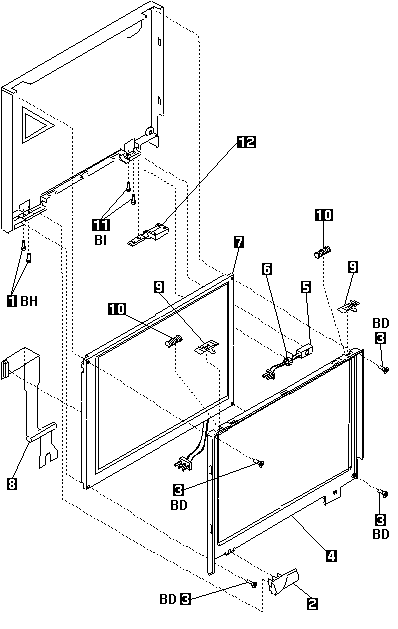
Remove the two bottom screws (BH).
Remove the left hinge cover (cam).
Remove the four bezel screws (BD).
Carefully unsnap the T-shaped snaps along the
bottom edge of the bezel, and lift it out.
Be sure to use the correct replacement bezel for
the LCD.
The TFT bezel has adhesive on its top side wall.
When you install a new TFT bezel, remove the
backing first.
When you replace the LCD, be sure to replace it
with the correct type of LCD (STN or TFT).
Remove the LCD cable from the LCD.
Remove the latches from the bezel.
Remove the latch springs from the latches.
Replacement: When replacing the latches, place the latch in the
bezel, and then slide the spring over the post on
the latch. Compress the spring slightly and slip it
into the recess in the bezel.
Remove the two right hinge screws (BI).
Remove the right hinge.
The left hinge is part of the top cover assembly,
and should be replaced with it as a unit.
Note: To clean the LCD, use rubbing alcohol and a soft
cloth.
To avoid damaging the LCD, do not scratch or apply any
force to its surface.
Important
The LCD for the ThinkPad 701C contains over
921 000 thin film transistors (TFTs). A small number
of missing, discolored, or lighted dots (on all the time)
is characteristic of TFT LCD technology, but excessive
pixel problems can cause viewing concerns. The LCD
should be replaced if the number of missing or
discolored, or lighted dots in any background is 21 or
more.
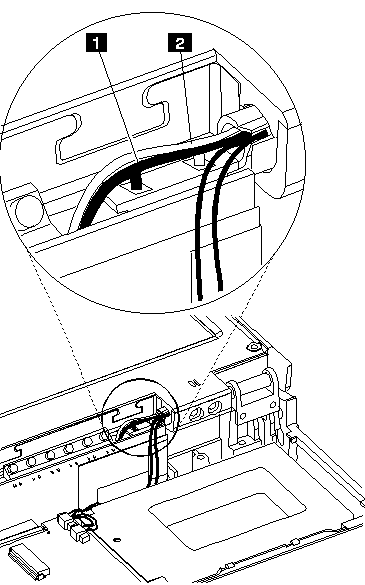
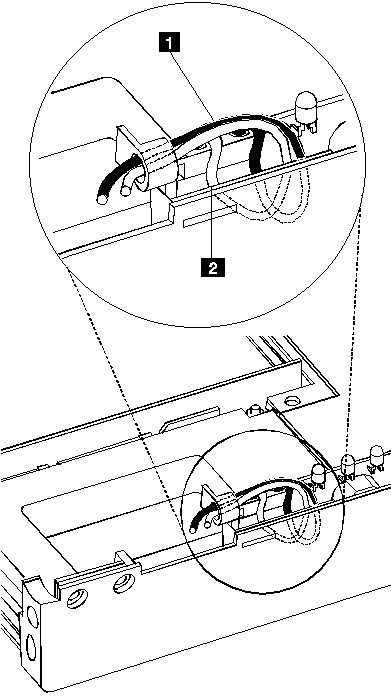
Incorrect routing of the backlight cable may cause it to break after
repeated opening and closing of the computer lid. Routing the cable
correctly is important to prevent this breakage.
To route the backlight cable,
follow these steps:
Plug the LCD backlight cable into the inverter card.
Do not twist the wires.
Position the brown wire behind the connector so that after it exits
the connector housing, it goes down between the inverter card and back
wall of the base cover. (It must be outside of the inverter
insulator.)
Loop the brown wire toward the LEDs and over the top of the
connector.
Backlight cable routing from the rear, shown without the computer lid.
Brown wire.
Yellow wire.
Route the yellow wire in the same manner as the brown wire.
Position the yellow wire beside the brown wire where it runs over
the connector on the side
toward the back of the computer. Do not allow the wires to cross.
Be careful to keep the cable in the correct position as you
complete the assembly of the computer.
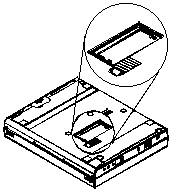
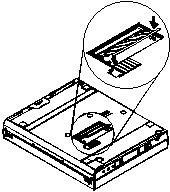
Use a slim metal bar such as a
paper clip to short the pads
by placing the metal bar
across the two pads.
Replace the SO-DIMM door.
Power-on the computer and wait until the POST ends.
Verify that the password prompt does not appear.
The customer must set a new password
to restore power-on password protection.
The customer will also need to reset the former
configuration in the Configuration Utility.
BIOS and Easy-Setup, which includes configuration programs and diagnostic tests,
are stored in Flash memory. To update them, Flash memory must be updated.
When Updating Flash Memory
Do NOT power-off the computer, disconnect the Vac power,
or remove the battery pack during the Flash update.
The system board will have to be replaced if the update
is interrupted.
Updating Flash memory also resets all of the customer's
configuration settings to the default values.
To update the Flash memory, perform the following steps:
Within the Configuration Utility, check the
“Startup Sequence” setting and make sure that it is set
to Smart or Conventional.
If it is set to Hard Disk, change the setting to
Smart or Conventional to set the system
to boot from the update diskette in the following procedure.
If you change the user's setting, make a note of the
setting before changing it.
Power-off the computer.
Connect the computer to Vac power and install a charged battery pack.
Insert the Flash update diskette in drive A.
Power-on the computer.
Follow the instructions as they appear to update
Flash memory.
Power-off the computer, and then power it on again.
Error codes 162 and 163 will be displayed.
Press Enter to enter the Configuration Utility. Reset the date and time.
Press Esc to leave the Configuration Utility, and
then press Enter to save the changes.
If the Flash update fails, replace the bottom system board.
Save the system board that failed, marking it “to be reflashed.”
Before removing any FRU, power-off the computer, unplug all power cords
from electrical outlets, remove the battery pack, then disconnect any
interconnecting cables.
Avant de retirer une unité
remplaçable en clientèle, mettez le système
hors tension, débranchez tous les cordons d'alimentation des socles de
prise de courant,
retirez la batterie et déconnectez tous les cordons
d'interface.
Die Stromzufuhr muß
abgeschaltet, alle Stromkabel aus der Steckdose
gezogen, der Akku entfernt
und alle Verbindungskabel abgenommen sein, bevor
eine FRU entfernt wird.
Prima di rimuovere qualsiasi FRU, spegnere il sistema,
scollegare dalle prese elettriche tutti i cavi di
alimentazione, rimuovere la batteria e poi scollegare i
cavi di interconnessione.
Antes de quitar una FRU, apague el sistema, desenchufe todos los cables
de las tomas de corriente eléctrica, quite la batería
y, a continuación,
desconecte cualquier cable de conexión entre dispositivos.
Before the computer is powered-on after FRU replacement, make sure all
screws,
springs, or other small parts are in place and are not left loose inside the computer.
Verify this by shaking the computer and listening for rattling sounds.
Metallic parts or metal flakes can cause electrical shorts.
Avant de remettre l'ordinateur sous tension
après remplacement d'une
unité
en clientèle,
vérifiez que tous les ressorts, vis et autres pièces sont
bien en place et bien fixées.
Pour ce faire, secouez l'unité et
assurez-vous qu'aucun bruit suspect ne se produit. Des
pièces métalliques
ou des copeaux de métal pourraient causer un court-circuit.
Bevor nach einem FRU-Austausch der Computer wieder angeschlossen wird,
muß
sichergestellt werden, daß
keine Schrauben, Federn oder andere Kleinteile
fehlen oder im Gehäuse vergessen wurden. Der Computer muß
geschüttelt und
auf Klappergeräusche geprüft werden. Metallteile oder
-splitter können
Kurzschlüsse erzeugen.
Prima di accendere l'elaboratore dopo che é stata effettuata
la sostituzione di una FRU, accertarsi che tutte le viti, le
molle e tutte le altri parti di piccole dimensioni siano
nella corretta posizione e non siano sparse all'interno
dell'elaboratore. Verificare ciò scuotendo l'elaboratore e
prestando attenzione ad eventuali rumori; eventuali parti o
pezzetti metallici possono provocare cortocircuiti pericolosi.
Antes de encender el sistema despues de sustituir una FRU, compruebe que
todos
los tornillos, muelles y demás piezas pequeñas
se encuentran en su sitio y no se
encuentran sueltas dentro del sistema. Compruébelo
agitando el sistema y
escuchando los posibles ruidos que
provocarían. Las piezas metálicas pueden causar
cortocircuitos eléctricos.
Some standby batteries contain a small amount of nickel and cadmium.
Do not disassemble it, recharge it, throw it into fire or water, or
short-circuit it.
Dispose of the battery as required by local ordinances
or regulations.
Use only the battery in the appropriate parts listing.
Use of an incorrect battery can result in ignition or explosion of the
battery.
Certaines batteries de secours contiennent du nickel et du cadmium. Ne
les démontez pas,
ne les rechargez pas, ne les exposez ni au feu ni à
l'eau. Ne les mettez pas en court-circuit. Pour les mettre au rebut,
conformez-vous à
la réglementation en vigueur. Lorsque vous remplacez la
pile de sauvegarde
ou celle de l'horloge temps réel,
veillez à n'utiliser que les modèles
cités dans la liste de pièces
détachées adéquate. Une batterie ou une pile
inappropriée risque de prendre feu ou d'exploser.
Die Bereitschaftsbatterie, die sich unter dem Diskettenlaufwerk
befindet, kann geringe Mengen Nickel und Cadmium enthalten.
Sie darf nur durch die Verkaufsstelle oder den IBM Kundendienst
ausgetauscht werden.
Sie darf nicht zerlegt, wiederaufgeladen, kurzgeschlossen, oder
Feuer oder Wasser ausgesetzt werden.
Die Batterie kann schwere Verbrennungen oder Verätzungen verursachen.
Bei der Entsorgung die örtlichen Bestimmungen für Sondermüll
beachten.
Beim Ersetzen der Bereitschafts- oder Systembatterie nur Batterien
des Typs verwenden, der in der Ersatzteilliste aufgeführt ist.
Der Einsatz falscher Batterien kann zu Entzündung oder Explosion
führen.
Alcune batterie di riserva contengono una piccola quantità
di nichel e cadmio. Non smontarle, ricaricarle, gettarle nel
fuoco o nell'acqua né cortocircuitarle. Smaltirle secondo la
normativa in vigore (DPR 915/82, successive disposizioni e
disposizioni locali). Quando si sostituisce la batteria
dell'RTC (real time clock) o la batteria di supporto,
utilizzare soltanto i tipi inseriti nell'appropriato
Catalogo parti. L'impiego di una batteria non adatta
potrebbe determinare l'incendio o l'esplosione della
batteria stessa.
Algunas baterías de
reserva contienen una pequeña cantidad de níquel y
cadmio. No las desmonte, ni recargue, ni las eche al fuego o al agua ni
las cortocircuite.
Deséchelas tal como dispone la normativa local. Utilice
sólo
baterías que se encuentren en la lista de piezas.
La utilización de una batería no apropiada puede
provocar la ignición o explosión de la misma.
Though main batteries have low voltage, a shorted or grounded battery
can produce enough current to burn combustible materials or personnel.
Bien que le voltage des batteries principales soit peu élevé,
le
court-circuit ou la mise à la masse d'une batterie peut produire
suffisamment de courant pour brûler des matériaux combustibles ou
causer des brûlures corporelles graves.
Obwohl Hauptbatterien eine niedrige Spannung haben, können sie doch
bei Kurzschluß oder Erdung genug Strom abgeben, um brennbare
Materialien zu entzünden oder Verletzungen bei Personen hervorzurufen.
Sebbene le batterie di alimentazione siano a basso
voltaggio, una batteria in corto circuito o a massa può
fornire corrente sufficiente da bruciare materiali
combustibili o provocare ustioni ai tecnici di
manutenzione.
Aunque las baterías
principales tienen un voltaje bajo, una batería
cortocircuitada o
con contacto a tierra puede producir la corriente suficiente como para quemar
material combustible o provocar quemaduras en el personal.

 please READ - see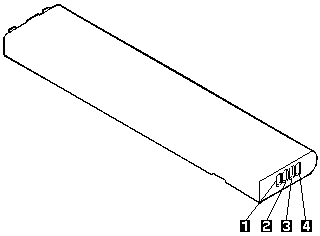


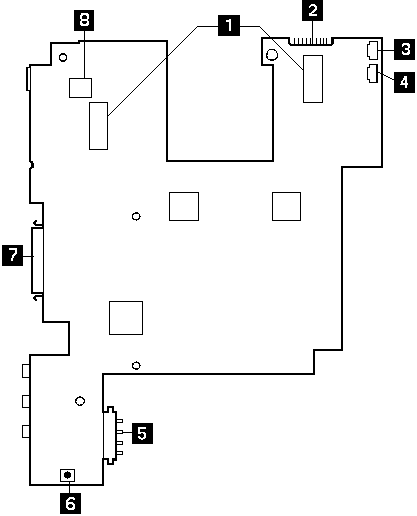
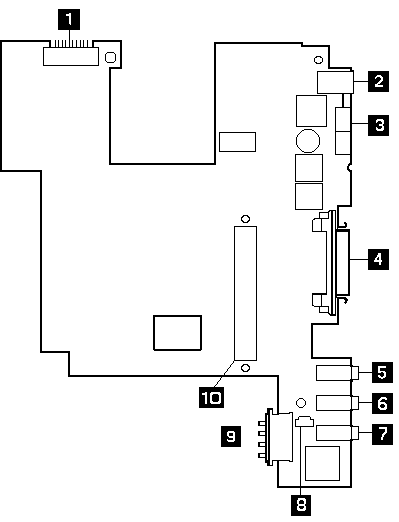
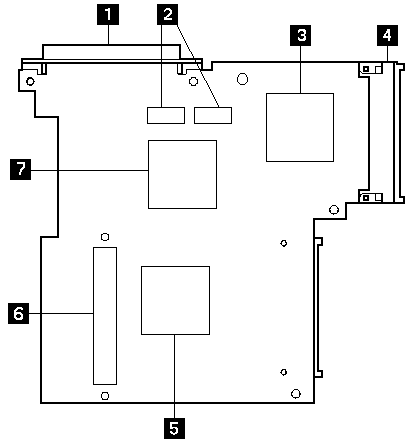
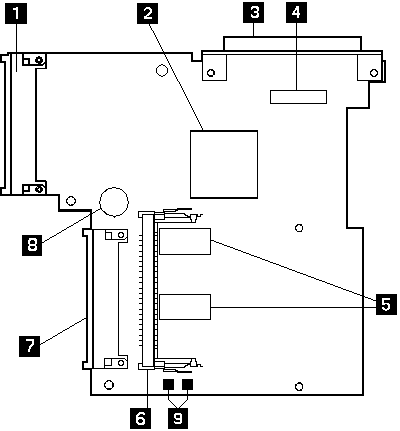

 Safety Notice 8