ThinkPad Laptops

ThinkPad 380 / 385

Machine Type 2635 · 1996-98 · 100 sections

ThinkPad 380 and 385 series mainstream notebooks.

Product Overview #

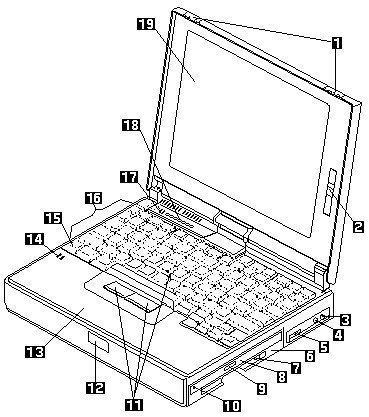
The ThinkPad 380 and 385 series encompass dependable, all-in-one notebooks that incorporate internal CD-ROM drives.

The following table shows an overview of the system features.

Feature Description
Feature Description
Processor ° Intel® Pentium® 150/60 MHz, 256K L2 Cache
Bus Architecture ° PCI bus
Memory (Standard) ° 16 MB (on the system board)
Memory (Option) ° 8 MB, 16 MB, 32 MB DIMM
(1 x 144-pin DIMM slot) Max 48 MB
CMOS RAM ° 242 bytes
Video ° 12.1-Inch, 64K colors
800x600 pixel DSTN color LCD
Video ° 12.1-Inch, 256K colors
800x600 pixel TFT color LCD
Diskette Drive ° 1.44MB (3-mode), 3.5-inch
CD-ROM Drive ° 8x transfer speed
Hard Disk Drive ° 1.08GB, 2.5-Inch IDE interface
° 1.35GB, 2.5-Inch IDE interface
° 2.1GB, 2.5-Inch IDE interface
I/O Port ° Headphone
° Microphone
° Port Replicator
Audio ° 16-bit audio
° Internal speaker
° Internal microphone
° Mechanical volume
Infrared Transfer ° 4 million bps serial communication
Transmitter and receiver module
PCMCIA Cards ° One Type III or two Type II
ZV port

Checkout Guide #

Note: The diagnostic tests are intended to test only IBM products. Non-IBM products, prototype cards, or modified options can give false errors and invalid system responses.

Note: To run the diagnostics, refer to 'How to Run the Diagnostics'.

The ThinkPad 380 and 385 series encompass dependable, all-in-one notebooks that incorporate internal CD-ROM drives.

Use the following procedure as a guide for computer problems.

NOTE: The diagnostic tests are intended to test only IBM products. Non-IBM products, prototype cards, or modified options can give false errors and invalid system responses.

  1. Obtain the failing symptoms in as much detail as possible.- Verify the symptoms by attempting to recreate the failure by  running the diagnostic test or by repeating the same operation.

    NOTE:  To run the diagnostics, refer to 'How to Run the Diagnostics'.

    • Use the following table with the verified symptom to determine  which page to go to. Search the symptoms column  and find the description  that best matches your symptom, then go to the page shown in the Go to column.
Symptoms (Verified) Go to
Power failure. (The power 'Power Systems Checkout'.
indicator does not go on
or stay on.)
POST does not complete. 'Symptom-to-FRU Index', and then use the
No beeps or error codes are indicated. 'No-Beep Symptoms' table.
POST beeps, but no error codes 'Symptom-to-FRU Index', and then
are displayed. use the 'Beep Symptoms'
POST detected an error and 'Symptom-to-FRU Index', and then
displayed numeric error codes. use the 'Numeric Error Codes' table.
The diagnostic test detected an 'FRU Codes'.
error and displayed a FRU code.
The configuration is not the same 'Checking the Installed Devices List'.
as the installed devices.
Other symptoms 'Symptom-to-FRU Index',
(such as LCD display problems). and then use the
'Other Symptoms' table.
Symptoms cannot be recreated. Use the customer reported symptoms
(Intermittent problems.) and go to 'Symptom-to-FRU Index'.

How to Run the Diagnostics #

Note: The following tools are required:

testpi   How to Run the Diagnostics

Use either the TrackPoint III or the cursor move keys to interact with the tests. Pressing the Enter key works the same as selecting the OK icon to reply OK.

NOTE: The following tools are required:

  • Wrap Plug (P/N 72X8546) for the serial and parallel connector tests.
  • Wrap Plug (P/N 35G4680) for the PCMCIA tests.
  • Scratch diskette for the FDD1 or FDD2 tests.
  • Any data CD for the CD-ROM drive test.
  1. Press and hold the F1 key, then power on the computer.  Hold the F1 key down until the Easy-Setup screen appears.- Select Test and press Enter.- Select a device and press Enter to run the test.- The test progress screen appears.- OK appears when the test ends without any errors.- Start the Advanced Diagnostic test as either of the following way:
          Pressing **Ctrl+A** on the basic diagnostic menu screen.
          Triple-click the icon on the right bottom corner on the basic diagnostic screen.
    
         - The ThinkPad FRU Connectors screen appears.
    
            This screen shows the state of the connection of all connectors.
    
            Check the connector if the **Not connected** message appears on the screen.- Click on **Exit** on the screen or press **Esc** to exit the screen.- The keyboard test screen appears.
    
                Check the keyboard.- Click on **Exit** on the screen or press **Ctrl+Pause** to exit the screen.- Select a device, and press **Enter** to start the tests.
    
                    The instruction appears, follow the instruction on the screen.- Select **Test All** to test all devices.- Select **Loop Test** to run the tests in a repeated loop.
    
                        A loop option menu appears in which a device loop or all-device
                        loop can be selected.
                        Select a device and press the **Spacebar** to select
                        a device. Repeat this step to select multiple devices.
                        Press Enter to start the diagnostic loop. If no device is selected,
                        all device tests are looped.
    
                       - To exit the loop,
                          keep pressing **Ctrl+Pause** until the test exits.
                          A beep sounds to notify
                          that the exit interrupt is sensed
                          by the test program.
    

Symptom-to-FRU Index (XD) #

Note: Perform the FRU replacement or actions in the sequence shown in the FRU/Action columns. If a FRU did not solve the problem, put the original part back in the computer. Do not replace a non-defective FRU.

Note: For any IBM device not supported by the diagnostic codes in this ThinkPad computer, see the manual for that device.

symptpi   Symptom-to-FRU Index

The Symptom-to-FRU Index lists the symptoms and errors and the possible causes. The most likely cause is listed first.

NOTE: Perform the FRU replacement or actions in the sequence shown in the FRU/Action columns. If a FRU did not solve the problem, put the original part back in the computer. Do not replace a non-defective FRU.

This index can also be used to help you decide which FRUs to have available when servicing a computer.

Numeric error codes show the errors detected in POST or system operation. In the following error codes, X can be any number.

If no codes are available, use narrative symptoms.

If the symptom is not listed, go to 'Undetermined Problems'.

NOTE: For any IBM device not supported by the diagnostic codes in this ThinkPad computer, see the manual for that device.

Numeric Error Codes (XD) #

errorpi   Numeric Error Codes

Symptom / Error FRU / Action in Sequence
10X 1. System Board
101 Interrupt failure.
102 Timer failure.
103 Timer interrupt failure.
104 Protected mode failure.
105 Last 8042 command not accepted.
107 NMI test failure.
108 Timer bus test failure.
109 Low meg-chip select test.
110 (Planar parity.) 1. Go to 'Memory Checkout'
2. DIMM
3. The computer is attached to a Port Replicator.
4. System Board
111 (I/O parity.) 1. Go to 'Memory Checkout'
2. Port Replicator
3. System Board
158 (HDP was not set even though the supervisor password is set.) 1. Set an HDP for the hard disk drive.
159 (HDP is not set the same as the supervisor password.) 1. Set a correct HDP for the hard disk drive.
161 (Dead battery.) 1. Go to 'Checking the Backup Battery'.
2. Backup Battery
3. System Board
163 (Time and Date were not set.) 1. Set Time and Date.
2. Backup Battery
3. System Board
173 (Configuration data was lost.) 1. Select OK in the error screen, then set the time and date
2. Backup Battery
3. System Board
174 (Configuration error: Perform 'Checking the Installed Devices List' before changing any FRUs.) 1. Check Device Configuration.
2. System Board
3. Diskette Drive Assembly
4. Hard Disk Drive Assembly
175, 177, 178 1. System Board
175 EEPROM CRC #1 error.
177 Supervisor password check sum error.
178 EEPROM is not functional.
183 (Incorrect password entered at the supervisor password prompt.) 1. Have the user examine the password.
184 (POP check sum error.) 1. Reset the POP (power-on password) in Easy-Setup.
185 (The startup sequence is not valid. Suspect that power was off when the startup sequence was being updated.) 1. Reset the startup sequence in Easy-Setup.
186 1. System Board
188 (EEPROM CRC #2 error.) 1. Set the system identification using the ThinkPad Hardware Maint. Diskette.
190 (Depleted battery pack was installed when the power was on.) 1. Go to 'Checking the Battery Pack'
191XX (PM initialization error.) 1. System Board
2. CPU card
195 (The configuration read from the hibernation area does not match the the actual configuration.) 1. Check if the configuration was changed. For example, check if the hard disk drive is from another computer Also, when a DIMM card has been installed, unsecured DIMM latches can result in this error. Make sure the DIMM is securely seated and fully latched into place.
196 (Read error occurred in the hibernation area of the HDD.) 1. Run the hard disk drive test.
2. Hard Disk Drive
199XX (Resume error.) 1. System Board
1XX 1. System Board
2XX 1. Go to 'Memory Checkout'.
201 Memory data error. 2. DIMM
202 Memory line error 00-15. 3. System Board
203 Memory line error 16-23.
205 Memory test failure on on-board memory.
221 ROM to RAM remap error.
301, 303, 304, 305, 3XX (301: Keyboard error.) 1. Go to 'Keyboard/Aux. Input Device Checkout'
2. Keyboard
3. External Numeric Keypad
4. External Keyboard
5. Keyboard/Mouse Cable
6. Keyboard Card
7. System Board
601, 6XX (601: Diskette drive or controller error.) 1. Go to 'Diskette Drive Test'.
2. Diskette Drive Assembly
3. Diskette
4. System Board
602 (Diskette read error.) 1. Go to 'Diskette Drive Test'.
2. Diskette
3. Diskette Drive Assembly
604 (Unacceptable ID was read from the diskette drive.) 1. Go to 'Diskette Drive Test'.
2. Diskette Drive Assembly
3. System Board
11XX 1. Serial Device
1101: Serial_A test failure. 2. Communication Cable
3. System Board
12XX 1. System Board
1201: Serial_B test failure.
17XX 1. Hard Disk Drive
1701 Hard disk controller failure. 2. System Board
1780, 1790 Hard disk 0 error.
1781, 1791 Hard disk 1 error.
24XX (2401: System board video error.) 1. System Board
808X 1. Reseat the PCMCIA Connector.
8081 PCMCIA presence test failure. (PCMCIA revision number also checked.) 2. PCMCIA Slot Assembly
3. PCMCIA Device
4. System Board
8082 PCMCIA register test failure.
860X (Pointing device error when TrackPoint III is disabled.) 1. External Mouse
2. External Keyboard
3. System Board
8601 System bus error-8042 mouse interface.
8602 External mouse error.
8603 System bus error or mouse error.
861X (Pointing device error when TrackPoint III is enabled.) 1. Reseat the keyboard connector.
2. Reseat the keyboard TrackPoint III cable on the keyboard card.
8611 System bus error-I/F between 8042 and IPDC. See '1070 Keyboard Unit'.
3. Keyboard
8612 TrackPoint error. 4. External Mouse
8613 System board or TrackPoint error. 5. 4System Board
I9990301 1. Reseat the boot device.
I9990302 2. Check the startup sequence for
I9990305 the correct boot device.
I9990301 Hard disk error. 3. Check that the operating system has
I9990302 Invalid hard disk boot record. no failure and is installed correctly.
I9990305 No bootable device.
I9990303 (Bank 2 flash ROM check sum error.) 1. System Board
Other codes not listed above 1. Go to 'Undetermined Problems'.

Diagnostic Error Codes #

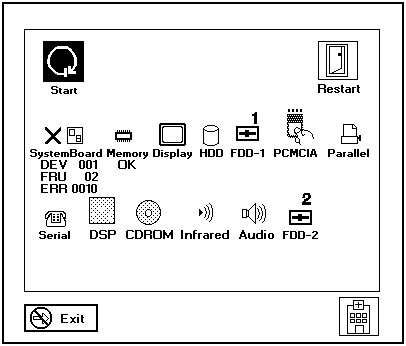
If an error is detected, the following appears:

  • Large X on the left side of the device icon.
  • Device ID (three digit)
  • Error code (two digit)
  • FRU code (four digit)

c78vztes 

The device ID and error code are used to indicate the detail portion of the FRU which caused the error. If replacing a FRU does not correct the problem, see the device ID or error code from the previous failure. If they have changed, the cause might be because the new FRU is defective or that the FRU was incorrectly installed.

FRU Codes #

If an error is detected by the diagnostic tests, a four-digit FRU code is displayed. The FRU code indicates two suspected FRUs. Replace the FRU that is indicated by the two leftmost digits first, then replace the FRU indicated by the two rightmost digits. No FRU is assigned to code 00. If only one FRU is suspected, the other FRU code is filled with zeros. Replace the FRU that is indicated by the two leftmost digits first, then replace the FRU that is indicated by the two rightmost digits. See the referenced page before replacing the FRU. The suspected FRU name is also displayed on the screen.

FRU Code FRU/Action
10 System Board
30 Reserved
32 External Keyboard
33 External Mouse
40 LCD Unit
45 External CRT
50 1. Reseat the Diskette Drive (FDD-1) 2. Diskette Drive (FDD-1)
51 1. Reseat the Diskette Drive (FDD-2) 2. Diskette Drive (FDD-2)
60 1. Reseat the Hard Disk Drive (HDD) 2. Hard Disk Drive (HDD)
70 PCMCIA-2 (Replicator)
72 PCMCIA Slot Assembly
90 CD-ROM Drive

If the problem remains after replacement of the FRUs, go to 'Undetermined Problems'.

FRU Codes (XD) #

FRU Codes

If an error is detected by the diagnostic tests, a four-digit FRU code is displayed. The FRU code indicates two suspected FRUs. Replace the FRU that is indicated by the two leftmost digits first, then replace the FRU indicated by the two rightmost digits. No FRU is assigned to code 00. If only one FRU is suspected, the other FRU code is filled with zeros. See the referenced page before replacing the FRU.

FRU Code FRU/Action
10 System Board
11 CPU Card
20 Memory (See 'Memory Checkout'.)
30 Reserved
32 External Keyboard
33 External Mouse
40 LCD Assembly
45 External CRT
50 Reseat the Diskette Drive (FDD-1) Diskette Drive (FDD-1)
51 Reseat the Diskette Drive (FDD-2) Diskette Drive (FDD-2)
60 Reseat the Hard Disk Drive (HDD) Hard Disk Drive (HDD)
72 PCMCIA Slot Assembly
90 CD-ROM Drive

If the problem remains after replacement of the FRUs, go to 'Undetermined Problems'.

Beep Symptoms (XD) #

Beep Symptoms

Symptom / Error FRU / Action in Sequence
Continuous beeps. System Board
One beep and a blank, unreadable, or flashing LCD. 1. Reseat the LCD connector.
2. LCD Assembly
3. System Board
One beep, and the message 'Unable to access boot source'. 1. Boot device
2. System Board
One long beep, two short beeps, and a blank or unreadable LCD. 1. System Board
2. LCD Unit
One long beep followed by four short beeps each time the power switch is operated. (System cannot power on because of low battery voltage.) Connect the AC Adapter or install a fully charged battery.
One beep every second. (System shuts down because of low battery voltage.) Connect the AC Adapter or install a fully charged battery (allows system to complete shutdown before changing the battery)
Two short beeps with error codes. POST error. See 'Numeric Error Codes'
Two short beeps with blank screen. System Board

No-Beep Symptoms (XD 30) #

No-Beep Symptoms

Symptom / Error FRU / Action in Sequence
No beep, power-on indicator 1. for TP-2626 Go to 'Power Systems Checkout'.
not on and a blank LCD during POST. 1. for TP-2635 Go to 'Power Systems Checkout'.
2. System Board
3. Power sources
No beep, power-on indicator on, and a blank LCD during POST. 1. System Board
2. CPU Card
No beep, power-on indicator on, and a blinking cursor only during POST. 1. System Board
2. CPU Card
No beep during POST but but system runs correctly. 1. Turn the volume up and check the speaker.
2. Speaker / Volume Switch Assembly
3. (2635-380) Systemboard
4. (2635-380) Subcard

Intermittent Problems (XD) #

Intermittent Problems

Intermittent system hang problems can be caused by a variety of reasons that have nothing to do with a hardware defect, such as:

cosmic radiation, electrostatic discharge, or software errors.

FRU replacement should only be considered when a recurring problem exists.

When analyzing the intermittent problem, do the following:

  1. Run the advanced diagnostic test for the system board in loop mode  at least 10 times.
  2. If no error is detected, do not replace any FRUs.
  3. If any error is detected, replace the FRU shown by the FRU code. Rerun the test to verify that no more errors exist.

Common Devices Checkout #

ThinkPad Common Parts List

ThinkPad - Common Parts Listing #

Common Parts Listing

This section contains FRUs common to most IBM portable, laptop, and notebook computers.

External Diskette Drives

5.25-Inch Diskette Drives:
360KB External (4869-001) 72X6759
360KB External (4869-501) 72X6768
1.2MB External (4869-002) 15X7993
1.2MB External (4869-502) 15X7994
Hard Disk Drive.
1.2GB HDD (for all 9545) 85G8549
5.25-Inch Drive Adapter 72X6757
5.25-Inch Drive Adapter/A 15F7996
5.25-Inch External Diskette Drive Cable
(from system board to adapter) 27F4211
Diskette Drive Bus Adapter 72X8524

CD-ROM Drives

Enhanced Internal CD-ROM II Drive
(Eject button below slot) 61G1901
Internal CD-ROM I Drive
(Eject button above slot) 81F7930
Terminator Kit (for 81F7930) 59F3530
Cleaning Kit (for 81F7930)
(Disks, CD Caddy) 59F3562
Internal CD-ROM II Drive
(Eject button below slot) 92F0084
Terminator Kit (for 92F0084) 92F0082
Media Kit (for 92F0084)
(No cleaning necessary,
Test Disk, CD Caddy) 31F4232
Signal Cable 34F0043
Power Cable 72X8521
Remote ID Switch Cable (3510) 92F0086
Audio Card, Cable, Screws (3510) 92F0085
CD Caddy 22F9419
Rail Kit (3510) 34F0041
Headphones 53F3610

SCSI Adapters, Terminators, Cables

SCSI Adapter/A (without Cache) 85F0002
SCSI Internal Cable 64F4127
SCSI Adapter/A (with Cache) 85F0063
Terminator, External (for 85F0063) 33F8464
Terminator, Internal (for 85F0063) 34F0025
Terminator, Internal (for 85F0002) 57F2870
SCSI Fast Adapter (16 bit) 92F0330
SCSI External Cable (for 92F0330) 32G4089
SCSI Internal Cable (for 92F0330) 32G0084
Terminator, Inline (space permitting) 92F0412

Rewritable Optical Drives

3.5-Inch Rewritable Optical Drive 92F0167
Rewritable Optical Cartridge 38F8647
Rewritable Optical Cartridge (5 Pack) 38F8646
Drive Mounting Slide (for 92F0167) 85F0022
Tray with Bezel (for 92F0167) 85F0021
Objective Lens Cleaner (for 92F0167) 38F8681
Prism Lens Cleaner (for 92F0167) 38F8682
3.5-Inch Enhanced Rewritable Optical Drive 92F0167
Mounting Tray 92F0269
Mounting Tray/Bezel (Model 3510) 92F0268

External Keyboard/Mouse

Keyboard Cable 72X8537
Mouse 61X8923
Mouse Ball and Pop-Off Retainer 33F8461
Mouse Ball and Twist-Off Retainer 33F8462
Mouse (New Style) (33G5420) 06H4595
Mouse Retainer Ring 33G5417
Miniature Mouse 95F5723

Enhanced Keyboards (101/102 Key)

Country FRU P/N
Arabic 1391490
Belgian 1391414
Canadian French 1392011
Cyrillic 1393866
Danish 1391407
Dutch 1391511
French 1391402
German 1391403
Greek 1393285
Hebrew 1391408
Italian 1393395
Latin American Spanish 1392015
Norwegian 1391409
Portuguese 1391410
Russian/Cyrillic 1395622
Spanish 1391405
Swedish/Finnish 1391411
Swiss 1391412
Swiss/French 1395881
Swiss/German 1395882
Turkish 1393286
U.K. English 1391406
U.S. English (E/ME/A use only) 1396790
U.S. English 1392090
Yugoslavian 1393669

Optional Enhanced Keyboards (101/102 Key)

with PS/2 Style Cable 59G7980
with AT Style Cable 59G7981
with 25mm PS/2 Trackball 59G7982
with 25mm Serial Trackball 59G9757

Keybutton Kits (101/102 Key)

Keybutton Kits (R), Belgian 1392033
Keybutton Kits (R), Canadian French 1392032
Keybutton Kits (R), Danish 1392026
Keybutton Kits (R), Dutch 1392034
Keybutton Kits (R), French 6447047
Keybutton Kits (R), German 6447048
Keybutton Kits (R), Italian 6447049
Keybutton Kits (R), Norwegian 1392028
Keybutton Kits (R), Portuguese 1392029
Keybutton Kits (R), Spanish 6447050
Keybutton Kits (R), Spanish / Latin 1392035
Keybutton Kits (R), Swedish 1392030
Keybutton Kits (R), Swiss / French / German 1392031
Keybutton Kits (R), U.K. English 6447046
Keybutton Kits, U.S. English 6447045

Japanese Keyboard Type 2 (106 Key, DBCS Support)

Japanese Keyboard 94X1110
Keyboard Cable 94X1147

Space-Saving Keyboards (84/85 Key)

Canadian French 1396046
Spanish/Latin 1396047
U.S. English 1393290
Cable Assembly, External 1393082

Tools and Miscellaneous

Audio Wrap Cable 66G5180
Ethernet BNC T-Connector 84F8207
Ethernet BNC 50-ohm Terminator
(2 required) 85F0037
Grounding Wire Set 38F4684
Keyboard Key Cap Removal Tool 6110464
PC Test Card 33G4703
Screwdriver Kit 95F3598
SCSI Terminator
(any SCSI device, space permitting) 92F0142
SCSI Terminator Kit
(R-PAC Terminator Modules (3) for 40, 60,
80, 120, and 160MB SCSI Hard Disk Drives) 92F0143
Wrap Plug Ethernet D-Shell 85F0036
Wrap Plug, Tri-Connector 72X8546
Wrap Plug (6157 Tape Attachment Adapter/A) 4178459
Wrap Plug (Token-Ring Network Adapter/A) 6165899
Plastic Envelope (For Wrap Plug) 6138013

Safety Notices (Multi-lingual Translations) #

In this EPRM, safety notices are referenced to the appropriate multi-lingual, translated safety notice in this section.

The following safety notices are provided in English, French, German, Italian, and Spanish languages.

Safety Notice 1. #

warn3  Safety Notice 1

Before the computer is powered-on after FRU replacement, make sure all screws, springs, or other small parts are in place and are not left loose inside the computer. Verify this by shaking the computer and listening for rattling sounds. Metallic parts or metal flakes can cause electrical shorts.

Avant de remettre l'ordinateur sous tension après remplacement d'une unité en clientèle, vérifiez que tous les ressorts, vis et autres pièces sont bien en place et bien fixées. Pour ce faire, secouez l'unité et assurez-vous qu'aucun bruit suspect ne se produit. Des pièces métalliques ou des copeaux de métal pourraient causer un court-circuit.

Bevor nach einem FRU-Austausch der Computer wieder angeschlossen wird, muß sichergestellt werden, daß keine Schrauben, Federn oder andere Kleinteile fehlen oder im Gehäuse vergessen wurden. Der Computer muß geschüttelt und auf Klappergeräusche geprüft werden. Metallteile oder -splitter können Kurzschlüsse erzeugen.

Prima di accendere l'elaboratore dopo che é stata effettuata la sostituzione di una FRU, accertarsi che tutte le viti, le molle e tutte le altri parti di piccole dimensioni siano nella corretta posizione e non siano sparse all'interno dell'elaboratore. Verificare ci• scuotendo l'elaboratore e prestando attenzione ad eventuali rumori, eventuali parti o pezzetti metallici possono provocare cortocircuiti pericolosi.

Antes de encender el sistema despues de sustituir una FRU, compruebe que todos los tornillos, muelles y demás piezas pequeñas se encuentran en su sitio y no se encuentran sueltas dentro del sistema. Compruébelo agitando el sistema y escuchando los posibles ruidos que provocarían. Las piezas metálicas pueden causar cortocircuitos eléctricos.

Safety Notice 2 #

warn3  Safety Notice 2

Some standby batteries contain a small amount of nickel and cadmium. Do not disassemble it, recharge it, throw it into fire or water, or short-circuit it. Dispose of the battery as required by local ordinances or regulations. Use only the battery in the appropriate parts listing. Use of an incorrect battery can result in ignition or explosion of the battery.

Certaines batteries de secours contiennent du nickel et du cadmium. Ne les démontez pas, ne les rechargez pas, ne les exposez ni au feu ni à l'eau. Ne les mettez pas en court-circuit. Pour les mettre au rebut, conformez-vous à la réglementation en vigueur. Lorsque vous remplacez la pile de sauvegarde ou celle de l'horloge temps réel, veillez à n'utiliser que les modèles cités dans la liste de pièces détachées adéquate. Une batterie ou une pile inappropriée risque de prendre feu ou d'exploser.

Die Bereitschaftsbatterie, die sich unter dem Diskettenlaufwerk befindet, kann geringe Mengen Nickel und Cadmium enthalten. Sie darf nur durch die Verkaufsstelle oder den IBM Kundendienst ausgetauscht werden. Sie darf nicht zerlegt, wiederaufgeladen, kurzgeschlossen, oder Feuer oder Wasser ausgesetzt werden. Die Batterie kann schwere Verbrennungen oder Verätzungen verursachen. Bei der Entsorgung die örtlichen Bestimmungen für Sondermüll beachten. Beim Ersetzen der Bereitschafts- oder Systembatterie nur Batterien des Typs verwenden, der in der Ersatzteilliste aufgeführt ist. Der Einsatz falscher Batterien kann zu Entzündung oder Explosion führen.

Alcune batterie di riserva contengono una piccola quantità di nichel e cadmio. Non smontarle, ricaricarle, gettarle nel fuoco o nell'acqua né cortocircuitarle. Smaltirle secondo la normativa in vigore (DPR 915/82, successive disposizioni e disposizioni locali). Quando si sostituisce la batteria dell'RTC (real time clock) o la batteria di supporto, utilizzare soltanto i tipi inseriti nell'appropriato Catalogo parti. L'impiego di una batteria non adatta potrebbe determinare l'incendio o l'esplosione della batteria stessa.

Algunas baterías de reserva contienen una pequeña cantidad de níquel y cadmio. No las desmonte, ni recargue, ni las eche al fuego o al agua ni las cortocircuite. Deséchelas tal como dispone la normativa local. Utilice sólo baterías que se encuentren en la lista de piezas. La utilización de una batería no apropiada puede provocar la ignición o explosión de la misma.

Safety Notice 3 #

warn3  Safety Notice 3

The battery pack contains small amounts of nickel. Do not disassemble it, throw it into fire or water, or short-circuit it. Dispose of the battery pack as required by local ordinances or regulations. Use only the battery in the appropriate parts listing when replacing the battery pack. Use of an incorrect battery can result in ignition or explosion of the battery.

La batterie contient du nickel. Ne la démontez pas, ne l'exposez ni au feu ni à l'eau. Ne la mettez pas en court-circuit. Pour la mettre au rebut, conformez-vous à la réglementation en vigueur. Lorsque vous remplacez la batterie, veillez à n'utiliser que les modèles cités dans la liste de pièces détachées adéquate. En effet, une batterie inappropriée risque de prendre feu ou d'exploser.

Akkus enthalten geringe Mengen von Nickel. Sie dürfen nicht zerlegt, wiederaufgeladen, kurzgeschlossen, oder Feuer oder Wasser ausgesetzt werden. Bei der Entsorgung die örtlichen Bestimmungen für Sondermüll beachten. Beim Ersetzen der Batterie nur Batterien des Typs verwenden, der in der Ersatzteilliste aufgeführt ist. Der Einsatz falscher Batterien kann zu Entzündung oder Explosion führen.

La batteria contiene piccole quantità di nichel. Non smontarla, gettarla nel fuoco o nell'acqua né cortocircuitarla. Smaltirla secondo la normativa in vigore (DPR 915/82, successive disposizioni e disposizioni locali). Quando si sostituisce la batteria, utilizzare soltanto i tipi inseriti nell'appropriato Catalogo parti. L'impiego di una batteria non adatta potrebbe determinare l'incendio o l'esplosione della batteria stessa.

Las baterías contienen pequeñas cantidades de níquel. No las desmonte, ni recargue, ni las eche al fuego o al agua ni las cortocircuite. Deséchelas tal como dispone la normativa local. Utilice sólo baterías que se encuentren en la lista de piezas al sustituir la batería. La utilización de una batería no apropiada puede provocar la ignición o explosión de la misma.

Safety Notice 4 #

warn3  Safety Notice 4

The lithium battery can cause a fire, explosion, or severe burn. Do not recharge it, remove its polarized connector, disassemble it, heat it above 100°C (212°F), incinerate it, or expose its cell contents to water. Dispose of the battery as required by local ordinances or regulations. Use only the battery in the appropriate parts listing. Use of an incorrect battery can result in ignition or explosion of the battery.

La pile de sauvegarde contient du lithium. Elle présente des risques d'incendie, d'explosion ou de brûlures graves. Ne la rechargez pas, ne retirez pas son connecteur polarisé et ne la démontez pas. Ne l'exposez pas à une temperature supérieure à 100°C, ne la faites pas brûler et n'en exposez pas le contenu à l'eau. Mettez la pile au rebut conformément à la réglementation en vigueur. Une pile inappropriée risque de prendre feu ou d'exploser.

Die Systembatterie ist eine Lithiumbatterie. Sie kann sich entzünden, explodieren oder schwere Verbrennungen hervorrufen. Batterien dieses Typs dürfen nicht aufgeladen, zerlegt, über 100 C erhitzt oder verbrannt werden. Auch darf ihr Inhalt nicht mit Wasser in Verbindung gebracht oder der zur richtigen Polung angebrachte Verbindungsstecker entfernt werden. Bei der Entsorgung die örtlichen Bestimmungen für Sondermüll beachten. Beim Ersetzen der Batterie nur Batterien des Typs verwenden, der in der Ersatzteilliste aufgeführt ist. Der Einsatz falscher Batterien kann zu Entzündung oder Explosion führen.

La batteria di supporto e una batteria al litio e puo incendiarsi, esplodere o procurare gravi ustioni. Evitare di ricaricarla, smontarne il connettore polarizzato, smontarla, riscaldarla ad una temperatura superiore ai 100 gradi centigradi, incendiarla o gettarla in acqua. Smaltirla secondo la normativa in vigore (DPR 915/82, successive disposizioni e disposizioni locali). L'impiego di una batteria non adatta potrebbe determinare l'incendio o l'esplosione della batteria stessa.

La bateria de repuesto es una bateria de litio y puede provocar incendios, explosiones o quemaduras graves. No la recargue, ni quite el conector polarizado, ni la desmonte, ni caliente por encima de los 100°C (212°F), ni la incinere ni exponga el contenido de sus celdas al agua. Deséchela tal como dispone la normativa local.

Safety Notice 5 #

warn3  Safety Notice 5

If the LCD breaks and the fluid from inside the LCD gets into your eyes or on your hands, immediately wash the affected areas with water for at least 15 minutes. Seek medical care if any symptoms from the fluid are present after washing.

Si le panneau d'affichage à cristaux liquides se brise et que vous recevez dans les yeux ou sur les mains une partie du fluide, rincez-les abondamment pendant au moins quinze minutes. Consultez un médecin si des symptômes persistent après le lavage.

Die Leuchtstoffröhre im LCD-Bildschirm enthält Quecksilber. Bei der Entsorgung die örtlichen Bestimmungen für Sondermüll beachten. Der LCD-Bildschirm besteht aus Glas und kann zerbrechen, wenn er unsachgemäß behandelt wird oder der Computer auf den Boden fällt. Wenn der Bildschirm beschädigt ist und die darin befindliche Flüssigkeit in Kontakt mit Haut und Augen gerät, sollten die betroffenen Stellen mindestens 15 Minuten mit Wasser abgespült und bei Beschwerden anschließend ein Arzt aufgesucht werden.

Nel caso che caso l'LCD si dovesse rompere ed il liquido in esso contenuto entrasse in contatto con gli occhi o le mani, lavare immediatamente le parti interessate con acqua corrente per almeno 15 minuti, poi consultare un medico se i sintomi dovessero permanere.

Si la LCD se rompe y el fluido de su interior entra en contacto con sus ojos o sus manos, lave inmediatamente las áreas afectadas con agua durante 15 minutos como mínimo. Obtenga atención medica si se presenta algún síntoma del fluido despues de lavarse.

Safety Notice 6 #

warn3  Safety Notice 6

To avoid shock, do not remove the plastic cover that surrounds the lower portion of the inverter card.

Afin d'éviter tout risque de choc électrique, ne retirez pas le cache en plastique protégeant la partie inférieure de la carte d'alimentation.

Aus Sicherheitsgründen die Kunststoffabdeckung, die den unteren Teil der Spannungswandlerplatine umgibt, nicht entfernen.

Per evitare scosse elettriche, non rimuovere la copertura in plastica che avvolge la parte inferiore della scheda invertitore.

Para evitar descargas, no quite la cubierta de plástico que rodea la parte baja de la tarjeta invertida.

Safety Notice 7 #

warn3  Safety Notice 7

Though main batteries have low voltage, a shorted or grounded battery can produce enough current to burn combustible materials or personnel.

Bien que le voltage des batteries principales soit peu élevé, le court-circuit ou la mise à la masse d'une batterie peut produire suffisamment de courant pour brûler des matériaux combustibles ou causer des brûlures corporelles graves.

Obwohl Hauptbatterien eine niedrige Spannung haben, können sie doch bei Kurzschluß oder Erdung genug Strom abgeben, um brennbare Materialien zu entzünden oder Verletzungen bei Personen hervorzurufen.

Sebbene le batterie di alimentazione siano a basso voltaggio, una batteria in corto circuito o a massa può fornire corrente sufficiente da bruciare materiali combustibili o provocare ustioni ai tecnici di manutenzione.

Aunque las baterías principales tienen un voltaje bajo, una batería cortocircuitada o con contacto a tierra puede producir la corriente suficiente como para quemar material combustible o provocar quemaduras en el personal.

Safety Notice 8 #

warn3  Safety Notice 8

Before removing any FRU, power-off the computer, unplug all power cords from electrical outlets, remove the battery pack, then disconnect any interconnecting cables.

Avant de retirer une unité remplaçable en clientèle, mettez le système hors tension, débranchez tous les cordons d'alimentation des socles de prise de courant, retirez la batterie et déconnectez tous les cordons d'interface.

Die Stromzufuhr muß abgeschaltet, alle Stromkabel aus der Steckdose gezogen, der Akku entfernt und alle Verbindungskabel abgenommen sein, bevor eine FRU entfernt wird.

Prima di rimuovere qualsiasi FRU, spegnere il sistema, scollegare dalle prese elettriche tutti i cavi di alimentazione, rimuovere la batteria e poi scollegare i cavi di interconnessione.

Antes de quitar una FRU, apague el sistema, desenchufe todos los cables de las tomas de corriente eléctrica, quite la batería y, a continuación, desconecte cualquier cable de conexión entre dispositivos.

Power Systems Checkout #

To verify the symptom of the problem, power on the computer using each of the power sources as follows.

  1. Remove the battery pack and diskette drive.
  2. Connect the AC Adapter and check that power is supplied.
  3. Disconnect the AC Adapter and install the charged battery pack, then  check that power is supplied by the battery pack.

If you suspect a power problem, see the appropriate power supply check listed below.

Power Management Features (XD) #

Note:

  • In the ThinkPad Features Program, the computer can be set to  'Will not suspend even if LCD is closed.'- When the computer is powered with ac power and is used  with one of the communication PC cards, the computer enters standby mode, the PC card and application program  remain active.- The computer cannot enter suspend mode  while a communication link is running.

Note: The computer cannot enter hibernation mode when the computer is powered with ac power and a communication PC card is used.

Power Management Features

Three power management modes are provided by the computer to reduce power consumption and prolong battery power.

Standby Mode

When in standby mode the following occurs:

  • The LCD backlight turns off.
  • The hard disk motor stops.

Events that cause the computer to enter standby mode:

  • Standby requested by the Fn key. (Fn+F3)
  • No activity under auto-standby enabled by the  ThinkPad Features program.

Events that cause the computer to exit or resume standby mode:

  • (Resume) Any key operation.

Suspend Mode

When in suspend mode, the following, in addition to the three actions of standby mode, occur:

  • The LCD is powered off.
  • The hard disk is powered off.
  • The CPU is stopped.

NOTE:

  • In the ThinkPad Features Program, the computer can be set to  'Will not suspend even if LCD is closed.'
  • When the computer is powered with ac power and is used  with one of the communication PC cards, the computer enters standby mode , the PC card and application program  remain active.
  • The computer cannot enter suspend mode  while a communication link is running.

Events that cause the computer to enter suspend mode:

  • Suspend mode is requested by the Fn key (Fn+F4).
  • The LCD is closed.
  • The specified time has elapsed from the last operation with  the keyboard, mouse, hard disk drive, parallel connector, or  diskette drive, or the AC Adapter is plugged in.  The time is specified by Suspend Timer in the ThinkPad Features program.
  • The battery condition is low. The battery power indicator  blinks amber.
  • Either the PS2 OFF or PS2 SUSpend command is set in the ThinkPad Features program.

Events that cause the computer to exit or resume suspend mode:

  • (Resume) The LCD is opened.
  • (Resume) The real time clock alarm is signaled.
  • (Resume) The ring indicator  (RI) is signaled by a serial or PCMCIA device.
  • (Resume) The Fn key is pressed.
  • (Resume 2625 365x only) An external keyboard key is pressed while  operating with ac power.
  • (Exit) Timer (timeout) conditions are satisfied  for entering hibernation mode.

Hibernation Mode

When in hibernation mode, the following occurs:

  • The system status, RAM, VRAM, and setup  data are stored on the hard disk.
  • The system is powered off.

NOTE: The computer cannot enter hibernation mode when the computer is powered with ac power and a communication PC card is used.

Events that cause the computer to enter hibernation mode:

  • (2625 365x only) The keyboard is opened.
  • Hibernation mode is requested by the Fn key (Fn+F12).
  • Timer/timeout conditions are satisfied in suspend mode.
  • A critical low battery condition occurs.
  • The PS2 HIB ernation command is set in the  ThinkPad Features program.

Event that causes the computer to exit hibernation mode:

  • The power-on switch is operated.

When power is turned on, the hibernation history in the boot record on the hard disk is recognized and system status is restored from the hard disk to resume operation.

Checking the AC Adapter #

Note: An audible noise from the AC Adapter does not always indicate a defective adapter.

You are here because the computer fails only when the AC Adapter is used.

  • If the power problem occurs only when the Port Replicator is used,  replace the replicator.
  • If the power-on indicator does not turn on, check the power  cord of the AC Adapter for correct continuity and installation.
  • If the operational charge does not work, go to 'Checking Operational Charging' .
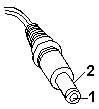
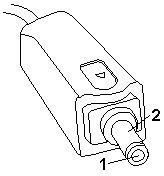
  1. Unplug the AC Adapter cable from the computer and  measure the output voltage at the plug of the AC Adapter cable.

larkacp 

Pin Voltage (Vdc)
1 +14.5 to +17.0
2 Ground
  • If the voltage is correct, replace the subcard.
  • If the problem is not corrected, replace the system board.
  • If the problem is not corrected, go to 'Undetermined Problems' .
  • If the voltage is not correct, go to the next step.
  • Unplug the AC Adapter cable from the ac power outlet and wait  five minutes or longer to allow the over-voltage protection circuit  to be fully discharged and initialized.
  • Plug the AC Adapter cable into the ac power outlet.
  • Measure the output voltage of the AC Adapter.
  • If the voltage is still not correct, replace the AC Adapter.

NOTE: An audible noise from the AC Adapter does not always indicate a defective adapter.

Checking Operational Charging (XD) #

Checking Operational Charging

To check operational charging, use a discharged battery pack or a battery pack that has less than 50% of the total power remaining when installed in the computer.

Perform operational charging. If the battery status indicator does not turn on, remove the battery pack and leave it to return to room temperature. Reinstall the battery pack. If the charge indicator still does not turn on, replace the battery pack.

Password / Power Shutdown Switch #

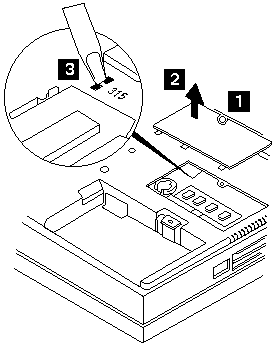
How to Disable the Power-On Password

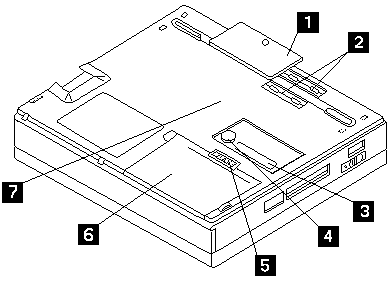
  1. Power off the computer.- Turn the computer upside down, loosen the DIMM cover screw 1,  remove the DIMM cover 2, then power-on the computer by applying a  short across the power-on password jumper pads 3

    380_pwd 
    - Verivy that the password prompt does not appear.

To reactivate the password, set the password again.

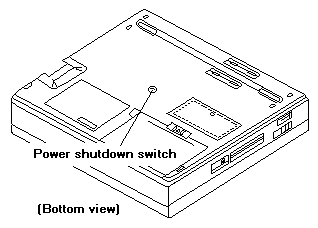
Power Shutdown Switch

The power shutdown switch resets the system regardless of the microcode status and forces the power off. Use this push button to power-off when power is not completely off or the microcode is in a hung state.

380_sht

Checking the Battery Pack #

Note: Signal lines not used in these steps are used for  communication between the system and the battery.

Note: If the voltage of the battery pack is 0 V, it is not defective.

Checking the AC Adapter (2635-380/385)

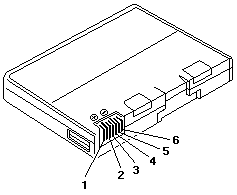
  1. Power off the computer- Remove the battery pack and measure the voltage between  battery terminals 1 (+) and 4 (-).

    380_batt 

    Terminal Voltage (Vdc) / Signal
    1 +0 to +13.5
    2 N/C
    3 Thermal
    4 Ground (-)
    5 Select
    6 A-Ground

    NOTE: Signal lines not used in these steps are used for  communication between the system and the battery.

    • If the voltage is less than +11.0 Vdc, the battery pack has been discharged.  Recharge the battery pack.

    If the voltage is still less than +11.0 Vdc after recharging, replace the battery.

    NOTE: If the voltage of the battery pack is 0 V, it is not defective.

    • If the voltage is more than +11.0 Vdc, measure the resistance between battery terminals  3 and 4. The resistance must be 4 to 30 K ohm.

      If the resistance is not correct, replace the battery pack.

      If the resistance is correct, replace the subcard.

Checking the Backup Battery #

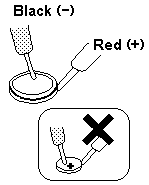
Note: Be careful not to measure the wrong side of the  backup battery.

  1. Power off the computer and unplug the AC Adapter from the computer.- Turn the computer upside down.- Remove the DIMM cover and backup battery (see DIMM Card / Backup Battery)- Measure the voltage of the backup battery.
     **NOTE:** Be careful not to measure the wrong side of the
      backup battery.
    

560_4 

Wire Voltage (Vdc)
Red +2.5 to +3.7
Black Ground
  • If the voltage is correct, replace the system board.
  • If the voltage is not correct, the backup battery has been  discharged. Replace the backup battery.
  • If the backup battery discharges quickly after replacement,  replace the system board.

Checking the Backup Battery (XD) #

Checking the Backup Battery

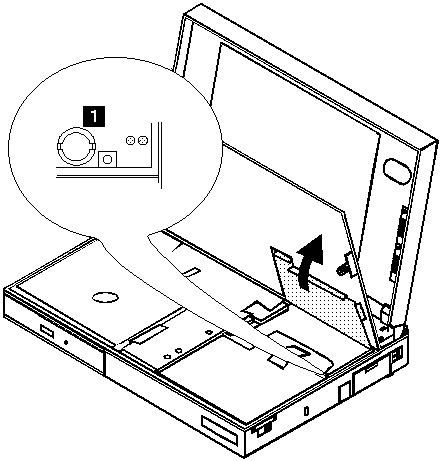
  1. Power off the computer and unplug the AC Adapter from the computer.- Open the keyboard and remove the battery pack.- Lift the right-hand section of the black insulator sheet.- Locate the backup battery on the system board, shown at 1.
     ![bkup365](/static/parts/img/536de212f600.gif)
     ![warn3](/static/parts/img/f6bbaae0a677.gif)   
       Do not use a metal tool when removing the backup battery.
      Use only a plastic tool.
    
     - Using a plastic tool,
        remove the backup battery from the system board.- Measure the voltage of the backup battery.
          Refer to the following table for voltages:
    
    
    WireVoltage (Vdc)
    ++2.5 to +3.7
    -Ground
  • If the voltage is correct, replace the system board.
  • If the voltage is not correct, the backup battery has been  discharged. Replace the backup battery.
  • If the backup battery discharges quickly after replacement,  replace the system board.

Checking the Battery Pack (XD) #

Note: Signal lines, not used in these steps,  are used for communication between the system and the battery.

Note: If the voltage of the battery pack is 0 V, it is not defective.

Checking the Battery Pack

Battery charging will not start until the Fuel-Gauge shows that less than 95% of the total power remains, with this condition the battery pack will charge to 100% of its capacity. This protects the battery pack from being overcharged or having a shortened life.

Do the following:

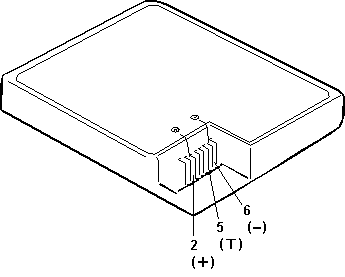
  1. Power off the computer.- Remove the battery pack and measure the voltage between battery  terminals 2 (+) and 6 (-).

    c78vzbat 

    Terminal Voltage (Vdc) / Signal
    1 -
    2 +8 to +13.5
    3 -
    4 -
    5 Thermal
    6 Ground (-)

    NOTE: Signal lines, not used in these steps,  are used for communication between the system and the battery.

    • If the voltage is less than  +9.6 V dc, the battery pack has  been discharged. Recharge the battery pack.

    If the voltage is still less than +9.6 V dc after recharging,  replace the battery.

    NOTE:  If the voltage of the battery pack is 0 V, it is not defective.

    • If the voltage is more than +9.6 V dc,  measure the resistance between  battery terminals 5 and 6.  The resistance must be 4 K to 30 K ohm.

      If the resistance is not correct, replace the battery pack.

      If the resistance is correct, replace the system board.

Power Systems Checkout (XD) #

Power Systems Checkout

To verify the symptom of the problem, power on the computer using each of the power sources as follows:

  1. Remove the battery pack, diskette drive, and hard disk drive.
  2. Connect the AC Adapter and check that power is supplied.
  3. Install the diskette drive or hard disk drive  one at a time, and check that power is supplied from  each power source.
  4. Disconnect the AC Adapter, remove the hard disk and  diskette drive, and install the charged battery pack,  then check that power is supplied by the battery pack.

If you suspect a power problem, see the appropriate power supply check listed below.

  • Checking the AC Adapter .
  • Checking Operational Charging .
  • Checking the Battery Pack .
  • Checking the Backup Battery .

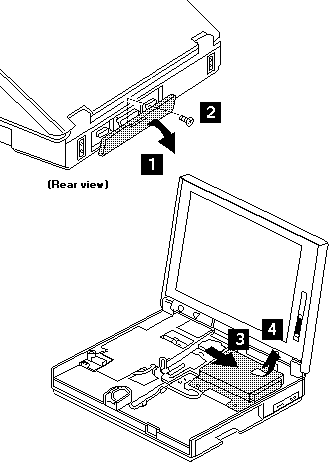
1010 Battery Pack #

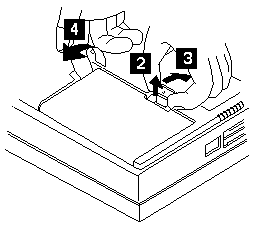
  1. Turn the computer upside down.

Pull up the battery pack latch 2 , push it back 3 , and then pull up the battery pack 4.

380_1

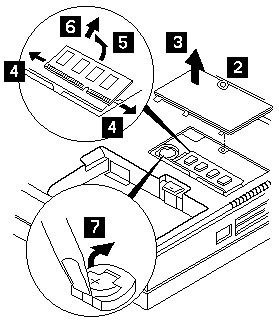
1020 DIMM Card / Backup Battery #

Note: Only loosen the screw in step 2

warn3   See Lithium Battery Safety

  1. Turn the computer upside down.

2 3 4 5 6 DIMM

2 3 7 Backup battery

380_2 

When replacing

Make sure the plus side is on top when replacing the backup battery.

Step Location (Quantity) Length
2 DIMM cover (1) -

NOTE: Only loosen the screw in step 2

Power-on the TV Tuner #

Use the ThinkPad Features program or PS2.EXE. to power-on the TV Tuner, then power-on the internal device in the diskette drive compartment.

warn   If power for the internal device is turned off when the TV Tuner is set up, nothing appears on the LCD display. Turn on power for the TV Tuner again.

  • If you are using DOS, do one of the following:

  • Power-on the computer and type PS2 from the  command prompt to start the ThinkPad Features program. Select Set Power Features from the ThinkPad Features  menu,then put a check mark at Internal Serial Port (or Diskette Drive Compartment )  under the Power for devices .  If you need help, press F1 to display the help menu.
  • Type ps2 modem on from the command prompt,  press the Enter key to set the power ON.
  • If you are using OS/2 or  Microsoft Windows, do the following:

    1. Power-on the computer and start the ThinkPad Features program.
    2. Select the Power icon, then move the pointer to Internal Serial Port (or Diskette Drive Compartment )  under the Power for devices and click the button to check mark it.
    3. Press the OK button.

1020 Battery Pack (XD) #

1020 Battery Pack

warn  Be careful that the computer does not fall backward when the battery pack is removed.

cardp01

Checking the AC Adapter (XD) #

Note: For Model 365XD, there are two types of adapters. The procedure for checking both types is the same.

Note: An audible noise from the AC Adapter does not always indicate a defective adapter.

Checking the AC Adapter

You are here because the computer fails only when the AC Adapter is used.

  • If the power problem occurs only when a Port Replicator is used,  replace the replicator.
  • If the power-on indicator does not turn on, check the power  cord of the AC Adapter for correct continuity and installation.
  • If the operational charge does not work, go to 'Checking Operational Charging' .

NOTE: For Model 365XD, there are two types of adapters. The procedure for checking both types is the same.

  1. Unplug the AC Adapter cable from the computer and  measure the output voltage at the plug of the AC Adapter cable.

560_2  larkacp 

Pin Voltage (Vdc)
1 +14.5 to +17.0
2 Ground
  • If the voltage is correct,  replace the system board.
  • If the problem is not corrected, go to 'Undetermined Problems' .
  • If the voltage is not correct, go to the next step.
  • Unplug the AC Adapter cable from the ac power outlet and wait  five minutes or longer to allow the over-voltage protection circuit  to be fully discharged and initialized.
  • Plug the AC Adapter cable into the ac power outlet.
  • Measure the output voltage of the AC Adapter.
  • If the voltage is still not correct, replace the AC Adapter.

NOTE: An audible noise from the AC Adapter does not always indicate a defective adapter.

Keyboard/Auxiliary Input Device Checkout (XD) #

Note: When a Fn key is pressed, a black square briefly appears.

Keyboard/Auxiliary Input Device Checkout

Remove the external keyboard if the internal keyboard is to be tested.

If the internal keyboard does not work or an unexpected character appears, make sure that the three flexible cables extending from the keyboard are correctly seated in the connectors on the keyboard card.

If the keyboard cable connections are correct, you can run on TP-2635 the - Keyboard Test by doing the following:

  1. Go to the diagnostic menu screen by selecting Test in  the Easy-Setup screen.- Press Ctrl+A The ThinkPad FRU Connections screen appears.  (If the Ctrl+A does not work, triple-click on the icon on the  right bottom corner on the basic diagnostic screen.)- Make sure that the keyboard connection is Connected, then  press Esc to escape the screen.- A layout of the keyboard appears on the screen. Check that when  each key is pressed, the key's position on the keyboard layout on the screen changes to  a black square.
     **NOTE:** When a **Fn** key is pressed, a black square briefly appears.
     - Press **Ctrl+Pause** to end the test.
    

If the test detect a keyboard problem, do the following one at a time to correct the problem. Do not replace a nondefective FRU

  • Reseat the keyboard flexible cable.
  • Replace the keyboard assembly.
  • Replace the subcard
  • Replace the system board.

TrackPoint III Checkout (XD) #

TrackPoint III Checkout

If the TrackPoint III will not work, check the configuration in the ThinkPad Features program. If the configuration of the TrackPoint III is disabled, select Enable to enable it.

If this does not correct the TrackPoint III problem, continue with the following steps.

The TrackPoint III does automatic compensations to adjust the pointer sensor. During this process, the pointer moves on the screen automatically for a short time. This self-acting pointer movement can occur when a slight, steady pressure is applied to the TrackPoint III pointer while the computer is powered on or while the system is running, or when re-adjustment is required because the temperature has exceeded its normal temperature range. This symptom does not indicate a hardware problem. No service actions are necessary if the pointer movement stops in a short period of time.

If a click button problem or pointing stick problem occurs, do the following:

  1. Go to the Easy-Setup screen.
  2. Select an item with the pointing stick.
  3. Press either the left or right click button.
  4. Verify that both buttons work correctly.

If either the pointing stick or the click button do not work, do the following actions one at a time to correct the problem. Do not replace a non-defective FRU.

  • Reseat the keyboard card cables.
  • Replace the keyboard.
  • Replace the keyboard (if TP
  • 2635 the Sub) card.
  • Replace the system board.

Diskette Drive Test (XD) #

Diskette Drive Test

Do the following to isolate the problem to a controller, drive, or diskette. A scratch, write enabled, non-defective 2HD diskette is required.

FDD-1 represents the built-in diskette drive for 365X. FDD-2 represents a diskette drive in the Port Replicator or a diskette drive attached through the external diskette drive connector.

warn  Make sure that the diskette does not have more than one label attached to it. Multiple labels can cause damage to the drive or can cause the drive to fail.

Do the following to select the test device:

  1. Select the advanced diagnostics mode and  select Tool , then  select the FDD-1 or FDD-2 icon and  press the spacebar.  A OK mark appears next to the selected icon.  Insert a blank diskette when instructed.
  2. Run the diskette drive test.
  3. If the controller test detects an error, FRU code 10 appears.  Replace the system board.
  4. If the controller test runs without errors,  the drive read/write tests start automatically.
  5. If the drive test detects an error, FRU code 50 for FDD-1  or 51 for FDD-2 appears.  If the diskette itself is known to be good, replace the drive.

PC Test Card LED (XD) #

PC Test Card LED

The green LED on the PC test card turns on when the PCMCIA test is running. If the LED does not turn on, check that the card is installed correctly by reseating the card. If it still does not turn on after it is reseated, try using another slot for the test. If the LED still does not turn on and the test fails, replace the FRU shown by the diagnostic error code.

Port Replicator Problems (XD) #

Port Replicator Problems

If you suspect a problem with the Port Replicator, see 'Port Replicator Checkout' in the 'Common Devices Checkout' section.

External Diskette Drive Test #

Use the following procedure to isolate the diskette problem to a controller, drive or diskette. A scratch, write-enabled 2HD diskette is required.

  1. Select the icon FDD on the TEST MENU . By  doing this, the controller test and the drive  read/write test run.  If the controller test detects an error, FRU code 10 appears.  In this case, replace the system board.
  2. If the controller test run without errors,  follow the instructions on the screen and insert a scratch  diskette.
  3. If the drive test detects an error, FRU code 50 appears.  If the diskette media are known to be good, replace the drive or the  drive cable.

External Display Self-Test #

Note: Before you replace a display, check the following list to see if it is connected correctly.

Note: The location of the test margin varies with the type of display. The  test margin might be on the top, bottom, or one or both sides.

If the display problem occurs only when using an external display, use the following instructions to correct the problem.

Note: Before you replace a display, check the following list to see if it is connected correctly.

  • 8506 and 8508 displays must be connected to an Image Adapter/A or an  Image-I Adapter/A.
  • 63XX and 85XX systems support either 63XX or 85XX displays.
  • 85XX systems with an XGA-2 adapter support 95XX displays.
  • 95XX systems support either 63XX, 85XX, or 95XX displays.
  • ThinkPad models support either 85XX or 95XX displays.

If the screen is rolling, replace the display assembly. If that does not correct the problem, replace FRUs in the following order until the problem goes away:

  1. Video card
  2. Display adapter (any type)
  3. System board
  4. Bus adapter (if used)

If the screen is not rolling, run the display self-test as follows:

  1. Power-off the computer and display.
  2. Disconnect the display signal cable.
  3. Power-on the display.
  4. Set the contrast to its maximum position.
  5. Set the brightness control to the center detent position.

Check for the following conditions:

  • You should be able to vary the screen intensity by adjusting the contrast  and brightness controls.
  • The screen should be white or light gray,  with a black margin (test margin) on the screen. NOTE: The location of the test margin varies with the type of display. The  test margin might be on the top, bottom, or one or both sides.

If you do not see a test margin on the screen, replace the display. If there is a test margin on the screen, replace the system board.

On ThinkPad Models 700, 700C, 720C, 720C, do the following:

  1. Video card
  2. System board

External Keyboard / Auxiliary Input Device Checkout #

The following auxiliary input devices may be available for IBM ThinkPad models.

  • Numeric keypad
  • Mouse (PS/2 compatible)
  • External keyboard (with Keyboard/Miniature Mouse cable)
  • If you suspect a problem with any of the auxiliary input devices  (listed above), replace the device.

If the problem is not corrected, replace the following FRUs one  at a time to correct the problem.

  • Keyboard control card
  • System board
  • If the computer receives an incorrect keyboard response,  remove other external devices, check the keyboard connections, and recheck  the keyboard responses. If the problem remains, replace the following FRUs  one at a time to correct the problem.

    • Keyboard
    • Keyboard control card
    • System board
    • If a 00030100 error message appears,  power-off the computer and the external devices.  Then power-on the computer before you power-on the external devices.

Fax/Modem Checkout #

  • Note: PCMCIA cards can be inserted and removed while
  • the system is powered on
  • - Power-on the system.
  • - Insert the IBM Data/FAX Modem diskette into the default
  • diskette drive.
  • - If you are servicing a High Speed Internal Data/Fax Modem (Models
  • FC3632 and FC3650), at the DOS prompt (for example, A:), type
  • IBMDIAG, then press Enter.
  • - If you are servicing a PCMCIA Data/FAX Modem (Models FC3634 and
  • FC3635), at the DOS prompt (for example, A:), type ESTDIAG,
  • then press Enter.
  • - Follow the instructions on the screen.  (If you need help, press
  • F1.)
  • DID THE DIAGNOSTIC TESTS DETECT AN ERROR?
    • If Yes: The diagnostic tests have completed successfully.
    • If No: If you suspect a problen, go to step 004
  • Go to the Symptom-to-FRU Index for the computer you are servicing.
  • - Check the PSTN cable and the DAA cable, if installed, for continuity.
  • IS THE CABLE(S) GOOD?
    • If Yes: Replace the defective cable(s).
    • If No: - Have the customer transmit a call.
  • WAS THE CALL TRANSMITTED SUCCESSFULLY?
    • If Yes: Go to step 011
    • If No: - Have the customer receive an incoming call on the modem.
  • WAS THE INCOMING CALL RECEIVED?
    • If Yes: Go to step 014
    • If No: The diagnostic tests have completed successfully.  If you still suspect
  • a problem that is not software related, replace the External DAA, then
  • replace the modem.
  • - Have the customer transmit a call at a lower speed.
  • WAS THE CALL TRANSMITTED SUCCESSFULLY?
    • If Yes: If installed, replace the external DAA.
    • If No: If you do not have an external DAA installed,
  • or replacing the external DAA does not correct
  • the problem, replace the modem.
  • Have the telephone line checked.
  • - Have the customer receive an incoming call on the modem
  • at a lower speed.
  • WAS THE INCOMING CALL RECEIVED?
    • If Yes: If installed, replace the external DAA.
    • If No: If you do not have an external DAA installed,
  • or replacing the external DAA does not correct
  • the problem, replace the modem.
  • Have the telephone line checked.
  • - Power-off the computer.
  • - Ensure that the modem is installed correctly.
  • - If the modem never worked in customer mode, ensure that all
  • drivers are loaded correctly onto the computer.
  • - Ensure that the communication program is supported on the computer.
  • - Ensure that the public switch telephone network (PSTN) cable and the
  • data access arrangement (DAA) cable, if installed,
  • are connected correctly.
  • If you need to correct one of the above conditions, do so now,
  • then continue.
  • NOTE: PCMCIA cards can be inserted and removed while
  • the system is powered on
  • - Power-on the system.
  • - Insert the IBM Data/FAX Modem diskette into the default
  • diskette drive.
  • - If you are servicing a High Speed Internal Data/Fax Modem (Models
  • FC3632 and FC3650), at the DOS prompt (for example, A:), type
  • IBMDIAG, then press Enter.
  • - If you are servicing a PCMCIA Data/FAX Modem (Models FC3634 and
  • FC3635), at the DOS prompt (for example, A:), type ESTDIAG,
  • then press Enter.
  • - Follow the instructions on the screen.  (If you need help, press
  • F1.)
  • DID THE DIAGNOSTIC TESTS DETECT AN ERROR?
    • If Yes: The diagnostic tests have completed successfully.
    • If No: If you suspect a problen, go to step 004
  • Go to the Symptom-to-FRU Index for the computer you are servicing.
  • - Check the PSTN cable and the DAA cable, if installed, for continuity.
  • IS THE CABLE(S) GOOD?
    • If Yes: Replace the defective cable(s).
    • If No: - Have the customer transmit a call.
  • WAS THE CALL TRANSMITTED SUCCESSFULLY?
    • If Yes: Go to step 011
    • If No: - Have the customer receive an incoming call on the modem.
  • WAS THE INCOMING CALL RECEIVED?
    • If Yes: Go to step 014
    • If No: The diagnostic tests have completed successfully.  If you still suspect
  • a problem that is not software related, replace the External DAA, then
  • replace the modem.
  • - Have the customer transmit a call at a lower speed.
  • WAS THE CALL TRANSMITTED SUCCESSFULLY?
    • If Yes: If installed, replace the external DAA.
    • If No: If you do not have an external DAA installed,
  • or replacing the external DAA does not correct
  • the problem, replace the modem.
  • Have the telephone line checked.
  • - Have the customer receive an incoming call on the modem
  • at a lower speed.
  • WAS THE INCOMING CALL RECEIVED?
    • If Yes: If installed, replace the external DAA.
    • If No: If you do not have an external DAA installed,
  • or replacing the external DAA does not correct
  • the problem, replace the modem.
  • Have the telephone line checked.

Printer Checkout #

  1. Make sure the printer is correctly connected and is powered-on.
  2. Run the printer self-test.

If the printer self-test does not run correctly, the problem is in the printer. Refer to the printer service manual.

If the printer self-test runs correctly, do the following.

  1. Verify the port settings in configuration.
  2. Install a wrap plug on the port (indicated in configuration)  and run the advanced diagnostic tests.
  3. If the advanced diagnostic tests (with the wrap plug installed)  do not detect a failure, replace the printer cable. If the problem is not corrected, replace the system board.

Port Replicator Checkout #

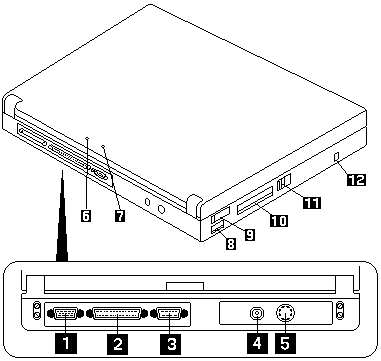
Use the following procedure to isolate a port replicator problem. A port replicator attaches to the system expansion connector at the rear of the computer.

  1. Power-off the computer.- Remove the failing devices from the replicator.- Unplug the AC adapter from the replicator, if attached.- Remove the port replicator from the computer.- Reconnect the failing device directly to the computer.  (If another device occupies the connector, remove it first.)- Go to General Checkout and follow that procedure.- If the advanced diagnostic device test does not find an error,  suspect a problem with the port replicator  or the system expansion bus.- Power-off the computer and reconnect the port replicator.- Power-on the computer and run the following advanced diagnostic tests:
               - Serial port test with the wrap plug installed on the replicator.- Parallel port test with the wrap plug installed on the replicator.- PCMCIA-2 test with the PC test card installed.- FDD-2 (FDD-1 if no drive is installed in the computer)
                        drive test on the failing device.
    
               - If diagnostic errors appear, replace the replicator or diskette
                  drive attachment unit.
    
                  If the problem remains after the replacement, replace the
                  system board.
    
                 - If power problems appear only when using the replicator, replace the
                    replicator.
    

If power shut downs occur intermittently when using PCMCIA-2 devices via a port replicator, suspect an over-current problem. Some PCMCIA devices use more power; if the maximum usage of each device occurs simultaneously, the total current will exceed the limit, thereby causing a power shut down. Isolate this problem by removing one of the devices, and use the computer under the same condition, and see whether a power shut down occurs. Do this procedure for all devices then determine the cause.

Customer purchase of the larger AC adapter (50W, optional) is recommended, if it is not yet in use.

TrackPoint II Checkout #

Note: TrackPoint II automatically compensates to adjust  the pointer sensor. This causes the pointer to move slightly on  the screen and then stop. Pointer  movement might occur when  a slight, steady pressure is applied to the TrackPoint II pointer when  the computer is powered-on or running, or  when exceeded temperature range requires re-adjustment.

  • If the TrackPoint II  does not work, check the configuration.  If the configuration of the TrackPoint II is set to Disabled or Off, change it to Enable or On.

If the problem remains, continue.

NOTE: TrackPoint II automatically compensates to adjust  the pointer sensor. This causes the pointer to move slightly on  the screen and then stop. Pointer  movement might occur when  a slight, steady pressure is applied to the TrackPoint II pointer when  the computer is powered-on or running, or  when exceeded temperature range requires re-adjustment.

  • If the cursor floats or moves erratically, power-off and disconnect the  mouse. Power-on the computer. If the  problem goes away, replace the mouse. If the problem remains, replace the  keyboard.- For click button or pointing stick problems:

    1. Go to the Easy-Setup screen.
    2. Select an item with the pointing stick.
    3. Press either left or right click button.
    4. Verify that both buttons work correctly.

    If the pointing stick or the click button does not work,  do the following.

    1. Reseat the keyboard cables.
    2. Replace the keyboard.
    3. Replace the interposer card (355x, 360x, 750x, 755x).
    4. Replace keyboard control card (720).
    5. Replace the system board.

TV Tuner #

The TV Tuner Pack (hereafter called TV Tuner) is an option for watching TV programs or videos on the IBM TFT color notebook computer. The computer changes to TV reception when the removable diskette drive is replaced with the TV Tuner.

The TV screen and normal computer display are easily switched by using the Hot key on the front panel of the TV Tuner.

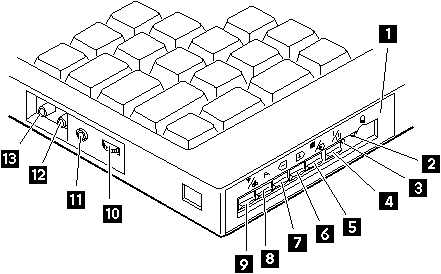
Identifying Names and Functions

The following figure and table show the names and functions of each part of the TV Tuner.

c73pvew

Icons Functions
Front Panel Used to change the TV channels, switch TV mode
to computer mode, and operate most functions of
the TV Tuner.
Headphone Jack
c73pihd Connects the headphones.
Power Indicator Shows the TV Tuner is powered on.
Power Switch
c73pipo Powered on and off the TV Tuner.
Hot Key
c73piht Switches between the TV screen and computer screen.
Up Switch
c73piin Increases the value such as the channel number.
Down Switch
c73pide Decreases the value such as the channel number.
Function Key
c73pifn Enters the mode to change the value of each function,
such as TV channel or color contrast.
(See 'Using the Function Key')
TV/EXT Switch
c73pitv Switches the TV mode or external video mode.
Volume Knob
c73pivm Controls the speaker volume.
Audio-In Jack
c73piad Connects the audio-in connector of the AV cable.
Video-In Jack
c73pivi Connects video-in connector of the AV cable.
RF Connector

c73pian    Connects the active antenna unit or antenna cable.
 --------------------------------------------------------------

Using the Front Panel

The following table shows how to operate all functions of the TV Tuner with the controls on the front panel.

Key            Function
 Power

c73pipo    Turns on the TV Tuner.
        This key is used only when the computer is turned on.
 Hot Key

c73piht    Switches computer display and TV screen.
Up

c73piin    Increases the value of parameters, Channel Number,
        Color, Tint, Brightness, Contrast, Auto Tuning Sensitivity,
        On-screen Message Selection.
 Down

c73pide    Decreases the value of parameters, Channel Number
        Color, Tint, Brightness, Contrast, Auto Tuning Sensitivity,
        On-screen Message Selection.
 Function

c73pifn    Selects a function mode to adjust each function parameter.
        (See Using the Function Key)
 TV/Ext

c73pitv    Switches the displayed video source between
        the receiving TV broadcast program and external devices such as
        VCR, video camera recorder, laser disk, and so on.

1070 Keyboard Unit (XD) #

1070 Keyboard Unit

When replacing the keyboard unit, connect the keyboard connector as shown in the figure, then replace the keyboard.

cardp043 

warn   Some TP 365X / 365XD will have problems with the Keyboard Position Sensor Switch failing to properly actuate when the keyboard is lowered into normal usage position. (Cause: enter HIBERNATION mode)

Spacers should be affixed to the underside of the keyboard to ensure that the switch is depressed when keyboard is lowered. More than one spacer (incl. in FRU P/N 39H7105) can be affixed to overcome this problem.

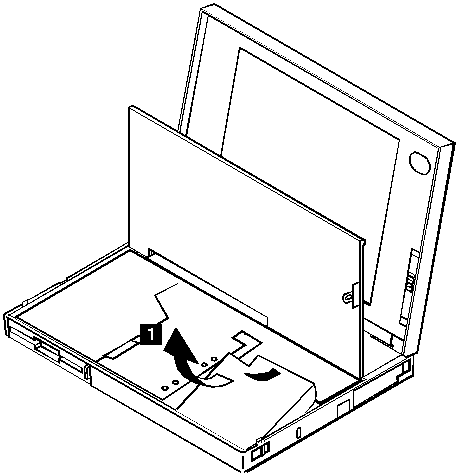
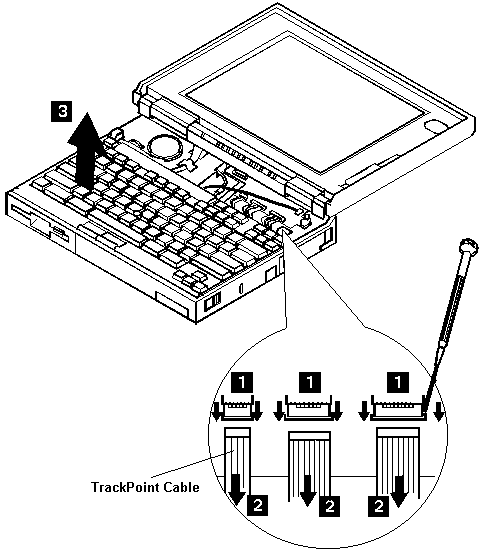
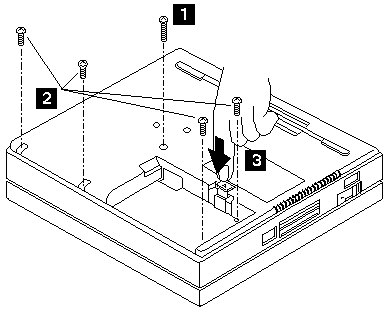
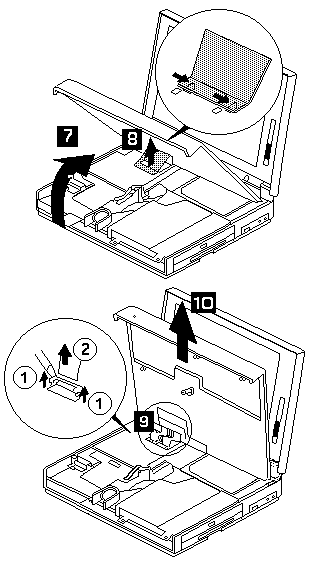
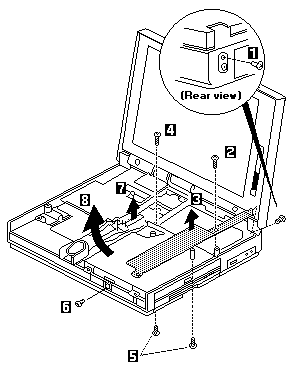
1030 Keyboard Unit #

Note: When replacing, make sure you use the correct screw.

Note: Pull the keyboard assembly forward a little in step 7

380_3 

Step Location (Quantity) Length
1 Base cover (1) M2.5 x 25mm
2 Base cover (4) M2.5 x 6mm

NOTE: When replacing, make sure you use the correct screw.

4 Turn the computer over again.

380_4 

NOTE: Pull the keyboard assembly forward a little in step 7

380_6

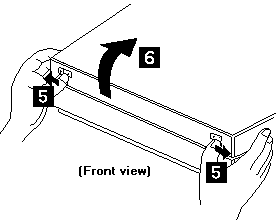
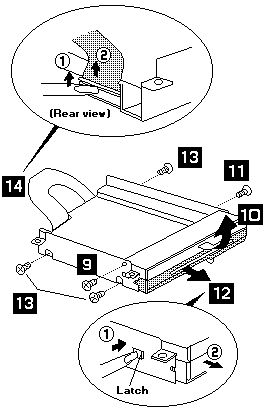
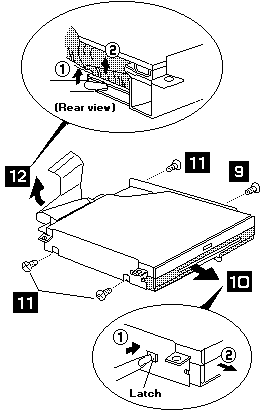
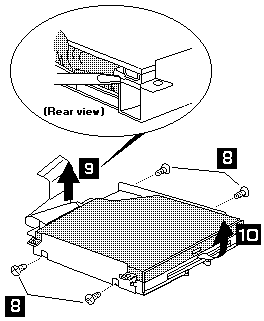
1040 CD-ROM/FDD Assembly #

Note: Be careful that the computer does not fall backward when the CD-ROM/FDD assembly is removed.

Note: When replacing, make sure you use the correct screw.

Note: When replacing, make sure you use the correct screw.

Note: When replacing, make sure you use the correct screw.

NOTE: Be careful that the computer does not fall backward when the CD-ROM/FDD assembly is removed.

380_5 

Step Location (Quantity) Length
1, 2 Bracket (2) M2.5 x 6mm
4,5,6 Base Cover (4) M2.5 x 6mm

Models 380/385

9, 1 Blank Bezel

11, 12 FDD Bezel

11, 12, 13, 14 FDD

380_7 

Step Location (Quantity) Length
9 Bracket (1) M2.6 x 4mm
11 Bracket (1) M2.6 x 4mm
13 Bracket (3) M2.6 x 2.8mm (red)

NOTE: When replacing, make sure you use the correct screw.

Models 380D/385D FDD

380_8 

Step Location (Quantity) Length
9 Bracket (1) M2.6 x 4mm
11 Bracket (3) M2.6 x 2.8mm (red)

NOTE: When replacing, make sure you use the correct screw.

Models 380D/385D CD-ROM

380_9 

Step Location (Quantity) Length
9 Bracket (4) M2 x 2.4mm w/washer

NOTE: When replacing, make sure you use the correct screw.

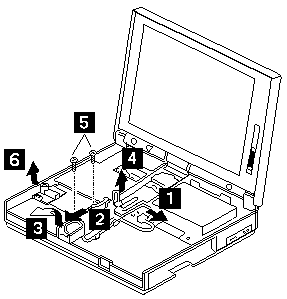
1050 Speaker / Microphone #

Note: To remove the microphone easily, pull up the upper shield slightly.

Note: When replacing, make sure you use the correct screw.

1 2 3 Speaker

4 5 6 Microphone.

NOTE: To remove the microphone easily, pull up the upper shield slightly.

380_10 

Step Location (Quantity) Length
5 System board assembly (2) M2.6 x 4mm

NOTE: When replacing, make sure you use the correct screw.

Memory Checkout (XD) #

Note: Make sure that the DIMM is fully installed into the connector. Both latches must be latched completely. A loose connection can cause error code 195.

Memory Checkout

DIMM cards are available for increasing memory capacity.

DIMM Displayed Value 2625 365X, XD Displayed Value 2635 380-385
No DIMM installed 7808KB 16000KB
8MB 16000KB 24192KB
16MB 24192KB 32384KB
32MB 40576KB 48768KB

Memory errors might stop system operations, show error messages on the screen, or hang the system.

Use the following procedure to isolate memory problems.

NOTE: Make sure that the DIMM is fully installed into the connector. Both latches must be latched completely. A loose connection can cause error code 195.

  1. Power off the computer and remove the DIMM from its  slot (if installed).
  2. Press and hold the F1 key, then power on the computer.  Hold the F1 key down until the Easy-Setup screen appears.
  3. Select Test and press Enter.
  4. Select Memory and press Enter to  run the memory test on base memory. If an error appears, replace the  system board.
  5. Power off the computer and reinstall the DIMM, then power on the  computer. Verify the memory size, then test the memory. If an error  appears, replace the DIMM.

If memory problems occur intermittently, make sure the DIMM socket latches are latched completely. If the DIMM latches are securely latched, use the loop option to repeat the test. When the test detects an error, an error log is printed on the printer connected to the parallel port.

  • For 2625 365X, XD see 'Error Log'
  • For 2635 380
  • 385 see 'Error Log'

for more information.

System Board Checkout #

The processing functions are performed by the system board. When a numeric code calls the system board as a FRU, use the following procedure to isolate the problem.

  1. Run the system board test to verify the symptom.  This test verifies the system board. If no error is detected, return to Checkout Guide
  2. If FRU code 10 appears, replace the system board.
  3. Return the test to verify the fix.

If this procedure does not correct the problem, go to Undetermined Problems.

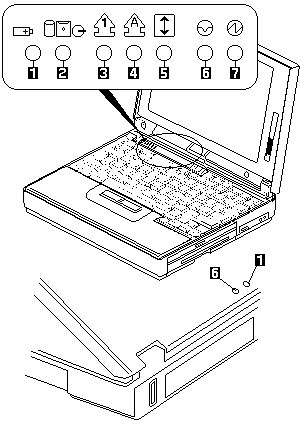
Status Indicator Checkout #

If an LED problem occurs, do the following:

  1. Power off the computer.
  2. Power on the computer.
  3. All the LEDs in the indicator panel should turn on for a  moment soon after the computer is powered-on. Make sure that all LEDs turn on.

If the problem remains, replace the following cards one at a time:

  • Subcard
  • System board

Undetermined Problems (XD) #

Undetermined Problems

You are here because the diagnostic tests did not identify which adapter or device failed, installed devices are incorrect, a short circuit is suspected, or the system is inoperative. Follow the procedures below to isolate the failing FRU (do not isolate non-defective FRUs).

Verify that all attached devices are supported by the computer.

Verify that the power supply being used at the time of the failure is operating correctly.

  • For 2625 365X, XD see 'Power Systems Checkout' .
  • For 2635
  • 380 / 385 see 'Power Systems Checkout' .
  1. Power off the computer.- Check the cables, wires, and connectors for  short circuits and open circuits. Visually check them for damage.  If any problems are found, replace the FRU.- Remove or disconnect all of the following devices.

    1. Non-IBM devices
    2. Devices attached to the expansion bus connector
    3. Printer, mouse, and other external devices
    4. Battery pack
    5. Hard disk drive
    6. Internal diskette drive or CD-ROM drive
    7. DIMM
    8. PC Cards
    • Power on the computer.
    • Determine if the problem has changed.
    • If the problem does not occur again, reconnect the removed devices  one at a time until you find the failing FRU.
    • If the problem still remains, remove the backup battery and wait for 3 minutes, then  replace the backup battery and set current date and time.
    • Determine if the problem has changed.
    • If the problem remains, replace the following FRUs one at a time.  Do not replace a non-defective FRU.

If ThinkPad 2625 365X, XD then replace

  • Keyboard card
  • LCD assembly
  • System board
  • CPU card

If ThinkPad 2635 380/385 then replace

  • Subcard
  • System Board

Error Log #

Diagnostic errors are printed on the printer that is attached to the parallel port when the error is detected. The error is also logged in the system memory.

Do the following to display the errors:

  1. End the test, if it is running.
  2. Press Ctrl+A to select the advanced diagnostic mode.
  3. Press Esc to exit the ThinkPad FRU Connections screen. The keyboard test screen appears.
  4. Press Ctrl+Pause to exit the keyboard test screen.
  5. Press Ctrl+E .
  6. The error log appears.
  7. To exit the screen, select the cancel icon or press Esc.

The error log is not saved when the system is powered-off.

Checking the Installed Devices List (XD) #

Checking the Installed Devices List

If a device is installed but the icon appears in a gray shade rather than a dark shade on the basic diagnostics screen, the device is defective. Reseat the device connectors. If the symptom remains, replace the device or the system board. If needed, adjust the contrast control to clearly distinguish the shade of the icon.

If a device that is not installed appears in a dark shade (for example, FDD-2 appears in a dark shade when NO second FDD is installed), do the following:

  1. Replace the first device in the configuration, such as the FDD-1.
  2. If the problem remains, replace the system board.

The PCMCIA, Parallel, and Serial icons are always displayed in a dark shade because the icons represent subsystems of the system board and not the actual attachment of the devices.

The FDD-1 icon represents the first drive in the system configuration. Similarly, the FDD-2 icon represents the second drive, attached to the external diskette drive connector or through a Port Replicator.

How to Run a Low-Level Format #

Do the following to format the hard disk.

warn   Make sure the drive address to be formatted is correct. This procedure will erase all information on the disk.

  1. Power off the computer.
  2. Insert the ThinkPad Hardware Maintenance Diskette into diskette drive A and power on the computer.
  3. Select Format the hard disk from the main menu.
  4. Select the drive from the menu.
  5. Follow the instructions on the screen.

Fn Key Combinations (XD) #

Fn Key Combinations

The following table shows the Fn key and function key combinations and their corresponding functions.

The Fn key works independently from the operating system.

The operating system obtains the status through the system management interface to control the system.

Fn + Description
F1 Reserved
F2 Fuel-Gauge display ON/OFF
F3 Standby mode invocation
F4 Suspend mode invocation
F5 Reserved
F6 Reserved
F7 LCD/CRT display switching
F8 Reserved if TP-2625 TP-2635 = Screen expansion on or off (no symbol on the key)
F9 Reserved
F10 Reserved
F11 Power management mode switching (Toggles between High Power, Auto, and Customize settings.)
F12 Hibernation invocation
Page Up Reserved
Page Down Reserved

How to Use Error Messages (XD) #

How to Use Error Messages

Use the error codes displayed on the screen to diagnose failures. If more than one error code is displayed, begin the diagnosis with the first error code. The cause of the first error code can result in false error codes being displayed. If no error code is displayed, see if the error symptom is listed in the 'Symptom-to-FRU Index'.

Error Log (XD) #

Error Log

Diagnostic errors are printed on the printer that is attached to the parallel port when the error is detected. The error is also logged in the system memory.

Do the following to display the errors:

  1. End the test, if it is running.
  2. Press Ctrl+A to select the advanced diagnostic mode.
  3. Press Ctrl+E .
  4. The error log appears.
  5. To exit the screen, select the cancel icon or press Esc.

The error log is not saved when the system is powered-off.

What to Do First (XD) #

What to Do First

The servicer must include the following information on the parts exchange form or parts return form that is attached to the returned FRU:

  1. Name and phone number of servicer.
  2. Date of service.
  3. Date when part failed.
  4. Date of purchase.
  5. Failure symptoms, error codes appearing on display,  and beep symptoms.
  6. Procedure index and page number in which failing FRU was detected.
  7. Failing FRU name and part number.
  8. Machine type, model number, and serial number.
  9. Customer's name and address.

Before checking problems with the computer, determine whether or not the damage is covered by the warranty by referring to the following:

Note for Warranty During the warranty period, the customer may be responsible for repair costs if the computer damage was caused by misuse, accident, modification, unsuitable physical or operating environment, or improper maintenance by the customer. The following list provides some common items that are not covered under warranty and some symptoms that may indicate the system was subjected to stresses beyond normal use.

warn   The following is not covered under warranty:

  • LCD panel cracked by applying excessive force or by being dropped.
  • Scratched (cosmetic) parts.
  • Cracked or broken plastic parts, broken  latches, broken pins,  or broken connectors caused by excessive force.
  • Damage caused by liquid spilled into the system.
  • Damage caused by improperly inserting a PCMCIA card or installation  of an incompatible card.
  • Damage caused by foreign material in the diskette drive slot.
  • Diskette drive damage caused by pressing the  diskette drive cover or inserting diskettes with multiple labels.
  • Damaged or bent diskette eject button.
  • CD-ROM drive damage caused by excessive force, shock, or from  being dropped.
  • Fuses blown by attaching a non-supported device.
  • Forgotten computer or hard disk password  (making computer or hard disk unusable).

If the following symptoms are present, they may indicate damage caused by non-warranted activity:

  • Missing parts may be a symptom of unauthorized service or  modification.
  • HDD spindles can become noisy if subjected to  excessive force or if the HDD is dropped.
  • I9990303 errors  can be caused by exposure to strong magnetic fields.

Using the Function Key #

Each time you press the Function key c73pifn 
one of the following messages (called On-Screen Message) appears at the top left corner of the LCD.

The changed values are automatically saved when you return to the TV Channel On-Screen message. The values are not saved when you power-off the TV Tuner without returning to this message.

Message on       Parameter
 LCD

                   TV Channel
  (xx)             By using <- and +>  you can select the channels
                   from 2 to 69.
                   Color Adjustment
   COL             By pressing and holding <- or +>
                   you can change the color.
                   TINT Adjustment
   TNT             By pressing and holding <- or +>
                   you can change the tint.
                   Bright Adjustment
   BRT             By pressing and holding <- or +>
                   you can change the brightness.
                   Contrast Adjustment
   CNT             By pressing and holding <- or +>
                   you can change the contrast.
   ---             (No function)
                    Reserved.
                   Auto Tune Sensitivity Selection
    LO             LO: Means the sensitivity
                   of the TV is low.  In this mode, the TV Tuner receives
                   strong TV signals only.  To set LO,
                   press <-
    HI             HI: Means the sensitivity
                   of the TV is high (factory default).
                   In this mode, the TV Tuner receives weak and strong TV signals.
                   To set HI, press +>
    D3S            Time On-Screen Message appears
                   D3S: On-screen Message appears for 3 seconds.
                   To set D3S, press <-
    DON            DON: On-screen Message always appears.
                   To set DON press +>

Troubleshooting #

The following table shows what to do to solve problems when the TV Tuner does not work correctly.

Problem        Probable Cause
 The TV Tuner        ° Computer is not powered on.
 does not operate.   ° Computer is in suspend mode.
  (No picture        ° Volume control of the TV Tuner or computer
   or sound)           is not adjusted correctly.
                     ° The power for the TV Tuner is not supplied.
                       (See Power-on the TV Tuner)
                     ° The wall outlet from the outdoor antenna is not active.
                     ° The video or antenna cable is not connected correctly.
                     ° Antenna elements of the active antenna unit are not adjusted.
                     ° The batteries in the active antenna unit are not inserted
                       correctly.
                     ° The batteries in the active antenna unit are depleted.
                     ° The TV Tuner is not set up correctly.
                     ° You cannot watch TV or videos on the external display.
                     ° LO is set for the auto tune sensitivity
                       selection.
 No color.           ° The program is not in color.

Snow and noise      ° Switch the TV/EXT ( c73pitv  ) button.
 only.
 Pictures are out    For TV:
 of shape, or have   ° The channel is not tuned correctly.
 double images.      ° Adjust the antenna.
                     For VCR:
                     ° Change the tracking adjustment.
 Dotted lines        ° Usually caused by interference from
 or stripes.           neon signs, hair dryers, and so on.
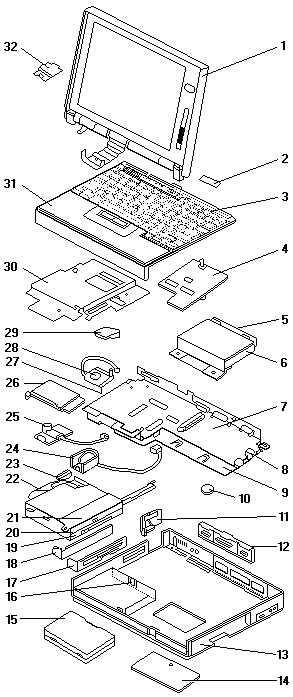
                       Move the computer to avoid the interference.
 Picture control     ° Do not power-off the TV Tuner
 are not saved.        when adjusting functions such as picture control,
                       color, tint, brightness, or contrast.
 Channel number is   ° Select your favorite mode for the on-screen message.
 always displayed or
 is not displayed.

Model 380 / 385 — 1 #

ThinkPad 380/385 (2635)

warn3   SAFETY Notices Multi-lingual

Read This First

Checkout Guide startpi 

symptpi   Symptom-to-FRU Index

passpi   Power-On Password / Power Shutdown Switch

testpi   Related Service Procedures

specpi   Product Overview

reminpi   FRU Removals and Replacements

locpi   Locations

partpi   380/380D/385/385D - Parts Listing

warn   ThinkPad/WorkPad - SCREW KIT FRUs

A new range ofFRU Screw Kits have been released for various Thinkpad/WorkPad Models.These new Screw Kits contain *Nylock screws where the thread of the screws have been coated with Nylon to ensure that the appropriate screw torque is maintained for the life of the product.

  • They maintain tight connections.
  • They do not easily come loose, even with shock or vibration.
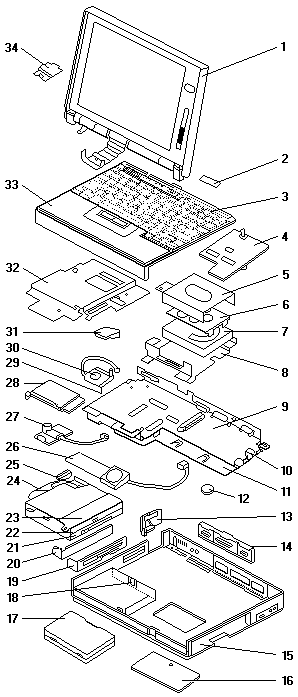
  • They need additional force to tighten.
  • The should be used only once .

Do the following when you service one of the below listed machines:

  • Keep the screw kit in your tool bag.
  • Always use new screws .
  • Use a torque screwdriver if available. (see below 'Screw Tightening Information')

The following screw FRU part numbers have been made available for servicers.

Bulk, kit, and individual screw FRUs are listed.

Use the appropreate FRU P/N that correspond to your usage of screw FRUs.

D/T FRU P/N Qty Description
2608 05K5941 Kit Various screws incl. Nyloc
2609 10L1956 Kit Various screws incl. Nyloc
2611 05K5687 Kit Various screws incl. Nyloc
2621 05K5877 Kit Various screws incl. Nyloc
2635 05K4313 Kit 2 M2.5 x 8mm Nyloc screws
2635 " 5 M2.5 x 8mm Nyloc screws
2635 " 1 M2.5 x 16mm flat screw
-------------------------------------------------
2635 97H3445 1 Nyloc screw M2.5 x 6mm
2635 97H3446 1 Nyloc screw M2.5 x 8mm
2635 05K4314 1 Nyloc screw M2.5 x 25mm
2635 380Z 05K5725 9 M2.5 x 6mm Flat Head
2635 " 1 M2.5 x 3mm Flat Head
2635 " 1 M2.5 x 4.8mm Flat Head
2635 " 6 Hex Stud
2635 " 19 M2.5 x 6 Bind Black
2635 " 7 M2.5 x 8 Bind Black
2635 " 4 M2 x 6 Bind
2635 " 3 M2 x 18 Bind
2635 " 2 M2.5 x 22 Bind Nylock
2635 " 3 M2.5 x 12 Bind Nylock
2635 " 1 M2.6 x 4 Bind Yellow
2635 " 3 M2.6 x 2.8 Bind Red
2635 " 4 M2 x 1.7 Special Pan Blue
2635 " 2 M2 x 2.4 Special Pan Yellow
2635 " 4 M3 x 3 Flat
2635 " 1 M2.5 x 6 Special
2635 " 1 M2.5 x 6 Big Head Yellow
2635 " 1 M2.5 x 25 Bind Nylock
2640 12J0808 Kit 4 M2.5 x 4mm
2640 " 4 M2.5 x 4mm FLAT/LOC screws
2640 " 19 M2.5 x 7mm BIND/LOC screws
2640 " 2 M2.5 x 12mm BND/LOC screws
2640 " 10 M2.5 x 16mm FLAT screws
2640 " 1 M2.0 x 13mm PAN screw
2640 " 6 M2.5 HEX STUD
-------------------------------------------------
2640 97H3917 200 Nyloc screw M2.5 x 4mm
2640 97H3918 1000 Nyloc screw M2.5 x 7mm
2640 97H3919 100 Nyloc screw M2.5 x 12mm
2644 05K6083 Kit Various screws incl. Nyloc
2645 05K4841 Kit Various screws incl. Nyloc
9545 05K4464 Kit Various screws incl. Nyloc
9546 97H3449 Kit 20 M2.5 x 4mm BW/N
9546 " 15 M2.5 x 6mm Nyloc
9546 " 10 M2.5 x 8mm Nyloc
9546 " 5 M2.5 x 14mm Nyloc
9546 " 5 M2 x 14mm PAN W/NY
9546/47 97H3444 1 Nyloc screw M2.5 x 4mm
9546/47 97H3445 1 Nyloc screw M2.5 x 6mm
9546/47 97H3446 1 Nyloc screw M2.5 x 8mm
9546/47 97H3447 1 Nyloc screw M2.5 x 14mm
9546/47 97H3448 1 Nyloc screw M2 x 14mm
9548/49 05K4478 Kit Various screws incl. Nyloc

Screw Tightening Information

Loose screws can cause reliability problems. The IBM ThinkPad/WorkPad computer addresses this problem with nylon-coated screws.

Tighten screws as follows:

Plastic to Plastic

Turn an additional 90 degrees after the screw head touches the surface of the plastic part.

torqa

Logic Card to Plastic

Turn an additional 180 degrees after the screw head touches the surface of the plastic part.

torqb

Torque screw-drivers can be ordered from:

Techni-Tool
    5 Apollo Road
    Box 368
    Plymouth Meeting
    PA 19462
    USA
    Phone : Sales  1-610-941-2400
    Fax   :        1-610-828-5623
http://www.techni-tool.com

Read This First (XD) #

Read This First

Before you go to the checkout guide, be sure to read this section.

warn

  • Only certified, trained personnel  should service the computer .
  • Read FRU service procedures before replacing any FRUs.
  • Be extremely careful during write operations  such as copying, saving, or formatting. Drives in the computer that you are servicing  might have been rearranged or the drive startup  sequence might have been altered.  If you select an incorrect drive,  data or programs can be written over.
  • Use only the correct FRUs. When you replace the FRU, make sure the model of the machine  and FRU part number are correct by referring to the parts list.
  • FRUs should not be replaced because of a single, un-reproducible  failure. Single failures can occur from a variety of reasons  that have nothing to do with a hardware defect such as:  cosmic radiation, electrostatic discharge, or software errors.  FRU replacement should only be considered when  a recurring problem exists.  If this is suspected, clear the error log and run the test again.  Do not replace any FRUs if log errors do not reappear.
  • Be careful not to replace a non-defective FRU.

How to Use Error Messages

Port Replicator Problems

How to Diagnose Multiple FRUs

Status Indictors #

The system status indicators show the current computer status in different colors (green and orange).

380_ind

Symbol Color Meaning
Battery Power Status
d2nai160
Green Enough battery power remains for operation
Orange Battery pack is charging
Blinking Amber Battery pack needs charging
Device Access
380_acc
Orange Data is read from or written to
the hard disk drive, FDD
or CD-ROM drive
Numeric Lock
d2nai120
Green Numeric keypad on the
keyboard is enabled.
Caps Lock
d2nai110
Green Caps Lock mode is enabled.
Scroll Lock
d2na1050
Green Arrow keys can be used as
screen-scroll function key.
Suspend Mode
d2na1065
Green Indicates the computer is in suspend mode
Power On

d2na1070 
          Green           Power on.
 -------------------------------------------------------------------------

Model 380 / 385 — 2 #

380_p

Model 380E/380ED/385E/385ED #

380_pe

How to Diagnose Multiple FRUs (XD) #

How to Diagnose Multiple FRUs

When the adapter or device has more than one FRU, the error code could be caused by either FRU. Before replacing multiple FRUs, try removing or exchanging each FRU, one by one in the designated sequence, to see if the symptoms change.

Device ID #

If an error is detected by the diagnostic tests, a three-digit device ID is displayed. The device ID indicates the suspected device.

Icon         Device ID    Suspected Device
 -------------------------------------------------------------------------

sysb
001 System Board
003 Keyboard
007 Math Coprocessor
086 Pointing Device

mem 
              002          Memory
 -------------------------------------------------------------------------

disp
050 Display
054 Display

hdd 
              017          Hard Disk Drive
 -------------------------------------------------------------------------

fdd1 
              006          (Internal) Diskette Drive
 -------------------------------------------------------------------------

fdd2
066 External Diskette Drive
or FDD Connector of the Port replicator

pcm 
              080          PCMCIA
 -------------------------------------------------------------------------

pcm1 
              088          External PCMCIA
 -------------------------------------------------------------------------

para 
              009          Parallel
 -------------------------------------------------------------------------

seri 
              011          Serial
 -------------------------------------------------------------------------

cd 
              215          CD-ROM
 -------------------------------------------------------------------------

ir 
              103          Infrared port
 -------------------------------------------------------------------------

audio 
              153          Audio
 -------------------------------------------------------------------------

2635 ECA007 - LCD PIXEL POLICY CHANGE #

Subject: 2635 ECA007 - LCD PIXEL POLICY CHANGE

Record number:       H164288
    Device:              D/T2635         Service code:      33
    ECA number:          ECA007          Parts source:      LOC
    EC number:           EC999999        Publish flag:      R
    Mandatory:           N               Hit count:         UHC00000
    Automatic shipment:  N               Success count:     USC0000
    Availability date:   98/08           Publication code:  PC40
    Plant of control:    24              Date created:      O98/07/30
    Tip key:                             Date last altered: A98/07/30
                                         Owning B.U.:       USA

Abstract: 2635 ECA007 - LCD PIXEL POLICY CHANGE.

PURPOSE:

This ECA will be used on Warranty and Non-Warranty systems to replace TFT LCD panels with from 8 to 20 defective pixels.

FEATURES:
  Type,                  Machines Affected
  Model,   With          and/or Feature/Device     B/M to be    Service  System
  Stage    B/M           Description               Installed    Hours    Hours
  2635     B/M9999999    ALL MODELS                B/M9999999   00.7     00.5

PHYSICAL CHECK:

TFT LCD panels on systems in the FEATURE SECTION that contain from 8 to 20 defective pixels.

Defective Pixel definition:

Not firing (black), incorrect color firing, or incorrect color always on.

This ECA can not be applied to warranty or non-warranty systems if more then 20 pixels are defective.

Systems with this condition should have the LCD replaced using normal terms and conditions for warranty and non-warranty systems.

PREREQUISITES: NONE

COMPANION: NONE

CONCURRENT: NONE

DETAIL:

The IBM ThinkPad pixel policy pertaining to LCD replacement has changed.

The old policy required 21 or more defective pixels to replace the TFT LCD panel during warranty.

This policy has been revised to read 8 or more defective pixels.

Systems listed in the FEATURE SECTION that follow the PHYSICAL CHECK criteria should use this ECA to replace TFT LCD Panel FRUs that are exhibiting a pixel failure within the new Pixel Policy criteria.

Use the following TFT FRUs as replacements.

+-----------------------------------------+
+-----------------------------------------+

Defective pixels normally occur during the manufacturing process and are not a product of LCD use.

Therefore most conditions are present from the systems first power on.

NOTES: This ECA will expire on 8/31/99.

Order all FRU parts locally, and record Time and Material to service code 33, ECA 007, and OTHER OFFICE 990.

1060 Hard Disk Drive #

Note: When replacing, make sure you use the correct screw.

warn   Do not drop or apply any shock to the hard disk drive The hard disk drive is sensitive to physical shock. Incorrect handling can cause damage and permanent loss of data on the hard disk. Before removing the hard disk drive, have the user make a backup copy of all the information on the hard disk. Never remove the hard disk drive while the system is operating or is in suspend mode.

380_11 

380_12 

Step Location (Quantity) Length
2 Base Cover (1) M2.5 x 6mm
5 Base Cover (4) M2.5 x 6mm

NOTE: When replacing, make sure you use the correct screw.

1070 LCD Unit #

Note: When replacing, make sure you use the correct screw.

380_14 

380_14a 

Step Location (Quantity) Length
2 Base Cover (5) M2.5 x 6mm
4 Bracket (1) M2.5 x 6mm
6 Hinges, LCD Unit (3) M2.5 x 6mm
7 LCD Cable (1) M2.5 x 6mm

NOTE: When replacing, make sure you use the correct screw.

When replacing use the following picture for reference.

380_15

Front View #

  1. LCD Latch
  2. Contrast Control (DSTN model) Brightness Control (TFT model)
  3. Headphone jack
  4. Microphone/line-in jack
  5. Volume control
  6. Diskette drive
  7. Diskette eject button
  8. CD-ROM drive
  9. CD-ROM eject button
  10. CD-ROM emergency eject hole
  11. TrackPoint III
  12. Built-in speaker
  13. Palm rest
  14. Built-in microphone
  15. Fn Key
  16. Keyboard
  17. Fan louver
  18. Status indicator
  19. LCD panel

380_37

Rear View #

  1. External-monitor connector
  2. Parallel connector
  3. Serial connector
  4. Power jack
  5. External-input-device connector
  6. Suspend mode indicator
  7. Battery indicator
  8. IR port
  9. Power switch
  10. PCMCIA slots
  11. PC Card eject button
  12. Security key hole

380_38

Bottom View #

  1. Memory-slot cover
  2. System-expansion connector
  3. Memory slot
  4. Backup battery
  5. Battery pack latch
  6. Battery pack
  7. Power shutdown switch

380_39

1060 Top Cover (XD) #

Note: Make sure you use the correct screws when replacing.

1060 Top Cover

cardp04 

Step Screw Location (Quantity) Length
2 Top Cover (2) M2 x 5 mm

NOTE: Make sure you use the correct screws when replacing.

warn   When replacing the top cover, be careful not to damage the resume switch. Ensure that the resume switch extends through the hole, as shown in the figure.

cardp042