Overview #
Introduction: The ThinkPad Port Replicator allows users to quickly connect to a desktop environment with a single cable.
Machine Type 3712 · 1996+ · 20 sections
Port replicator accessory.
Introduction: The ThinkPad Port Replicator allows users to quickly connect to a desktop environment with a single cable.
Running the Diagnostics
Use either the TrackPoint or the cursor move keys to interact with the tests.
Note: Perform the FRU replacement or actions in the sequence shown in the FRU/Action columns.
Note: For IBM devices not supported by diagnostic codes in this ThinkPad computer, see the manual for that device.
Symptom-to-FRU Index
The Symptom-to-FRU Index lists the symptoms and errors and the possible causes.
The most likely cause is listed first.
Note: Perform the FRU replacement or actions in the sequence shown in the FRU/Action columns.
If a FRU replacement does not solve the problem, put the original part back in the computer.
Do not replace a non-defective FRU.
This index can also be used to help you decide the next possible FRUs to be replaced when servicing a computer.
Numeric error codes show the errors detected in POST or system operation (runtime).
In the following error codes, X can be any number.
If no codes are available, use narrative symptoms.
If the symptom is not listed, go to 'Undetermined Problems'.
Note: For IBM devices not supported by diagnostic codes in this ThinkPad computer, see the manual for that device.
Numeric Error Codes
The following is a list of the message that the BIOS can display.
Most of them occur during POST. Some of them display information about a hardware device, e.g., the amount of memory installed. Others may indicate a problem with a device, such as the way it has been configured.
Following the list are explanations of the messages and remedies for reported problems.
If the system fails after you make changes in the Setup menus, reset the computer, enter Setup and install Setup defaults or correct the error.
| Symptom/Error | FRU/Action in Sequence |
|---|---|
| 0200 Failure Fixed Disk |
1. Reseat hard disk drive.
2. Load Setup Defaults in BIOS Setup Utility. 3. Hard disk drive 4. System board |
| 0211 Stuck Key | Go to 'Keyboard and Auxiliary Input Device Checkout'. |
| 0211 Keyboard error | Go to 'Keyboard and Auxiliary Input Device Checkout'. |
| 0212 Keyboard Controller Failed | Go to 'Keyboard and Auxiliary Input Device Checkout'. |
| 0213 Keyboard locked - Unlock key switch | Unlock external keyboard. |
| 0220 Monitor type does not match CMOS - Run Setup | Load Setup Defaults in BIOS Setup Utility. |
| 0230 Shadow RAM Failed at offset:nnnn | System board |
| 0231 System RAM Failed at offset:nnnn |
1. DIMM
2. System board |
| 0232 Extended RAM Failed at offset:nnnn |
1. DIMM
2. System board |
| 0250 System battery is dead | System board |
| 0251 System CMOS checksum bad - Default configuration used | System board |
| 0260 System timer error |
1. Run BIOS Setup Utility to reconfigure the system, then reboot the system.
2. System board |
| 0270 Real time clock error |
1. Run BIOS Setup Utility to reconfigure the system, then reboot the system.
2. System board |
| 0280 Previous boot incomplete - Default configuration used |
1. Load Setup Defaults in the BIOS Setup Utility.
2. System board |
| 0281 Memory size found by POST differed from CMOS |
1. Load Setup Defaults in the BIOS Setup Utility.
2. DIMM 3. System board |
| 02D0 - Cache disabled System cache error | System board |
| 02F0 CPU ID: | System board |
| 02F5 DMA Test Failed |
1. DIMM
2. System board |
| 02F6 Software NMI Failed |
1. DIMM
2. System board |
| 02F7 Fail-Safe Timer NMI Failed |
1. DIMM
2. System board |
No Beep Symptoms
| Symptom/Error | FRU/Action in Sequence |
|---|---|
| No beep, power-on indicator on, LCD blank, no POST No beep, power-on indicator off, LCD blank during POST No beep, power-on indicator on, LCD blank during POST | a. Ensure every connector is connected tightly and correctly. b. DIMM c. System board a. Battery Asm b. AC Adapter c. System board a. Reseat DIMM. b. System board |
| No beep during POST but system runs correctly. | Speaker |
Intermittent Problems
Intermittent system hang problems can be caused by a variety of reasons that have nothing to do with a hardware defect, such as cosmic radiation, electronic discharge, or software errors.
FRU replacement should be considered only when a recurring problem exists.
When analyzing an intermittent problem, do the following:
Power-Related Symptoms
| Symptom/Error | FRU/Action in Sequence |
|---|---|
| Power shuts down during operation. |
1. Battery
2. AC Adapter 3. System board |
| The system will not power on. |
1. Battery Asm
2. AC Adapter 3. System board |
| The system will not power off. Battery can't be charged. | 1. System board a. Battery b. System board |
Power Management-Related Symptoms
| Symptom/Error | FRU/Action in Sequence |
|---|---|
| The system will not enter hibernation mode. |
1. Keyboard (if control is from the keyboard)
2. Hard disk drive 3. System board |
| The system will not wake up from hibernation mode. |
1. Keyboard (if control is from the keyboard)
2. Hard disk drive 3. System board |
| The system will not enter suspend mode after closing the LCD. |
1. LED Card Asm (R)
2. System board |
| Battery fuel-gauge does not go higher than 90%. |
1. Remove battery Asm and let it cool for 2 hours.
2. Refresh battery (continue using battery in BIOS Setup mode until power off, then charge battery). 3. Battery 4. System board |
| System configuration does not match the installed devices. | 1. Load Setup Defaults and reboot the system. |
| System hangs intermittently. |
1. Fan Asm
2. System board |
Power System Checkout
To verify the symptom of the problem power on the computer using each of the following power sources:
If you suspect a power problem, refer to the appropriate power supply check listed below:
Note: An audible noise from the AC Adapter does not always indicate a defective adapter.
Checking the AC Adapter
You are here because the computer fails only when the AC Adapter is used:
Unplug the AC Adapter cable from the computer and measure the output voltage at the plug of the AC Adapter cable.
See the following figure:
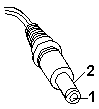
| Pin | Voltage (Vdc) |
|---|---|
| 1 | +15 to +17.0 |
| 2 | Ground |
If the voltage is not correct, replace the AC Adapter.
If the voltage is within the range, do the following:
Note: An audible noise from the AC Adapter does not always indicate a defective adapter.
Checking the Operational Charging
To check operational charging, use a discharged battery pack (battery Asm) or a battery Asm that has less than 50% of the total power remaining when installed in the computer.
Perform operational charging. If the battery status indicator does not turn on, remove the battery Asm and let it return to room temperature. Reinstall the battery Asm.
If the charge indicator still does not turn on, replace the battery Asm.
If the charge indicator still does not turn on, replace the system board. Then reinstall the battery Asm.
If the reinstalled battery Asm is not charged, go to Checking the Battery Asm'.
Note: Signal lines, not used in these steps, are used for communications between the system and the battery.
Checking the Battery Asm
Do the following:
Power off the computer
See the following figure:
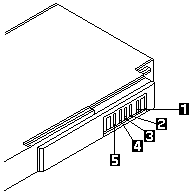
Note: Signal lines, not used in these steps, are used for communications between the system and the battery.
If the voltage is still less than 10.6V, replace the battery.
Keyboard-Related Symptoms
| Symptom/Error | FRU/Action in Sequence |
|---|---|
| Keyboard (one or more keys) doesn't work. |
1. Reseat the keyboard cable.
2. Keyboard 3. System board |
Note: Remove the external keyboard if the internal keyboard is to be tested.
Keyboard and Auxiliary Input Device Checkout
Note: Remove the external keyboard if the internal keyboard is to be tested.
If the internal keyboard does not work or an unexpected character appears, make sure that the flexible cable extending from the keyboard is correctly seated on the connector.
If the keyboard cable connection is correct, run the Keyboard Test.
See 'Running the Diagnostics' for details.
If the test detects a keyboard problem, do the following one at a time to correct the problem.
Do not replace a nondefective FRU.
The following auxiliary input devices are supported for this computer:
If any of these devices do not work, reseat the cable connector and repeat the failing operation.
If the problem does not reoccur, replace the device and then the planar board.
Error Messages
| Symptom/Error | FRU/Action in Sequence |
|---|---|
| Device Address Conflict |
1. Load Setup Defaults in BIOS Setup Utility.
2. System board |
| Allocation Error for: device |
1. Load Setup Defaults in BIOS Setup Utility.
2. System board |
| Failing Bits: nnnn Invalid System |
1. DIMM
2. System board |
| Configuration Data | System board |
| I/O device IRQ conflict |
1. Load Setup Defaults in BIOS Setup Utility.
2. System board |
| Operating system not found |
1. Enter BIOS Setup Utility and see if the hard disk drive and diskette drive A: are properly identified.
2. Hard disk drive 3. System board |
LCD-Related Symptoms
| Symptom/Error | FRU/Action in Sequence |
|---|---|
| LCD backlight not working LCD too dark LCD brightness cannot be adjusted LCD contrast cannot be adjusted |
1. Reseat the LCD connector.
2. LCD FPC Asm 3. LCD inverter 4. LCD 5. System board |
| LCD screen unreadable Character missing pels Screen abnormal Wrong color displayed |
1. Reseat the LCD connector.
2. LCD FPC Asm 3. LCD inverter 4. LCD 5. System board |
| LCD has extra horizontal or vertical lines displayed. |
1. LCD FPC Asm
2. LCD inverter 3. LCD 4. System board |
Indicator-Related Symptoms
| Symptom/Error | FRU/Action in Sequence |
|---|---|
| Indicator incorrectly remains off or on, but system runs correctly. |
1. Reseat the LED cable.
2. LED cable 3. System board |
PC Card (PCMCIA)-Related Symptoms
| Symptom/Error | FRU/Action in Sequence |
|---|---|
| System cannot detect the PC Card (PCMCIA) |
1. PC Card (PCMCIA) slots assembly
2. System board |
Speaker-Related Symptoms
| Symptom/Error | FRU/Action in Sequence |
|---|---|
| Speakers make noise or no sound comes from system. |
1. Speaker
2. System board |
| In DOS or Windows multimedia programs, no sound comes from the computer. |
1. Speaker
2. System board |
Note: If you cannot find a symptom or an error in this list and the problem remains, see 'Undetermined Problems'.
Peripheral-Device-Related Symptom
| Symptom/Error | FRU/Action in Sequence |
|---|---|
| External display does not work correctly. | System board |
| USB does not work correctly. Print problems Serial or parallel port device problems | System board a. Run printer self-test. b. Printer driver c. Printer cable d. System board a. Device driver b. Device cable c. Device d. System board |
Note: If you cannot find a symptom or an error in this list and the problem remains, see 'Undetermined Problems'.
Undetermined Problems
You are here because the diagnostic tests did not identify which adapter or device failed, which installed devices are incorrect, whether a short circuit is suspected, or whether the system is inoperative.
Follow these procedures to isolate the failing FRU (do not isolate non-defective FRUs).
Verify that the power supply being used at the time of the failure is operating correctly.
(See 'Power System Checkout'.)
Power off the computer