ThinkPad Laptops

ThinkPad 700 / 720

Machine Type 9552 · 1992-93 · 59 sections

The original ThinkPad 700C (1992) and follow-up 720/720C.

Product Overview #

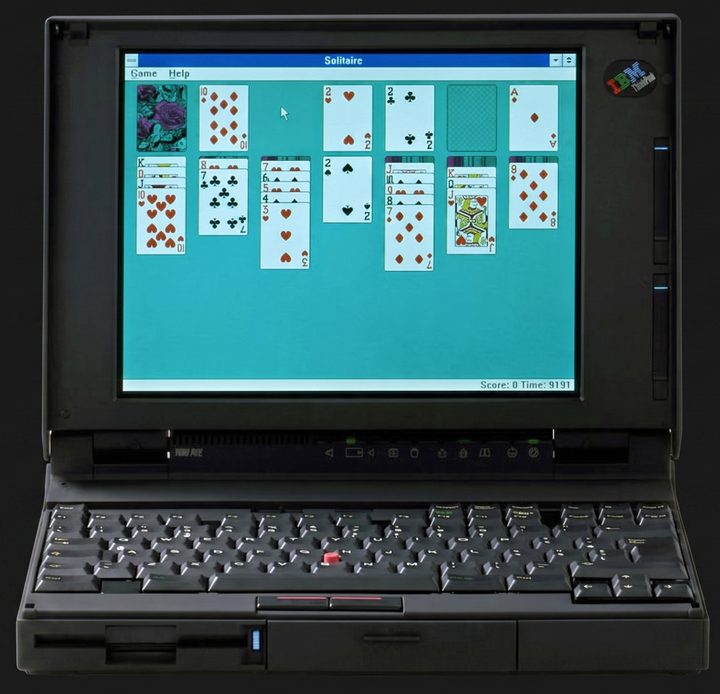
The ThinkPad 700 and 720 are the trailblazing first models to bear the ThinkPad name and introduce the iconic TrackPoint.

Feature Description
Processor (700, 700C) 486SLC 25MHz
Processor (720, 720C) 486SLC 25/50MHz
Bus Architecture Micro Channel
Memory (Standard) 4MB
Memory (Option) 16MB, IC DRAM
CMOS RAM 8KB
Video VGA40
Diskette Drive 3.5-inch
Hard Disk Drive ° 80MB, 2.5-inch
° 120MB, 2.5-inch
° 160MB, 2.5-inch
Audio Subsystems Yes (Standard)
PCMCIA One Type-II or Two Type-II

General Checkout #

Note: For information about how to run diagnostics, error messages, passwords, and various other tests and service checks, go to 'Related Service Procedures'.

The ThinkPad 700 and 720 are the trailblazing first models to bear the ThinkPad name and introduce the iconic TrackPoint.

General Checkout TP 700, 700C, 720, 720C (9552)

The diagnostic tests are intended to test only IBM products. Non-IBM products, prototype card, or modified options can give false errors and invalid system responses.

warn   The drives might have been rearranged or the drive startup sequence might have been altered. Be extremely careful during write operations such as copying, saving, or formatting. Data or programs can be written over if you select an incorrect drive.
Japanese Models Only

The Japanese model of the ThinkPad 700C has an 89-key keyboard. This keyboard is identified by the additional keys at the left and right sides of the spacebar.

When testing the diskette drive in the Japanese model, the 1.2MB format (8 sectors per track and 15 sectors per track) in addition to the 720KB and 1.44MB formats are tested to ensure correct operation.

A 2.0MB capacity diskette is required when testing the 1.2MB format.

  1. Power-off the computer and all external devices.
  2. Check all cables and power cords for correct connection.
  3. Make sure that no diskettes are in the drives.
  4. Power-on all external devices.
  5. Power-on the computer.  If any error message appears on the screen, go to 'Symptom-to-FRU Index' If no message appears on the screen,  press Ctrl + Alt + Delete to continue.  After the cursor moves to the upper right corner of the  screen, press Ctrl + Alt + Insert to start the system program.  If the IBM logo screen does not appear, insert the backup copy of  the system partition into the diskette drive and start the system  program again.  Then press Ctrl + A , and run the system checkout.  For information  on how to disable the password, see Power-On Password ( 700 , 700C)
  6. Refer to the following table. If you do not find your symptom  listed, go to Symptom-to-FRU Index , then go to Undetermined Problem .
Symptom Go to
Error Code or Message 'Symptom-to-FRU Index'
Configuration Problem 'Checking the Installed Devices List'
Power Problem 'Power Systems Checkout'
Memory Problem 'Memory Checkout'
TrackPoint II or Pointing Stick Problem 'Trackpoint II Checkout'
ThinkPad 700C, 720C Color LCD Problem 'LCD FRU Replacement Notice'
ThinkPad 700, 720 Mono Panel Problem '700, 720 Mono LCD FRU Replacement'
High Speed Modem Noise Problem 'High-Speed Modem Noise Problems'

Note:

For information about how to run diagnostics, error messages, passwords, and various other tests and service checks, go to 'Related Service Procedures'.

Symptom-to-FRU Index #

Note: Adjust the speaker volume before you power-on the computer.

Symptom-to-FRU Index TP 700, 700C, 720, 720C (9552)

The Symptom-to-FRU Index lists error symptoms and possible causes. The most likely cause is listed first. Always begin with 'General Checkout' This index also can be used to help you decide which FRUs to have available when servicing a computer.

If you cannot correct the problem using this index, go to 'Undetermined Problems'

warn

  1. If you have both an error message and an  incorrect audio response, diagnose the error message first.
  2. If you cannot run the advanced diagnostic tests, but did receive a  POST error message, diagnose the POST error message.
  3. If you did not receive an error message,  look for a description of your  error symptoms in this index.
  4. Check all power supply voltages before you replace the system board.  See 'Power Systems Checkout'
  5. If an error message is not listed,  there is a device installed that requires an additional diskette or  service manual.  Refer to the diskette or service manual for that device.

How to Read POST Error Messages

POST error messages are displayed on the screen as 3, 4, 5, or 8 digits. The error messages that can be displayed as shorter POST messages are highlighted in this Symptom-to-FRU Index.

NOTE: Adjust the speaker volume before you power-on the computer.

Numeric Error Codes #

Note: Error Log must be cleared when a FRU is replaced.

Numeric Error Codes TP 700, 700C, 720, 720C (9552)

In the following error codes, an X can be any number.

Symptom/Error FRU/Action
00010200, 00010300, 1. System Board
00010400, 00010700
00010800 1. System Board
2. Processor card
00011000 1. Go to 'Memory Checkout' before replacing any FRUs.
2. Base Memory Card
3. IC DRAM Card
4. System Board
000113XX 1. System Board
2. Processor Card
000118XX 1. Clear Error Log. See 'System Error Log'
2. If the error remains, replace the FRUs in the following order:
° Base Memory Card
° IC DRAM Card NOTE: Error Log must be cleared when a FRU is replaced.
00016100 1. See 'Checking the Backup Battery'
2. System Board
3. Voltage Converter
00016300, 00016400, 1. Set Configuration/Features
00016500, 00016900 (If 00016300 appears, set date and time first in the Reference Diskette.) (If setting configuration does (not solve the problem, see 'Checking the Installed Devices List' 2. System Board
3. Hard Disk Drive
4. Base Memory Card
5. IC DRAM Card
000171XX, 000172XX 1. System Board
00017300 (700, 700C Only) Before replacing a FRU, restore the system partition with the Ref.-Diskette V-1.1 or later. See 'Installing a New Version of the System Diskettes' 1. See '173 and 11350 Error Combination'
2. See 'Checking the Backup Battery'
3. Voltage Converter
00017400 (If Automatic Configuration does not solve the problem, run Advanced Diagnostic.) 1. Set Configuration/Features
000175XX, 00017700 1. System Board
00017800
000179XX 1. Run System Unit and Memory Diagnostic. - or -
2. Select More utilities to clear the system error log.
000183XX 1. PAP (Privileged Access Password) is needed to boot from the System Program.
000184XX, 00018500 1. System Board
000187XX 1. Set Configuration
2. System Board
000188XX 1. System Board
000189XX 1. Select More utilities to clear the system error log.
00019000 1. Reseat System Board
2. Reseat CPU chip / Processor Card
3. System Board
00019102 1. Rerun diagnostics tests.
2. If error remains, see 000191XX.
000191XX (Not listed above) 1. Reseat System Board
2. Reseat CPU chip / Processor Card
3. System Board
00019200 1. Voltage Converter
2. Keyboard Control Card
3. System Board
00019201 1. Voltage Converter
00019202 1. Run System Unit Diagnostic. If this error message appears frequently, replace the Processor Card.
00019300, 00019301 1. System Board
00019305
00019302 1. Hard Disk Drive
2. System Board
00019303 1. System Board
2. Diskette Drive
00019304 1. PC Card
2. System Board
00019306 1. Keyboard Control Card
2. Keyboard
3. Pointing Device
00019400 1. Processor Card
000199XX 1. System Board
0001XXXX (not listed above) 1. System Board
2. Processor Card
000215XX (720, 720C only) 1. Reseat Base Memory Card (interface connector on system board).
0002XXXX (See 'Memory Checkout' before replacing any FRUs.) 1. Base Memory Card
2. IC DRAM Card
3. System Board
.00030100, 00030500 (Power-on the computer) (before external devices.) (See '1080 Keyboard Unit' before replacing any FRUs.) 1. Keyboard Control Card
2. System Board
3. Keyboard
4. Numeric Keypad or Keyboard/Mouse Cable (if attached) - or - External Keyboard (if attached)
00030200, 00030300, 1. System Board
00030400 (See '1080 Keyboard Unit') before replacing any FRUs.) 2. Keyboard Control Card
3. Numeric Keypad or Keyboard/Mouse Cable (if attached) or External Keyboard (if attached)
00030600 (See '1080 Keyboard Unit' before replacing any FRUs.) 1. Keyboard
2. Numeric Keypad or Keyboard/Mouse Cable or External Keyboard (if attached)
3. Keyboard Control Card
4. System Board
00030700 1. External Keyboard
2. Keyboard/Mouse Cable
0004XXXX 1. System Board
2. Any Parallel Device
3. Communication Cable
000601XX 1. Diskette Drive
2. System Board
3. Diskette Drive Cable
000602XX 1. Defective Diskette
000628XX 1. Incorrect Diskette Media Type
2. Diskette Drive
3. System Board
4. Diskette Drive Cable
000655XX, 000662XX 1. System Board
000670XX - 000675XX 2. Diskette Drive
3. Diskette Drive Cable
0006XXXX (Unsupported drive or cable) 1. Diskette Drive
2. System Board
3. Diskette Drive Cable
0007XXXX 1. Math Coprocessor
2. Processor Card
0011XX00 1. System Board
2. Any Serial Device
3. Communication Cable
0014XXXX 1. See 'Printer Checkout' before replacing any FRUs.
2. Printer
3. System Board
00180100, 00186100 1. Replace the line QEMM386.SYS with QEMM386.SYS XBDA:L in Config.sys.
0024XX00 1. Video Card
2. System Board
3. Voltage Converter (700C, 720C only)
0039G900 1. System Board
005002XX, 005006XX, 005008XX, 005041XX 1. See 'External Display Self-Test' before replacing any FRUs.
2. Video Card
3. External Display
4. LCD
5. System Board
005004XX, 005010XX, 005030XX - 005032XX, 005051XX - 005062XX 1. Video Card
2. System Board
3. LCD
005009XX, 005040XX 1. See 'External Display Self-Test' before replacing any FRUs.
2. External Display
3. Video Card
4. System Board
0080XXXX 1. System Board
2. PCMCIA Card Slot
0085XXXX 1. Do not replace any FRUs. The installed Memory Expansion Adapter is not supported by IBM.
00860100, 00860200 (See '1080 Keyboard Unit' before replacing any FRUs.) 1. Pointing Device
2. System Board
3. Numeric Keypad
00860300, 00860400 00862300, 00862400 (See '1080 Keyboard Unit' before replacing any FRUs.) 1. System Board
2. Keyboard Control Card
3. Pointing Device
4. Keyboard (TrackPoint)
5. Numeric Keypad
00861100, 00861200 00861300 (See '1080 Keyboard Unit' before replacing any FRUs.) 1. Keyboard Control Card
2. Keyboard (Pointing Stick)
3. System Board
4. Ext. Keyboard Cable
00861XXX (not listed above) (See '1080 Keyboard Unit' before replacing any FRUs.) 1. Keyboard (Pointing Stick)
2. Keyboard Control Card
3. System Board
00862100, 00862200 (See '1080 Keyboard Unit' before replacing any FRUs.) 1. Keyboard Control Card
2. System Board
3. Keyboard (TrackPoint)
00862500, 00862600 (See '1080 Keyboard Unit' before replacing any FRUs.) 1. Keyboard (Pointing Stick)
2. Keyboard (TrackPoint)
3. Keyboard Control Card
c.0086XX00 (See '1080 Keyboard Unit' before replacing any FRUs.) 1. Keyboard Control Card
2. Keyboard
3. System Board
010103XX - 010110XX, 010116XX - 010153XX, 010171XX 1. See 'Fax/Modem Checkout'
010436XX 1. System Board
2. Hard Disk Drive
0104XXXX 1. Hard Disk Drive
2. System Board
0129XXXX 1. Run System Board diagnostics to clear the error log and retest
2. Select N to the question during the System Board diagnostics.
3. Power-on the system. If the error remains, replace the Processor Card.
4. Repeat steps 1 and 2.
5. If the problem remains, replace the system board.
0130XXXX 1. Indicator Assembly
2. System Board
3. Keyboard Control Card
4. Hard Disk Drive
5. Diskette Drive
6. Diskette Drive Cable
7. Speaker
0137XXXX 1. Serial Adapter
2. System Board
3. Video Card
4. Any Serial Device
5. Communication Cable
0194XXXX 1. Do not replace any FRUs. The installed Memory Expansion Adapter is not supported by IBM.
I99903XX, I99900XX 1. Reseat the hard disk drive
I99800XX to ensure good connection. See 'Set Startup Sequence'
2. Hard Disk Drive
3. System Board
I999XXXX 1. Restore the system partition from the Reference Diskette.

Beep Symptoms #

Beep Symptoms TP 700, 700C, 720, 720C (9552)

Symptom/Error FRU/Action
Continuous beep. 1. System Board
Repeating short beeps. 1. See '1080 Keyboard Unit' before replacing any FRUs.
2. Keyboard
3. Keyboard Control Card
4. System Board
One long and one short beep. 1. System Board
One long and two short beeps. 1. Video Card
2. System Board
One short beep and a blank, unreadable, illegible, or flashing display with no external display attached. 1. LCD
2. Video Card
3. System Board
4. Voltage Converter
One short beep and a diskette prompt or a program load from the hard disk or unable to read the diskette. (Be sure an external display is not too close to the diskette drive.) 1. Diskette Drive
2. System Board
3. Diskette Drive Cable
Two short beeps and a blank display. 1. System Board
Two long beeps and two short beeps (or two long beeps and no short beeps). (Possibly with a blank screen and blinking speaker icon.) 1. Video Card
2. Incorrect system board (700, 700C)
3. Incorrect processor upgrade (700, 700C)
4. Incorrect 240MB hard disk drive upgrade for this model

FRU Removals and Replacements #

reminpi   FRU Removals and Replacements TP 700, 700C, 720, 720C (9552)

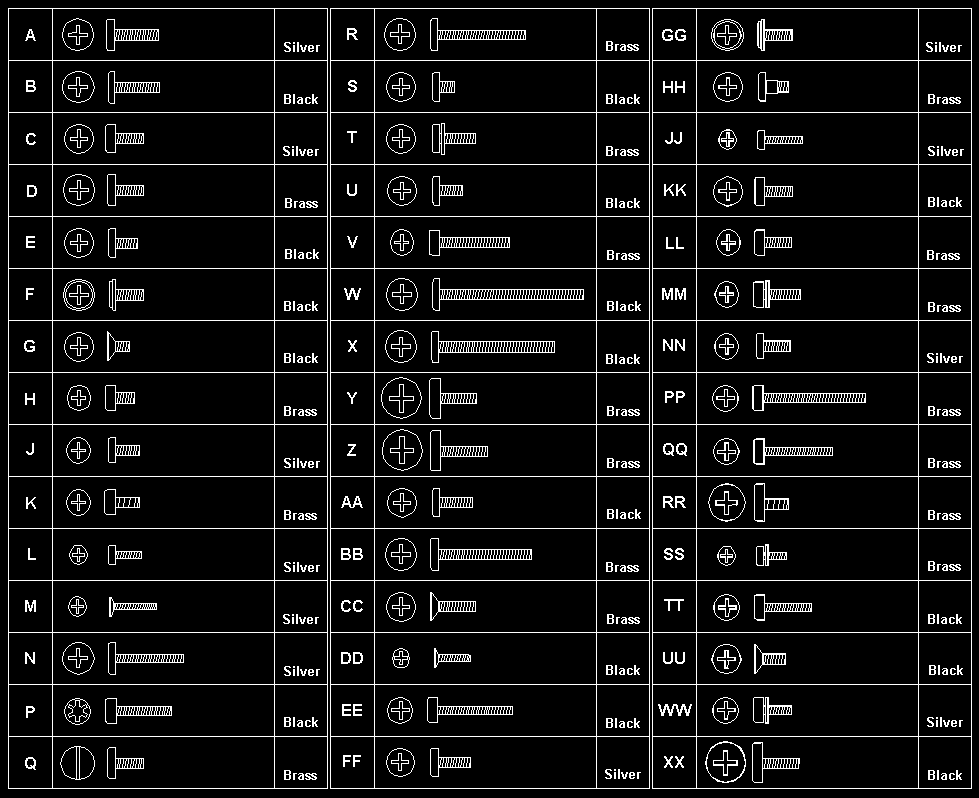
Follow the numerical sequence in the FRU removal sequence list and in the exploded view to remove or disconnect parts in the correct order. The letters in parentheses in the list indicate screw types. See the 'Srew Size Chart' to match the letters to the correct screw type and size before replacing each screw.

warn3 
Before removing any FRU, power-off the computer, unplug all power cords from electrical outlets, remove the battery pack, then disconnect any interconnecting cables.

FRU Removal / Replacements IBM 9552

PCMCIA Card Removal Tip #

PCMCIA Card Removal Tip TP 700, 700C, 720, 720C (9552)

For the Model 720x, you can insert or remove the PCMCIA card during most computer operations. However, do not remove the card when the PC Card in-use light is on.

Locations #

Locations TP 700, 700C, 720, 720C (9552)

  • Front View (picture current not available !)

  • System Board (700)
  • System Board (720, 720C)
  • Video Card
  • Keyboard Control Card
  • Voltage Converter

ThinkPad 700 - Parts Listing #

d2na5000

ThinkPad 720 / 720C - Parts Listing #

d2na5040

ThinkPad - Common Parts Listing #

Common Parts Listing

This section contains FRUs common to most IBM portable, laptop, and notebook computers.

External Diskette Drives

5.25-Inch Diskette Drives:
360KB External (4869-001) 72X6759
360KB External (4869-501) 72X6768
1.2MB External (4869-002) 15X7993
1.2MB External (4869-502) 15X7994
Hard Disk Drive.
1.2GB HDD (for all 9545) 85G8549
5.25-Inch Drive Adapter 72X6757
5.25-Inch Drive Adapter/A 15F7996
5.25-Inch External Diskette Drive Cable
(from system board to adapter) 27F4211
Diskette Drive Bus Adapter 72X8524

CD-ROM Drives

Enhanced Internal CD-ROM II Drive
(Eject button below slot) 61G1901
Internal CD-ROM I Drive
(Eject button above slot) 81F7930
Terminator Kit (for 81F7930) 59F3530
Cleaning Kit (for 81F7930)
(Disks, CD Caddy) 59F3562
Internal CD-ROM II Drive
(Eject button below slot) 92F0084
Terminator Kit (for 92F0084) 92F0082
Media Kit (for 92F0084)
(No cleaning necessary,
Test Disk, CD Caddy) 31F4232
Signal Cable 34F0043
Power Cable 72X8521
Remote ID Switch Cable (3510) 92F0086
Audio Card, Cable, Screws (3510) 92F0085
CD Caddy 22F9419
Rail Kit (3510) 34F0041
Headphones 53F3610

SCSI Adapters, Terminators, Cables

SCSI Adapter/A (without Cache) 85F0002
SCSI Internal Cable 64F4127
SCSI Adapter/A (with Cache) 85F0063
Terminator, External (for 85F0063) 33F8464
Terminator, Internal (for 85F0063) 34F0025
Terminator, Internal (for 85F0002) 57F2870
SCSI Fast Adapter (16 bit) 92F0330
SCSI External Cable (for 92F0330) 32G4089
SCSI Internal Cable (for 92F0330) 32G0084
Terminator, Inline (space permitting) 92F0412

Rewritable Optical Drives

3.5-Inch Rewritable Optical Drive 92F0167
Rewritable Optical Cartridge 38F8647
Rewritable Optical Cartridge (5 Pack) 38F8646
Drive Mounting Slide (for 92F0167) 85F0022
Tray with Bezel (for 92F0167) 85F0021
Objective Lens Cleaner (for 92F0167) 38F8681
Prism Lens Cleaner (for 92F0167) 38F8682
3.5-Inch Enhanced Rewritable Optical Drive 92F0167
Mounting Tray 92F0269
Mounting Tray/Bezel (Model 3510) 92F0268

External Keyboard/Mouse

Keyboard Cable 72X8537
Mouse 61X8923
Mouse Ball and Pop-Off Retainer 33F8461
Mouse Ball and Twist-Off Retainer 33F8462
Mouse (New Style) (33G5420) 06H4595
Mouse Retainer Ring 33G5417
Miniature Mouse 95F5723

Enhanced Keyboards (101/102 Key)

Country FRU P/N
Arabic 1391490
Belgian 1391414
Canadian French 1392011
Cyrillic 1393866
Danish 1391407
Dutch 1391511
French 1391402
German 1391403
Greek 1393285
Hebrew 1391408
Italian 1393395
Latin American Spanish 1392015
Norwegian 1391409
Portuguese 1391410
Russian/Cyrillic 1395622
Spanish 1391405
Swedish/Finnish 1391411
Swiss 1391412
Swiss/French 1395881
Swiss/German 1395882
Turkish 1393286
U.K. English 1391406
U.S. English (E/ME/A use only) 1396790
U.S. English 1392090
Yugoslavian 1393669

Optional Enhanced Keyboards (101/102 Key)

with PS/2 Style Cable 59G7980
with AT Style Cable 59G7981
with 25mm PS/2 Trackball 59G7982
with 25mm Serial Trackball 59G9757

Keybutton Kits (101/102 Key)

Keybutton Kits (R), Belgian 1392033
Keybutton Kits (R), Canadian French 1392032
Keybutton Kits (R), Danish 1392026
Keybutton Kits (R), Dutch 1392034
Keybutton Kits (R), French 6447047
Keybutton Kits (R), German 6447048
Keybutton Kits (R), Italian 6447049
Keybutton Kits (R), Norwegian 1392028
Keybutton Kits (R), Portuguese 1392029
Keybutton Kits (R), Spanish 6447050
Keybutton Kits (R), Spanish / Latin 1392035
Keybutton Kits (R), Swedish 1392030
Keybutton Kits (R), Swiss / French / German 1392031
Keybutton Kits (R), U.K. English 6447046
Keybutton Kits, U.S. English 6447045

Japanese Keyboard Type 2 (106 Key, DBCS Support)

Japanese Keyboard 94X1110
Keyboard Cable 94X1147

Space-Saving Keyboards (84/85 Key)

Canadian French 1396046
Spanish/Latin 1396047
U.S. English 1393290
Cable Assembly, External 1393082

Tools and Miscellaneous

Audio Wrap Cable 66G5180
Ethernet BNC T-Connector 84F8207
Ethernet BNC 50-ohm Terminator
(2 required) 85F0037
Grounding Wire Set 38F4684
Keyboard Key Cap Removal Tool 6110464
PC Test Card 33G4703
Screwdriver Kit 95F3598
SCSI Terminator
(any SCSI device, space permitting) 92F0142
SCSI Terminator Kit
(R-PAC Terminator Modules (3) for 40, 60,
80, 120, and 160MB SCSI Hard Disk Drives) 92F0143
Wrap Plug Ethernet D-Shell 85F0036
Wrap Plug, Tri-Connector 72X8546
Wrap Plug (6157 Tape Attachment Adapter/A) 4178459
Wrap Plug (Token-Ring Network Adapter/A) 6165899
Plastic Envelope (For Wrap Plug) 6138013

Power Management Features #

The suspend and resume functions are unique methods used to save battery power. In suspend mode, all tasks are suspended and their present states are stored in memory to save power. Also, the system enters a sleep state where only a minimum amount of power is used.

When the computer returns to normal operation using the resume function, the computer restores the same states as when it entered suspend mode.

Full and Partial Suspend Modes

Suspend mode might be referred as full-suspend mode, as compared to partial-suspend mode.

The computer enters partial-suspend mode when an application software program interferes with the power management capability of the computer and prevents it from entering full-suspend mode. The following sounds indicate suspend mode has occurred:

  • One beep for full-suspend mode
  • Two beeps for partial-suspend mode

(No beep is heard if the Power controller beep parameter is set to off in the Set Advanced Features program.)

The computer enters suspend mode when:

  • The LCD is closed (the switch is located on the voltage converter  card).
  • The specified time has elapsed from the last operation with  the keyboard, mouse, hard disk drive, parallel connector,  diskette drive, and AC adapter is plugged in.  The time is specified by System suspend in the Set Advanced Features program.
  • When a battery-low condition exists, the battery power indicator  blinks (orange).
  • The PS2 OFF command is set in the Set Advanced  Features program.
  • The operating temperature is exceeded.

The system returns to normal operation when:

  • The LCD is opened.
  • PS2 ON HH:MM:SS command was set in  the Set Advanced Features program before entering suspend mode.
  • A “Ring indicator“ signal on the communication  interface is detected.
  • Either button of the pointing stick is pressed.

You can replace the battery pack during full-suspend mode. Never replace the battery pack during partial-suspend mode. If the battery pack is replaced during suspend mode with the LCD opened, close the LCD and open it again to return to normal operation.

Power-On Password — 1 #

passpi   Power-On Password (700, 700C)

To disable the ThinkPad 700, 700C power-on password, do the following:

  1. Power-off the computer.
  2. Remove the battery pack and the bottom cover.
  3. Locate the password-override connector on the system board.  (See 'System Board (700)' )
  4. Install a jumper between the two pins at position 1.
  5. Power-on the computer and wait until the POST ends.

warn  Remove the jumper from the password-override connector when service is completed.

Power-On Password — 2 #

passpi   Power-On Password (720, 720C)

To disable the ThinkPad 720, 720C power-on password, do the following:

  1. Power-off the computer.
  2. Remove the battery pack and the bottom cover.
  3. Locate the password-override switch on the system board. (See 'System Board (720, 720C) )
  4. Slide the password-override switch to the left  position.
  5. Power-on the computer and wait until the POST ends.

warn  Slide the password-override switch to the other position when service is complete.

To reactivate the password, start the system programs, select Set features from the Main Menu, then select Set password and unattended start mode, and follow the instructions on the screen.

Checking the Backup Battery #

  1. Carefully place the computer bottom-side up.
  2. Remove the bottom cover.
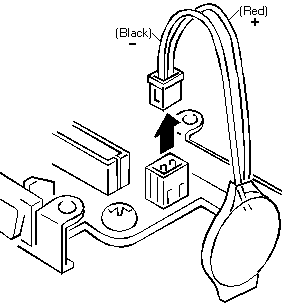
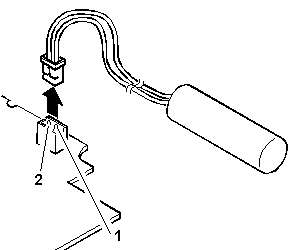
  3. Disconnect the battery connector from the system board.
  4. Measure the voltage of the backup battery.

d2nae051 

Wire Voltage (Vdc)
Red +2.5 to +3.7
Black Ground
  • If the voltage is correct, replace the system board.
  • If the voltage is not correct, the backup battery has been  discharged by a short circuit or it is defective.

Checking the AC Adapter #

If the Power-On indicator does not turn-on, check the power cord of the AC adapter for correct continuity and installation.

  1. If any noise can be heard from the AC adapter when it is  plugged into the ac power outlet, replace the AC adapter.

If no noise can be heard from the AC adapter,  go to step 3.

  • If a noise is still heard from the new AC adapter, suspect  the computer. Replace the AC adapter with the original one, then  go to the next step. If no noise is heard from the new AC adapter,  the original AC adapter is defective.- Unplug the AC adapter cable from the computer and  measure the output voltage at the plug of the AC adapter cable.

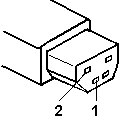
    d2nae111

    Pin Voltage (Vdc)
    1 +19.0 to +21.0
    2 Ground
    • If the voltage is not correct, go to the next step.

    • Unplug the AC adapter cable from the ac power outlet and wait for  a few minutes.
    • Plug the AC adapter cable into the ac power outlet.
    • Measure the output voltage of the AC adapter.
    • If the voltage is still not correct, replace the AC adapter.
    • If the voltage is correct, plug the AC adapter  cable into the computer and try the failing operation again.
    • If the problem goes away, suspect the continuity or installation  of the AC adapter cable.
    • If the problem is not corrected, replace the voltage converter.

Checking the Car Battery Adapter (only) #

Note: If the adapter is already plugged in, be sure to unplug the  adapter from the cigarette lighter socket, then plug it into  the socket again.

Note: If the output voltage from the cigarette lighter socket of the car is less than 10.5 Vdc, the power-on indicator on the car battery adapter blinks and a continuous noise can be heard. Have the car battery serviced.

Checking the Car Battery Adapter (700 only)

If the output voltage from the cigarette lighter socket of the car is less than 10.5 Vdc, the power-on indicator on the car battery adapter blinks and a noise can be heard continuously.

  1. Unplug the car battery adapter cable from the connector, if  connected.- Plug the car battery adapter into the cigarette lighter socket.

    NOTE: If the adapter is already plugged in, be sure to unplug the  adapter from the cigarette lighter socket, then plug it into  the socket again.

    • Measure the output voltage of the car battery adapter cable.

    d2nae111 

    Pin Voltage (Vdc)
    1 +19.0 to +21.0
    2 Ground
    • If the voltage is correct and the power-on indicator  on the car battery adapter is on all the time, the car battery  is working correctly. Replace the voltage converter. If the  problem is not resolved when the voltage converter is replaced,  go to 'Checking the Voltage Converter (700, 700C) or 'Checking the Voltage Converter (720, 720C)- If the voltage is outside the normal voltage range, do one of the  following:

      • Try the above test procedures using a different car,  if one is available.
      • Replace the car battery adapter if the computer works with the  AC adapter but does not work with the car battery adapter.

NOTE: If the output voltage from the cigarette lighter socket of the car is less than 10.5 Vdc, the power-on indicator on the car battery adapter blinks and a continuous noise can be heard. Have the car battery serviced.

Checking the Battery Pack #

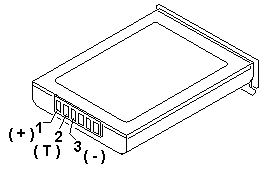
  1. Carefully place the computer bottom-side up.- Remove the battery pack and measure the voltage between the battery  terminals 1 (+) and 3 (-).

    d2nae030 

    Pin Voltage (Vdc)
    1 +10.0 to +18.0
    2 Thermal Detection
    3 Ground
    • If the voltage is less than +10.0 Vdc, the battery pack has  been discharged or is defective.
    • If the voltage is more than +10.0 Vdc,  go to the next step.
    • Using an ohm meter, measure the resistance between  battery terminals 2 (T) and 3 (-).  The resistance must be 4 to 30 kilohms.

    • If the resistance is not correct, replace the battery pack.
    • If the resistance is correct, go to the next step.
    • Install the battery pack and  plug the AC adapter cable  into the computer to charge the battery pack.

      • If the battery power status indicator  is blinking (orange) and battery charging indicator  is on, replace the battery pack. If the battery is charging normally, the  battery is OK.

Checking the Standby Battery #

Note: Make sure that the battery pack is removed from the computer before the standby battery is removed.

NOTE:

Make sure that the battery pack is removed from the computer before the standby battery is removed.

  1. Power-off the computer and unplug the AC adapter cable  from the computer.- Remove the battery pack.- Remove the indicator cover.- Disconnect the standby battery connector from the voltage converter.- Plug the AC adapter cable  into the computer and power-on the computer.- Measure the output voltage at the connector on the voltage converter.
    • d2nae061
    Pin Voltage (Vdc)1 +42 Ground
    • - If the voltage is less than +4 Vdc, replace the voltage
    • converter.
    • If the voltage is more than +4 Vdc, go to the next step.
    • - Power-off the computer and unplug the AC adapter cable
    • from the computer.
    • Reconnect the standby battery to the voltage converter.
    • Plug the AC adapter cable into
    • the computer and power-on the computer.
    • Allow approximately 30 minutes for the standby battery to charge.
    • Power-off the computer and unplug the AC adapter cable from the
    • computer and remove the standby battery.
    • Measure the voltage of the standby battery.
    • - If the voltage is less than 3.5 Vdc, replace the standby battery.

Checking the Quick Charger #

If a humming or buzzing sound is heard from the quick charger when it is operating, replace the quick charger. If the charger is operating at a normal quiet sound level, do the following.

  1. Perform steps 1 through 3  of the 'Checking the Battery Pack' to  ensure the battery pack is operating correctly.- Connect the power cord to the quick charger and the other  end to the ac power outlet.  Ensure that the power-on indicator is on.

    • If the power-on indicator does not turn on, check the power cord of  the quick charger for correct continuity and installation.
    • If the problem is not corrected,  replace the quick charger or the power cord.
    • Install the battery pack into the quick charger.

    • If the charging indicator does not start blinking,  replace the quick charger.

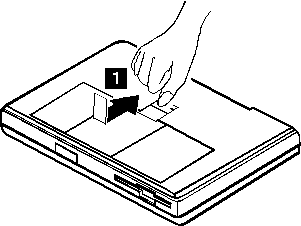
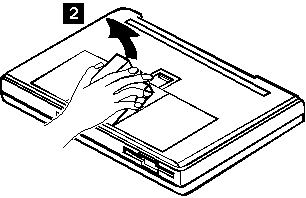
1020 Battery Pack #

lark13

lark14

TrackPoint II Checkout #

Note: TrackPoint II automatically compensates to adjust  the pointer sensor. This causes the pointer to move slightly on  the screen and then stop. Pointer  movement might occur when  a slight, steady pressure is applied to the TrackPoint II pointer when  the computer is powered-on or running, or  when exceeded temperature range requires re-adjustment.

  • If the TrackPoint II  does not work, check the configuration.  If the configuration of the TrackPoint II is set to Disabled or Off, change it to Enable or On.

If the problem remains, continue.

NOTE: TrackPoint II automatically compensates to adjust  the pointer sensor. This causes the pointer to move slightly on  the screen and then stop. Pointer  movement might occur when  a slight, steady pressure is applied to the TrackPoint II pointer when  the computer is powered-on or running, or  when exceeded temperature range requires re-adjustment.

  • If the cursor floats or moves erratically, power-off and disconnect the  mouse. Power-on the computer. If the  problem goes away, replace the mouse. If the problem remains, replace the  keyboard.- For click button or pointing stick problems:

    1. Go to the Easy-Setup screen.
    2. Select an item with the pointing stick.
    3. Press either left or right click button.
    4. Verify that both buttons work correctly.

    If the pointing stick or the click button does not work,  do the following.

    1. Reseat the keyboard cables.
    2. Replace the keyboard.
    3. Replace the interposer card (355x, 360x, 750x, 755x).
    4. Replace keyboard control card (720).
    5. Replace the system board.

System Diskettes (Reference and Diagnostic) #

Note: The Reference Diskette contains the system programs and the Diagnostic Diskette contains the test programs. The Diagnostic Diskette is not self-starting. To run the Diagnostic Diskette, start the system from the Reference Diskette, select Test the computer, then follow the instructions on the screen.

System Diskettes (Reference and Diagnostic)

If the hard disk drive is not operational, you can run the system programs from the Reference Diskette.

NOTE: The Reference Diskette contains the system programs and the Diagnostic Diskette contains the test programs. The Diagnostic Diskette is not self-starting. To run the Diagnostic Diskette, start the system from the Reference Diskette, select Test the computer, then follow the instructions on the screen.

Installing a New Version of the System Diskettes #

When you install the new system diskettes onto the hard disk, all existing files (including option files) in the system partition are written over. The new system diskettes provide the new system programs but they do not contain the option files, therefore, after completing the following process, you must reinstall the option files.

There are two methods to reinstall the option files.

  1. From a backup copy of the current system partition.  (this is the easiest way to reinstall the option files).  For instructions on making a backup copy, see 'Making a System Partition Backup Copy'
  2. From the original option diskettes.

Do the following for both methods.

  1. Insert the new version of the Reference Diskette into the  diskette drive.- Power-off the computer, then power it on. After the cursor moves to  the upper right corner of the screen,  press Ctrl+Alt  +Insert.

    warn   This process writes over all existing files in the system  partition. Before continuing, you must have either  a backup copy of the current system partition or all the option  diskettes so you can reinstall the option files.- Go to the Main Menu of the Reference Diskette and select Backup/Restore system programs, then select Restore  the system partition and follow the instructions on the screen.  This transfers all files, programs, and the IML image of the new  diskette onto the system partition.- When the Main Menu appears again, remove the diskette from  the diskette drive and power-off the computer, then power it on.- After the cursor moves to the upper right corner of the screen,  press Ctrl+Alt+Insert.- If you have a backup copy of the current system partition,  continue with step 7.  If you do not have a backup copy of the current system  partition, but you have the option diskettes, go to step 8.- Select Copy an option diskette  from the Main Menu. When the

    Insert your option diskette  message appears, insert the backup copy of the system partition  and follow the instructions on the screen. (The backup copy of the  system partition is used to reinstall the option files onto  the system partition.) Then go to step 9.- Select Copy an option diskette  and follow the instructions on the screen. Repeat the procedure with  each option diskette until all option diskettes have been reinstalled.- If there *is* a customized configuration  installed  (settings have been changed via the Change configuration   screen), continue with step 10.   If there *is not* a customized  configuration installed, go to step 11.- Select Set configuration from the Main Menu.  When you exit from Set configuration by pressing  the F3, the customized configuration files will  be restored onto the system partition as  files @CMOS and @NVRAM. warn    Do not run Run automatic configuration now or you will write  over the customized configuration.- You are finished with the updating process. Make a *new* backup copy of the system partition. (For information on making  a backup copy, see Making a System Partition Backup Copy)

Japanese Model Diskette Drive and Diskette #

Note:

  1. The ThinkPad 700C Japanese model has an 89-key keyboard.  This keyboard is identified by the additional keys at the left and  right sides of the spacebar.- A 2.0MB capacity diskette is required when testing the 1.2MB  format.

The ThinkPad 700 uses a 1.44MB diskette drive. Both 1.0MB (formatted 720KB) and 2.0MB (formatted 1.44MB) capacity diskettes can be used in this drive.

The ThinkPad 700 Japanese model uses a diskette drive that supports 1.2MB format on 2.0MB capacity diskettes. When servicing a Japanese model, you must test all three formats.

NOTE:

  1. The ThinkPad 700C Japanese model has an 89-key keyboard.  This keyboard is identified by the additional keys at the left and  right sides of the spacebar.
  2. A 2.0MB capacity diskette is required when testing the 1.2MB  format.

1080 Keyboard Unit #

Note:

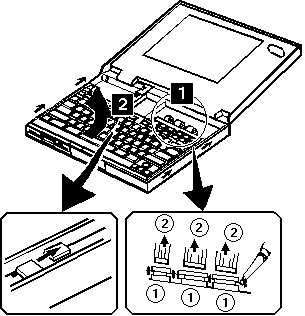
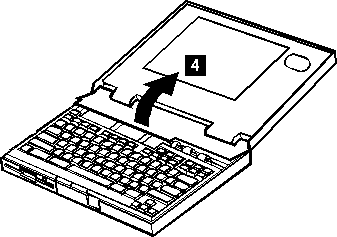
  1. There are two keyboard latches on each side of the computer frame.  Slide the keyboard as shown in step 2 to release  the keyboard from those latches, them remove the keyboard.  (Small arrows on the both sides of the keyboard  show the locations of the latches.)- The keyboard has three cables, be careful not to damage  the cables when you open the keyboard and to remove them.

NOTE:

  1. There are two keyboard latches on each side of the computer frame.  Slide the keyboard as shown in step 2 to release  the keyboard from those latches, them remove the keyboard.  (Small arrows on the both sides of the keyboard  show the locations of the latches.)
  2. The keyboard has three cables, be careful not to damage  the cables when you open the keyboard and to remove them.

lark03

When Replacing

  • Check that the three keyboard cables are clean, and  inserted straight and fully into the connectors.  Slide both ends of each connector latch at the same time  to make sure that each cable is correctly inserted.
  • Go to 'Keyboard / Auxiliary Input Device Checkout' and test all keys before returning the  computer to the customer.

Printer Checkout #

  1. Make sure the printer is correctly connected and is powered-on.
  2. Run the printer self-test.

If the printer self-test does not run correctly, the problem is in the printer. Refer to the printer service manual.

If the printer self-test runs correctly, do the following.

  1. Verify the port settings in configuration.
  2. Install a wrap plug on the port (indicated in configuration)  and run the advanced diagnostic tests.
  3. If the advanced diagnostic tests (with the wrap plug installed)  do not detect a failure, replace the printer cable. If the problem is not corrected, replace the system board.

External Display Self-Test #

Note: Before you replace a display, check the following list to see if it is connected correctly.

Note: The location of the test margin varies with the type of display. The  test margin might be on the top, bottom, or one or both sides.

If the display problem occurs only when using an external display, use the following instructions to correct the problem.

Note: Before you replace a display, check the following list to see if it is connected correctly.

  • 8506 and 8508 displays must be connected to an Image Adapter/A or an  Image-I Adapter/A.
  • 63XX and 85XX systems support either 63XX or 85XX displays.
  • 85XX systems with an XGA-2 adapter support 95XX displays.
  • 95XX systems support either 63XX, 85XX, or 95XX displays.
  • ThinkPad models support either 85XX or 95XX displays.

If the screen is rolling, replace the display assembly. If that does not correct the problem, replace FRUs in the following order until the problem goes away:

  1. Video card
  2. Display adapter (any type)
  3. System board
  4. Bus adapter (if used)

If the screen is not rolling, run the display self-test as follows:

  1. Power-off the computer and display.
  2. Disconnect the display signal cable.
  3. Power-on the display.
  4. Set the contrast to its maximum position.
  5. Set the brightness control to the center detent position.

Check for the following conditions:

  • You should be able to vary the screen intensity by adjusting the contrast  and brightness controls.
  • The screen should be white or light gray,  with a black margin (test margin) on the screen. NOTE: The location of the test margin varies with the type of display. The  test margin might be on the top, bottom, or one or both sides.

If you do not see a test margin on the screen, replace the display. If there is a test margin on the screen, replace the system board.

On ThinkPad Models 700, 700C, 720C, 720C, do the following:

  1. Video card
  2. System board

Fax/Modem Checkout #

Note: PCMCIA cards can be inserted and removed while
the system is powered on
- Power-on the system.
- Insert the IBM Data/FAX Modem diskette into the default
diskette drive.
- If you are servicing a High Speed Internal Data/Fax Modem (Models
FC3632 and FC3650), at the DOS prompt (for example, A:), type
IBMDIAG, then press Enter.
- If you are servicing a PCMCIA Data/FAX Modem (Models FC3634 and
FC3635), at the DOS prompt (for example, A:), type ESTDIAG,
then press Enter.
- Follow the instructions on the screen.  (If you need help, press
F1.)
DID THE DIAGNOSTIC TESTS DETECT AN ERROR?
Yes      No-+002
+---+
The diagnostic tests have completed successfully.
+-+-+         If you suspect a problen, go to step 004
003
Go to the Symptom-to-FRU Index for the computer you are servicing.
004
- Check the PSTN cable and the DAA cable, if installed, for continuity.
IS THE CABLE(S) GOOD?
Yes      No-+005
+---+
+-+-+         Replace the defective cable(s).
006
- Have the customer transmit a call.
WAS THE CALL TRANSMITTED SUCCESSFULLY?
Yes      No-+007
+---+
+-+-+         Go to step 011
008
- Have the customer receive an incoming call on the modem.
WAS THE INCOMING CALL RECEIVED?
Yes      No-+009
+---+
+-+-+         Go to step 014
010
The diagnostic tests have completed successfully.  If you still suspect
a problem that is not software related, replace the External DAA, then
replace the modem.
011
- Have the customer transmit a call at a lower speed.
WAS THE CALL TRANSMITTED SUCCESSFULLY?
Yes      No-+012
+---+
If installed, replace the external DAA.
If you do not have an external DAA installed,
or replacing the external DAA does not correct
+-+-+         the problem, replace the modem.
013
Have the telephone line checked.
014
- Have the customer receive an incoming call on the modem
at a lower speed.
WAS THE INCOMING CALL RECEIVED?
Yes      No-+015
+---+
If installed, replace the external DAA.
If you do not have an external DAA installed,
or replacing the external DAA does not correct
+-+-+         the problem, replace the modem.
016
Have the telephone line checked.
001
- Power-off the computer.
- Ensure that the modem is installed correctly.
- If the modem never worked in customer mode, ensure that all
drivers are loaded correctly onto the computer.
- Ensure that the communication program is supported on the computer.
- Ensure that the public switch telephone network (PSTN) cable and the
data access arrangement (DAA) cable, if installed,
are connected correctly.
If you need to correct one of the above conditions, do so now,
then continue.
NOTE: PCMCIA cards can be inserted and removed while
the system is powered on
- Power-on the system.
- Insert the IBM Data/FAX Modem diskette into the default
diskette drive.
- If you are servicing a High Speed Internal Data/Fax Modem (Models
FC3632 and FC3650), at the DOS prompt (for example, A:), type
IBMDIAG, then press Enter.
- If you are servicing a PCMCIA Data/FAX Modem (Models FC3634 and
FC3635), at the DOS prompt (for example, A:), type ESTDIAG,
then press Enter.
- Follow the instructions on the screen.  (If you need help, press
F1.)
DID THE DIAGNOSTIC TESTS DETECT AN ERROR?
Yes      No-+002
+---+
The diagnostic tests have completed successfully.
+-+-+         If you suspect a problen, go to step 004
003
Go to the Symptom-to-FRU Index for the computer you are servicing.
004
- Check the PSTN cable and the DAA cable, if installed, for continuity.
IS THE CABLE(S) GOOD?
Yes      No-+005
+---+
+-+-+         Replace the defective cable(s).
006
- Have the customer transmit a call.
WAS THE CALL TRANSMITTED SUCCESSFULLY?
Yes      No-+007
+---+
+-+-+         Go to step 011
008
- Have the customer receive an incoming call on the modem.
WAS THE INCOMING CALL RECEIVED?
Yes      No-+009
+---+
+-+-+         Go to step 014
010
The diagnostic tests have completed successfully.  If you still suspect
a problem that is not software related, replace the External DAA, then
replace the modem.
011
- Have the customer transmit a call at a lower speed.
WAS THE CALL TRANSMITTED SUCCESSFULLY?
Yes      No-+012
+---+
If installed, replace the external DAA.
If you do not have an external DAA installed,
or replacing the external DAA does not correct
+-+-+         the problem, replace the modem.
013
Have the telephone line checked.
014
- Have the customer receive an incoming call on the modem
at a lower speed.
WAS THE INCOMING CALL RECEIVED?
Yes      No-+015
+---+
If installed, replace the external DAA.
If you do not have an external DAA installed,
or replacing the external DAA does not correct
+-+-+         the problem, replace the modem.
016
Have the telephone line checked.

Keyboard Control Card #

d2naf310

d2naf320

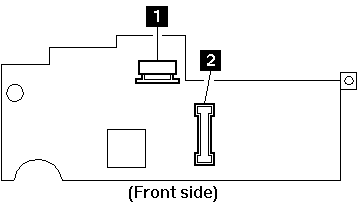
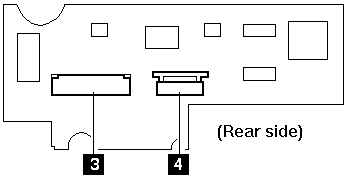
1 Pointing Stick Connector

2 System Board Interface

3 Keyboard Connector

4 Keyboard Connector

Keyboard / Auxiliary Input Device Checkout #

Note:

  • When a Fn key is pressed, a black square briefly appears.- Press the Esc key to return to the diagnostic menu.

Remove the external keyboard if the internal keyboard is to be tested.

If the internal keyboard does not work or an unexpected character appears, make sure that the three flexible cables extending from the keyboard are correctly seated in the connectors on the system board.

If the keyboard cable connection is correct, run the Keyboard Test by doing the following:

  1. Go to advanced diagnostic menu screen  by pressing Ctrl+A in the basic diagnostic menu.
  2. Press Ctrl+K , a layout of the keyboard  appears on the screen.
  3. Check that when each key is pressed, the key position  on the keyboard layout on the screen changes to a black square.

NOTE:

  • When a Fn key is pressed, a black square briefly appears.
  • Press the Esc key to return to the diagnostic menu.

If the tests detect a keyboard problem, do the following one at a time to correct the problem.

Do not replace a non-defective FRU.

  • Reseat the three cables.
  • Replace the keyboard.
  • Replace the system board.

The following auxiliary input devices are supported for this computer.

  • Numeric keypad
  • Mouse (PS/2 compatible)
  • External keyboard (with keyboard/mouse cable)
  • If any of the above devices do  not work, reseat the cable connector and repeat the failing operation.
  • If the problem does not occur again, recheck the connector.
  • If the problem is not corrected, replace the device, and then the  system board.

System Status Indicators #

Symbol Color Meaning

d2na1033   On               Speaker is enabled
 ---------------------------------------------------------------

d2nai160 Green            Battery pack is fully charged
       Yellow           Battery pack is half-charged
       Orange           Battery pack is one-fourth charged
       Blinking orange  Battery pack is almost discharged
                        (replace with fully charged spare)
       Off              ° Battery pack is completely discharged
                        ° Battery pack is removed from computer
                        ° Computer is off
                        ° Computer is using external power,
                          car battery or AC power.
 ---------------------------------------------------------------  
d2na1055  On               Battery is charging
       Off              Battery is full
 ---------------------------------------------------------------  

d2na1053   On               PC card in-use

d2na1060   On               Diskette drive is active

d2na1010   On               Hard disk drive is active

d2nai120   On               Keys in Num Lock mode

d2nai110   On               Keys in Caps Lock mode

d2na1050   On               Keys in Scroll Lock mode

d2na1065  On               Computer is in Suspend Mode
       Blinking         Computer is resuming normal operation
 ---------------------------------------------------------------  

d2na1070   ON               Computer is powered on
                        (Blinking indicates temperature too high
                         - system enters suspend mode until
                         temperature returns to normal.)

Memory Checkout #

Memory Checkout TP 700, 700C, 720, 720C (9552)

Customer diagnostics can eliminate defective memory so no memory error message appears at power-on reset. after you replace a defective base memory card or IC DRAM, run Automatic configuration. Otherwise, the new memory will not be recognized. power-off the computer before you remove or replace any parts.

  • 001
  • - Remove all IC DRAM cards from their slots (if installed).
  • - Power-off the computer, then power it on.
  • After the cursor moves to the upper right corner of the screen,
  • press Ctrl+Alt+Insert
  • to start the system program.
  • - Press Ctrl+A at the Main Menu.
  • DID THE ADVANCED DIAGNOSTIC MENU APPEAR?
  • Yes    No-+002
  • +---+
  • Replace the base memory card.
  • If the problem is not corrected,
  • +-+-+      go to 'Undetermined Problem'.
  • 003
  • - Run the memory tests.
  • Use the RUN TESTS ONE TIME option.
  • DID THE MEMORY TESTS END WITHOUT AN ERROR?
  • Yes    No-+004
  • +---+
  • +-+-+      Replace the base memory card.
  • 005
  • Install the IC DRAM card into slot 1 and run
  • Automatic configuration.
  • - Run the memory test.
  • Use the RUN TESTS ONE TIME option.
  • DID THE MEMORY TESTS END WITHOUT AN ERROR?
  • Yes    No-+006
  • +---+
  • Replace the IC DRAM card in slot 1.
  • If the problem is not corrected,
  • +-+-+      replace the system board.
  • 007
  • - Install the IC DRAM card into slot 2 and run
  • Automatic configuration.
  • - Run the memory test.
  • Use the RUN TESTS ONE TIME option.
  • DID THE MEMORY TESTS END WITHOUT AN ERROR?
  • Yes    No-+008
  • +---+
  • Replace the IC DRAM card in slot 2.
  • If the problem is not corrected,
  • +-+-+      replace the system board.
  • 009
  • If the problem occurs intermittently,
  • run the memory tests multiple times to create an error log.

Undetermined Problem #

Note: Replacing the hard disk drive, an IC DRAM card,  or any adapter or device, might cause configuration errors.- Power-on the computer.- If the problem is not corrected, repeat steps 1 through 3  until you find the failing FRU or until all FRUs have been removed.- If all of the FRUs  listed have been removed and the problem  is not corrected, replace the following FRUs:

Undetermined Problem TP 700, 700C, 720, 720C (9552)

You are here because the diagnostic tests did not identify which adapter or device failed, the Devices List is incorrect or the system is inoperative.

Follow the procedures below (do not isolate FRUs that are known to be good).

Check the power supply that was being used at the time of the failure. (See 'Power Systems Checkout')

If the power supply is operating correctly, continue with the following procedure.

  1. Power-off the computer.- Remove or disconnect one of the following devices or adapter.  (Do not isolate FRUs that are known to be good.)

    1. Non-IBM devices- Modem, PC card, printer, mouse, or other external devices- Battery pack- Hard disk drive (removable disk drive)- IC DRAM card- Any adapter or device

      NOTE: Replacing the hard disk drive, an IC DRAM card,  or any adapter or device, might cause configuration errors.- Power-on the computer.- If the problem is not corrected, repeat steps 1 through 3

      until you find the failing FRU or until all FRUs have been removed.- If all of the FRUs  listed have been removed and the problem  is not corrected, replace the following FRUs:

      • System board
      • Processor card
      • Video card

Checking the Installed Devices List #

The Installed Devices List shows the adapters and devices installed in the computer.

If an adapter or a device is missing from the list, one of the following conditions might be the cause.

warn  A customized setup configuration (other than default settings) might exist on the system you are servicing. Running Automatic Configuration can alter the settings. Note the current configuration settings (using the View configuration) and verify that the same settings are in place when service is complete.

  • The protected partition on the hard disk or the Reference  Diskette you are using does not contain the code required to support  the device.
  • An adapter or device is defective.
  • The device missing from the list is not recognized as a device  or adapter.
  • The device missing from the list requires an additional diskette.  (See the device service manual.)
  • A power supply voltage is not correct (see 'Power Systems Checkout' ).

If the adapter is on the list, run the adapter diagnostic tests.

If the list contains an adapter or device that is not installed, go to 'Undetermined Problems'

Miscellaneous Symptoms #

Miscellaneous Symptoms TP 700, 700C, 720, 720C (9552)

Symptom/Error FRU/Action
Power-on password is not reactivated. 1. Check the power-on password switch position.
Problem occurs only when port replicator installed. 1. Port Replicator
No beep and a blank or unreadable display during POST. 1. See 'Power Systems Checkout' before replacing any FRUs.
2. Processor Card
3. System Board
4. Video Card
5. Hard Disk Drive
6. Base Memory Card
7. Any option or device
8. Power source in use when failure occurs
9. Voltage Converter 10 Speaker
No beep with a blinking cursor. 1. System Board
2. Processor Card
3. Any Option or Device
No beep with a normal display during POST. 1. Speaker
2. System Board
3. Keyboard Control Card
4. Voltage Converter
No beep and the system hangs with CP XX at the right-bottom corner of the screen. 1. System Board
2. Processor Card
No beep and the system hangs after displaying the memory count. 1. System Board
2. Processor Card
3. Hard Disk Drive
4. Coprocessor
No boot with blank screen. 1. System Board
Extra horizontal or vertical lines displayed on upper or lower half of the LCD. 1. LCD
2. Video Card
3. System Board
LCD screen unreadable or characters missing pels. 1. See important note for 'LCD FRU Replacement Notice'
2. LCD Assembly
3. System Board
LCD too dark, unable to adjust contrast or brightness. 1. LCD
2. Video Card
LCD slightly dims when changing to battery power. 1. Normal operation (Dimming of LCD conserves battery power.)
LCD unreadable, illegible, or distorted. 1. LCD
2. Video Card
3. System Board
LCD cannot be powered-on or off. 1. Video Card
2. System Board Voltage Converter
Blank screen, or extra horizontal or vertical lines displayed on upper or lower half of the LCD with no beep or one short beep. 1. LCD
2. Video Card
3. System Board
System status indicator is incorrectly blinking or stays on. 1. System Board
2. Related Device
3. Indicator Assembly
System status indicator stays off, but the POST ends without an error. 1. System Board
2. Related Device
3. Indicator Assembly
No keys on the keyboard work. See '1080 Keyboard Unit' 1. Keyboard Control Card
2. Keyboard
3. External Keyboard or Numeric Keypad (if attached)
4. System Board
Keypad problems. 1. Reseat cable
2. External Keypad
3. Keyboard Control Card
4. System Board
One or more keys do not work. 1. See '1080 Keyboard Unit' before replacing any FRUs.
2. Keyboard
3. External Keyboard or Numeric Keypad (if attached)
4. Keyboard Control Card
Mouse and Pointing Stick problems. 1. See '1080 Keyboard Unit' before replacing any FRUs.
2. Disable Trackpoint and test Mouse The Trackpoint can interfere with the operation of some Mouse devices.
3. Mouse
4. Keyboard Control Card
5. Keyboard
Cursor floats or moves erratically. 1. See 'TrackPoint II Checkout' before replacing any FRUs.
2. Mouse
3. Keyboard
External display problems. 1. See 'External Display Self-Test' before replacing any FRUs.
2. External Display
3. Video Card
4. System Board
Incorrect memory size during POST. 1. See 'Memory Checkout' before replacing any FRUs.
2. Base Memory Card
3. IC DRAM Card
System hang or Intermittent hang. 1. See 'Undetermined Problems' before replacing any FRUs.
2. System Board
3. Hard Disk Drive
4. Replace the last device being tested
5. Voltage Converter
The system goes into suspend mode after the POST. 1. System Board
2. Voltage Converter
3. Keyboard Control Card
The system does not suspend or resume. 1. Check the Suspend/Resume switch operation. If broken, replace the Voltage Converter.
2. System Board
3. Voltage Converter
4. Keyboard Control Card
5. Keyboard
The computer does not power-off. 1. Voltage Converter
2. System Board
Real-time clock inaccurate. 1. See 'Checking the Backup Battery' before replacing any FRUs.
2. Backup Battery
3. System Board
Printer problems. 1. See 'Printer Checkout'
Serial or serial port device problems. 1. Device
2. Cable
3. Serial Adapter (if attached)
4. System Board
Parallel or parallel port device problem 1. Device/printer
2. Cable
3. Parallel Adapter (if attached)
4. System Board
Internal Data/Fax modem does not communicate with a remote modem or a facsimile machine. 1. See 'Fax/Modem Checkout'
PS2 command cannot power-off internal modem unless computer is powered-off. 1. Create new PS2 setup program using UINSTALL command. (Reference Diskette must be 1.10 or later.)

System Error Log #

Note: If the system configuration is changed, the system clears any logged errors associated with the FRU that was changed. (For example, if the memory configuration was changed, memory errors are cleared from the error log). The conditions under which errors are cleared vary with the type of hardware and level of microcode installed.

The computer system maintains a system error log. The BIOS nonmaskable interrupt (NMI) handler writes an entry to the error log each time the system detects an error.

Viewing the error log

To view the error log, start the system programs and select More utilities from the Main Menu, then select Display system error log. For any error that is displayed, help screens guide you through the actions to take.

Error Storage

The error log stores up to three unique errors (for example three parity errors at three different addresses). The multiple log counter (on the screen) displays the number of times each unique error occurred. You can page forward by pressing F8, or backward by pressing F7 to view the stored error logs. The date and time of the most recent occurrence also is displayed. If the POST finds that the error log has stored three unique errors, the POST displays a 000179XX error.

NOTE: If the system configuration is changed, the system clears any logged errors associated with the FRU that was changed. (For example, if the memory configuration was changed, memory errors are cleared from the error log). The conditions under which errors are cleared vary with the type of hardware and level of microcode installed.

Application If the system diagnostics run error-free, but you still suspect a problem, look at the error log. If errors were detected, press the F1 key and follow the instructions on the screen to help you determine which FRU might be causing the failure.

Hard Disk Low Level Format #

To format the hard disk and restore the system partition, do the following.

warn  The following procedure causes permanent loss of the data on the hard disk. Make sure that a backup of all the information on the hard disk is made.

  1. Power-off the computer.
  2. Insert the backup copy of the Reference Diskette into the diskette  drive.
  3. Power-on the computer.
  4. Proceed to the Main Menu. Press Ctrl + A to display the Advanced Diagnostic Menu.
  5. Select Format the hard disk and follow the instructions  on the screen to perform a low level format of the hard disk.
  6. After the hard disk format is completed, power-off the computer.
  7. Restore the system partition.
  8. Reinstall the operating system.

173 and 11350 Error Combination #

If a POST error combination of 00017300 and 11350 appears and cannot be bypassed, do the following before replacing any FRUs.

  1. Power-off the computer.
  2. Remove the hard disk drive from the computer.
  3. Insert the Reference Diskette and power-on the computer.
  4. Ignore any error messages, press Esc , F8 ,  and Enter , then run Automatic Configuration.
  5. Ignore the message An error occurred while updating config and power-off the computer.
  6. Install the hard disk drive.
  7. Keep the Reference Diskette in drive A and power-on the computer.
  8. Ignore any error messages, press Y , and run Automatic  Configuration.

FRU Service Procedures #

FRU Service Procedures TP 700, 700C, 720, 720C (9552)

Review these service procedures before replacing a FRU.

LCD FRU Replacement Notice

If missing or discolored dots appear on the LCD, carefully read the following note to determine whether or not you should replace the LCD.

The LCD for the Model 700C and 720C contains over 921000 thin film transistors (TFTs). A small number of missing, discolored or lighted dots (on all the time) is characteristic of TFT LCD technology. Excessive pixel problems can cause viewing concerns. The LCD should be replaced if the number of missing, discolored, or lighted dots in any background is 21 or more.

Hinges on the color LCD are part of the FRU and are returned with the FRU.

700, 720 Mono LCD FRU Replacement

Hinges are NOT part of the Model 700 or 720 mono LCD FRU (do not return them with the FRU). When replacing the Model 700 or 720 mono LCD, remove the right and left hinge bracket supports and install them on the new LCD. Return only the main FRU. The left and right hinge bracket supports are included in the Mono Panel Cover Group Kit.

High-Speed Modem Noise Problems

A small number of high speed modems might produce a noise when the system is powered-on. To solve this problem, copy PS2.EXE from the Reference Diskette to the root directory using the UINSTALL program. Then, add the following lines to the AUTOEXEC.BAT file.

PS2 SET MODEM OFF

PS2 SET MODEM ON

If this does not solve the problem, replace the modem.

Check Point (CP) Codes #

Codes beginning with CP are displayed on the LCD to indicate system status during POST. The CP codes vary with the level of microcode installed and the type of processor card installed. The CP codes are not error codes. If the system detects an error, the CP code is changed to a POST error message.

Privileged-Access Password (PAP) #

passpi   Privileged-Access Password (PAP)

This is an option. If a PAP is set, the computer cannot start and you have to get the customer to unlock the PAP. If thePAP is set, then forgotten,it cannot be overridden or removed.The system board must be replaced.

Set Startup Sequence #

Note: After the programs have been restored, the Diskette and F1 prompts appear, unless an operating system is present.

  1. Power-off the computer.
  2. Insert the backup copy of the Reference Diskette  into the diskette drive.
  3. Power-on the computer.
  4. Select Set features from the Main Menu.
  5. Select Set startup sequence. If you cannot set the startup sequence, replace the system board.
  6. Check the list of devices on the Set startup sequence screen. Is the hard disk drive in the list as a startup device? Yes Exit from this screen and the Main Menu.   Remove the backup copy of the Reference Diskette,   and power-off the computer.   Continue with step 8 No Add the hard disk drive as a startup device.
  7. Is an operating system installed? Yes Go to step 10 No Install the operating system.
  8. After the operating system is installed, power-off the computer.
  9. Power-on the computer.

NOTE: After the programs have been restored, the Diskette and F1 prompts appear, unless an operating system is present.

Restore System Partition #

Note: If the I99900X5 error message appears, the power-on password has  been set. To disable the power-on password (see 'Power-On Password (700, 700C)')   before continuing with the next step.

If the above sequence does not correct the problem, do the following:

  1. Power-off the computer.- Insert the backup copy of the Reference Diskette into the diskette  drive.- Power-on the computer.

    NOTE: If the I99900X5 error message appears, the power-on password has  been set. To disable the power-on password (see 'Power-On Password (700, 700C)')   before continuing with the next step.

    • Select Backup/Restore system programs from the Main Menu,  then select Restore the System Partition.
    • When the restore process completes,  select Set configuration , then select Run automatic configuration.
    • Power-off the computer and remove the backup  copy of the Reference Diskette from the diskette drive.
    • Power-on the computer.

Replacing the Hard Disk Drive #

Note:

  1. If there is not a backup copy of the system partition,  make one before replacing the hard disk drive.  (See 'Making a System Partition Backup Copy'.)- If the customer's backup copy of the system partition is incomplete,  you cannot restore the whole system partition.  If this occurs, after you have recopied the IML image, get the  option diskettes and use Copy an option diskette to recopy the  option files onto the system partition.- If the IML image is loaded onto the hard disk drive, but the  customer's operating system has not been loaded, the insert  diskette icon will appear on the screen.

If you replace the internal hard disk drive, you must recopy all of the system programs onto the replacement hard disk drive. To recopy the programs:

  1. Start the system using the customer's backup copy of the system  partition.- Select Backup/Restore system programs  from the Main Menu.- Run Restore the system partition to load  the IML image, the system programs, and the  diagnostic programs onto the hard disk drive just installed.

    NOTE:

    1. If there is not a backup copy of the system partition,  make one before replacing the hard disk drive.  (See 'Making a System Partition Backup Copy' .)
    2. If the customer's backup copy of the system partition is incomplete,  you cannot restore the whole system partition.  If this occurs, after you have recopied the IML image, get the  option diskettes and use Copy an option diskette to recopy the  option files onto the system partition.
    3. If the IML image is loaded onto the hard disk drive, but the  customer's operating system has not been loaded, the insert  diskette icon will appear on the screen.

Making a System Partition Backup Copy #

Note: You might need two blank 2.0MB diskettes (or the old backup copy).

Note: If you receive a message indicating that the diskette is full,  and you are not prompted to insert a second diskette, this means  that you will not be able to make a backup copy of the entire system  partition. The user should keep the system diskettes and option diskette  as a backup of these files.

NOTE: You might need two blank 2.0MB diskettes (or the old backup copy).

  1. Power-off the computer, then power it on.
  2. After the cursor moves to the upper right corner of the screen,  press Ctrl + Alt + Insert.
  3. When the Main Menu appears, select Backup/Restore system  programs , then select Backup the system partition.
  4. Insert a blank 2.0MB diskette into the diskette drive  and follow the instructions on the screen. NOTE: If you receive a message indicating that the diskette is full,  and you are not prompted to insert a second diskette, this means  that you will not be able to make a backup copy of the entire system  partition. The user should keep the system diskettes and option diskette  as a backup of these files.
  5. When the copies are completed, label each diskette.

Screw Size Chart #

Use the chart to match the size and shape of the screws in the computer you are servicing.

screws1

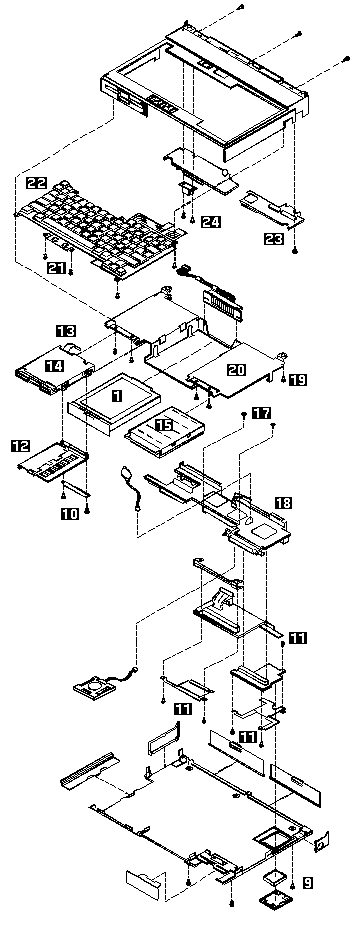
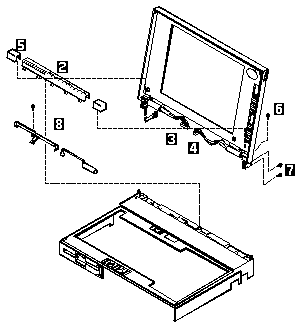
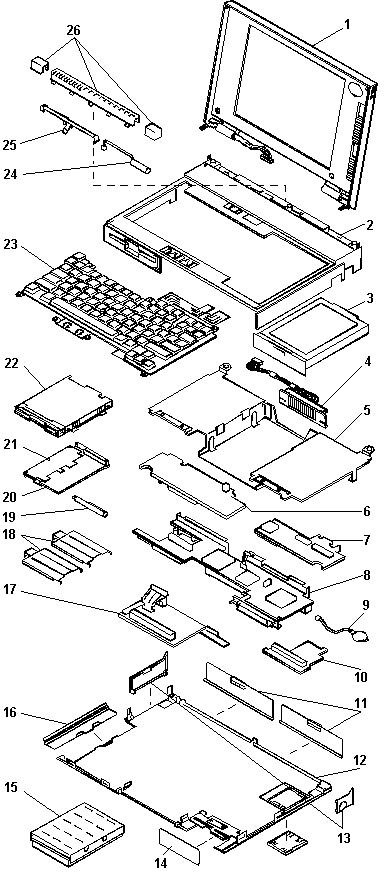
ThinkPad 700 Exploded View #

d2na5005 

d2na5007

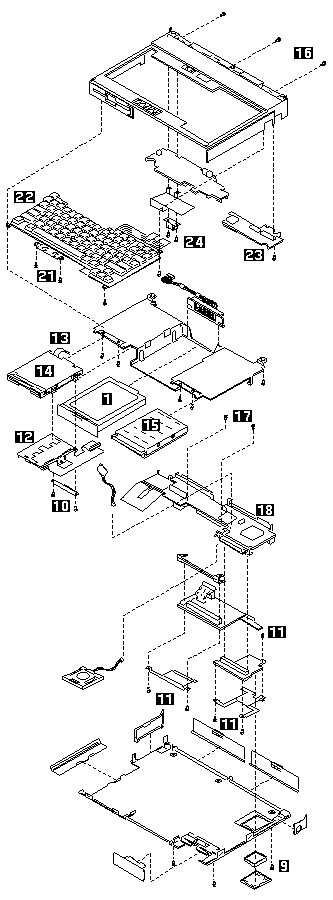
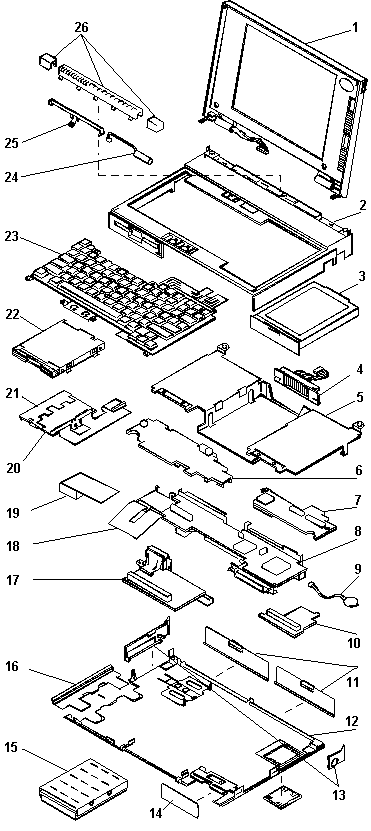
ThinkPad 720 , 720C Exploded View #

d2na5045

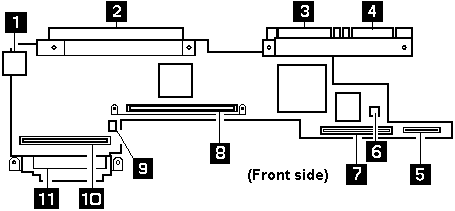
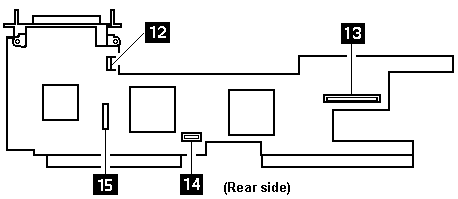
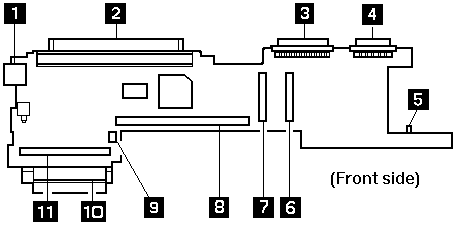
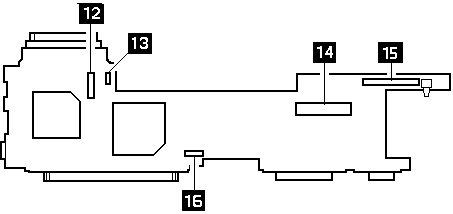
System Board — 1 #

d2na5010

d2na5015

1 External Input Device Connector

2 System-Expansion Connector (240-pin)

3 Parallel Connector

4 Serial Connector

5 Diskette Drive Connector

6 Password-override connector

7 Base Memory Card Interface

8 Video Card Interface

9 Backup Battery Connector

10 Processor Card Interface

11 Hard Disk Drive Connector

12 Speaker Connector

13 Voltage Converter Interface

14 System Status Indicator Connector

15 Keyboard Control Card Interface

System Board — 2 #

d2na5050

d2na5055

1 External Input Device Connector

2 System-Expansion Connector (240-pin)

3 Parallel Connector

4 Serial Connector

5 Password-override Connector

6 PCMCIA Connector

7 Base Memory Card Interface

8 Video Card Interface

9 Backup Battery Connector

10 Hard Disk Drive Connector

11 Processor Card Interface

12 Keyboard Control Card Interface

13 Speaker Connector

14 Voltage Converter Interface

15 Diskette Drive Interface

16 System Status Indicator Connector

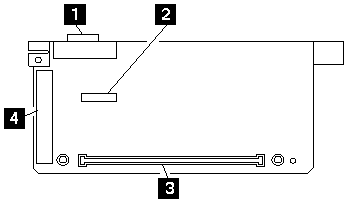
Video Card #

d2naf282

1 External Display Connector

2 LCD Connector

3 System Board Connector

4 Communication Adapter Connector

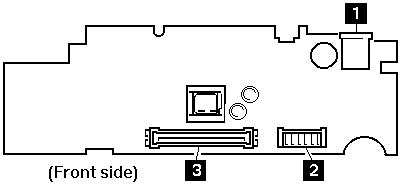
Voltage Converter #

d2naf340

d2naf341

1 Power Jack

2 Battery Pack Interface

3 System Board Interface

4 Standby Battery Connector

5 Suspend/Resume Switch

Checking the Voltage Converter — 1 #

Note: If the problem only occurs when using the computer with a good battery pack, replace the voltage converter.

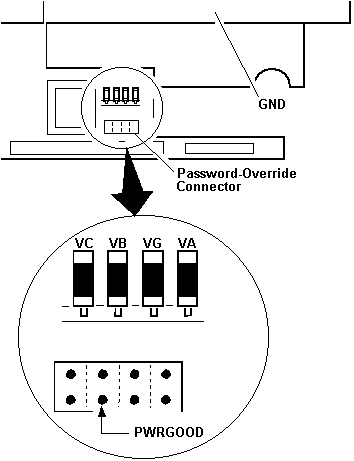
Note: Only VOLT is marked on the system board.  Use the above figure to locate the VA, VG, VB, VC, and PWRGOOD  signal names.

Checking the Voltage Converter (700, 700C)

Use the following procedure to isolate a problem with the ThinkPad 700, 700C voltage converter.

NOTE: If the problem only occurs when using the computer with a good battery pack, replace the voltage converter.

  1. Power-off the computer.- Power-off all attached devices and disconnect them from the computer.- Unplug the AC adapter cable and remove the battery pack  from the computer.- Carefully place the computer bottom-side up  and remove the bottom cover.- Plug the AC adapter cable into the computer.- Power-on the computer.
    • warn
    • Be careful not to actuate the suspend switch (located between the Esc key and
    • the LCD) during the operation. When you turn the computer upside down with
    • the LCD opened, put something under the computer to prevent accidentally
    • actuating the suspend switch.
    • - Check the voltages of the voltage converter on the system
    • board.
    Signal Vdc Min. Vdc Max.VA +4.75 +5.25VG +4.75 +5.25VB +4.75 +5.25VC +3.42 +3.78PWRGOOD +4.00 +5.25
    • d2nae081
    • NOTE: Only VOLT is marked on the system board.
    • Use the above figure to locate the VA, VG, VB, VC, and PWRGOOD
    • signal names.
    • - If all voltages are correct, the voltage converter is
    • operating correctly.
    • If the voltages are not correct, go to the next step.
    • - Power-off the computer and unplug the AC adapter cable
    • from the computer.
    • Check for a short circuit between
    • GND and VA, VG, VB, or VC.
    • - If there is a short circuit,
    • replace the following FRUs one at
    • a time to correct the problem.
    • Voltage converter
    • System board
    • - If there is no short circuit, go to the next step.
    • - Check the output voltage of the AC adapter cable
    • (see Checking the AC Adapter)
    • - If the output voltage is correct, go to the next step.
    • - Replace the following FRUs one at a time.
    • Voltage converter
    • System board

Checking the Voltage Converter — 2 #

Note:

  1. Make sure the suspend switch (located to the left above the keyboard)  is not activated during measurement of the voltage.- Only PG is marked on the system board.  Use the following figure to locate the VA, VG, VB, VA3, and VB3  signal names.

Checking the Voltage Converter (720, 720C)

Use the following procedure to isolate a problem with the ThinkPad 720, 720C voltage converter.

  1. Power-off the computer.- Power-off all attached devices and disconnect them from the computer.- Unplug the AC adapter cable, then remove the battery pack  from the computer.- Carefully place the computer bottom-side up  and remove the bottom cover.- Plug the AC adapter cable into the computer.- Open the LCD half-way, then stand the computer  on its front edges so that the suspend switch is not activated.- Power-on the computer.- Check the voltages of the voltage converter on the system board.
    • NOTE:
    • 1. Make sure the suspend switch (located to the left above the keyboard)
    • is not activated during measurement of the voltage.
    • Only PG is marked on the system board.
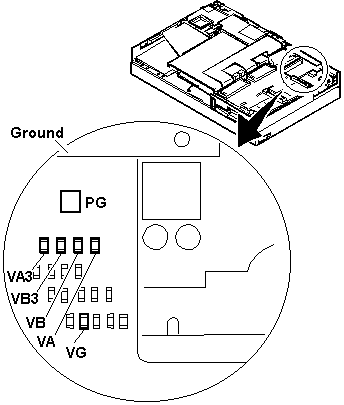
    • Use the following figure to locate the VA, VG, VB, VA3, and VB3
    • signal names.
    • d2na0745
    Signal Vdc Min. Vdc Max.VA +4.75 +5.25VG +4.75 +5.25VB +4.75 +5.25VA3 +3.42 +3.78VB3 +3.42 +3.78PWRGOOD +4.00 +5.25
    • If any voltage is not correct, go to step 9
    • If all voltages are correct, the voltage converter is
    • operating correctly. If the power problem did no reoccur, reconnect
    • the devices removed in step 2 to isolate a device problem.
    • If all the voltages are correct and the power problem still exists, replace
    • the following FRUs one by one.
    • System board
    • Processor card
    • - Power-off the computer and unplug the AC adapter cable
    • from the computer.
    • Check for a short circuit between Ground and VA, VG, VB, VA3 or VB3. The
    • following table shows which FRUs can cause a short at each signal.
    • - If there is a short circuit (less than 10 ohms), remove the FRUs indicated
    • one at a time until the short circuit disappears. Replace the FRU
    • causing the short circuit.
    FRU VA VG VB VA3 VB3Voltage converter x x x x Processor card x xSystem board x x x x xVideo card x x x xBase memory card x Keyboard control card x x Math coprocessor x xDiskette drive x Hard disk drive x LCD x Indicator assembly x x
    • - If there is no short circuit, replace the following
    • FRUs one at a time.
    • Voltage converter
    • System board

1060 Top Cover #

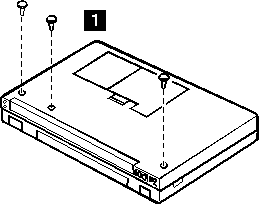
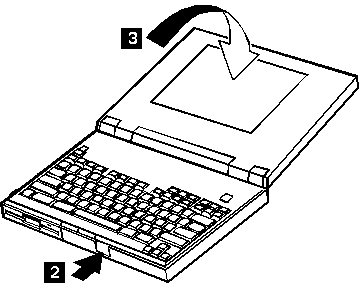
Note: Make sure you use the correct screw. Screw Size Chart

lark01

Step Location (Quantity) Length
1 Base cover (3) 12 mm

NOTE: Make sure you use the correct screw. Screw Size Chart

lark02

lark05